


Customer Story: Powering Multi-Platform Streaming with Advanced GPU Dedicated Server - A4000
"I'm part of Venom Agency, where we are developing and managing a multi-platform streaming service. Our goal is to help streamers with lower-end hardware broadcast smoothly across several platforms at the same time.
As part of this project, I began looking for a GPU-powered hosting solution that could offload the processing burden from my streamer's weak laptop. During my research, I came across Database Mart, and with the support team's help, I was able to secure a trial period to test whether a remote GPU server could handle real-time multi-streaming efficiently.
Below, I've provided detailed information about my setup process, software configuration, and overall experience using the Nvidia Quadro RTX A4000 server. I hope this feedback helps others who are considering a similar workflow."
Submitted by user "ber***t.ads1@gmail.com"
Application Scenario
I primarily use the server to support multi-platform live streaming because my streamer's local laptop isn't powerful enough to handle real-time broadcasting on multiple platforms. By switching to the Nvidia Quadro RTX A4000 GPU server, I can offload all the heavy tasks—such as video encoding, live communication, and running multiple browsers—directly to the remote server.
On the server, I run applications like OBS, Discord, Dolphin Anty, ChatVA, and several browsers at the same time to manage the full streaming workflow. Everything operates in real time, and since I'm using Windows, the setup was straightforward. Aside from installing VB Audio Cable and a few essential tools, I kept most configurations at their default settings.
Server Specifications
✅ CPU: Dual 12-Core Intel Xeon E5-2697 v2 (24 Cores Total)
✅ RAM: 128GB
✅ Storage: 240GB SSD + 2TB SSD
✅ GPU: Nvidia Quadro RTX A4000
✅ Microarchitecture: Ampere
✅ CUDA Cores: 6144
✅ Tensor Cores: 192
✅ GPU Memory: 16GB GDDR6
✅ FP32 Performance: 19.2 TFLOPS
✅ Bandwidth: 1Gbps
✅ Operating System: Windows
Deployment Process
Step 1: Accessing the Server
I began by logging into the control panel and connecting to the server via RDP using the credentials provided. After establishing the connection, I verified the hardware resources and confirmed that the Windows installation matched the plan specifications.Step 2: Installing Essential Applications
I then installed the main applications required for my workflow, including OBS, Discord, and Dolphin Anty. I downloaded each program from its official website and performed initial launch tests to make sure everything was functioning correctly.Step 3: Migrating My Own Program
Next, I transferred my team chat program from my local computer to the server using RDP's file transfer feature. Once copied, I tested it to ensure it worked properly in the server environment.Step 4: Installing Additional Dependencies
I installed VB Audio Cable and configured it in the Windows sound settings. I also checked the audio routing to verify that OBS could capture and output sound without issues.Step 5: Performing Basic Application Setup
To keep the setup simple, I left most application settings at their defaults. The only adjustments I made were the essential configurations in OBS, such as adding scenes and sources, without changing any advanced encoding or bitrate settings.Step 6: Initial Functionality Testing
Finally, I launched OBS and performed a short test stream or local recording to ensure the setup was working correctly. I also opened the other applications I use—Discord, ChatVA, Dolphin Anty, Chrome, and Brave—to simulate real usage. During this test, I monitored system performance to confirm that the server could handle running all applications concurrently.
Performance Review
During my testing, I evaluated the server's performance under real working conditions. I simultaneously ran OBS, Discord, Dolphin Anty, multiple browsers (Chrome and Brave), ChatVA, and my internal team chat program. Even with all these applications open, the server maintained stable performance without noticeable lag.
CPU and RAM usage stayed within acceptable levels, and the system responded smoothly when switching between tasks. OBS also operated without encoding delays during test streams and recordings. Network performance was consistent, with no interruptions or drops during connectivity-dependent tasks such as streaming and voice chat.
Network Performance
Ping Test
- Average Latency: ~140 ms
- Packet Loss: 0%
- Stability: Very consistent (140–141 ms)
The connection is stable with no packet loss. A 140 ms latency is typical for long-distance international routing and is acceptable for streaming, remote management, and general usage.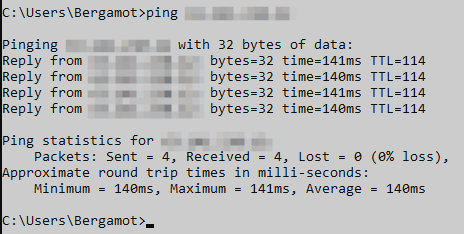
Speed Test
- Download: 801.43 Mbps
- Upload: 835.75 Mbps
The high upload speed is especially important for streaming and is performing exceptionally well.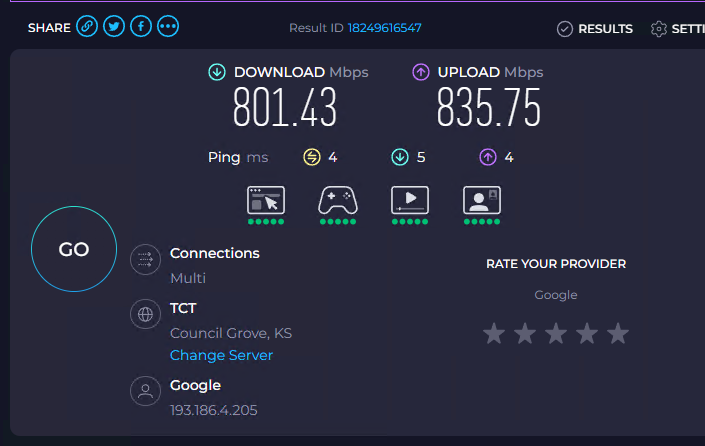
Reliability Evaluation
In terms of reliability, my server has been stable since deployment. It has been running continuously for about one day without any interruptions, crashes, or forced restarts. All applications—including OBS, Discord, Dolphin Anty, and multiple browsers—operated normally without freezing or unexpected shutdowns.
Although my ping to the U.S. server averages around 140 ms, this is expected due to the geographical distance from Ukraine and has not caused any critical performance issues during real-time communication or streaming tests. The network connection remained consistent, and I did not experience packet loss or instability.
Overall, the server demonstrated solid reliability during my initial usage period, maintaining stable uptime and predictable behavior under typical load. If needed, I’m confident it can support longer continuous operation for streaming and multitasking scenarios.
Resource Utilization (Under Load)
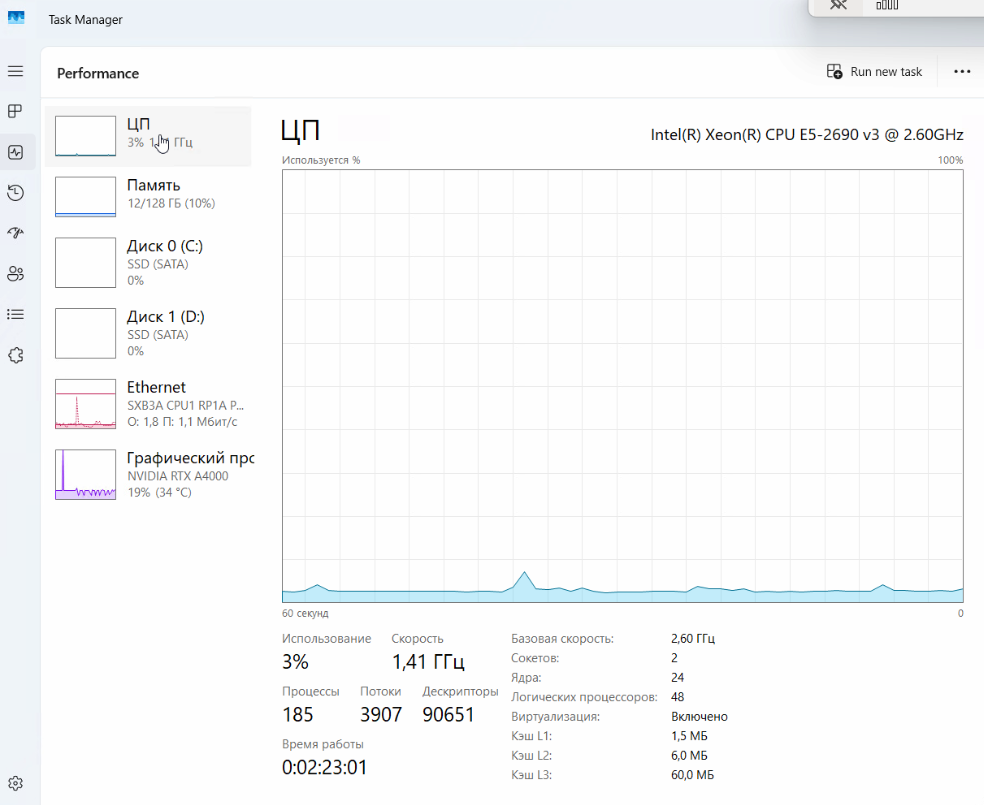
Application Performance Evidence
Optimization Tips
Since this was my first time using a GPU-enabled server for multi-streaming, most of my optimization efforts focused on establishing a clean and functional environment rather than performing advanced tuning. During the setup process, I learned that Windows activation and security configurations require manual handling, as certain applications may be blocked by Windows Defender until proper permissions or exclusions are applied. Although I have not yet optimized OBS or adjusted encoding parameters, the server's high hardware capacity ensured stable performance even without additional tuning.
Overall, the key takeaway is that ensuring correct system activation, configuring necessary security permissions, and maintaining a clean operating environment are essential steps for achieving smooth performance during early deployment.
Conclusion & Recommendations
Excellent Hardware Performance
- Equipped with an Nvidia Quadro RTX A4000, delivering strong GPU acceleration for real-time encoding and multi-streaming.
- High memory capacity (128GB RAM) provides sufficient headroom for running multiple applications simultaneously without performance degradation.
- Dual 12-core CPUs ensure smooth multitasking and stable system responsiveness under concurrent workloads.
Ideal for Multi-Streaming and Real-Time Workflows
- Perfectly supports OBS, Discord, Dolphin Anty, browsers, and additional utilities running at the same time.
- GPU usage, CPU load, and temperature remain extremely low, indicating strong capability for scaling to more streams or higher quality settings.
- Reliable for continuous real-time communication and live broadcast scenarios.
Outstanding Stability and Reliability
- No crashes or forced restarts during use.
- System maintains stable operation even under moderate multi-application load.
- Long-term uptime potential makes it suitable for production streaming environments.
Cost-Effective Compared to Alternatives
- Provides high-end GPU performance at a price point significantly more affordable than many other providers.
Why Choose DBM?
I was looking for a solution that would suit my needs. I found a lot of resources on ChatGPT, but at this point, it was the only one I found that was affordable enough. However, the plan I needed wasn't available; they offered me a more expensive, better option with a discount, and it was more than sufficient.
Deploy Your Own Version of This Use Case Now?
Advanced GPU Dedicated Server - A4000
- 128GB RAM
- GPU: Nvidia Quadro RTX A4000
- Dual 12-Core E5-2697v2
- 240GB SSD + 2TB SSD
- 100Mbps-1Gbps
- OS: Windows / Linux
- Single GPU Specifications:
- Microarchitecture: Ampere
- CUDA Cores: 6144
- Tensor Cores: 192
- GPU Memory: 16GB GDDR6
- FP32 Performance: 19.2 TFLOPS