


Customer Story: Building a Local LLM Environment with Affordable Basic GPU VPS - P600
"I am currently building a local LLM development and testing environment for Enigma Project Solutions, where our focus is on integrating large language models into everyday workflows and evaluating LLM-driven applications. Our goal is to create a flexible, self-hosted AI ecosystem that supports real-time interactions, automation pipelines, and on-premise experimentation across multiple tools and frameworks.
To ensure smooth operation and consistent performance, I needed a dependable and cost-effective GPU server that could support LLM inference, local model hosting, and multi-application workloads. After reviewing various providers, I chose Database Mart's NVIDIA Quadro P600 GPU VPS Server, which offered the ideal balance of stability, affordability, and ease of deployment for our early-stage LLM infrastructure."
Submitted by user "Si***@***gmaprojectsolutions.com"
Application Scenario
I use the NVIDIA Quadro P600 GPU VPS Server to build and run a complete local LLM ecosystem for my daily development and testing work. Through Docker and Docker Compose, I deploy multiple AI-related applications—such as Ollama, OpenWebUI, Open NotebookLM, n8n, Nginx, Open Manus, and LiteLLM—all running together in a self-hosted environment.
My main scenarios include real-time user interactions, LLM workflow integration, and testing different local AI tools side by side. On a typical day, I run about five applications concurrently for up to five active users, which allows me to quickly experiment, adjust configurations, and validate various LLM-driven workflows without relying on external cloud services.
Server Specifications
✅ CPU: 12 Cores
✅ RAM: 16GB
✅ Storage: 200GB SSD
✅ Bandwidth: 200Mbps Unmetered
✅ Operating System: Ubuntu
✅ Dedicated GPU: Quadro P600
✅ CUDA Cores: 384
✅ GPU Memory: 2GB GDDR5
✅ FP32 Performance: 1.2 TFLOPS
Deployment Process
To deploy my local LLM environment on the GPU server, I followed a straightforward but effective setup process.
- Step 1: Install Docker on Ubuntu
I started by installing Docker on my Ubuntu system, ensuring that the server had the necessary container environment for running multiple applications. - Step 2: Install Docker Compose
After Docker was ready, I installed Docker Compose to manage multi-container setups. This allowed me to organize all my applications in a single docker-compose.yml file. - Step 3: Prepare the Application Stack
I configured Docker Compose to deploy the applications I needed, including Ollama, OpenWebUI, Open NotebookLM, n8n, Nginx, Open Manus, and LiteLLM. - Step 4: Pull Images and Deploy Containers
Using Docker Compose, I pulled the official images from their repositories and launched all applications automatically through the compose file. - Step 5: Adjust Default Ports
Because several applications use overlapping ports, I modified their default port mappings to prevent conflicts while running all services simultaneously. - Step 6: Verify Application Operation
Once the containers were running, I verified that each application loaded correctly and responded as expected.
Performance Review
During my daily usage, the overall performance of the server has been stable and reliable. For typical workloads such as running local LLMs and managing multiple AI-related applications, the system performs well without crashes or unexpected interruptions.
When running local LLMs, I do notice slower responses, but this is mainly due to the limitations of the small GPU (Nvidia Quadro P600) rather than the server itself. Despite this hardware constraint, the server remains responsive and maintains consistent uptime.
The system has been running continuously for 10 days without interruption, and I have not experienced any crashes or situations requiring a forced restart. This stability has been valuable for my workflow, especially when testing multiple applications through Docker.
Network Performance
Ping Test
I ran a global Ping test using check-host.net, and the results were impressive:
- Most U.S. and European nodes showed extremely low latency, typically under 2 ms, including Los Angeles, Miami, Atlanta, the U.K., and Germany.
- Many Asian locations also performed very well, such as Tokyo at 1.4 ms, Hong Kong at 1.9 ms, and Singapore at 1.8 ms.
Overall, all global nodes reported 4/4 successful responses, with zero packet loss, demonstrating excellent routing quality and stable international connectivity.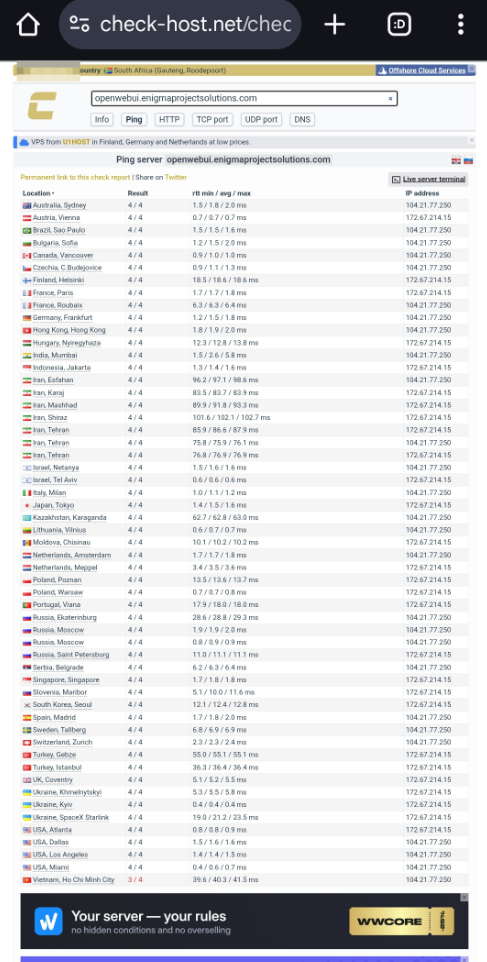
Speed Test
I also performed a Speedtest to the Johannesburg server, with the following results:
- Download: 122 Mbps
- Upload: 27 Mbps
- Ping: 26 ms
- Jitter: 2 ms
During daily usage, I can upload resources, sync project folders, and manage applications with almost no waiting time.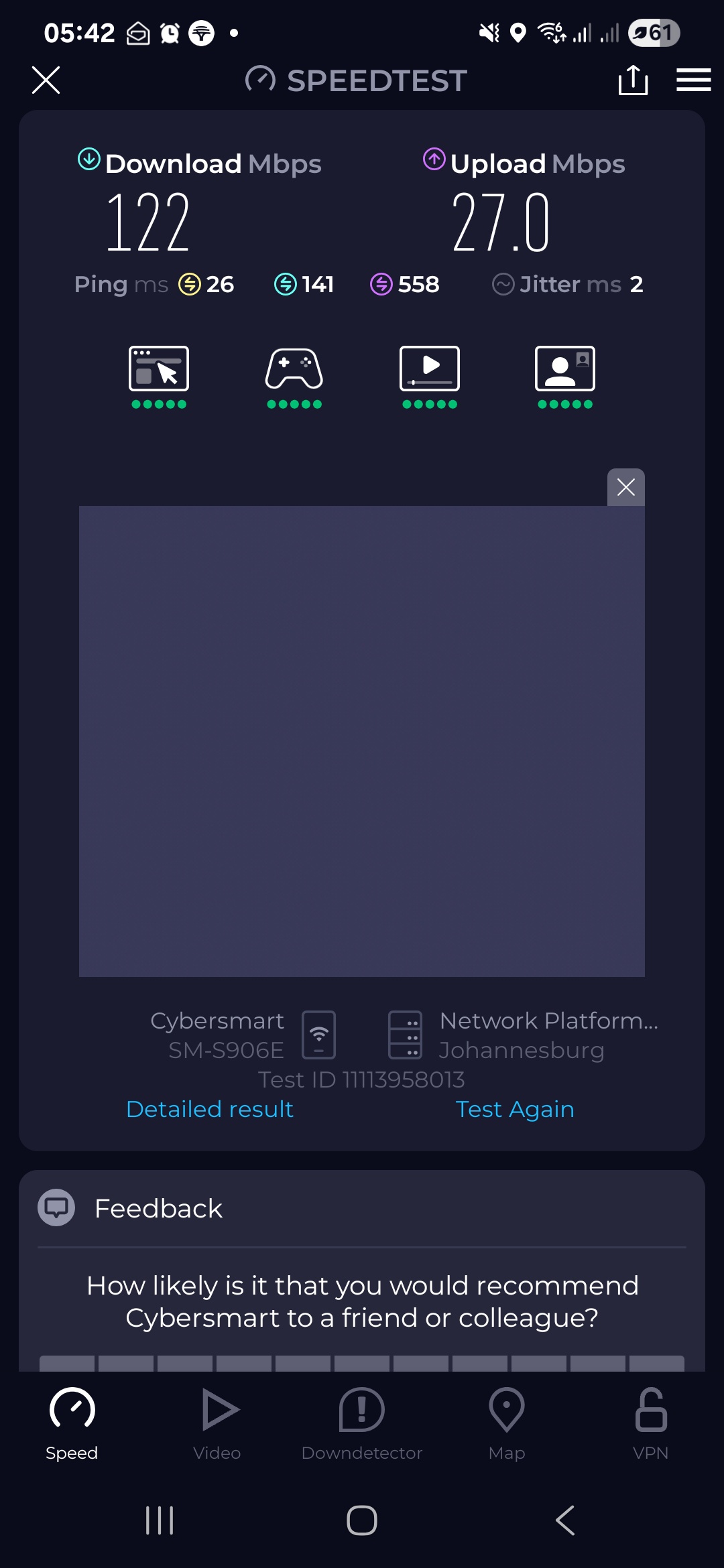
Reliability Evaluation
- Stable Operation: The server stays stable even when running 5 LLM applications with 5 users.
- No Crashes: I have never experienced any crashes or forced restarts.
- Continuous Uptime: The server has been running for 10 days without interruption.
- Consistent Behavior: No freezes, downtime, or unexpected issues occurred.
- Improved Reliability: After enabling auto-restart for Docker apps, all services run smoothly.
Resource Utilization (Under Load)
CPU Usage: ~3%
The system runs with very low CPU consumption, even when multiple LLM applications and services are active.Memory Usage: ~16.98%
RAM utilization remains efficient, leaving plenty of available memory for additional workloads or concurrent tasks.Disk Usage: ~56.54%
Storage usage stays moderate, with more than enough free space for application data, Docker images, and LLM models.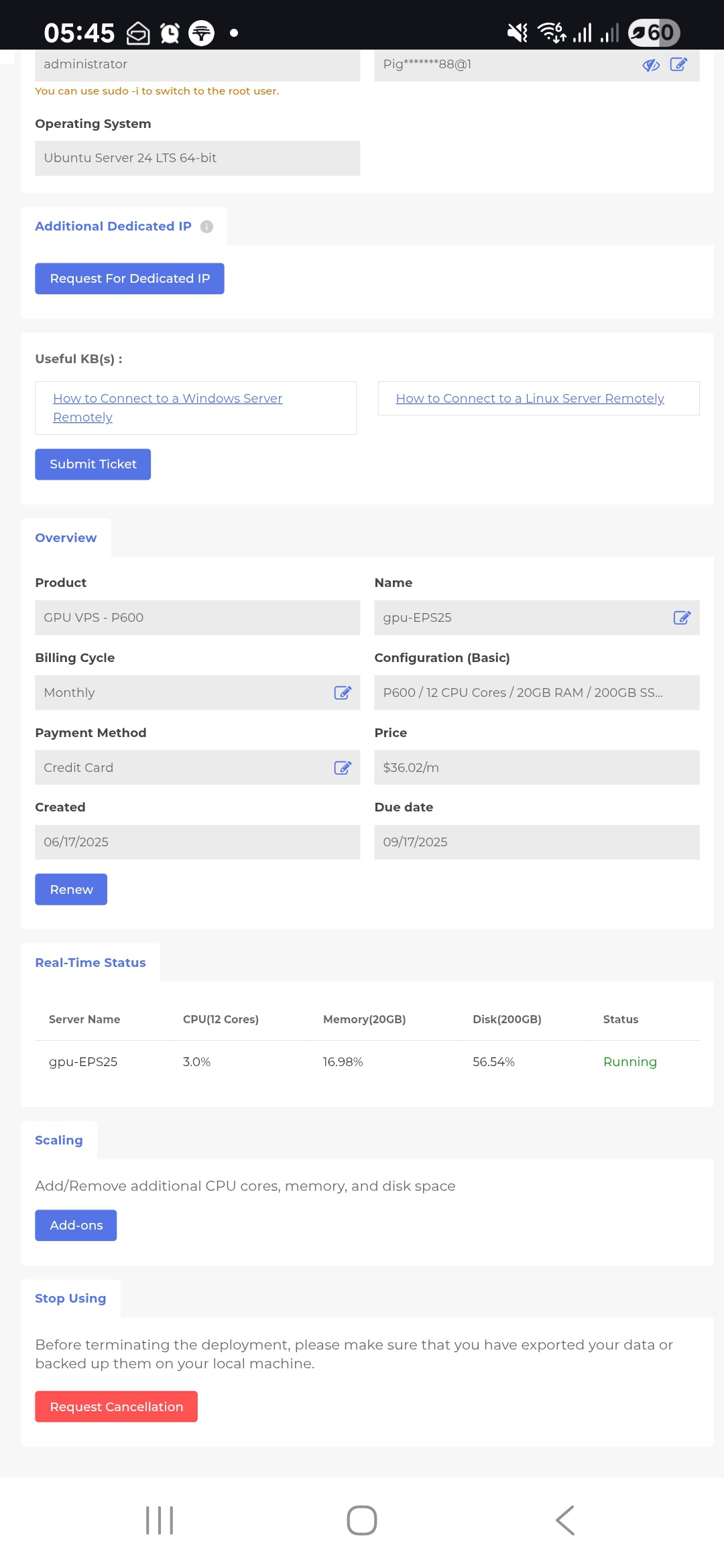
Application Performance Evidence
Optimization Tips
Set up automatic backups or request server snapshots
Regular backups prevent data loss and allow quick recovery if an application fails or the server experiences issues.Use Nginx for reverse proxy and load management
Configuring Nginx helps manage multiple applications, improves request routing, and provides better stability for concurrent users.Manage LLM APIs with LiteLLM
LiteLLM simplifies API management, reduces overhead, and ensures smoother interaction between multiple applications.Enable auto-restart for all applications
Some LLM applications may crash due to resource constraints or unexpected errors. Configuring auto-restart scripts prevents downtime and saves time troubleshooting.
Conclusion & Recommendations
From my experience using Database Mart's GPU VPS, I can confidently say it provides a stable and reliable environment for running multiple local LLM applications. Even with my small Nvidia Quadro P600 GPU VPS, I was able to run 5 concurrent users and applications without crashes or forced restarts. Performance is generally stable, though LLM workloads can feel slightly slow. Using auto-restart and API management tools like LiteLLM greatly improved usability and reduced downtime.
I highly recommend Database Mart for anyone who wants affordable, reliable GPU hosting for learning, testing, or integrating local LLM workflows.
Why Choose DBM?
At first, I was attracted by Database Mart's affordable GPU pricing, which made it ideal for learning and testing local LLM applications. After using their GPU server, I found it to be surprisingly stable and reliable, running multiple applications concurrently without crashes. The setup with Docker was straightforward, and their support team is always responsive and helpful.
Deploy Your Own Version of This Use Case Now?
Basic GPU VPS - P600
- 16GB RAM
- GPU: Nvidia Quadro P600
- Quad-Core Xeon E3-1230
- 120GB + 960GB SSD
- 100Mbps-1Gbps
- OS: Windows / Linux
- Single GPU Specifications:
- Microarchitecture: Pascal
- CUDA Cores: 384
- GPU Memory: 2GB GDDR5
- FP32 Performance: 1.2 TFLOPS