


How to Download an Issued SSL Certificate File in New Client Control Panel
Introduction
There are two ways to download the certificate file:
fiber_manual_record Download the SSL file provided in technical contact email
fiber_manual_record Download the SSL file from the Client Control Panel
fiber_manual_record Download the SSL file provided in technical contact email
fiber_manual_record Download the SSL file from the Client Control Panel
Method 1: Download the attached SSL file in the technical contact email
When the certificate is issued, the SSL file will be sent to your technical contact email account, which was created/ registered when you placed the new SSL order.
Here is an example of a technical contact email :
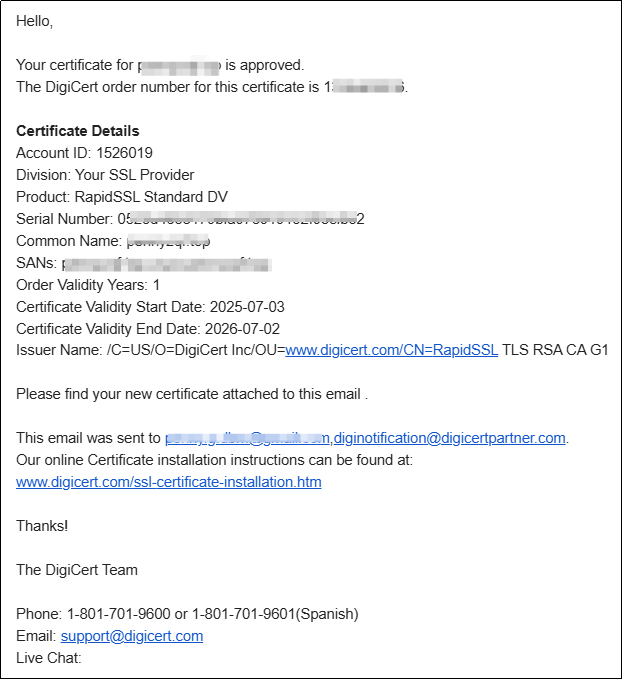
Please download the certificate file from the attachment.
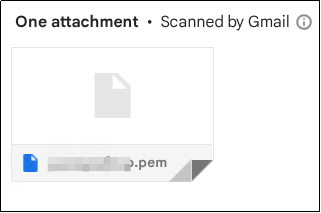
Note: The certificate file downloaded from email is a .pem file. If another format of the certificate file is needed, please follow the next step: Download the SSL file from the Client Control Panel.
Method 2: Download the SSL file from the Client Control Panel
2.1 Log in to the Client Control Panel and locate the SSL service
- Log in to the Client Control Panel (https://console.databasemart.com/).
- Click SSL > Manage. Choose the SSL service.
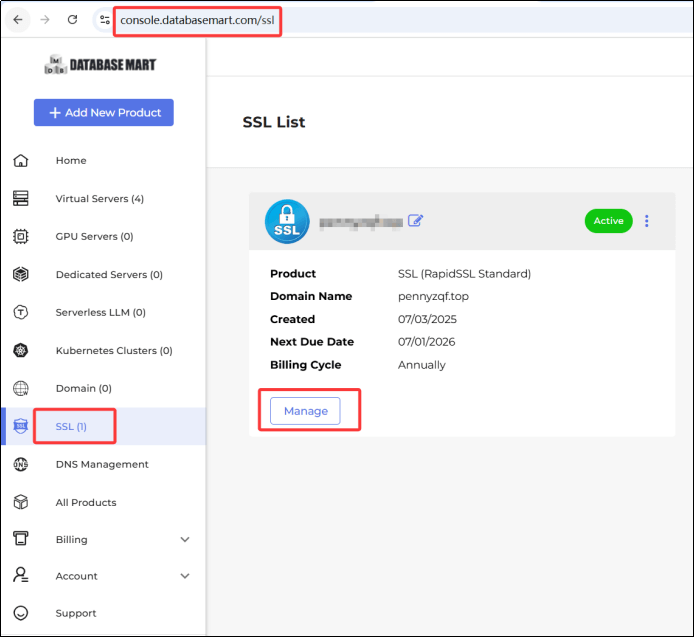
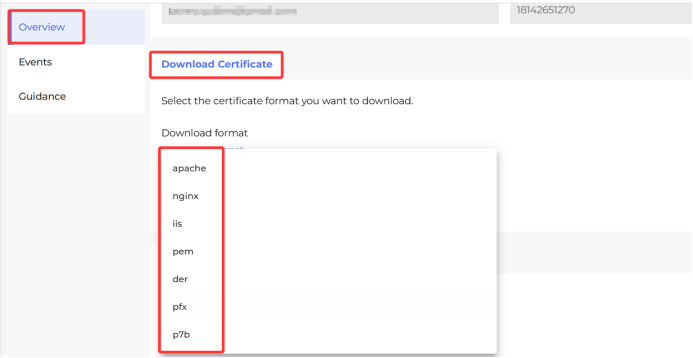
Scroll down the page to the bottom. Click Download Certificate.
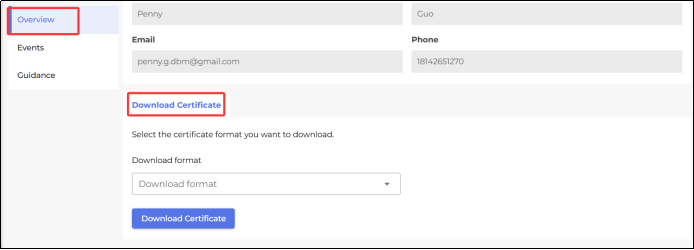
2.2 Download certificate
Download format: Select the certificate format you want to download.
3. The Next Step
To apply the SSL on Windows IIS, please refer to How to Apply an SSL on Windows IIS.
Outline