


How to Block Email Domain on MailEnable
Introduction
Blocking unwanted emails is an essential part of keeping your mailbox clean. If you’re tired of spam or irrelevant emails from a specific sender’s domain, MailEnable allows you to block the email domain easily. In this guide, we’ll walk you through every step to block emails from a domain in MailEnable. This tutorial is written for beginners, so even if you have no technical background, you can follow along without confusion.
Why Block Emails from a Domain?
When you block emails from a domain, all emails coming from that specific domain (like spamsite.com) are automatically filtered out. This helps you:
- Reduce spam and junk emails
- Protect your email account from phishing attempts
- Keep your inbox clean and organized
Steps to Block Email Domain in MailEnable
Step 1: Open MailEnable
First, launch the MailEnable Admin Console on your Windows Server. This is where you manage your mail services, domains, and mailboxes.
Step 2: Select Your Email Domain
In the left panel, expand Messaging Manager → Post Offices → Domains and choose the domain name you want to protect.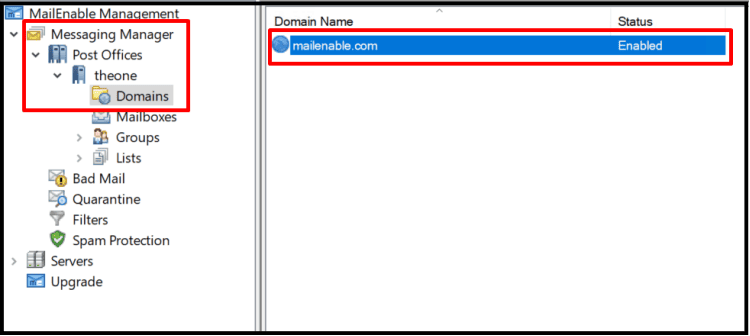
For example, if your business domain is yourcompany.com, select it here.
Step 3: Add the Domain to the Blacklist
3.1 Open Domain Properties
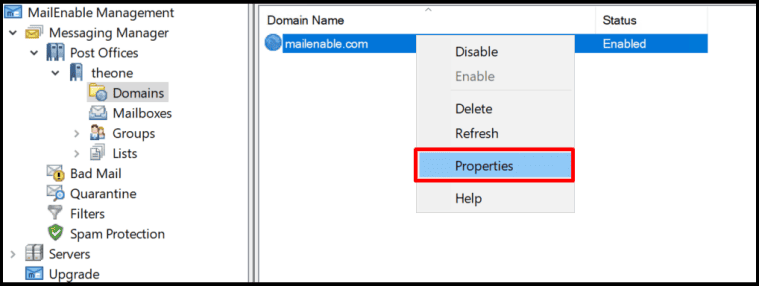
- Right-click on your selected email domain
- Click on Properties
3.2 Add the Domain You Want to Block
- Go to the Blacklist tab (or related section depending on your version)
- Click Add
- Enter the domain name you want to block (e.g.,
spamsite.com)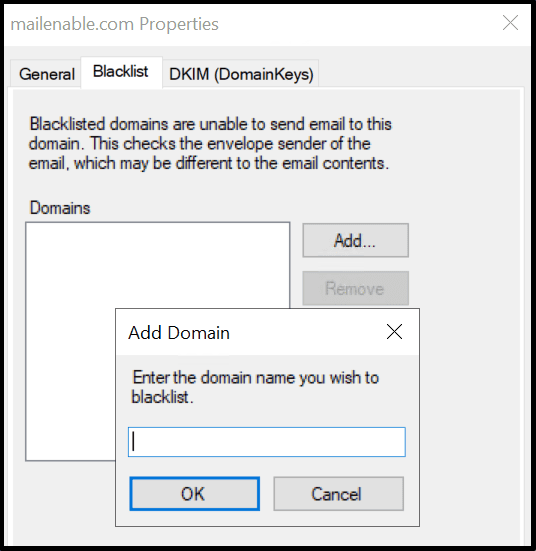
3.3 Save the Settings
- Press Ctrl + S or click Apply → OK to save your changes.
Now, all incoming emails from the blocked domain will be automatically filtered and won’t reach your users.
Once you block emails from a domain, try sending a test email from that domain (if possible). You should see that the email is either blocked or filtered as expected.
Tips for Blocking Domains Effectively
- Gmail block email domain → If you’re constantly receiving spam from Gmail-based domains, you can add that domain (e.g.,
@spammail.gmail.com) to the blacklist. - Outlook block domain → Works the same way. Simply add the Outlook domain to stop unwanted mail.
- Block domain Yahoo Mail → Add
yahoo.comor a specific Yahoo subdomain to the blacklist. - Block all email from a domain → By adding just
spamsite.com, all addresses under it (user1@spamsite.com,info@spamsite.com) will be blocked.
Conclusion
With MailEnable, it’s very easy to block domain senders and prevent spam from cluttering your mailbox. Whether you want to gmail block emails from domain, outlook block domain, or block domain Yahoo mail, the process is straightforward and effective.
By following the above guide, you’ll now know how to:
- Open MailEnable and select your email domain
- Add domains to the blacklist
- Save and verify your settings
This ensures that unwanted senders can no longer disturb your email workflow.
block domain, block domain gmail, outlook block domain, gmail block email domain, gmail block emails from domain, block email domain, block all email from a domain, block domain yahoo mail, block emails from a domain