


How to Change the Administrator Password on Windows Server
Introduction
Changing the Administrator password is an important security step for protecting your server or system. This guide explains, step by step, how to change Administrator password on different versions of Windows Server (2012R2, 2016, 2019) and Windows 10/11. The instructions are beginner-friendly and include all details you need to follow along.
Reset Admin Password on Windows Server 2012R2
Step 1: Log in via Remote Desktop
Connect to your server using Remote Desktop Connection.
Step 2: Open Computer Management
- Right-click the Start button.
- Select Computer Management from the menu.
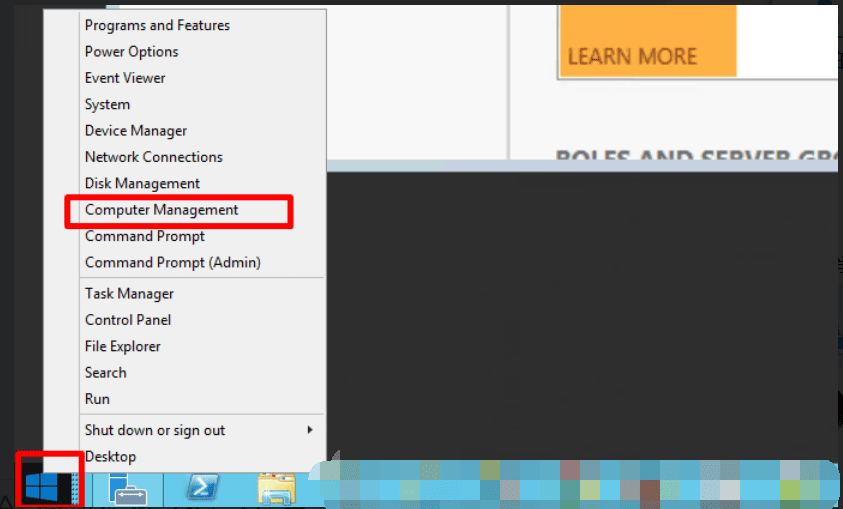
Step 3: Navigate to Users
- In the left panel, expand Local Users and Groups.
- Click Users.
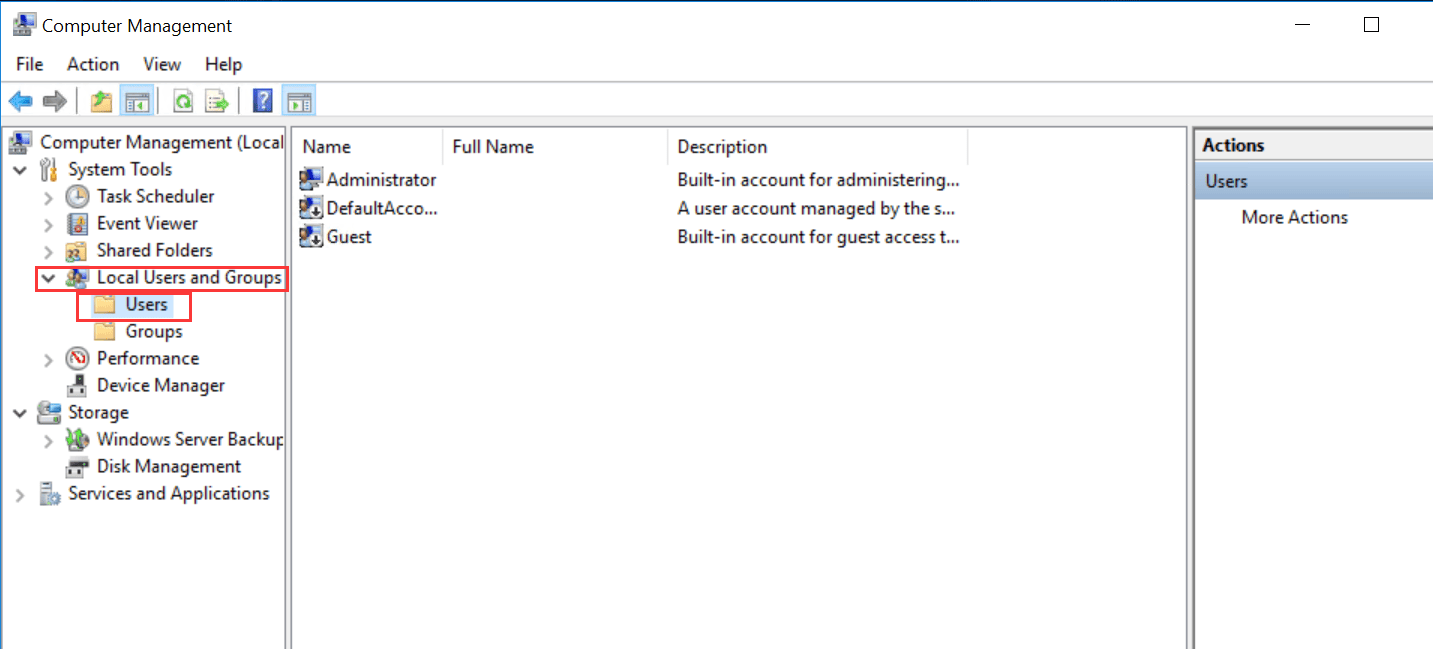
Step 4: Reset Administrator Password
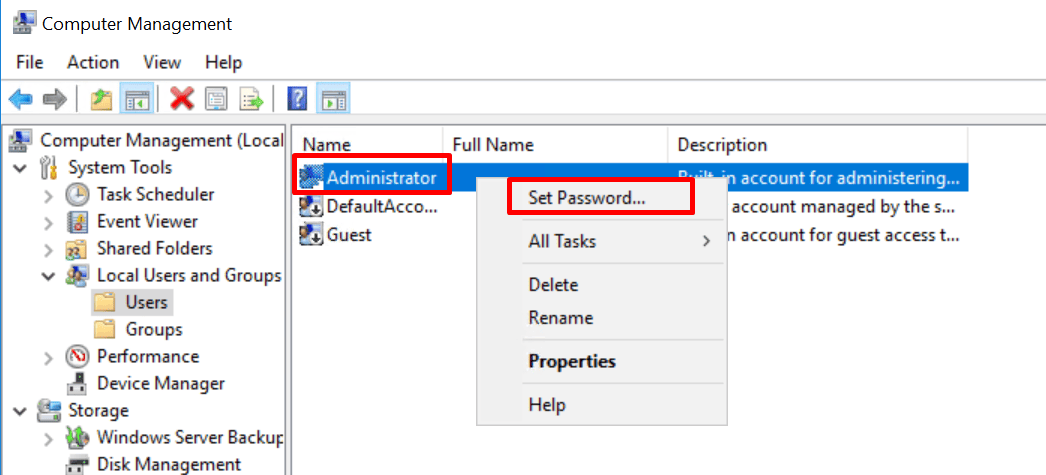
- Right-click Administrator and select Set Password.
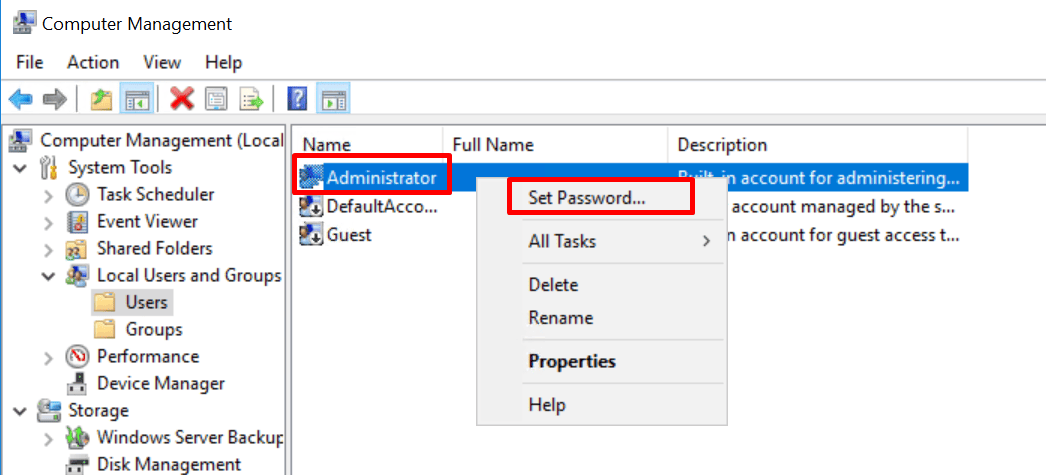
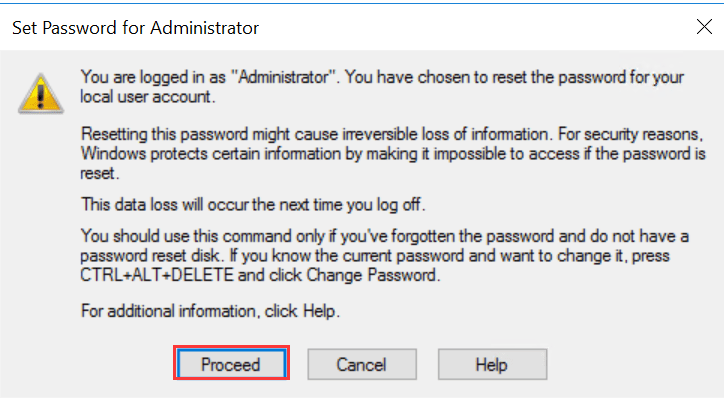
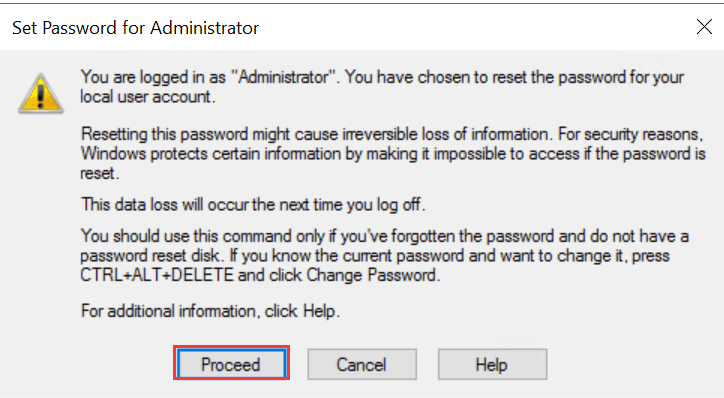
- A warning window will pop up. Click Proceed.
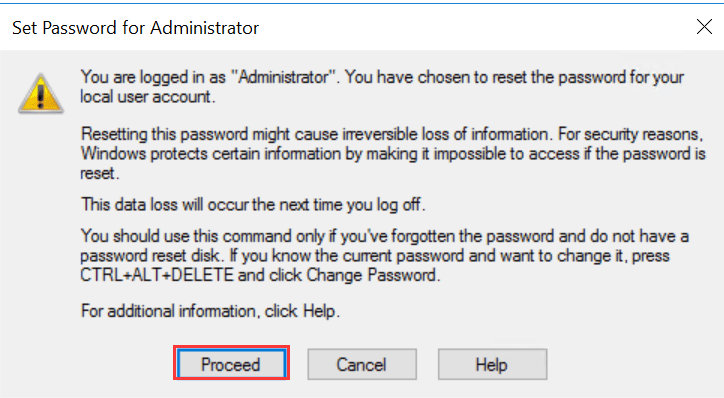
Step 5: Enter the New Password
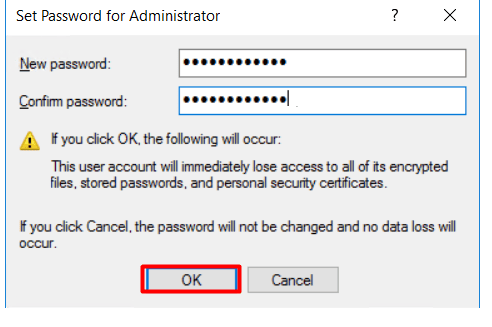
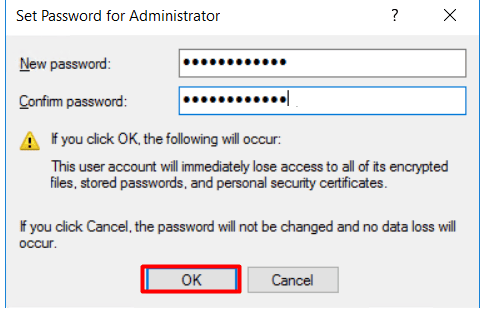
- Type the new password.
- Confirm it by typing again.
- Click OK.
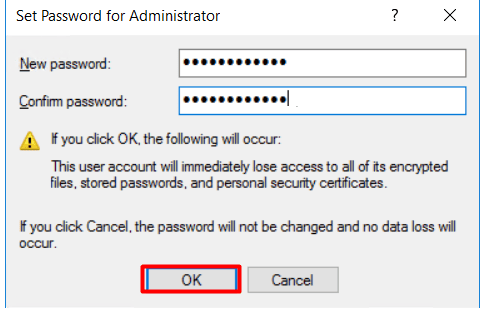
Your Administrator password has now been updated.
Change Admin Password on Windows Server 2016/2019
Step 1: Log in via Remote Desktop
Connect to your server using RDP.
Step 2: Open Computer Management
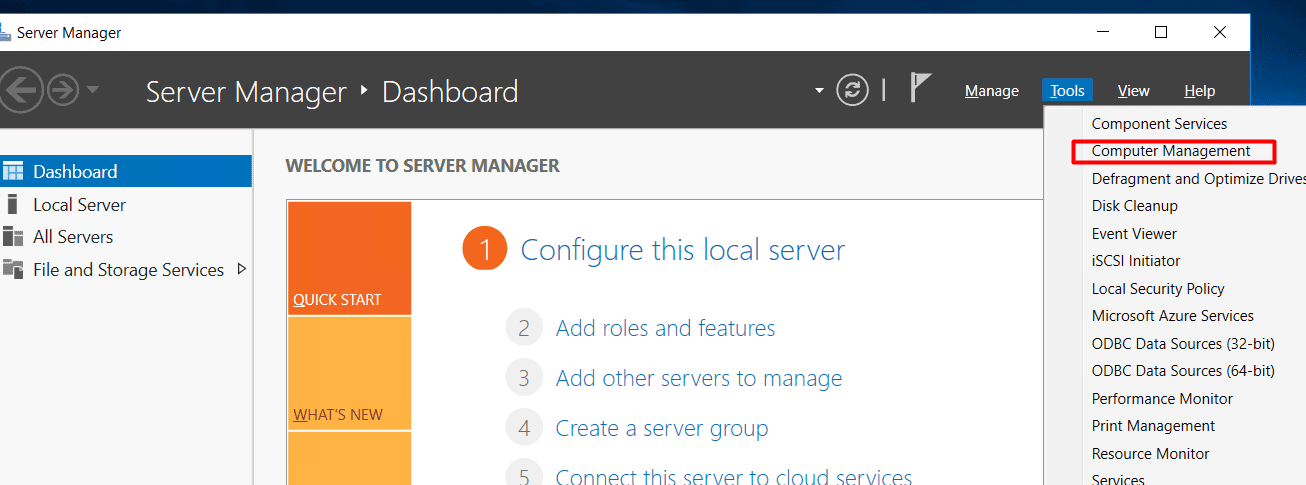
- Open Server Manager.
- At the top-right corner, click Tools.
- Select Computer Management.
Step 3: Same Steps as Windows Server 2012R2
- Expand Local Users and Groups > Users.
- Right-click Administrator → Set Password.
- Confirm the warning → Enter and confirm new password → Click OK.
The password is changed successfully.
Change Admin Password on Windows 10
Step 1: Log in via Remote Desktop
Connect to the server, and log in.
Step 2: Open Computer Management
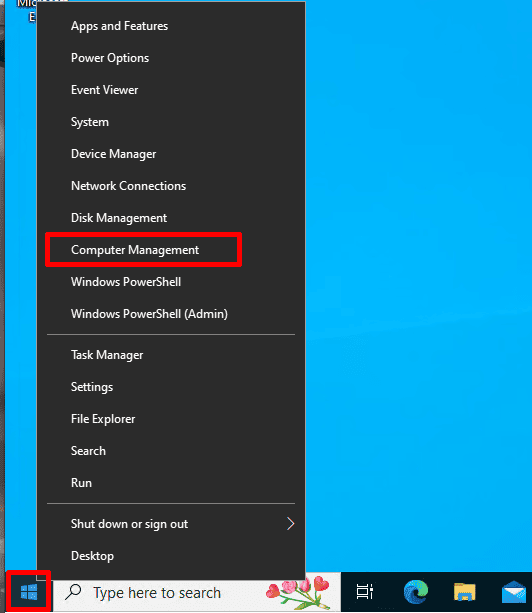
- Right-click the Start button.
- Select Computer Management.
Step 3: Change the Password
- Expand Local Users and Groups → Users.
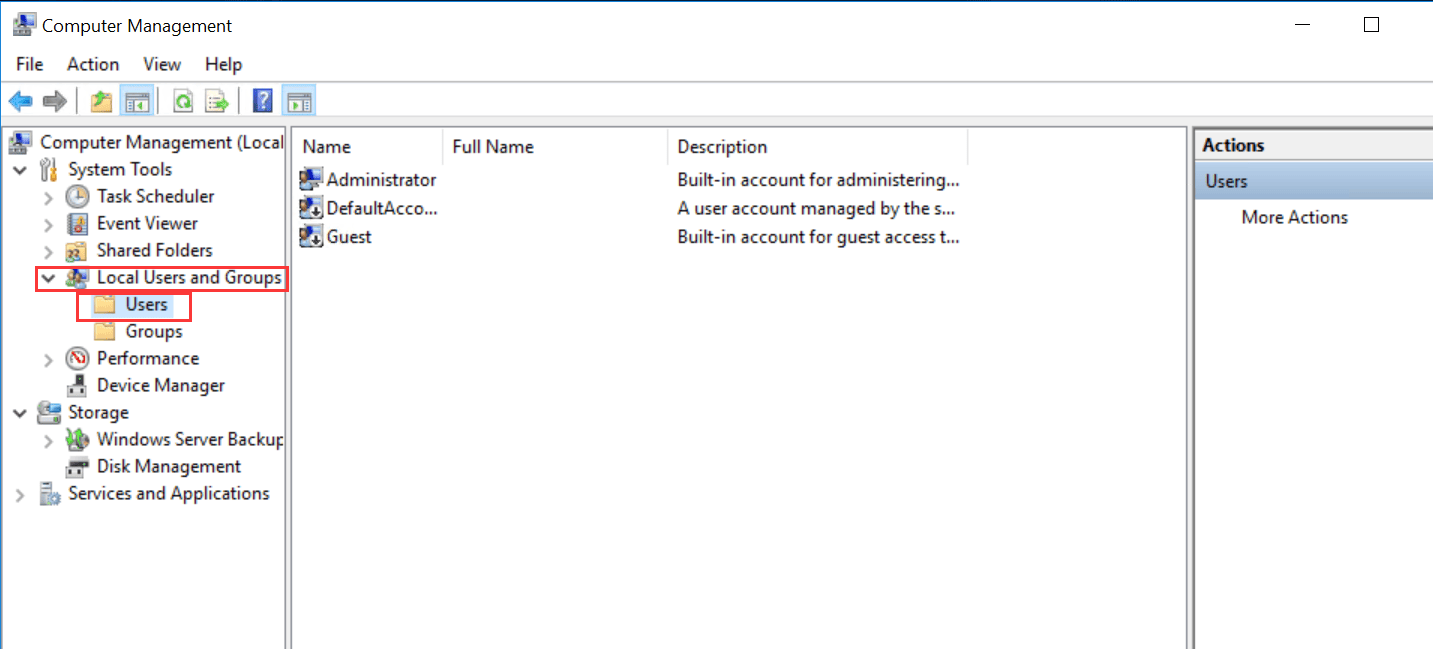
- Right-click Administrator → Set Password.
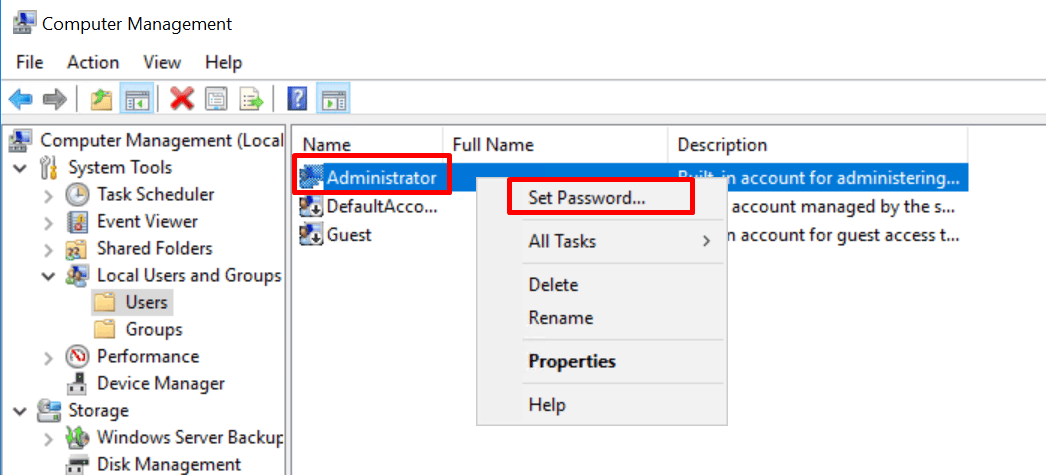
- Confirm the warning → Enter and confirm the new password → Click OK.
Done. Your Windows 10 Administrator password has been updated.
Change Admin Password on Windows 11
The steps are almost identical to Windows 10.
- Log in via RDP.
- Right-click Start → Computer Management.
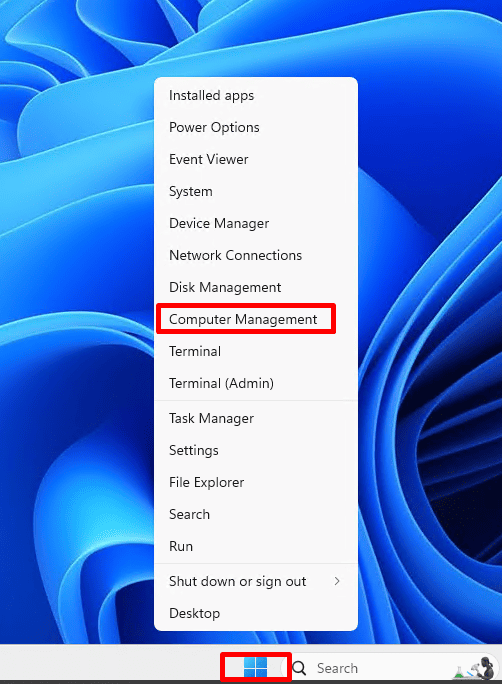
3. Expand Local Users and Groups → Users.
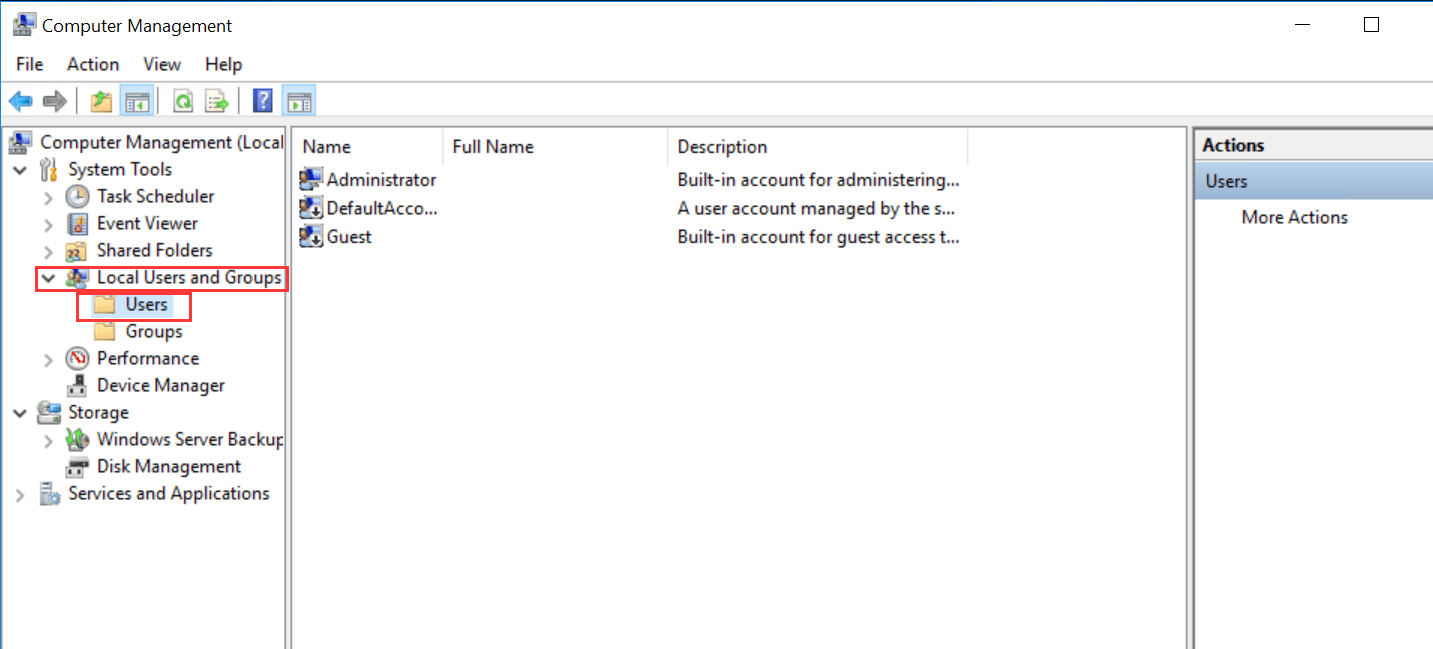
4. Right-click Administrator → Set Password.
5. Click Proceed on the warning.
6. Enter and confirm new password → OK.
Password successfully changed.
Password Recommendations
- Do not use the same or a similar password as your email or other accounts
- Use a strong password with a minimum of 10 characters, combining uppercase letters, lowercase letters, numbers, and multiple special characters.
- Avoid weak passwords related to your company name, domain name, date of birth, or other easily guessed information