


How to Change Linux User Password
This guide will show beginners how to change Linux user passwords using the `passwd` command in the terminal.
Step 1: Log in as Root or Administrator
To change another user’s password, you need root privileges.
sudo -i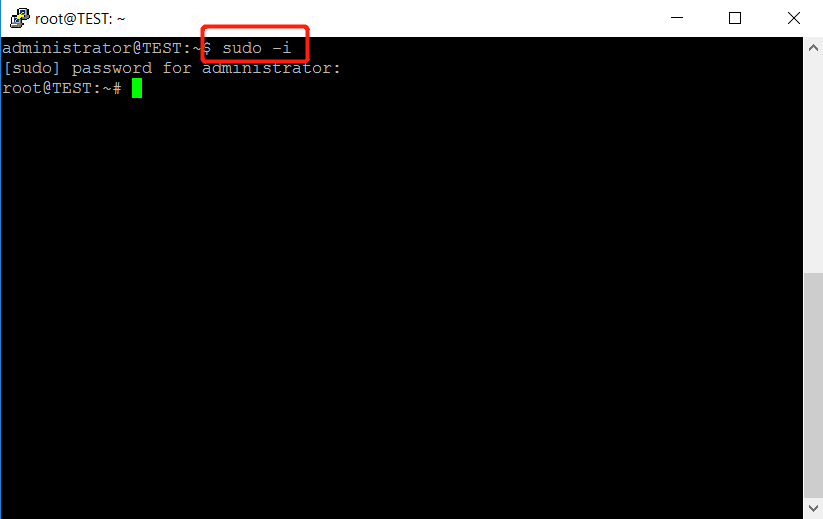
Enter your administrator password when prompted.
If you’re already logged in as root, you can skip this step.
Step 2: Use the passwd Command
The passwd command is the standard way to change a password in Linux.
Change the password for a specific user:
passwd usernameExample:
passwd root
passwd administrator
This will update the password for the root or administrator account.
Change the password for the current user:
passwdYou’ll be prompted to enter the new password twice to confirm.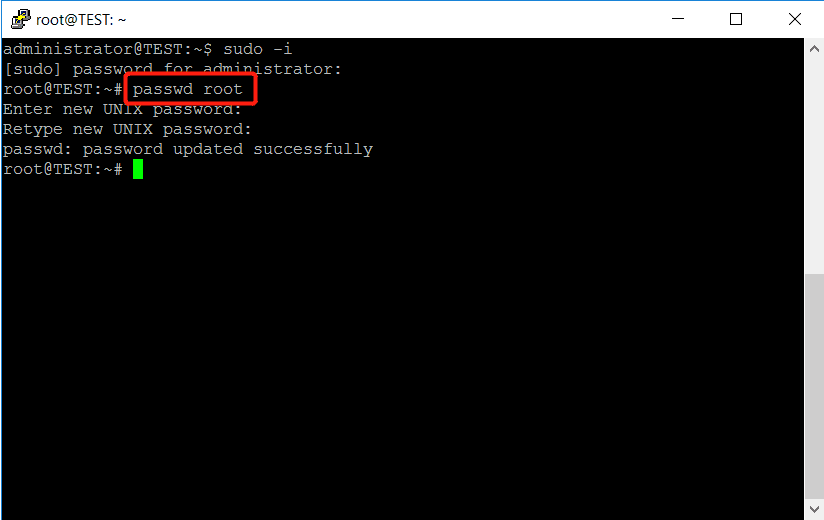
Step 3: Verify the Password Change
Log out of the server and reconnect using the new password to make sure the change was successful.
Extra Tips for Linux Password
- Reset forgotten Linux password: If you’ve lost your root password, you can boot into single-user mode or use recovery mode to reset it.
- Linux password policy: Consider enforcing strong passwords for better security.
- Linux server user management: You can combine
passwdwith commands likeuseraddandusermodfor full control over accounts. - passwd command in Linux with examples:
passwd username→ change another user's password.passwd→ change your password.passwd -l username→ lock a user account.passwd -u username→ unlock a user account.
change linux user password, forgotten password ubuntu, linux root password change, reset linux password, linux password management, linux passwd command, linux password policy, how to change password on linux server, linux terminal change password, change password for another user linux, linux administrator password reset, passwd command in linux with examples, change current user password linux, linux server user management, reset forgotten linux password