


How to Change SSH Port in Linux
In this tutorial, we’ll explain how to change the SSH port on Ubuntu, Debian, and CentOS systems, step-by-step, so even beginners can follow.
Why Change the SSH Port?
Changing the SSH port can:
- Reduce automated brute-force attack attempts.
- Improve basic SSH security as part of your server hardening strategy.
- Make your server less visible to malicious bots scanning for open port 22.
Steps to Change SSH Port in Linux
Step 1: Log in to the Server
Before making any changes, log in to your Linux server using your current SSH port (default is 22).
For Ubuntu, switch to the root user with:
sudo -iStep 2: Edit the SSH Configuration File
The SSH configuration file is located at:
/etc/ssh/sshd_configOpen it with the vi editor (you can also use nano if preferred):
vi /etc/ssh/sshd_configInside the file:
- Search for the line containing Port by typing:
/Port- Uncomment the line by removing the
#at the beginning. - Change the port number to a value between 1024 and 65535 (e.g., 15678).
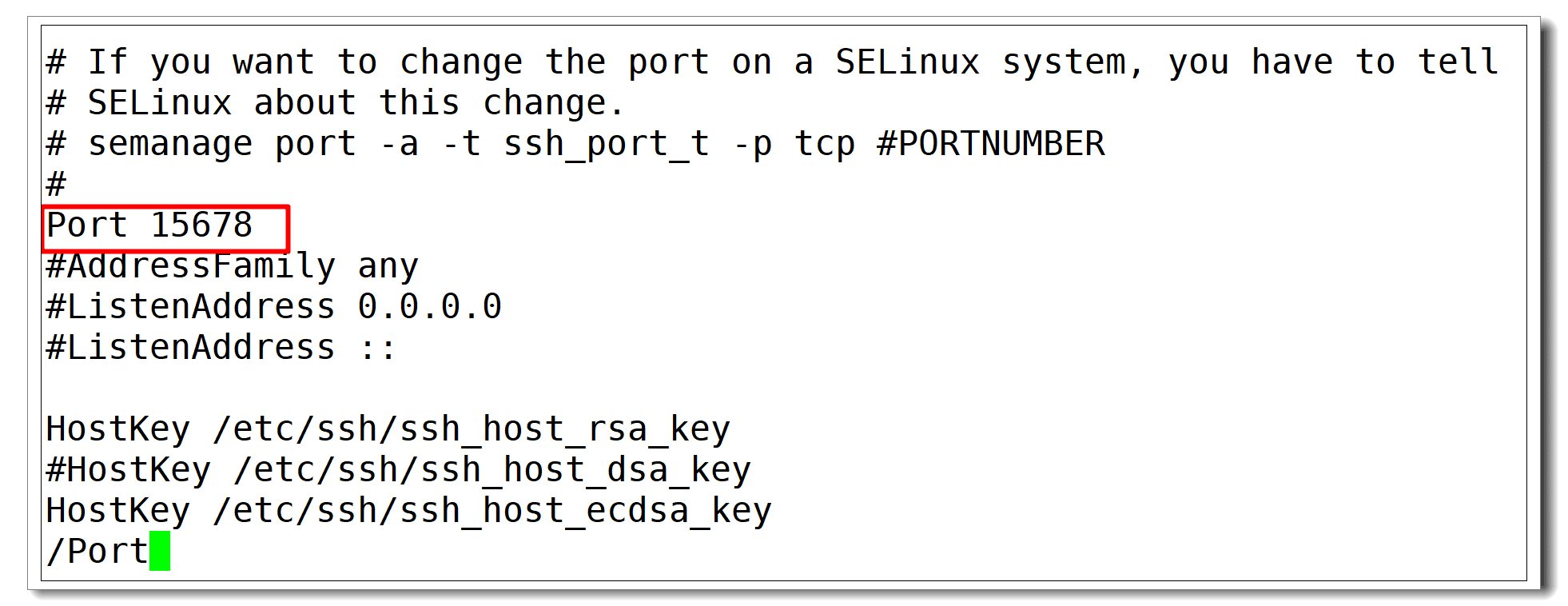
Example:Port 15678
Step 3: Save and Exit
In vi, save changes and exit by typing:
:wq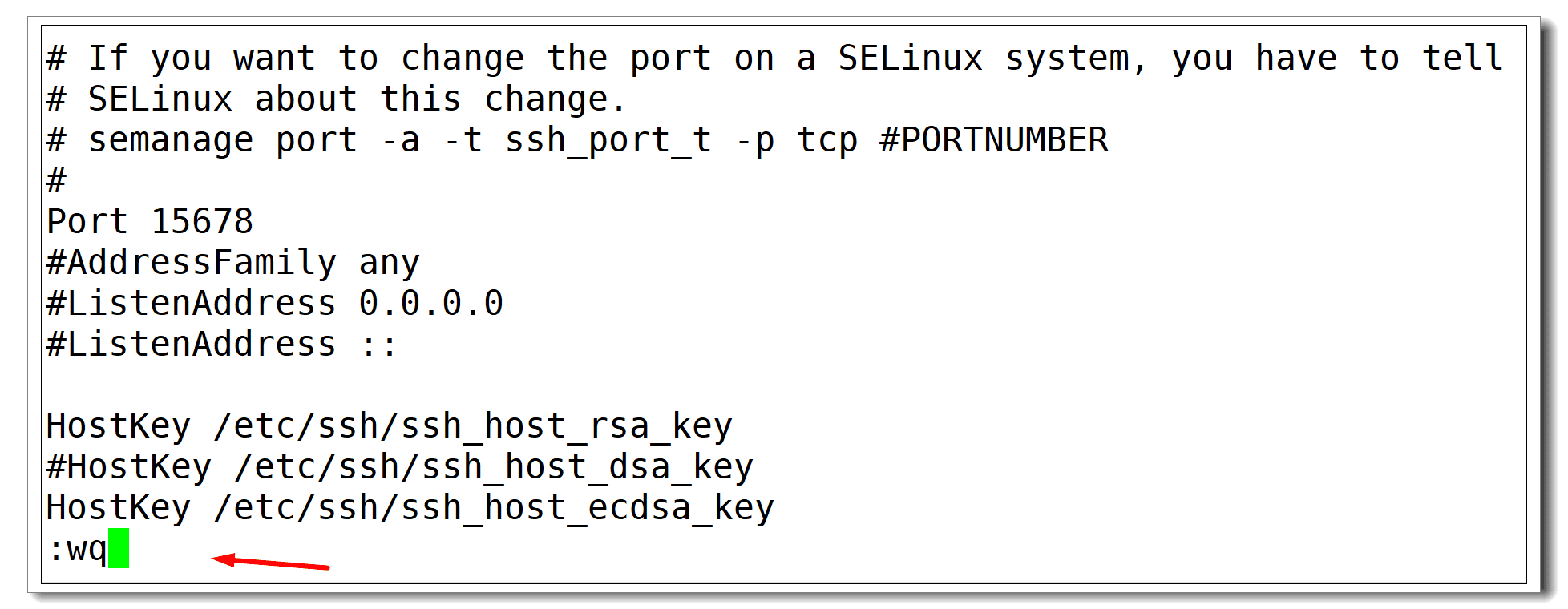
Step 4: Restart the SSH Service
For the change to take effect, restart the SSH service.
- Ubuntu/Debian:
service sshd restartor
systemctl restart ssh- CentOS 7/8:
systemctl restart sshd
Step 5: Log in Using the New SSH Port
After changing the port, your current SSH session may disconnect. To log back in:
ssh -p 15678 username@your_server_ipAdditional SSH Security Tips
Changing the SSH port is a good start, but for stronger SSH hardening, you should also:
- Disable root login (PermitRootLogin no in sshd_config).
- Use SSH key authentication instead of passwords.
- Configure a firewall to allow only the new SSH port.
change ssh port, change ssh port ubuntu, ssh service restart, ssh security, ssh hardening, how to change ssh port, change ssh port debian, change default ssh port, change ssh port linux, change ssh port ubuntu 22.04, change ssh port ubuntu 22.04, secure ssh server, change ssh port centos 7, change ssh port centos, ssh port configuration