


VPS Security: How to Check if a Windows Server is Hacked
Introduction
When managing a Windows Server, one of the most important responsibilities is server security. Whether you are using a VPS, a dedicated server, or a cloud server, you need to know how to detect if your server has been compromised. Hackers often create hidden accounts, run malicious processes, or open backdoors in firewalls.
This step-by-step guide will show you how to identify suspicious activity and apply Windows Server antivirus scans to protect your server and improve VPS and cloud server security.
Why Server Security Checks Are Important
Many administrators only investigate server security issues after something goes wrong. However, proactive monitoring is much more effective. Here’s why you should regularly check your Windows Server:
- Prevent data breaches – Early detection of hidden users or malware helps you protect sensitive business data.
- Ensure server performance – Malicious processes like cryptominers can slow down your VPS or cloud server.
- Protect your reputation – Compromised servers are often used to launch spam or phishing attacks, damaging your business's credibility.
- Reduce downtime – Security problems can lead to outages. Regular monitoring helps prevent sudden disruptions.
- Compliance requirements – Many industries require regular server security checks to meet data protection standards.
In short, regularly checking your Windows Server security is one of the most effective ways to protect your server, improve VPS security, and strengthen overall cloud server security.
Step-by-Step Guide to Check Server Security
Step 1: Check for Hidden or Abnormal Users
Hackers often create hidden accounts to maintain access.
- Open Computer Management → Local Users and Groups.
- Review the list of users and groups.
- If you see strange names with symbols like
$, random numbers, or gibberish text, they may be hidden hacker accounts.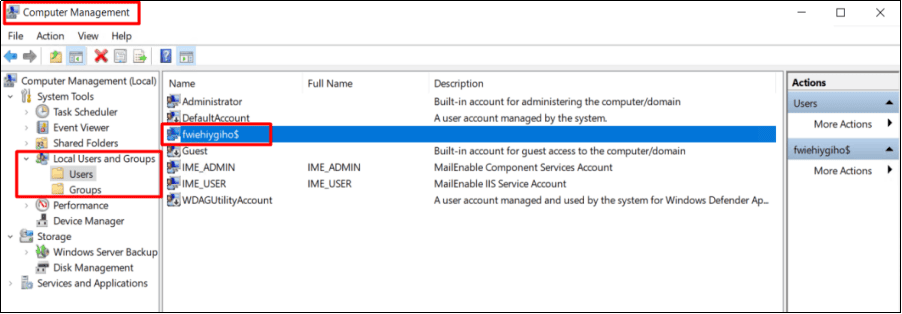
- If you see strange names with symbols like
- Delete any suspicious or abnormal users/groups immediately.
This step is crucial for server protection, as unauthorized accounts are a common sign of a hacked server.
Step 2: Check for Abnormal Processes
Malicious processes often run in the background to steal resources or data.
2.1 High CPU or Memory Usage
- Open Task Manager.
- Sort by CPU or Memory usage.
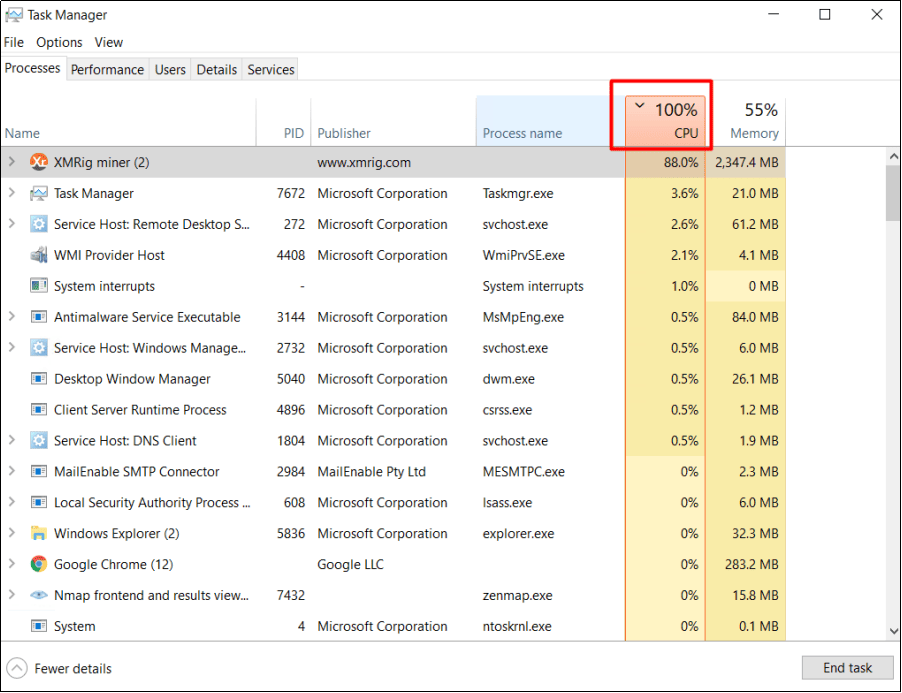
- Look for unusual processes such as
xmrig.exe(commonly used for illegal cryptocurrency mining).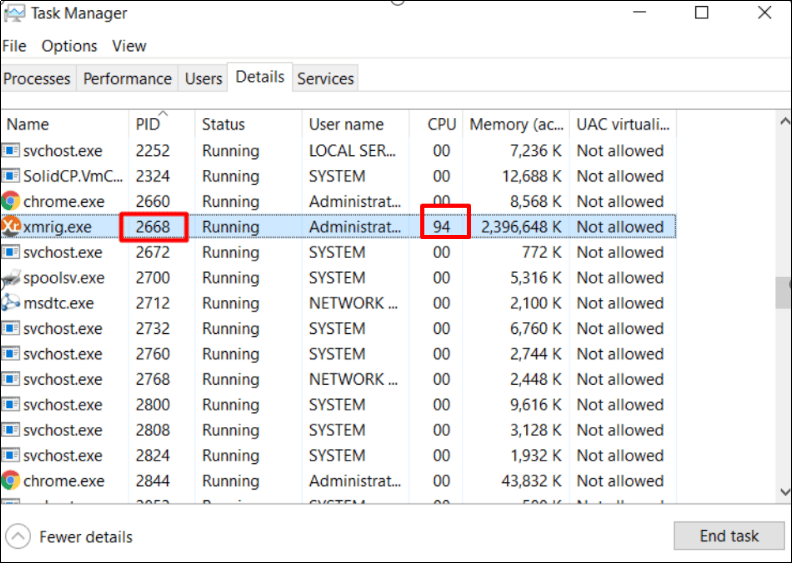
2.2 Suspicious Publishers
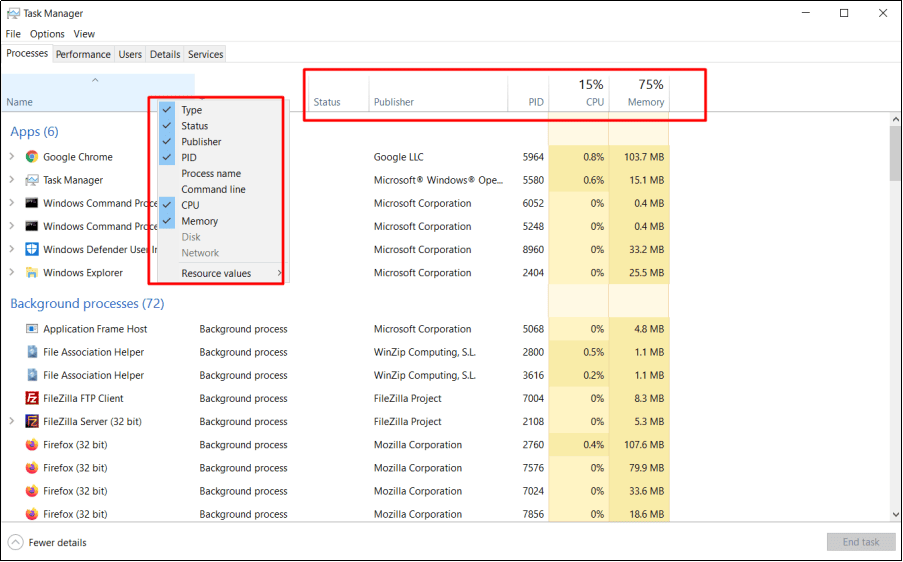
- In Task Manager, right-click the column header and enable Publisher.
- Look for processes without a trusted publisher.
2.3 Abnormal Connections
- Open Command Prompt and run:
netstat -ano- Look for many connections from the same PID.
- Run:
tasklist | findstr "PID"(replace PID with the actual number) to identify the program using that connection.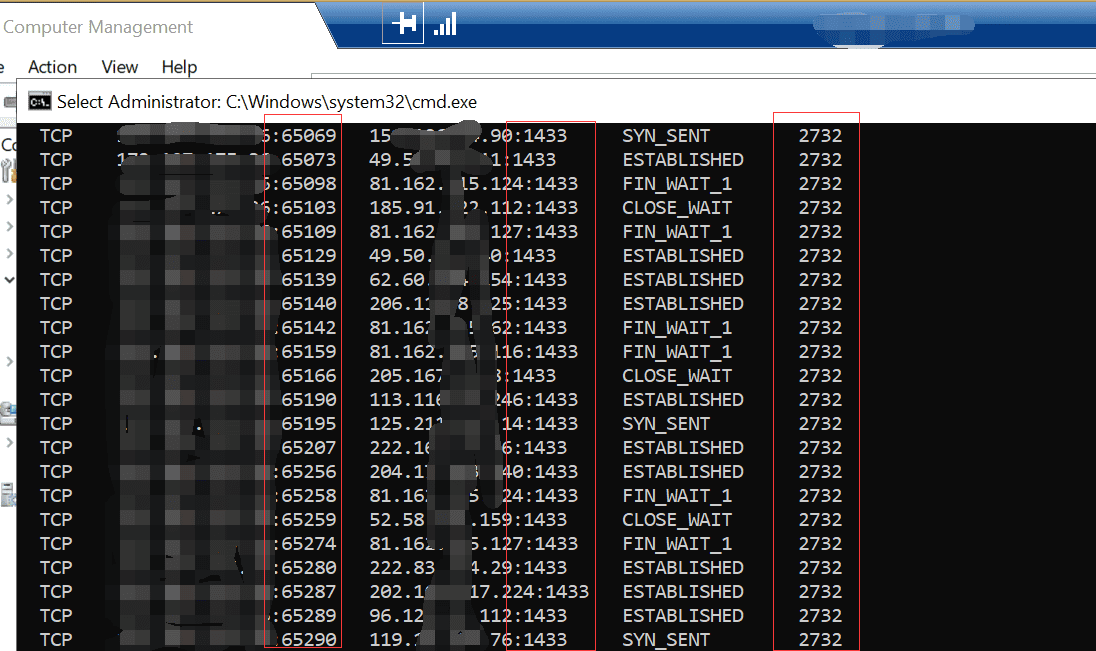
2.4 End Malicious Processes
- Right-click the suspicious process → End Process Tree.
- Select Open File Location and delete related files.
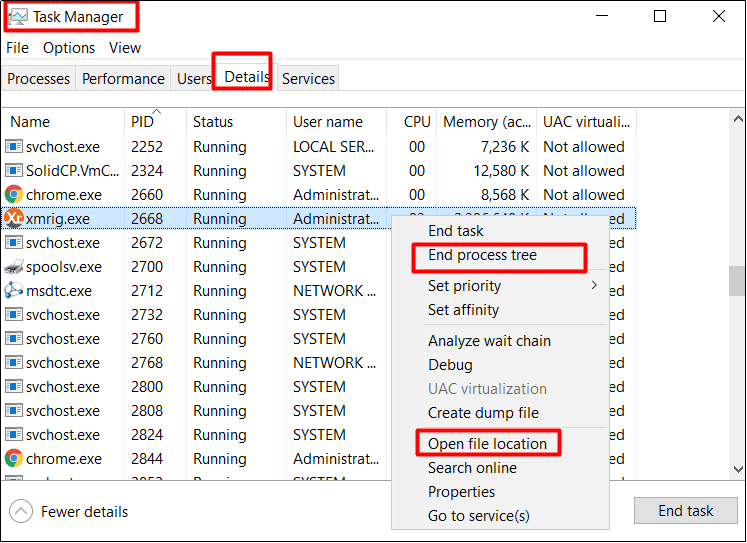
Removing malicious processes is a big step towards Windows Server security and VPS security.
Step 3: Check Windows System Directories
Hackers may drop scripts or executable files inside critical Windows folders.
- Open
C:\WindowsandC:\Windows\System32. - Look for unusual
.exeor script files that you didn’t install. - Delete or quarantine suspicious files.
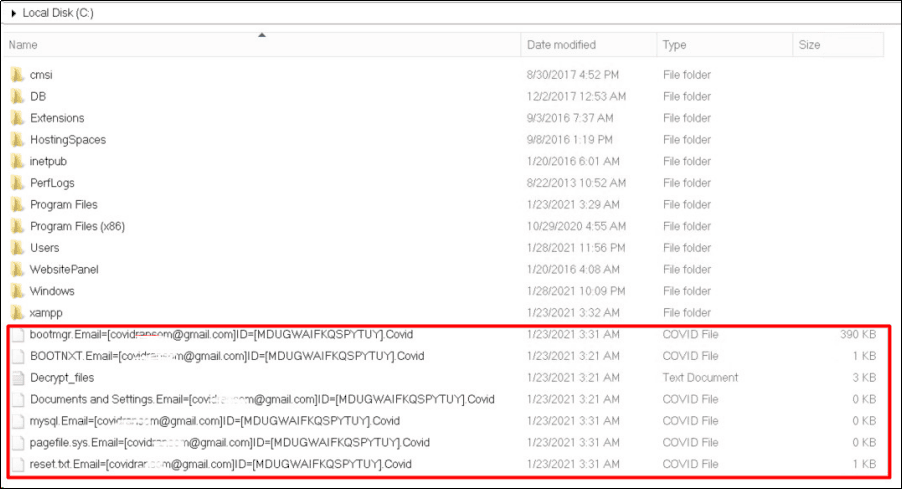
Keeping these folders clean is key to server protection.
Step 4: Check Firewall Rules
Hackers sometimes add backdoor firewall rules to keep access open.
- Open Windows Firewall with Advanced Security.
- Review inbound and outbound rules.
- Delete any rules that look strange, contain gibberish, or open unknown ports.
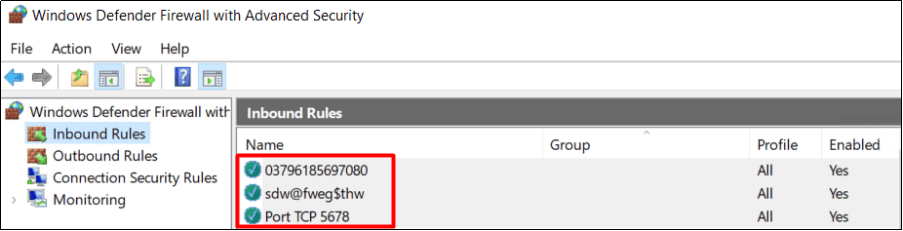
Strong firewall settings are essential for cloud server security and VPS security.
Step 5: Check Task Scheduler for Abnormal Tasks
Scheduled tasks can be used to relaunch malware automatically.
- Open the Start Menu, type Task Scheduler, and press Enter.
- Look under Task Scheduler Library.
- Disable and delete any abnormal or suspicious tasks.
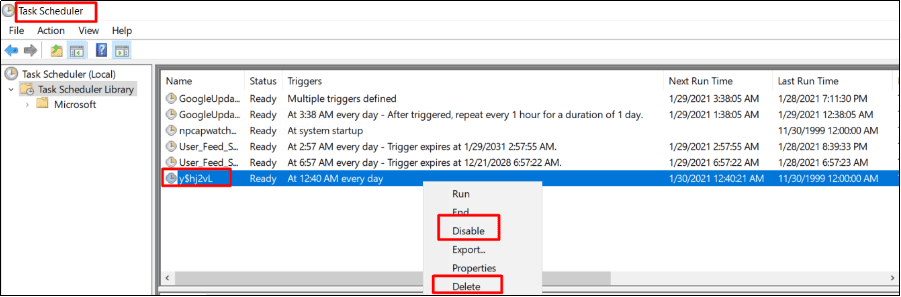
This step helps strengthen server protection by stopping hidden auto-start malware.
Step 6: Run a Full Windows Server Antivirus Scan
Running a Windows Server antivirus scan is one of the best ways to detect infections.
Use Windows Defender to scan all drives. If threats are found, click Clean Up to remove them.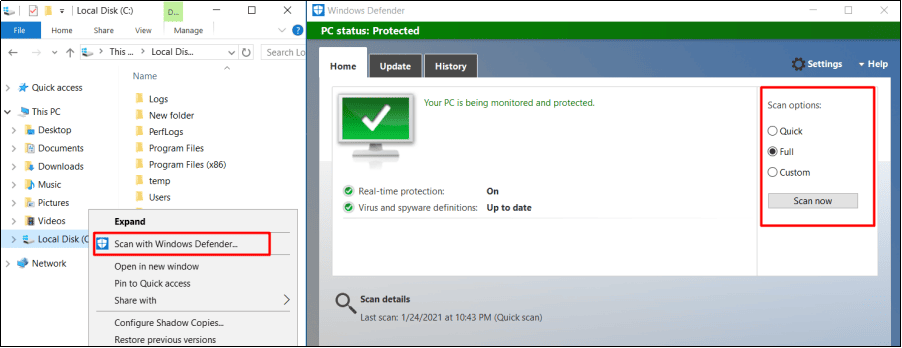
You can also use third-party Windows Server anti-virus solutions for additional server protection.
Additional Tools for Quick Detection and Cleanup
To simplify the process, we provide two automated PowerShell scripts that can help you quickly check and remove XMRig mining components.
- Quick Check & Cleanup Script
This script performs a fast scan for suspicious users, processes, miner files, and startup entries:
[Net.ServicePointManager]::SecurityProtocol = [Net.SecurityProtocolType]::Tls12;
$wc = New-Object Net.WebClient;
$wc.Encoding = [Text.Encoding]::UTF8;
IEX ($wc.DownloadString('https://gitlab.cloudclusters.net/public_package/dbm-script/-/raw/master/Check_Miner.ps1'))- Full Removal Script for Malicious Mining Services
If your server contains persistent malicious services (such as ZephyrMiner or other hidden miner services), run the full cleanup script:
[Net.ServicePointManager]::SecurityProtocol = [Net.SecurityProtocolType]::Tls12;
$wc = New-Object Net.WebClient;
$wc.Encoding = [Text.Encoding]::UTF8;
IEX ($wc.DownloadString('https://gitlab.cloudclusters.net/public_package/dbm-script/-/raw/master/Delete_Miner_Service.ps1'))
These scripts help automate the cleanup process and ensure all miner components are removed.
If you encounter any issues during the scan or cleanup process, please open a support ticket (TK) and we will assist you immediately.
Conclusion
Ensuring server security is an ongoing process. By checking for hidden users, suspicious processes, abnormal firewall rules, and running Windows Server antivirus scans, you can greatly protect your server against hackers.
Whether it’s a VPS or cloud server security setup, following these steps will help keep your Windows Server safe and secure.
secure server, vps security, server security, cloud server security, windows server antivirus, windows server anti virus, server protection, protect server, windows server security