


How to Find Open Ports Windows
Introduction
Sometimes when you run an application, you may find that the port you need is already in use. But how do you check open ports on Windows and see which program is occupying them?
This guide will show you step by step how to find open ports in Windows, identify the process, and free up the port.
Why Do You Need to Check Port Usage in Windows?
Ports are like “doors” for communication between your applications and the internet. When a port is already in use, you cannot run another application on the same port. That’s why it’s important to know how to check port usage in Windows.
Methods to Check Open Ports on Windows
Method 1: Use Command Prompt to List Open Ports in Windows
The easiest way to check port usage in Windows is by using the command prompt.
- Open Command Prompt (press
Win + R, typecmd, and press Enter). - Type the following command to list open ports in Windows:
netstat -anoThis will display all active connections and ports.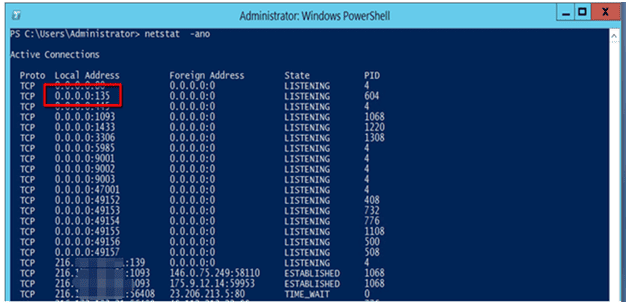
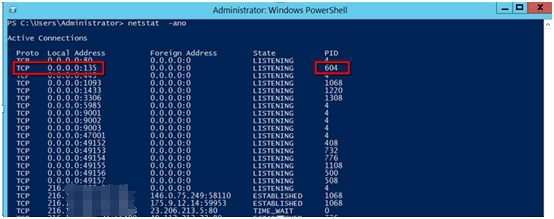
3. Look at the list and find the port number you are interested in.
For example, if port 135 is in use, check its PID (Process ID) in the last column.
Method 2: Find the Program Using the Port
Once you know the PID, you can find which process is using it. Type the following command in Command Prompt:
tasklist | findstr "PID"Replace "PID" with the actual process ID.
Example:
tasklist | findstr "604"This shows which program is using port 604 (e.g., svchost.exe).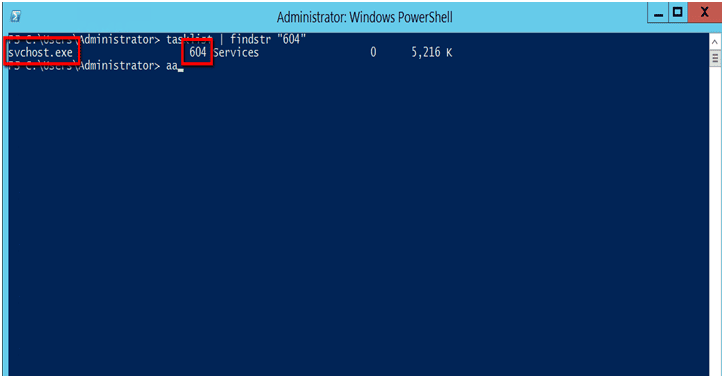
Method 3: Use Task Manager to Check Port Usage in Windows
Another simple way is to use Task Manager:
- Press
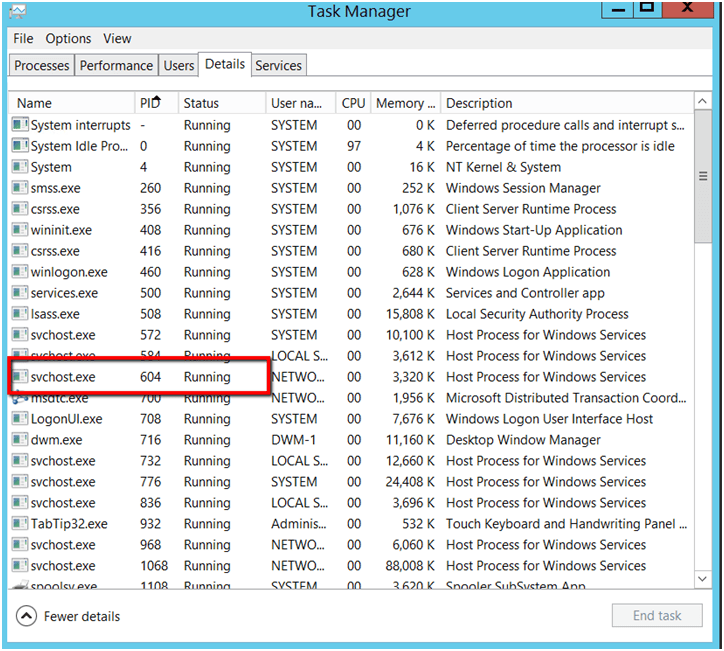
Ctrl + Shift + Escto open Task Manager. - Go to the Details tab.
- Match the PID number with the program name to see who is using the port.
End the Process Occupying the Port
If you want to free up the port:
- In Task Manager, right-click the process and select End Task.
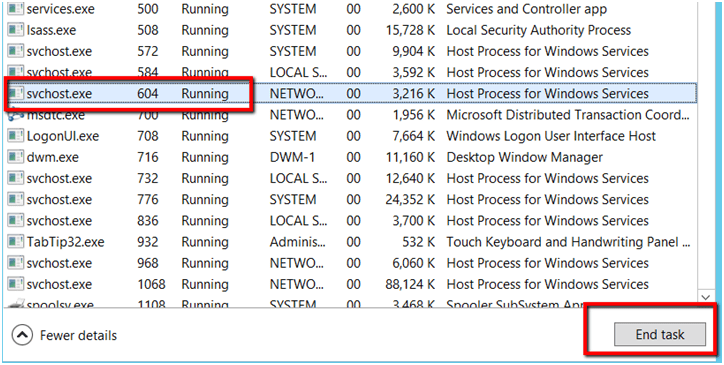
- Or use Command Prompt:
taskkill /f /t /im processname.exeReplace processname.exe with the actual program name, e.g.:
taskkill /f /t /im tencentdl.exe
Conclusion
Now you know how to:
- List open ports in Windows
- Check port usage in Windows
- Find open ports in Windows
- Identify which program is using a port
- Stop the program to free the port
This method is especially useful if you run into errors while starting apps, setting up servers, or troubleshooting network issues.
checking open ports on windows, find open ports windows, check port usage windows, list open ports windows, windows netstat find port