


How to Connect to SQL Server Database with SSMS
Learn step by step how to connect to SQL Server using SSMS. Beginner-friendly guide to Microsoft SQL Server Management Studio, fixing SQL Server connection problems, and troubleshooting connectivity issues.
What is SQL Server Management Studio?
SQL Server Management Studio, sometimes called SQL Management Studio or simply SQL Studio, is Microsoft’s official tool for managing SQL Server databases. With SSMS you can:
- Connect to SQL Server databases
- Run queries
- Manage users and security
- Troubleshoot SQL Server connection problems
The current version, SQL Server Management Studio 2012, is compatible with SQL Server 2005, 2008, and 2012.
Step-by-Step: Connect to SQL Server Database in SSMS
Follow these steps to establish a connection to your database:
1. Start SQL Server Management Studio
Open MS SQL Server Management Studio. If you don’t have it installed, download it directly from Microsoft.
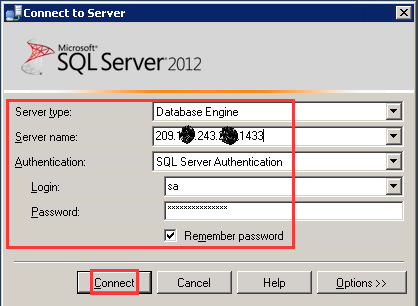
2. Fill in the Connection Information
In the Connect to Server window, provide the following details:
Server Name: Enter the name or IP address of your SQL Server.
- To use a custom port, add it after the server name (e.g.,
192.168.1.10,2433).
- To use a custom port, add it after the server name (e.g.,
Authentication: Choose SQL Server Authentication (default option).
Login: Enter the username you created for your database.
Password: Enter the password for that user.
3. Connect to a Specific Database (Optional)
If you want to connect to a single database only:
- Click the Options button.
- Go to the Connection Properties tab.
- Type the Database Name in the field provided.
💡 Note: For most SQL Server 2012 connections, specifying the database name is required.
4. Click "Connect"
Once everything is filled in, click Connect to access your database in SSMS.