


How to Connect VPN in Windows
Introduction
If you need to access your office network or remote server securely, setting up a remote access VPN on Windows is one of the best solutions. This guide will walk you through each step to create a VPN connection in Windows, configure the correct settings, and successfully connect.
We’ll cover both PPTP VPN setup and L2TP/IPsec VPN setup, so even beginners can follow along easily.
Steps to Connect to Remote Access VPN
Step 1: Create a New VPN Connection
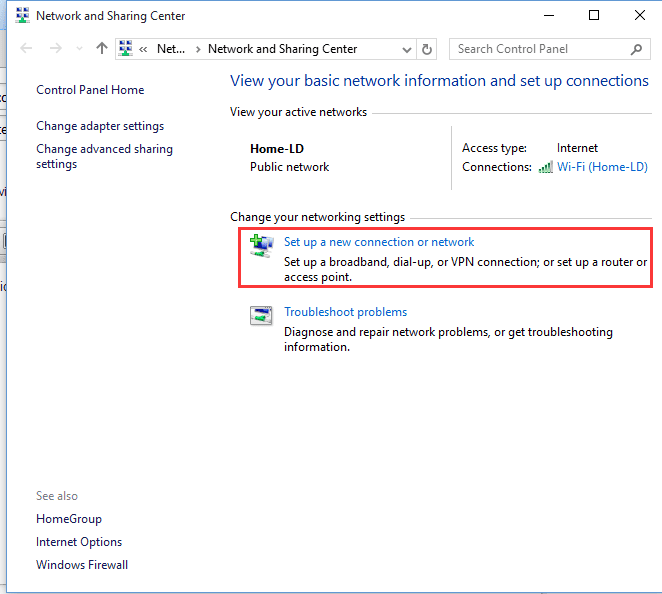
- Open Network and Sharing Center → click Set up a new connection or network.
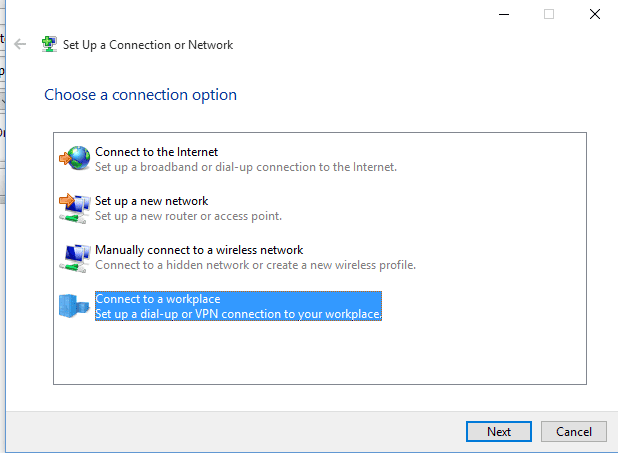
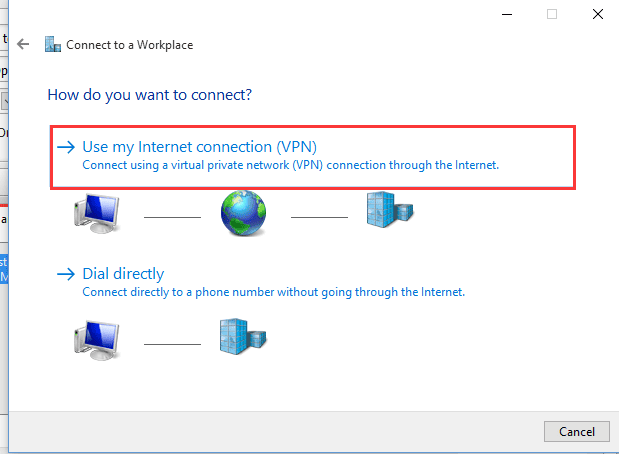
- Select Connect to a workplace → choose Use my Internet connection (VPN).
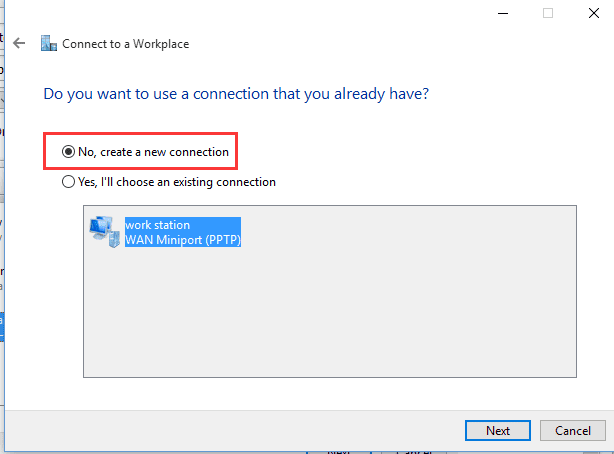
- Enter your VPN server IP address (firewall IP) and give the connection any name you like.
- Click Create to save your new VPN connection.
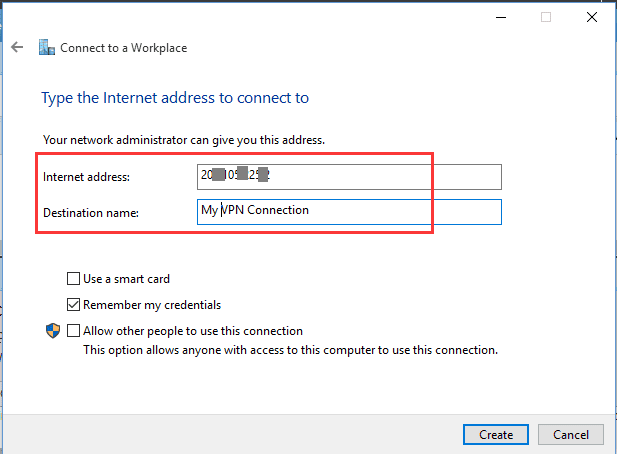
Step 2: Configure VPN Security Settings
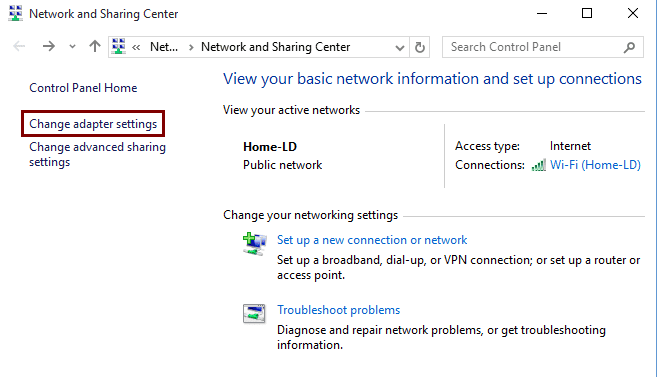
- Go back to Network and Sharing Center → click Change adapter settings.
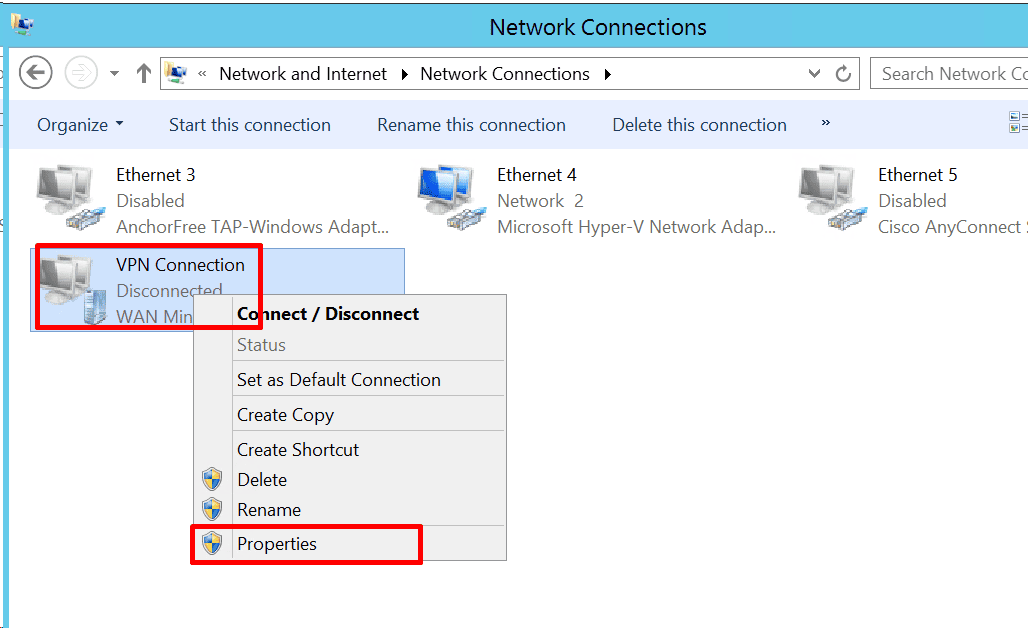
- Right-click the VPN you just created → choose Properties.
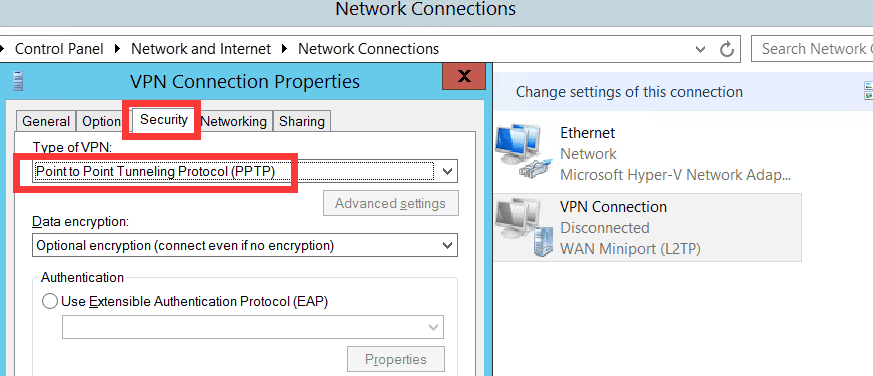
- For PPTP VPN: Under Security tab, set connection type to Point to Point Tunneling Protocol (PPTP).
- For L2TP VPN: Under Security tab, set connection type to Layer 2 Tunneling Protocol with IPsec (L2TP/IPsec). Then click Advanced settings → enter the pre-shared key provided by your admin.
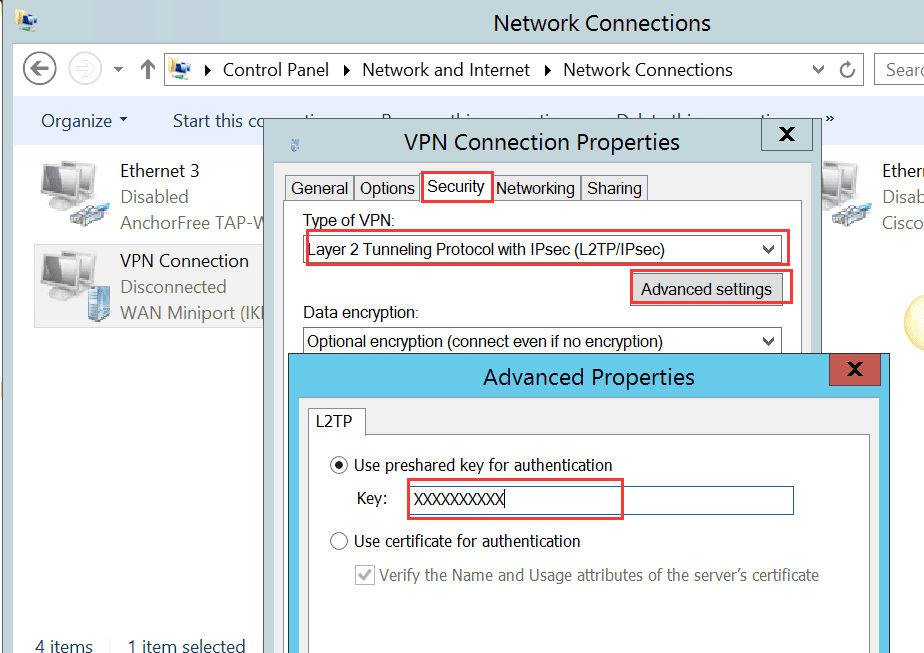
- For PPTP VPN: Under Security tab, set connection type to Point to Point Tunneling Protocol (PPTP).
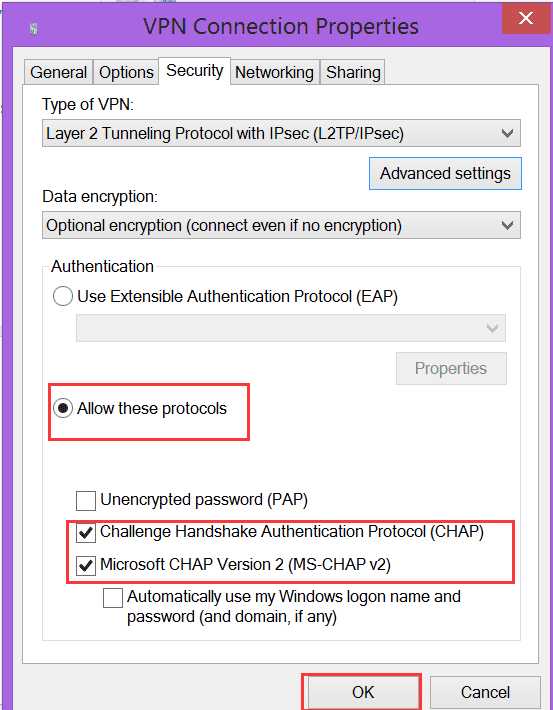
- Enable CHAP and MS-CHAP v2 authentication protocols → click OK.
Step 3: Connect to the VPN
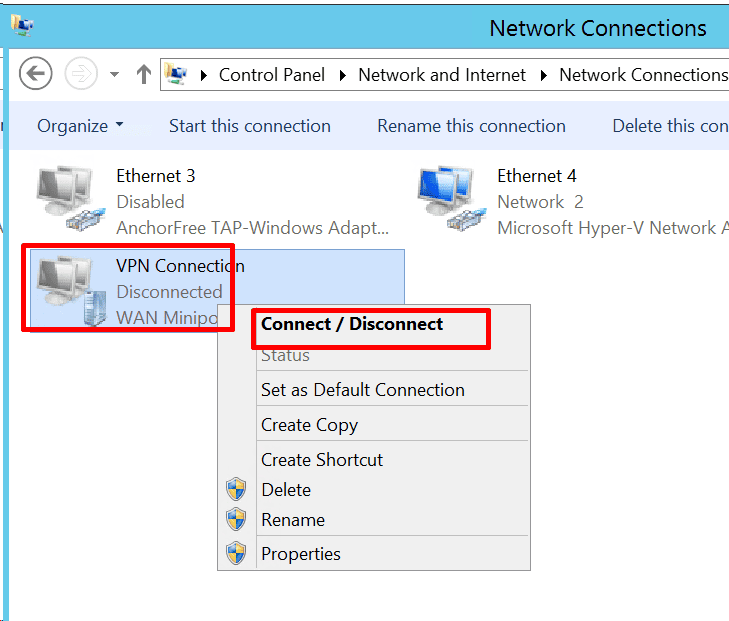
- Double-click the VPN connection → click Connect.
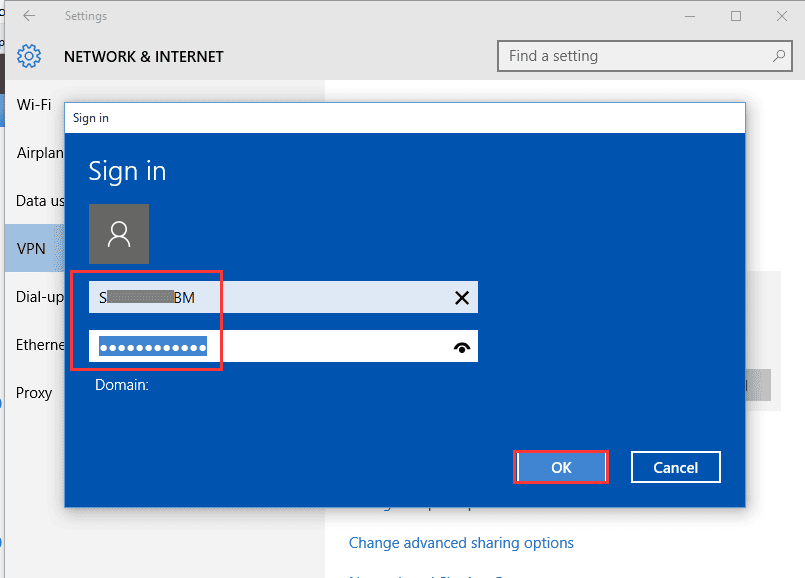
- Enter your VPN username and password → click OK.
- Once connected, you’ll see “Connected” status.
Step 4: Access Your Server via RDP
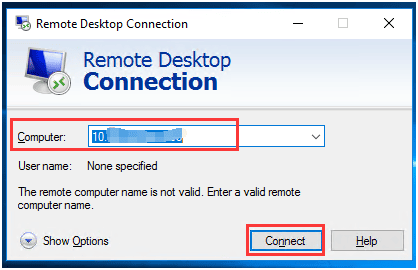
- If your server uses internal IPs (like
10.10.xx.xxxor192.168.x.xxx), connect via Remote Desktop (RDP) using those addresses.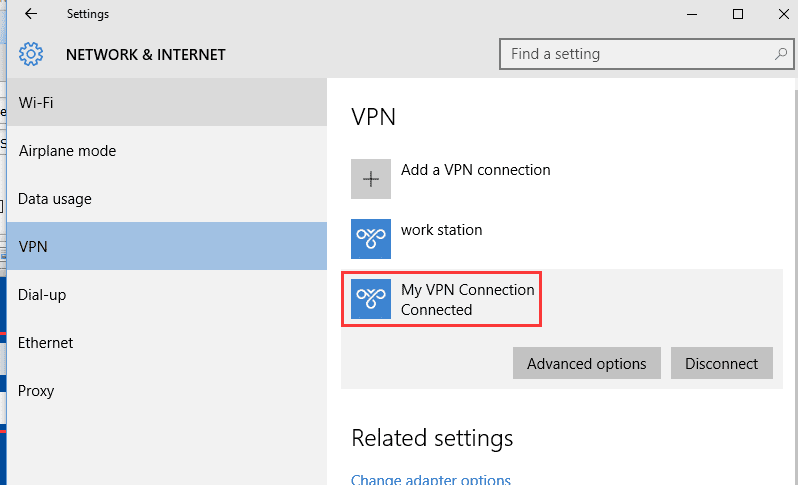
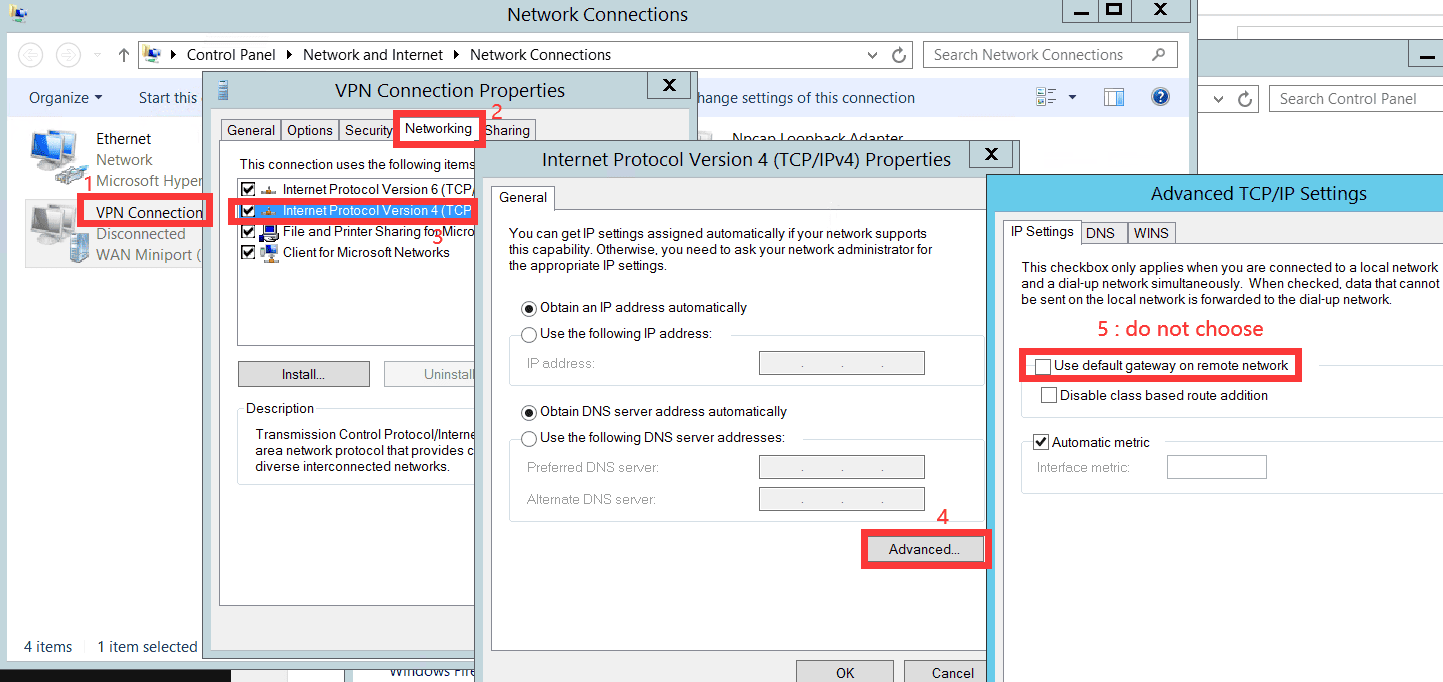
- If you want to keep your public network traffic local while only tunneling VPN traffic, adjust the VPN advanced settings accordingly.
Final Thoughts
That’s it — you’ve successfully learned how to connect to a remote access VPN from Windows. Once set up, connecting again is as easy as double-clicking the VPN profile and entering your credentials.
This guide works for both PPTP and L2TP/IPsec VPN connections.
Related Keywords:
connect VPN Windows, how to connect VPN in Windows, Windows VPN setup, VPN connection Windows, setup VPN Windows, configure VPN Windows, create VPN connection Windows, how to setup VPN on Windows, how to use VPN on Windows, VPN client Windows