


How to Create an Email Signature in MailEnable
Introduction
Creating an email signature is an essential step for making your emails look professional and trustworthy. Whether you want a simple email sig with your name or a more detailed one with your contact information, MailEnable allows you to set it up easily.
In this guide, we’ll walk you through how to create an email signature, explain how to create an e signature, and show you how to make an email signature that you can use every time you send a message.
Why Do You Need an Email Signature?
A great email signature not only looks professional but also saves time. Instead of typing your name and contact details in every email, you can use email signing automatically.
Common benefits:
- Consistency in communication
- Professional branding
- Quick sharing of contact details
Steps to Create an Email Signature
Follow these steps carefully to make a mail account signature:
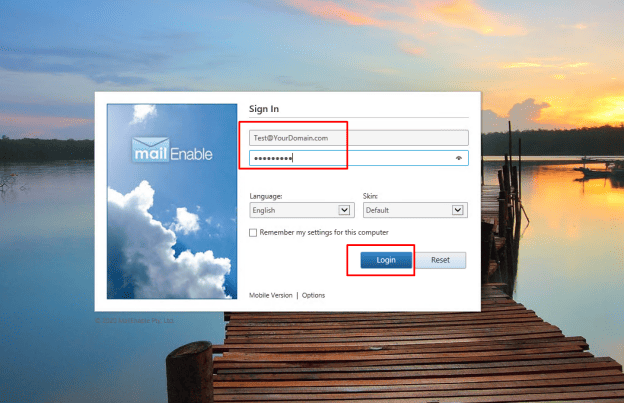
Step 1: Log in to Your Email Account
- Open your MailEnable webmail.
- Enter your username and password to access your new email account.
Step 2: Open Options
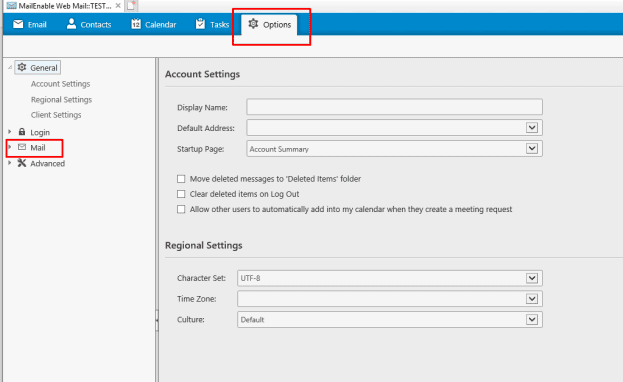
- Look at the top menu and click on Options.
- This is where you can change personal settings, including email signing.
Step 3: Navigate to Mail Settings
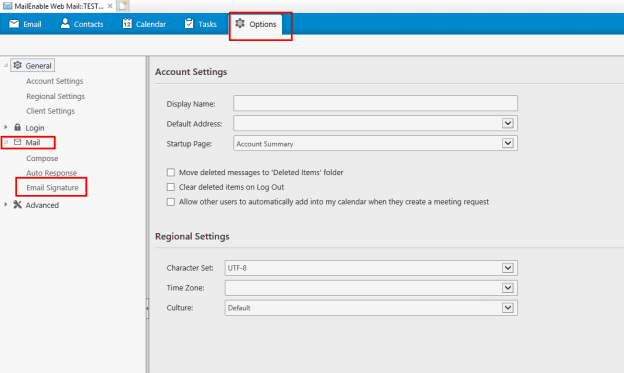
- In the left-hand panel, click on Mail.
- You will now see the Email Signature section.
Step 4: Enable and Create Signature
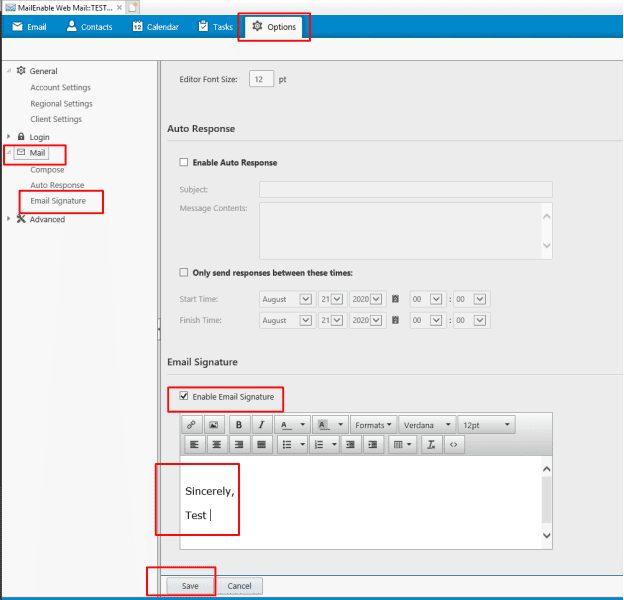
- Tick the checkbox Enable Email Signature.
- In the text box, type your desired signature (e.g., name, job title, phone, website).
- You can format it to make it a great email signature.
- Click Save to apply changes.
Step 5: Test Your Signature
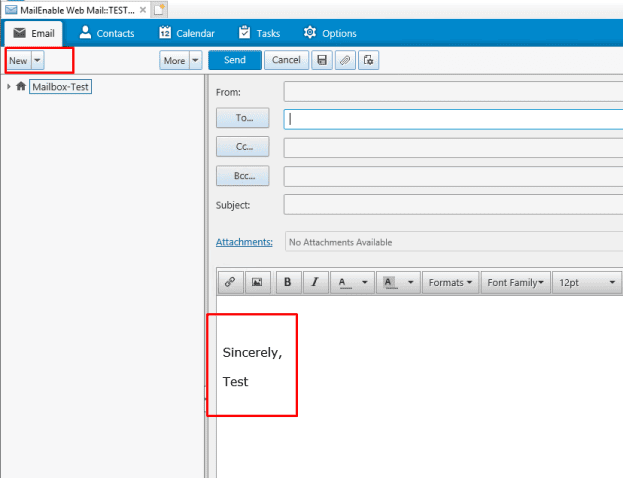
- Create a new mail message.
- Your email signature should appear automatically at the bottom.
- If not, repeat the steps to check your settings.
Tips for Creating a Great Email Signature
When you create an email signature, keep it short, clean, and professional. Here are some tips:
- Keep it simple: Name, role, and contact details
- Avoid too many colors or fonts
- Add a website or LinkedIn link if needed
- Make sure it looks good on both desktop and mobile
email signature, email sig, create signature, how to create an e signature, create an email signature, great email signatures, email signing, how do you make a signature, how do you create a signature, how make a signature, how to make an email signature