


How to Create a FTP Account Manually in Windows Server
Whether you need to add FTP users, configure FTP server in Windows, or simply create a new FTP site, this tutorial is designed for beginners.
Step 1: Create a Windows User for FTP
- Open Server Manager.
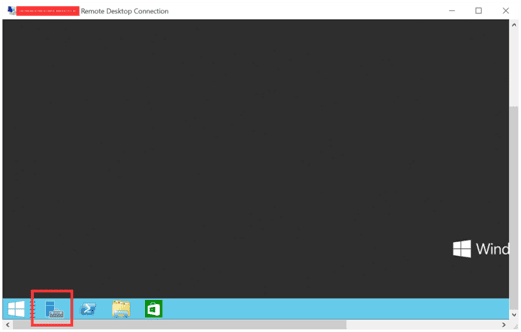
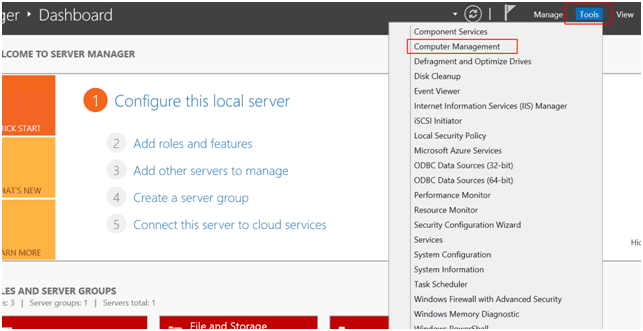
- Go to Tools > Computer Management.
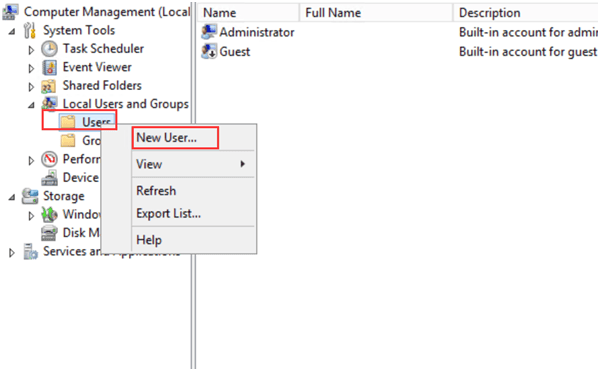
- Select Local Users and Groups > Users, then click New User.
- Enter a username and password.
- Click Create to save.
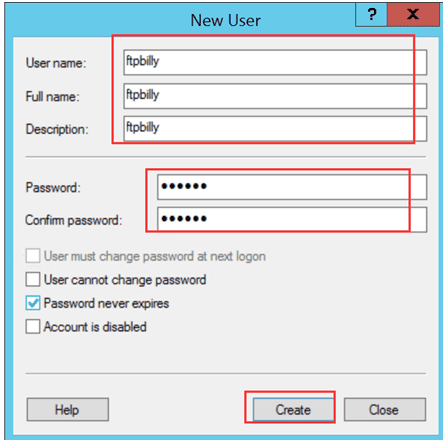
This will be your new FTP user account.
Step 2: Create a New Folder for FTP Files
- Right-click in your desired directory and choose New Folder.
- Give the folder a clear name (e.g., ftpbilly).
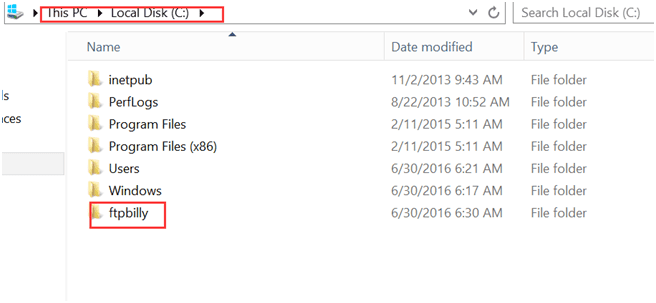
This folder will be the physical path for your FTP site.
Step 3: Grant Permissions to the FTP Folder
- Right-click the new folder → Properties.
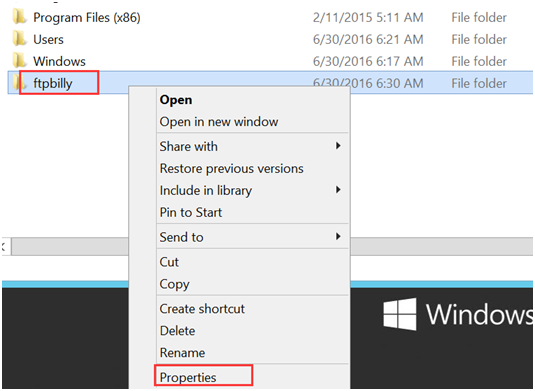
- Go to Security > Edit > Add.
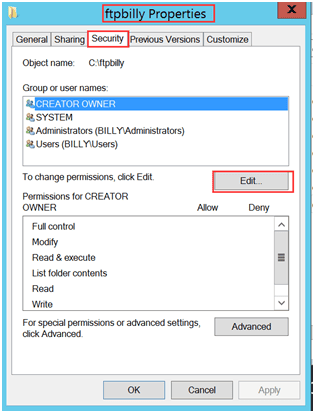
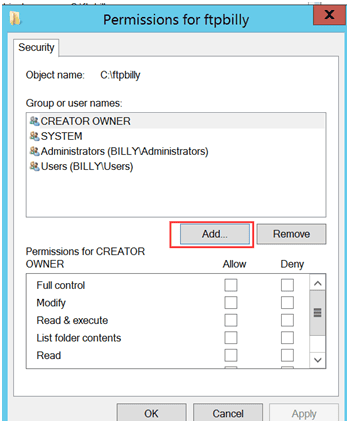
- Click Advanced > Find Now.

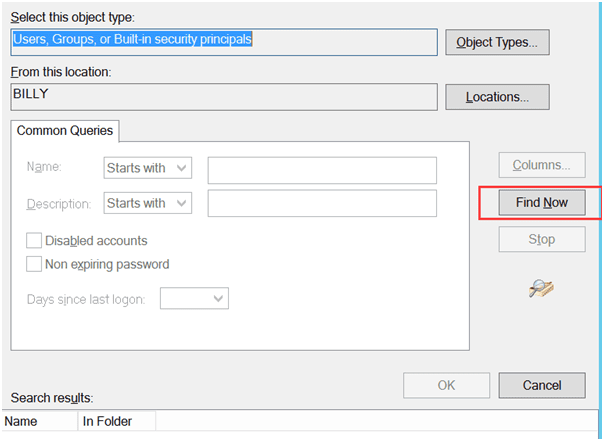
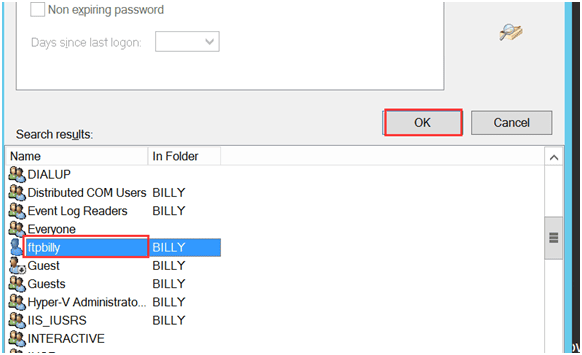
- Locate the FTP user you just created, then click OK.
- Grant the user permissions. Check Read & execute, List folder contents, and Read. Click OK.
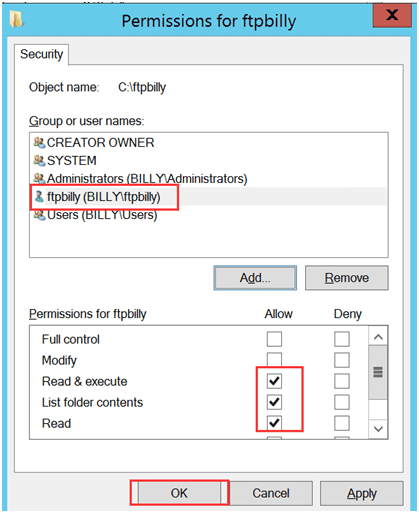
Now your FTP user can access this folder.
Step 4: Create a New FTP Site in IIS
Open IIS Manager. Right-click Sites > Add FTP Site.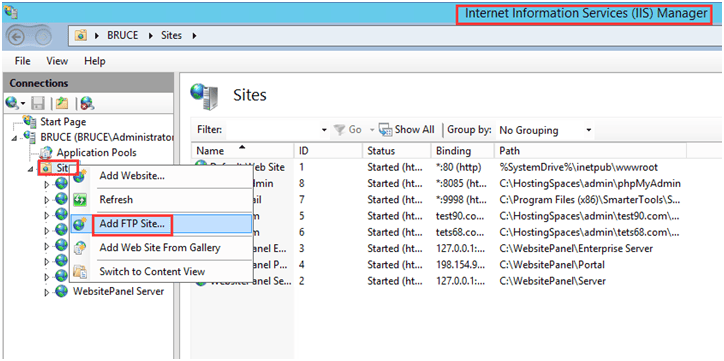
Enter an FTP Site Name and Physical Path (the folder you created).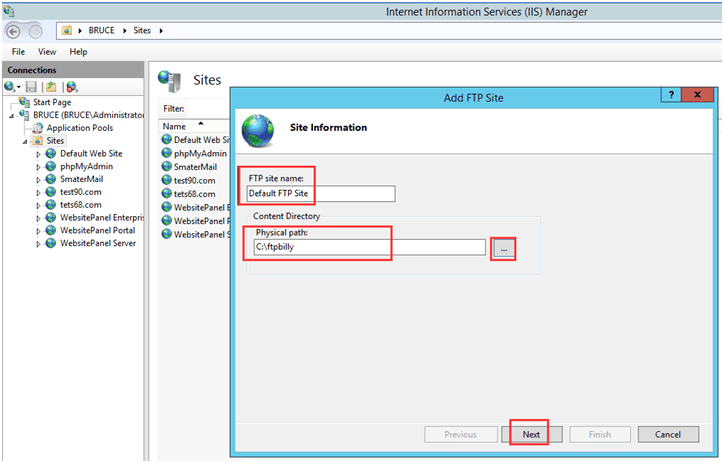
Choose All Unassigned under the IP Address option, and check the Port is 21. Choose No SSL (for beginners; later you can secure with SSL). Then Click Next.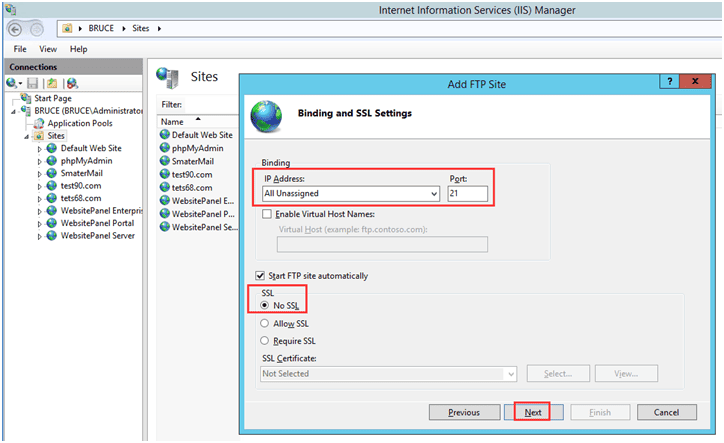
Select Basic under the Authentication option. Under the Allow access to option, choose Specified users. Check Read and Write permissions. Then click Finish.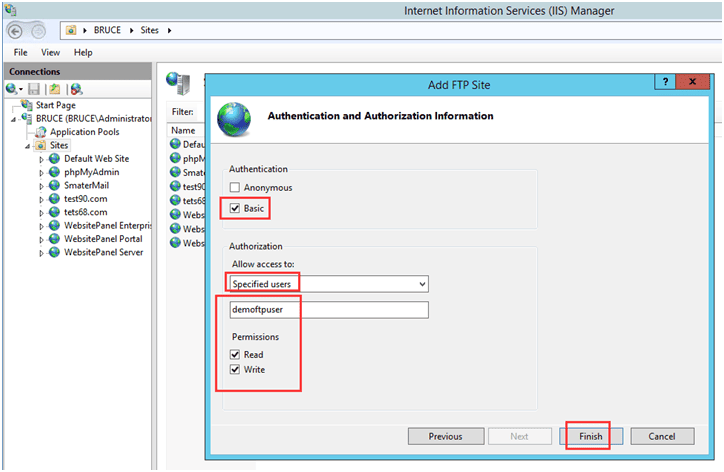
Right-click the Default FTP site, select Add Virtual Directory...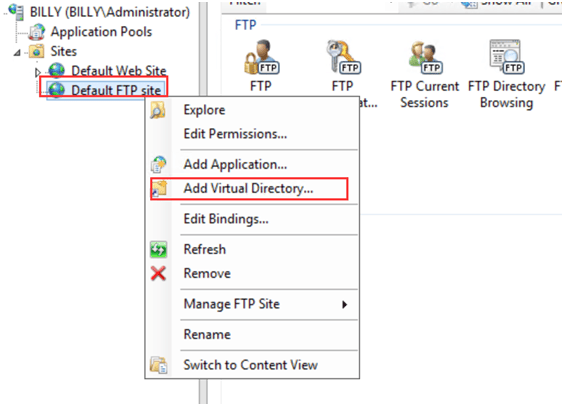
Input the user name you have created before in Alias, and choose the Physical path for the folder. Then click OK.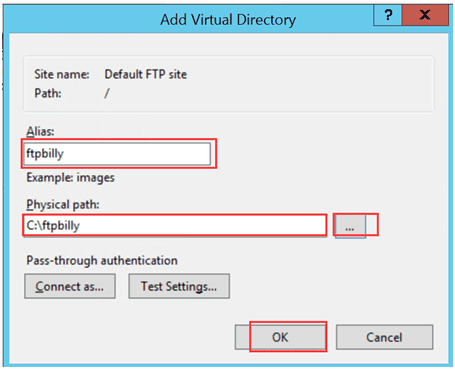
In IIS, click FTP Authorization Rules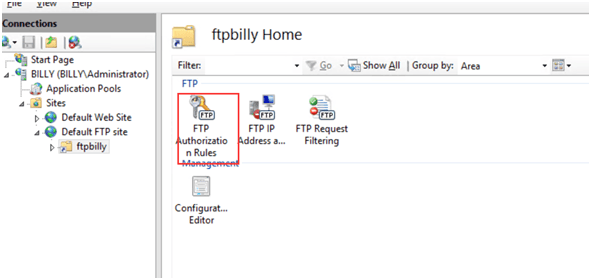
Then select Add Allow Rule….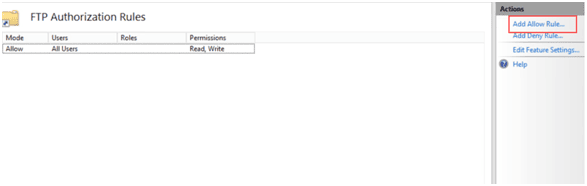
In the Add Allow Authorization Rule window, choose Specified users and enter the user name you created earlier in the input box.
Under Permissions, check both Read and Write.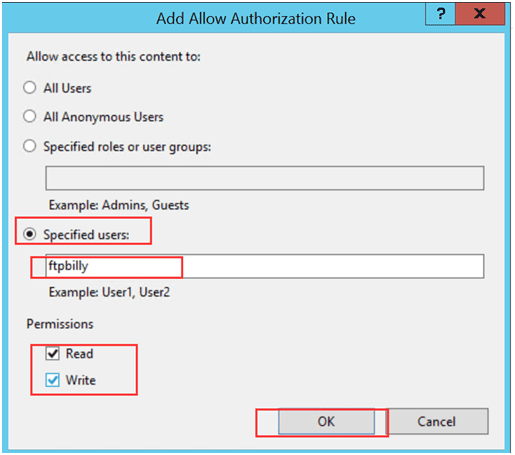
Assign access to the newly created FTP user.
Step 5: Test the FTP Connection
- Open FileZilla Client (or any FTP client). Enter your server IP, FTP username, and password to connect. Then upload or download a test file to confirm everything works.
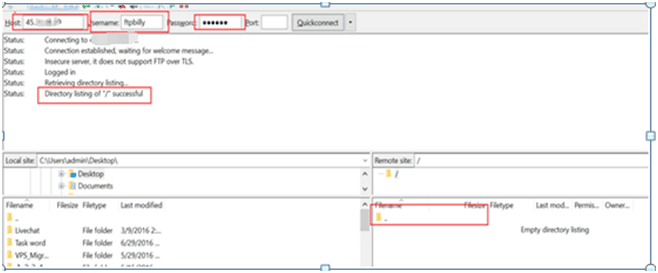
With this method, you can easily create FTP in Windows, add FTP accounts, and configure FTP server in Windows without needing third-party tools.
ftp set up, ftp accounts, create a ftp, windows server ftp setup, configure ftp server in windows, create ftp in windows, create ftp account, add ftp account, add ftp user, create ftp user