


How to Enable or Disable Multiple RDP Sessions
Why Enable Multiple RDP Sessions?
Enabling multiple users' remote desktops can be useful if:
- Your team shares one Windows Server.
- You run multiple RDP session environments for testing or hosting.
- You want to allow more than two administrators to work at once.
Steps to Enable Multiple RDP Sessions
Step 1: Connect to the Server
Log in via Remote Desktop Connection from your PC.
Step 2: Open Local Group Policy Editor
- Press the Windows key or click the Start menu.
- Type
gpedit.mscand press Enter.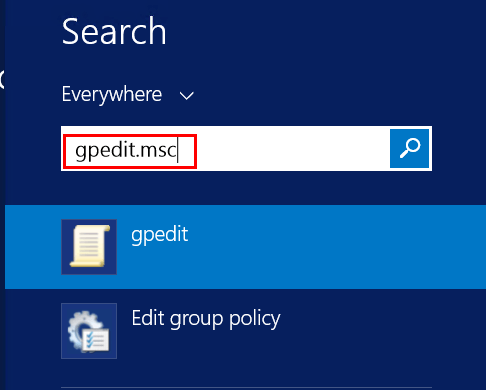
You can also open PowerShell, typegpedit.msc, and press Enter.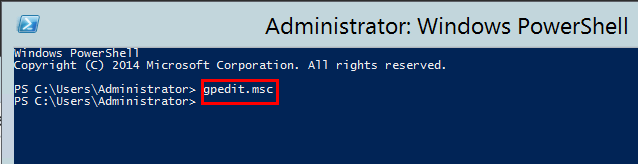
Step 3: Navigate to the RDP Session Settings
Go to: Computer Configuration > Administrative Templates > Windows Components > Remote Desktop Services > Remote Desktop Session Host > Connections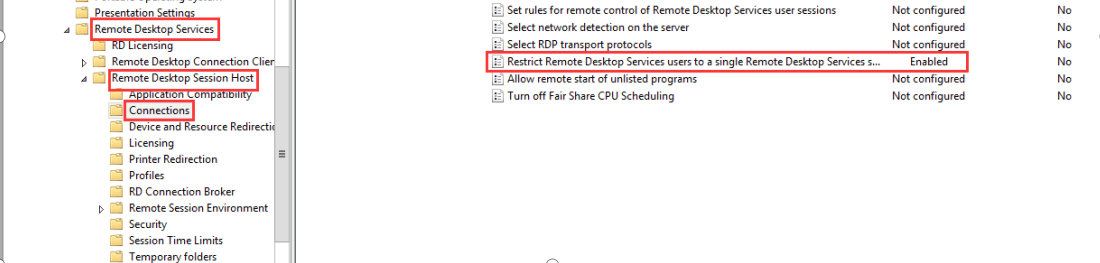
Step 4: Allow Multiple RDP Sessions
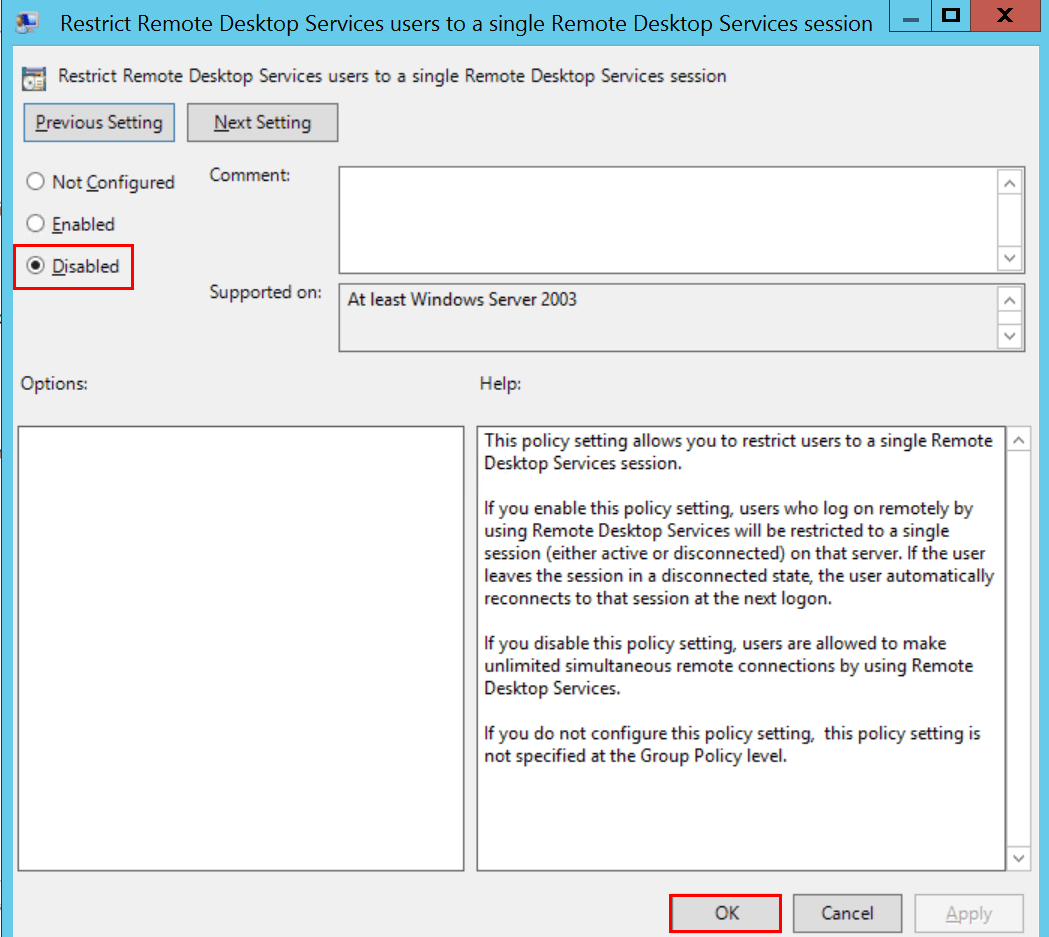
- Double-click Restrict Remote Desktop Services user to a single Remote Desktop Services session.
- Select Disabled (this allows multiple sessions per user).
- Click OK.
Step 5: Increase the Session Limit
- Double-click Limit number of connections
- Set it to the desired number (e.g.,
999999for no practical limit). - Click OK.
Steps to Enable Single RDP Session
If you want to go back to single session mode:
- In Local Group Policy Editor, go to the same location as above.
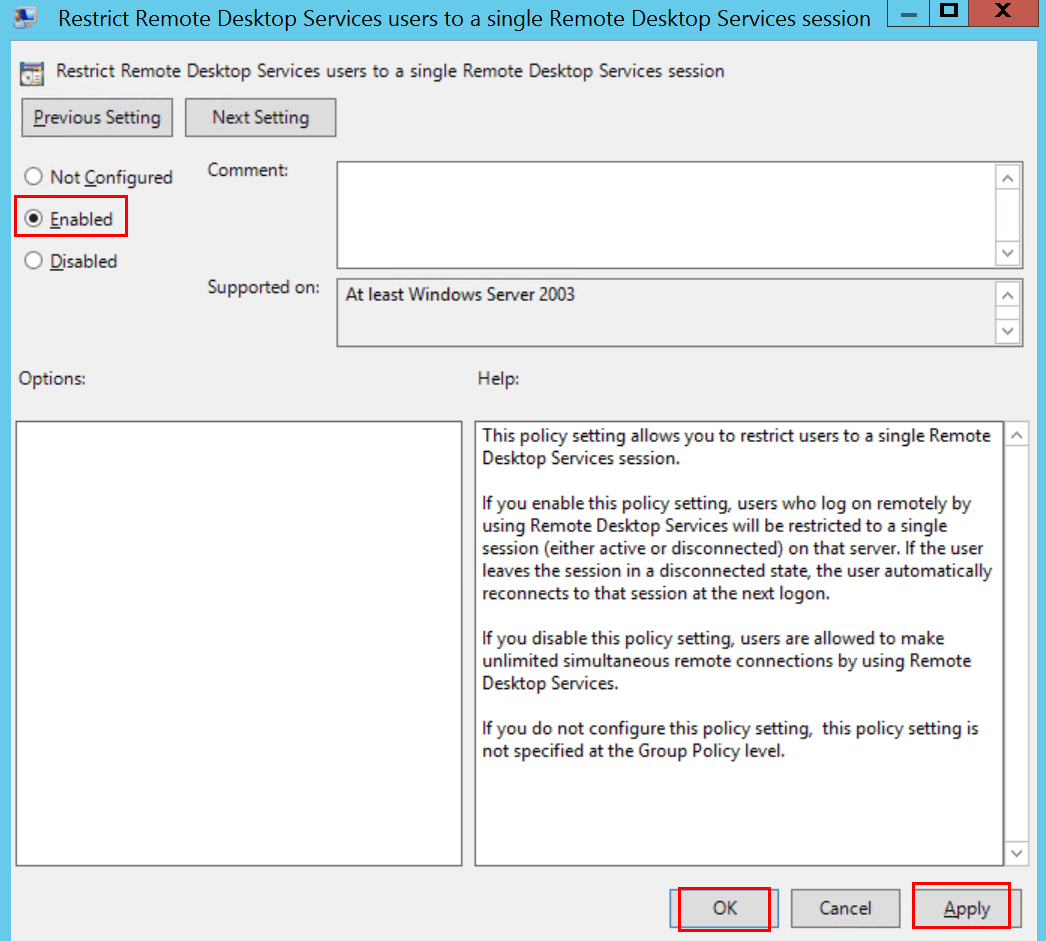
- Double-click Restrict Remote Desktop Services user to a single Remote Desktop Services session.
- Select Enabled (this forces a single session per user).
- Click OK.
Notes and Tips
In Windows Server, to allow more than 2 RDP sessions, you must have the correct number of RDS CALs (licenses) for compliance.
multiple rdp, multiple users remote desktop, multiple rdp session, Windows multiple rdp, multiple remote desktop, rdp multi user, allow multiple rdp sessions Windows , enable multiple rdp sessions Windows , Windows allow multiple rdp sessions, allow more than 2 rdp sessions, enable multiple rdp sessions, Windows allow multiple rdp, Windows allow multiple rdp sessions, windows server allow multiple rdp sessions, windows server rdp session limit, allow multiple rdp sessions Windows registry, windows allow multiple rdp sessions, windows server allow more than 2 rdp sessions, allow multiple rdp sessions, allow multiple remote desktop connections, rdp allow multiple sessions, Windows multiple users remote desktop, Windows enable multiple rdp sessions