


MySQL Connection Issue
Introduction
Please test whether there is a MySQL connection issue first. This article introduces several scenarios and solutions for the MySQL service not working.
- MySQL service is not running
- Firewall restricts
- DB user does not have correct password or permission
- Remote Connection issue between your local server to MySQL
- The MySQL remote connection port is blocked by your server or ISP
- Wrong MySQL connection information defined in application.
1. MySQL service is not running
1.1 Check MySQL Service in Windows
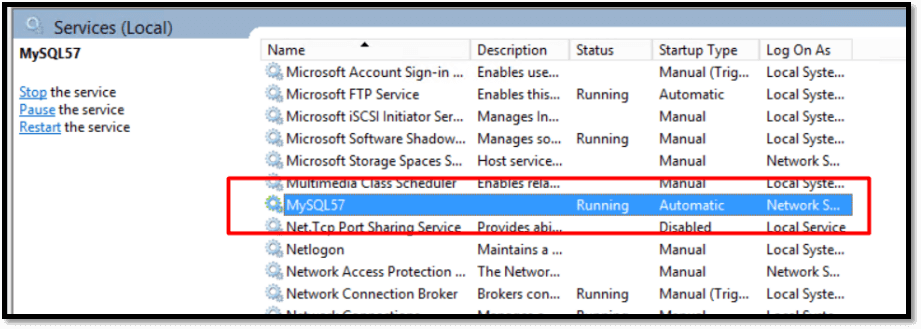
- Please check the status of MySQL on the "Services" in your server. If the MySQL service is not Running, please click "Start" the service. If the service fails to start, you can refer to KB
to continue checking. 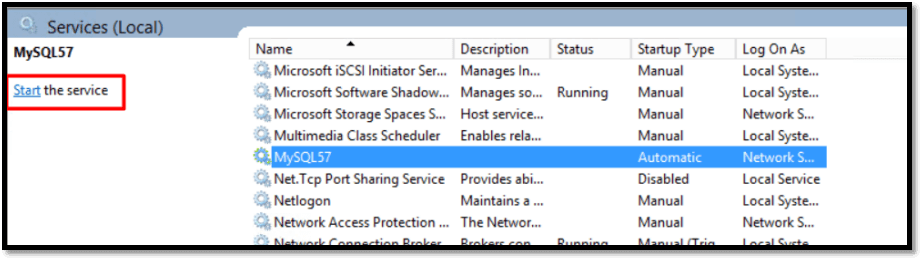
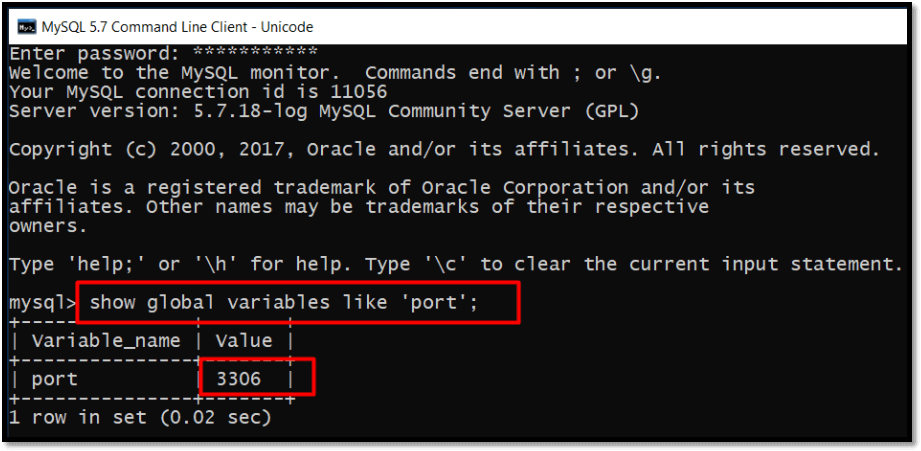
- Connect to MySQL through the MySQL client command, and then check the MySQL port through the command " show global variables like 'port'; ".
1.2 Check MySQL Service in Linux
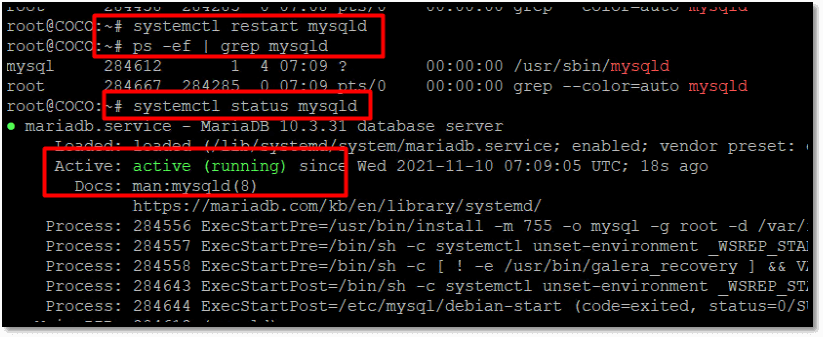
- Check the progress and status of MySQL through commands "ps -ef | grep mysqld" and "systemctl status mysqld". If the MySQL service is not running, please try starting the service through command "systemctl restart mysqld". If the service fails to start, you can refer to KB
to continue checking. 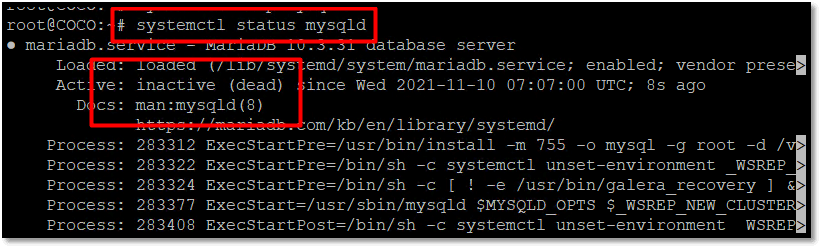
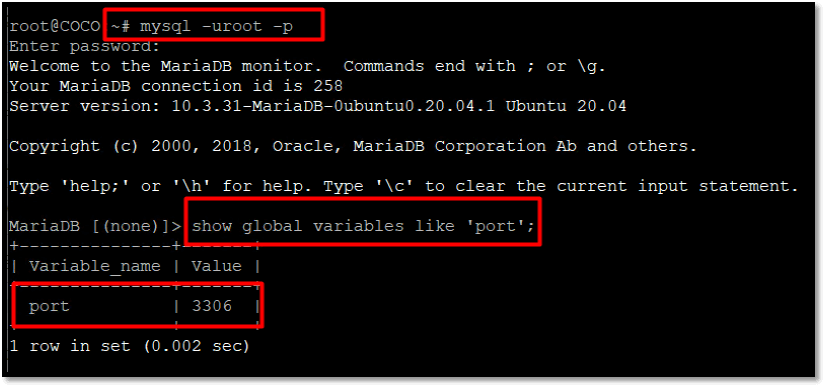
- Connect to MySQL through commands "mysql -uroot -p", and then check the MySQL port through the command " show global variables like 'port'; ".
2. Firewall Restricts
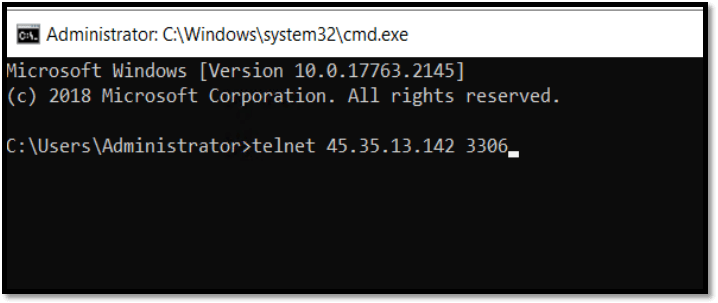
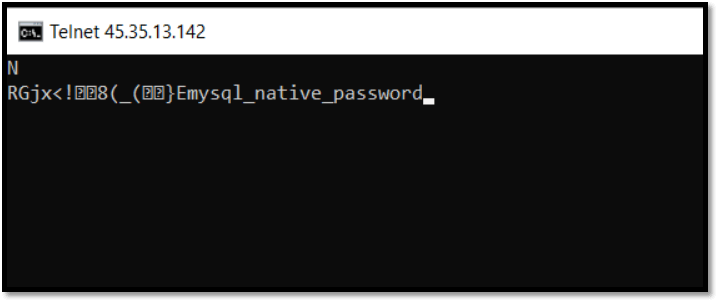
The default port of MySQL is 3306. Please use the "telnet X.X.X.X 3306" command to test the remote connection. If the remote connection to MySQL fails as shown in the screenshot below, please check whether the remote MySQL connection port is opened on the firewall and whether the firewall rules prevent the connection.
2.1 Check Firewall Port Access
- For Windows
Log in to the server to check the inbound rules of the Windows firewall. If the firewall does not have a rule to open the port of 3306, please refer to the guidance link to open the port.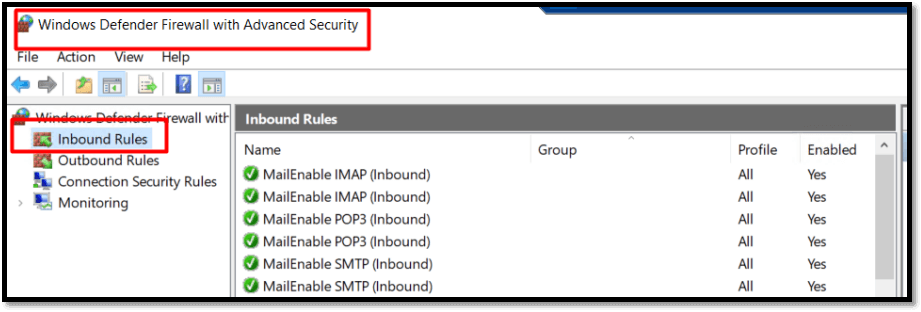
The rules that have opened ports in the firewall are as shown in the screenshot.
- For Linux
Check whether the port "3306" is opened and check the firewall status through commands "netstat -an|grep 3306" and "systemctl status firewalld".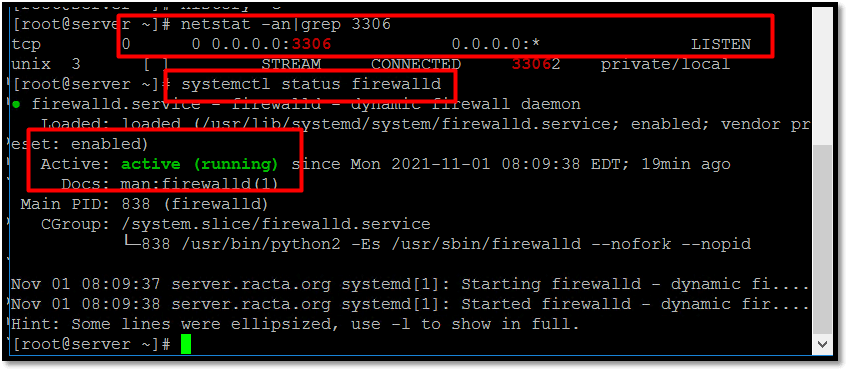
Check the ports opened in the "firewalld" firewall by command "firewall-cmd --permanent --zone=public --list-ports".
Regarding open ports in Linux firewall, we can refer to point 5 in KB https://portal.databasemart.com/kb/a1911/how-to-check-linux-website-issue.aspx.
2.2 Check Firewall Remote IP Restrictions
Check the Properties and Scope of the rules.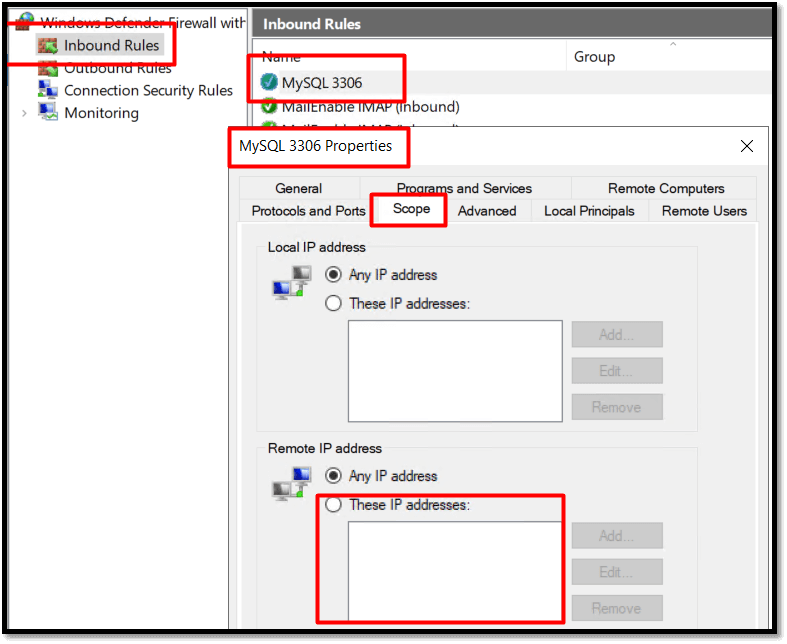
Check whether there are rules to block special IPs.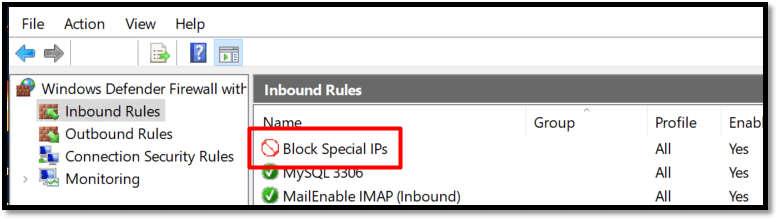
3. DB User Password or Permission Error
3.1 DB User Password Incorrect
If you get the following error, it means that you are using an incorrect root password:
Access denied for user 'username'@'X.X.X.X' (using password: YES)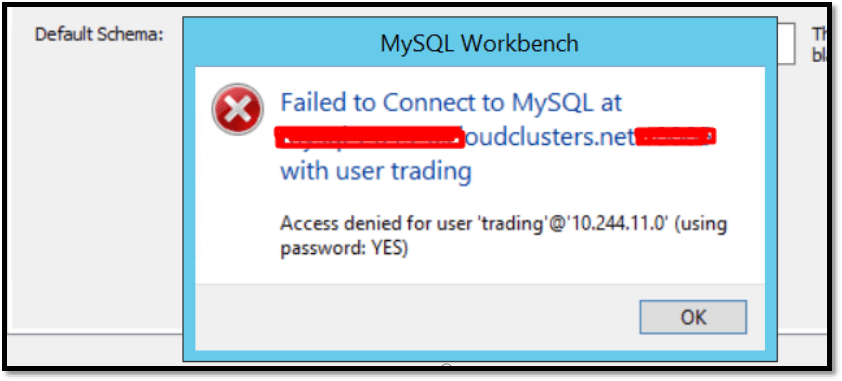
Solution:
- For information on changing passwords, see Assigning Account Passwords.
- If you have lost or forgotten the root password, see How to Reset the Root Password.
3.2 DB User Lacks Proper Permissions
If you get the following error, it means that the DB user (root) is using an incorrect permission:
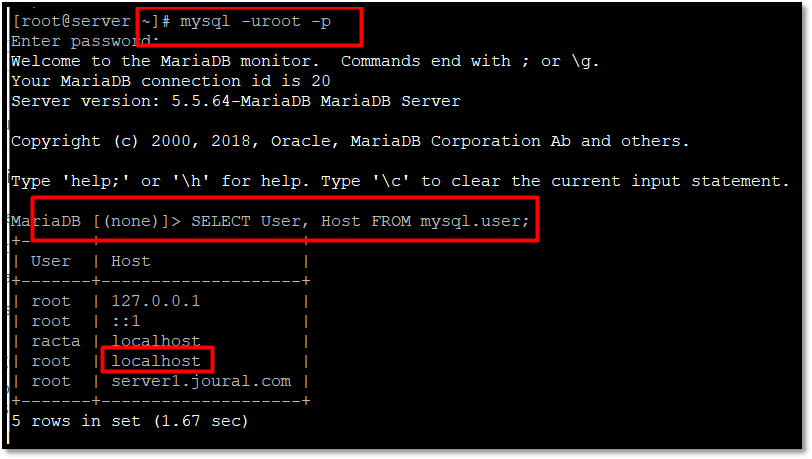
Connect to the MySQL server in the local server, enter the MySQL command line, enter the following command in the MySQL command line:
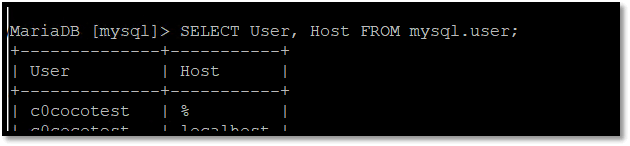
SELECT User, Host FROM mysql.user;
Note: The option ‘ % ’ means all hosts can connect to MySQL user. While ‘ 127.0.0.1 ’ and ‘ localhost ’ mean the user does not support remote connection.
Solution:
- On your server run mysql from command line:
mysql -u root -p -h localhost -P 3306
- Then run this command in mysql shell:
use mysql
GRANT ALL ON . to DB Username@'%' IDENTIFIED BY 'yourpassword';
FLUSH PRIVILEGES;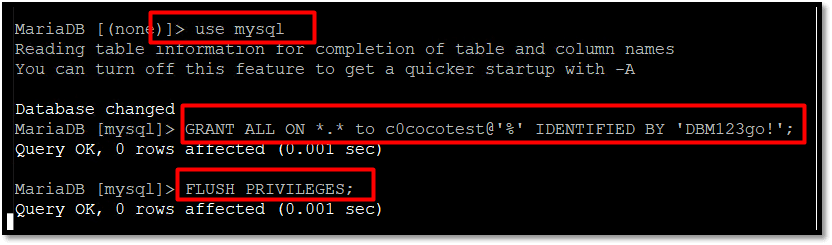
4. Remote MySQL Connection Issue
We can use "ping" and "tracert" commands on your local computer to test the remote connection.
4.1 Use "Ping"
Get the MySQL host IP in the Control Panel. You can ping the host server IP on local PC to test the connection between local PC and MySQL server. If the result is like the following screenshot shows, it is normal. If it shows time out, please check your local network.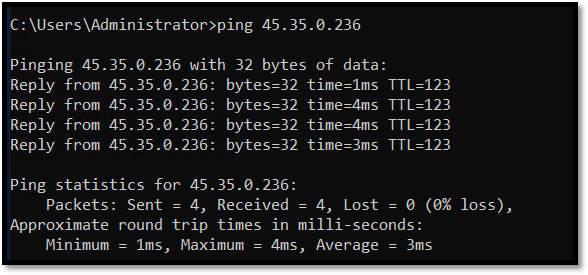
4.2 Use "Tracert" command
You can use the "tracert" command on most operation system to test the connection.
- Mac / Linux:
Please run "yum -y install traceroute" or "apt-get install traceroute" install traceroute first. - Open a Terminal window.
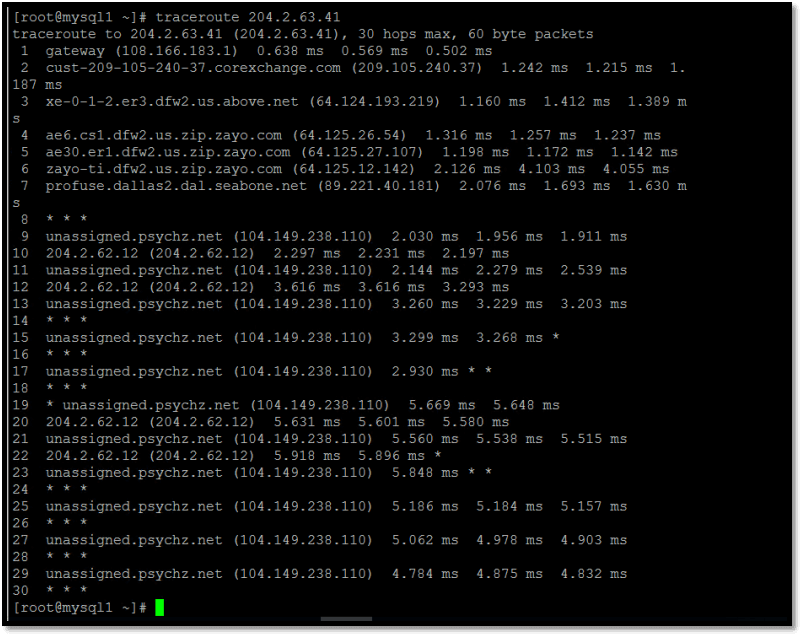
- Type "traceroute [mysqlhostip]" in the terminal and hit enter.
- Windows:
- Open the "Start" menu.
- Click on "Run".
- Type "CMD" and press "OK" to open a command prompt.
- Type "tracert [mysqlhostip]" and hit enter.
[mysqlhostip] should be filled in with your host IP. If the result is like the following screenshot shows, it is normal. If the tracert process cannot complete, please check your local network.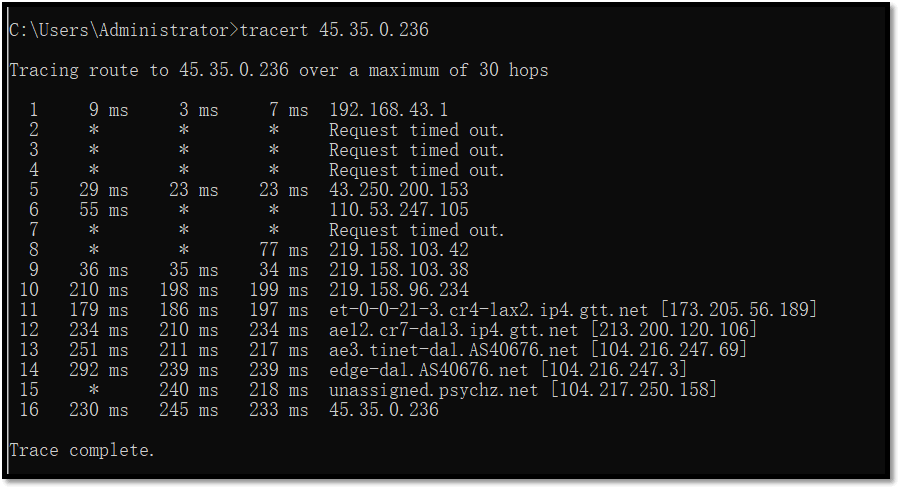
5. MySQL Connection Port is Blocked
If the ping MySQL IP is normal but the telnet to the MySQL port does not work, the MySQL port may be blocked by your ISP.
If the telnet command cannot be recognized on your local PC, please install telnet client first. About how to install Telnet:
- Windows server: https://social.technet.microsoft.com/wiki/contents/articles/38433.windows-10-enabling-telnet-client.aspx
- Centos: # yum -y install telnet
- Ubuntu & Debian: # apt-get install telnet
6. Incorrect MySQL Connection Info in App
Please refer to the article "Sample Code Connecting to MySQL Database via Different Program Language" at https://www.sqlclusters.com/docs/mysql/New%20node1605493971.html to check your database connection information in your codes.