


How to Fix Remote Connection Issues to SQL Server via SSMS
If your SQL Server cannot connect remotely, don’t worry — this guide will walk you through the process in simple steps. Whether you’re setting up a remote SQL Server or troubleshooting a SQL Server remote connection timeout, we’ll explain everything in beginner-friendly language.
Why You Cannot Connect to SQL Server Remotely?
Sometimes, when trying to connect via SQL Server Management Studio (SSMS)
or using an alternative to SQL Management Studio, you may face errors like:
- SQL Server cannot connect remotely
- Timeout expired
- Network-related or instance-specific error
The most common reasons include:
- Remote connections are disabled in SQL Server.
- SQL Server firewall port (1433 by default) is blocked.
- Network issues between your local computer and the remote SQL Server.
How to Fix SQL Server Remote Connection Issues?
Step 1: Check if SQL Server Allows Remote Connections
- Open SQL Server Management Studio (SSMS).
- Right-click on your SQL Server instance → Properties.
- Go to Connections → Make sure Allow remote connections to this server is checked.
👉 Without this setting, you won’t be able to connect to a remote SQL Server.
Step 2: Enable TCP/IP Protocol in SQL Server
- Open SQL Server Configuration Manager.
- Navigate to:
SQL Server Network Configuration→Protocols for MSSQLSERVER. - Right-click TCP/IP → Enable it.
- Restart SQL Server services.
👉 This ensures your SQL Server listens on the correct port for remote connections.
Step 3: Open SQL Server Port in Windows Firewall
By default, SQL Server uses port 1433. If the firewall is blocking it, remote connections won’t work.
- Open Windows Firewall.
- Go to Inbound Rules → New Rule.
- Select Port → Enter
1433(or your custom port). - Allow the connection and save.
👉 Now, your SQL Server firewall port is open for remote access.
Step 4: Test SQL Server Remote Connection with CMD
4.1 Open "CMD" on your local server. To do that:
Simultaneously press the Windows + R keys to open the run command box.
Type cmd and press Enter.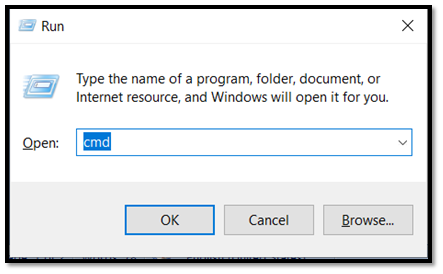
4.2 Ping the SQL Server
To confirm whether it’s a network issue or a port issue, use these commands:
ping 45.35.0.3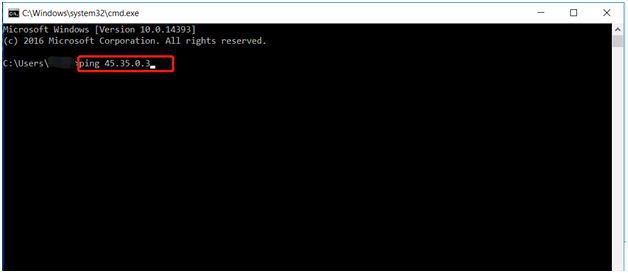
- If it replies, the server is reachable.
- If it times out, there may be a network issue.

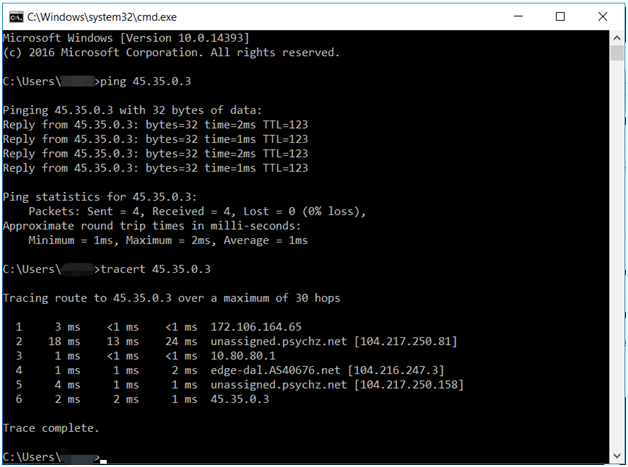
4.3 Tracert the SQL Server
tracert 45.35.0.3- Shows the network path between your PC and the remote SQL Server.
4.4 Telnet SQL Server Port
telnet 45.35.0.3 1433- If the screen goes blank, the SQL Server port is open.
- If it fails, you need to open SQL Server port in Windows Firewall.
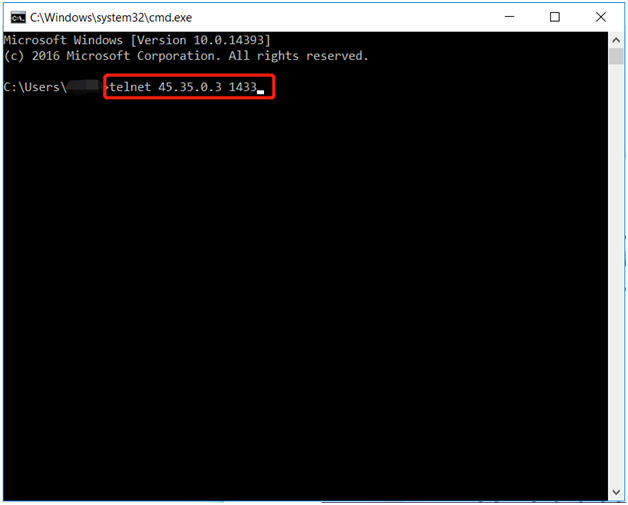
👉 Replace 1433 with your actual SQL port if it’s different.
Step 5: Restart SQL Server and Try Again
After making changes:
- Restart SQL Server services.
- Reconnect via SSMS using:
ServerIP,1433- If you still face issues, contact your hosting provider and share your ping, tracert, and telnet results.