


GPU Container Runtime: Post-Deployment Best Practices
The GPU Container Runtime application is available through the Software Marketplace for supported Ubuntu GPU servers. It automatically installs and configures the official Docker Engine and NVIDIA Container Toolkit, so your server is ready to run GPU-accelerated containers immediately after provisioning.
Although no manual installation is required, there are a few recommended configuration steps and best practices to review after your server is deployed. This article covers verifying the installation, configuring Docker permissions for the default administrator account, validating GPU support, and relocating Docker's storage directory to a larger data disk on dedicated servers.
Supported Operating Systems
GPU Container Runtime is currently supported on the following operating systems:
- Ubuntu 20.04 LTS
- Ubuntu 22.04 LTS
- Ubuntu 24.04 LTS
1. Verify the Installation
To deploy a server with GPU Container Runtime pre-installed, order the application from the Database Mart Software Marketplace: https://console.databasemart.com/app-marketplace/51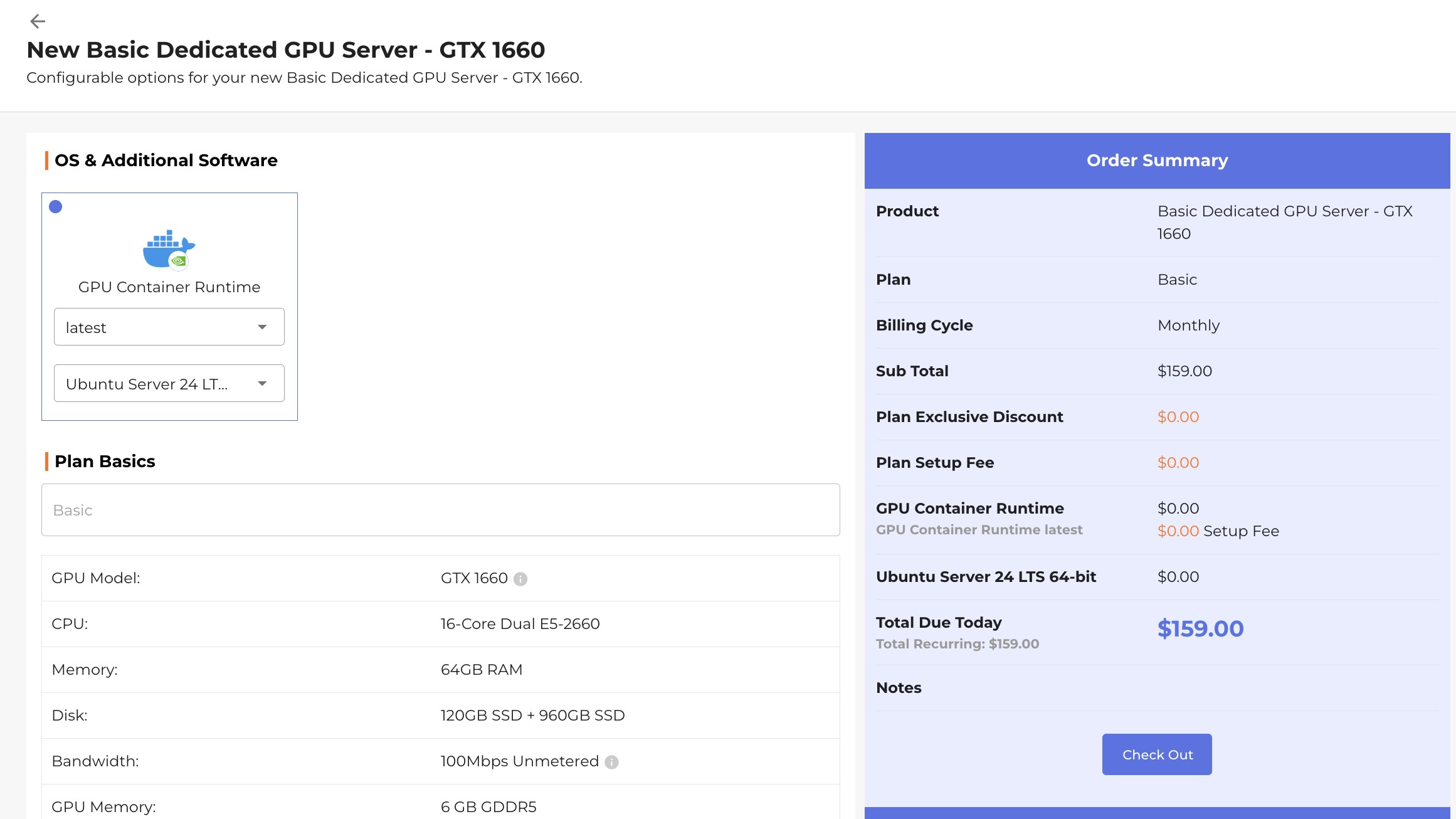
After your server has been provisioned, connect to it using SSH:
ssh administrator@your-server-ipFirst, verify that Docker is available:
docker --versionTo confirm that the Docker service is functioning correctly, run the official test container:
sudo docker run hello-worldIf the container prints the Hello from Docker! message, your Docker environment is ready to use.
Next, verify that GPU acceleration is available by running the following command:
docker run --rm --gpus all nvidia/cuda:12.0.0-base-ubuntu22.04 nvidia-smiIf GPU support is configured correctly, the command will display information about your NVIDIA GPU, including the driver version, CUDA version, and available GPU devices.
If running Docker without sudo results in a permission error, continue to the next section to configure Docker permissions for the default administrator account.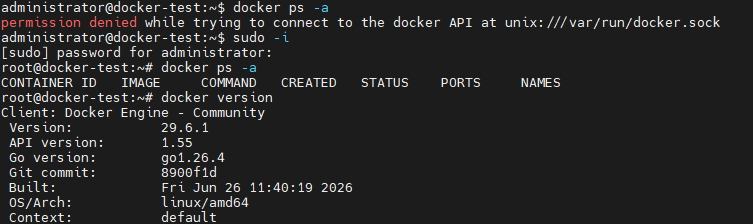
2. Allow the Administrator User to Run Docker
For occasional Docker commands, you can simply use sudo or switch to the root account. However, if you plan to use Docker regularly, adding the administrator account to the docker group is the recommended approach.
permission denied while trying to connect to the Docker API at unix:///var/run/docker.sockThere are three ways to run Docker commands.
Option 1. Switch to the root user
sudo -i
docker ps
Option 2. Use sudo
sudo docker ps
Option 3. Add administrator to the Docker group (Recommended)
To run Docker commands without sudo, add the administrator account to the docker group:
sudo usermod -aG docker administratorAfter running the command, log out of your SSH session and sign in again for the new group membership to take effect.
You can then verify that Docker commands work without elevated privileges:
docker psThis is the recommended configuration for day-to-day Docker administration.
3. Move Docker Storage to a Larger Data Disk
By default, Docker stores images, containers, volumes, and other runtime data under:
/var/lib/dockerOn dedicated servers, the operating system is typically installed on a smaller system disk, while a much larger data disk is available for application data.
If you expect to run AI workloads, Kubernetes clusters, or applications with large Docker images, we recommend relocating Docker's storage directory before deploying your workloads.
If Docker has already been used, first copy the existing data:
sudo rsync -aP /var/lib/docker/ /nvme0n1-disk/docker/Next, edit the Docker daemon configuration file:
sudo nano /etc/docker/daemon.jsonUpdate the data-root value to the desired location while preserving the existing NVIDIA runtime configuration. A typical configuration is shown below:
{
    "exec-opts": [
        "native.cgroupdriver=systemd"
    ],
    "log-driver": "json-file",
    "log-opts": {
        "max-size": "100m"
    },
    "default-runtime": "nvidia",
    "runtimes": {
        "nvidia": {
            "args": [],
            "path": "nvidia-container-runtime"
        }
    },
    "data-root": "/nvme0n1-disk/docker",
    "storage-driver": "overlay2"
}
Save the file, then restart Docker:
sudo systemctl restart dockerFinally, verify the new storage path:
docker info | grep "Docker Root Dir"You should see:
Docker Root Dir: /nvme0n1-disk/dockerSummary
GPU Container Runtime provides a ready-to-use Docker environment immediately after your server is provisioned. To help you get the best experience, we recommend reviewing the following best practices:
- Verify that Docker and GPU acceleration are working correctly.
- Add the default
administratoraccount to thedockergroup if you plan to use Docker regularly. - On dedicated servers, consider moving Docker's storage directory to a larger data disk before deploying production workloads.
These recommendations can help prevent common permission and storage issues while providing a more efficient Docker environment for GPU-accelerated applications.
GPU Container Runtime, GPU Container Runtime, Docker GPU, NVIDIA Container Toolkit, Docker on Ubuntu, Docker GPU acceleration