


How to Backup a Database in SSMS
Why You Need to Back Up Your Database
Databases store critical business information. Without a proper SQL backup and recovery plan, a system crash or accidental deletion could cause serious data loss.
Here are common use cases:
- Protecting customer or financial data
- Migrating to a new server
- Testing new features safely with a restore copy
Step-by-Step Guide to Back Up a Database
Step 1: Open SSMS
From the Start Menu, launch SQL Server Management Studio.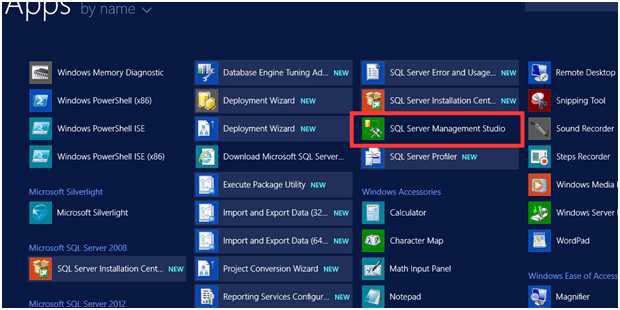
Step 2: Configure Backup
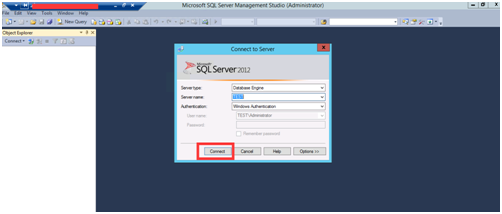
- Connect to the SQL Server.
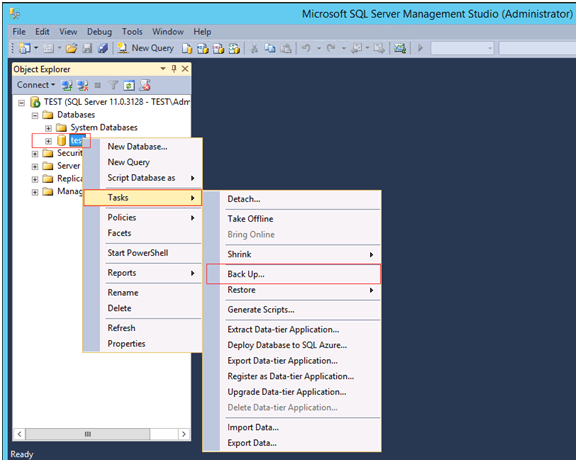
- In Object Explorer, right-click your database (e.g., test) → Tasks → Back Up.
- In the Backup dialog:
Remove any existing destination.
Click Add and choose your desired backup folder.
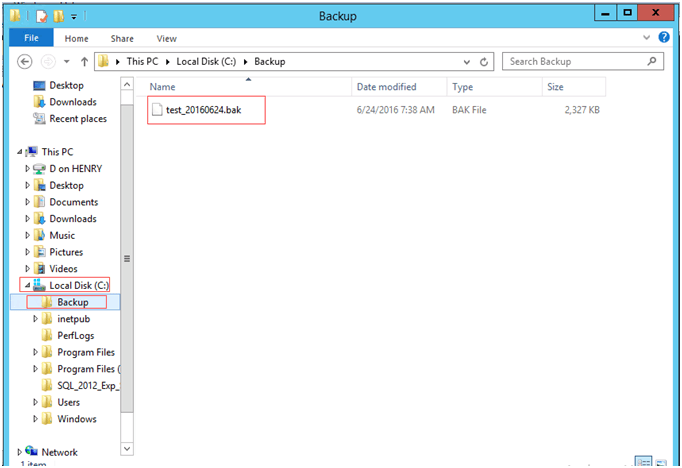
Then, confirm the backup file location.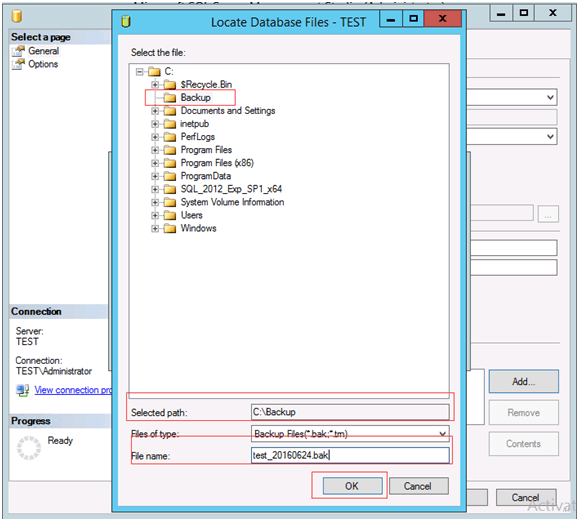
Step 3: Run Backup
Click OK to start. A confirmation window will appear once the backup is successful.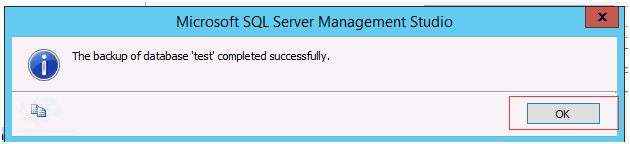
Conclusion
By following the above steps, you can easily back up a database in SQL Server Management Studio. Always store the backup file in a secure and accessible location, and keep multiple copies if possible. Regular database backups help prevent data loss and ensure quick recovery in case of system failures or unexpected issues.
Outline