


How to Print from Remote Desktop to Local Printer
This guide will walk you through the process step-by-step, even if you’re a beginner.
What is Remote Desktop Printer Redirection?
Printer redirection (also called RDP printer redirection) is a feature that allows you to use your local printer in Remote Desktop.
Once configured, you can print from Remote Desktop to your local printer as if the printer were connected directly to your remote server.
This is very useful when you need to print documents from your VPS to a local printer without transferring files.
Before You Start: Prerequisites
Before setting up remote desktop local printer redirection, make sure these three things are done:
- Ensure Local Printing Works Normally
- Test that your local printer works on your computer before using RDP printer redirection.
- Install the correct printer driver on the remote server.
- If you connect through multiple RDP sessions (nested RDP), the driver must be installed on every server in the chain.
- Enable Printers in Remote Desktop Local Devices and Resources
When connecting via Remote Desktop Client:- Open Remote Desktop Connection on your local computer.
- Click Show Options.
- Go to the Local Resources tab.
- Under Local devices and resources, check the Printers box.
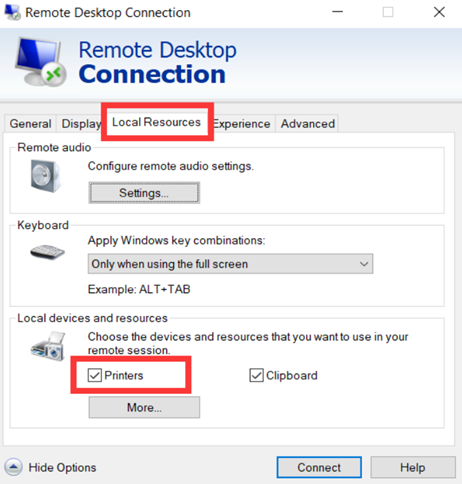
This step is crucial for adding a printer to Remote Desktop.
- Set Print Spooler Service to Start Automatically
The Print Spooler service handles all print jobs in Windows.
To enable it:- Press Windows + R, type
services.mscand press Enter. - Find Print Spooler in the list.
- Double-click it.
- Set Startup type to Automatic.
- Click Apply, then OK.
- Press Windows + R, type
Steps to Print to Local Printer from Remote Desktop
Once the prerequisites are done, follow these steps to enable printing over RDP:
Step 1: Log into Your Remote Server
Use your normal RDP connection to log in.
Step 2: Restart the Print Spooler Service
This refreshes the printer list for RDP print to the local printer.
Step 3: Log Off the Remote Desktop Session
Use Start → Log Off (not the “X” button) to close the session properly.
Step 4: Log Back In
After logging in again, your local printer should appear in the Remote Desktop printer list.
Troubleshooting Printer Redirection
If your remote desktop local printer does not appear or disappears:
- Repeat the above steps.
- Ensure that the printer driver is installed both locally and on the remote server.
- Confirm that the Printers option is checked in Remote Desktop local devices and resources.
Summary
Using RDP printer redirection is an easy way to print from Remote Desktop to your local printer without moving files.
By enabling printer redirection in the Remote Desktop settings and ensuring the Print Spooler service is running, you can use your local printer in Remote Desktop just like it’s directly connected to your VPS.
remote desktop printer redirection, rdp printer redirection, rdp printer, printer redirection, print to local printer from remote desktop, remote desktop local printer, rdp print to local printer, print from remote desktop to local printer, print over rdp, use local printer in remote desktop, add printer to remote desktop, remote desktop local devices and resources