


How to Print from Remote Desktop to Local Printer
This guide will walk you through the process step-by-step, even if you’re a beginner.
What is Remote Desktop Printer Redirection?
Printer redirection (also called RDP printer redirection) is a feature that allows you to use your local printer in Remote Desktop.
Once configured, you can print from Remote Desktop to your local printer as if the printer were connected directly to your remote server.
This is very useful when you need to print documents from your VPS to a local printer without transferring files.
Before You Start: Prerequisites
Before proceeding, please ensure that:
- The printer is properly connected to your local computer.
- You can print successfully from your local computer.
Steps to Print to Local Printer from Remote Desktop
Once the prerequisites are done, follow these steps to enable printing over RDP:
Step 1: Configure the Printer Port on Your Local Computer
- Open Settings → Bluetooth & devices → Printers & scanners.
- Select your local printer.
- Click Printer Properties.
- Go to the Ports tab.
- Ensure that LPT1: is checked.
Step 2: Enable Printer Redirection in Remote Desktop Connection
Make sure printer redirection is enabled in the Remote Desktop Client.
For Windows Remote Desktop Client
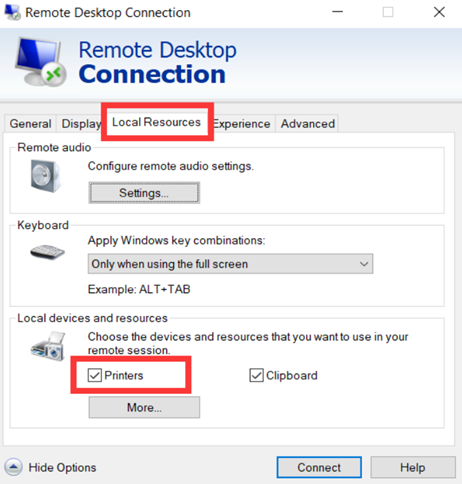
- Open Remote Desktop Connection on your local computer.
- Click Show Options.
- Select the Local Resources tab.
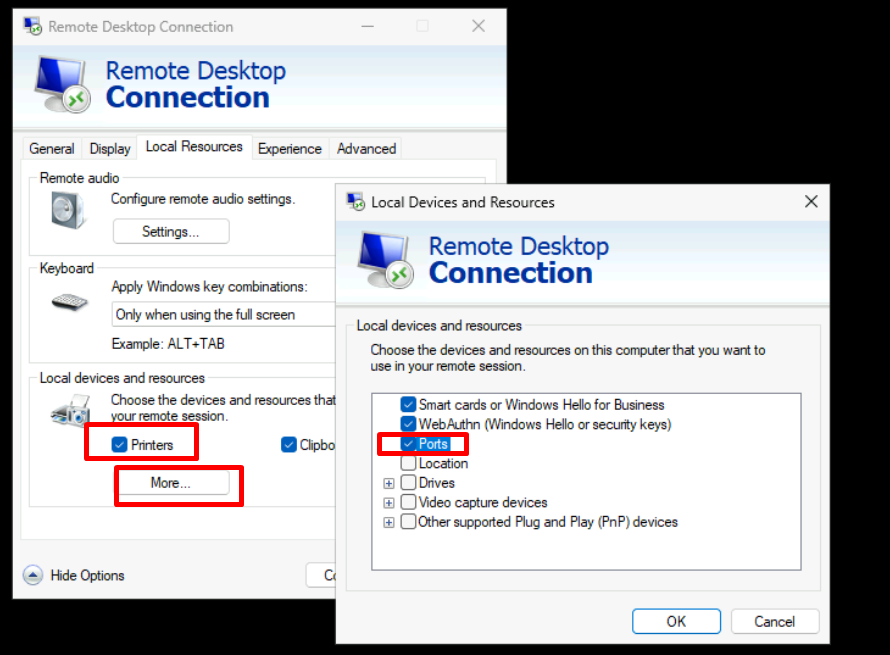
- Under Local devices and resources, ensure that Printers is checked.
- Click More...
- Verify that Ports is checked.
- Connect to the remote Windows server.
Step 3: Install the Same Printer Driver on the Remote Windows Server
The printer driver installed on the remote server must match the printer driver installed on your local computer.
- Log in to the Windows server via RDP.
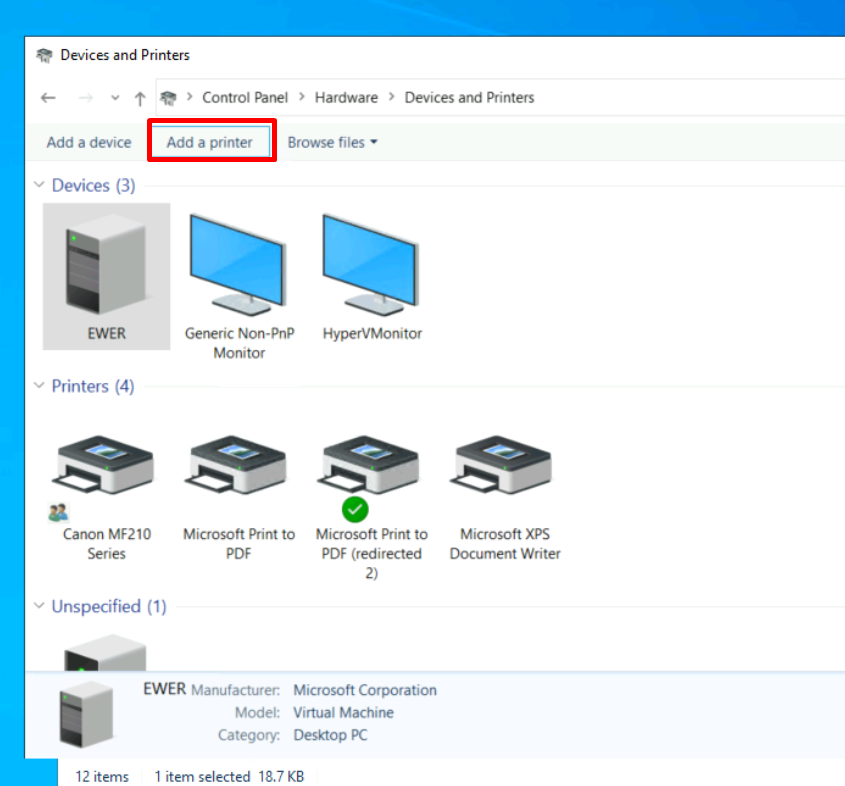
- Open Control Panel → Hardware and Sound → Devices and Printers.
- Click Add a printer.
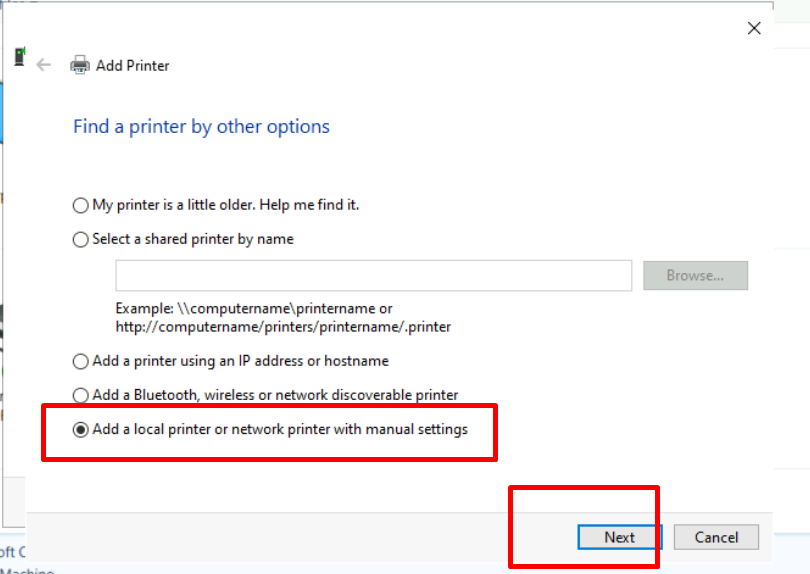
- Select Add a local printer or network printer with manual settings and click Next.
- Choose Use an existing port and select LPT1:.
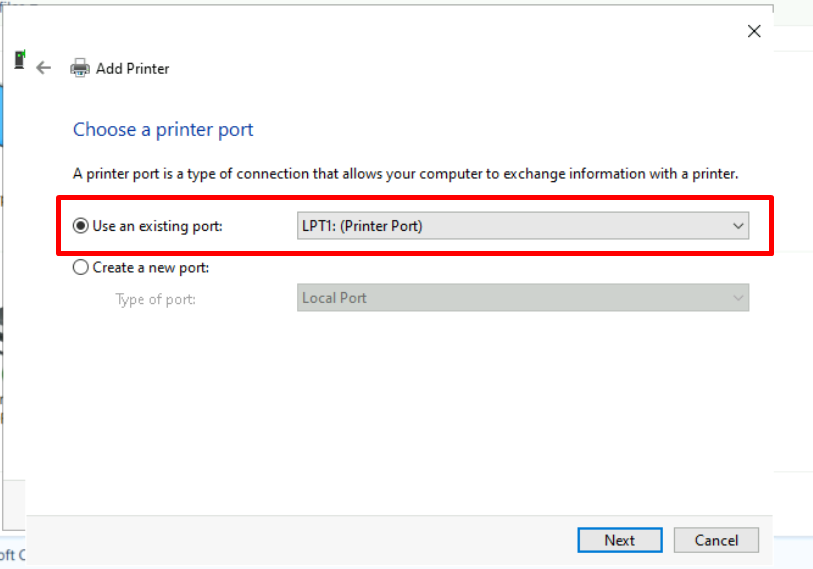
- Click Next.
- Click Have Disk....
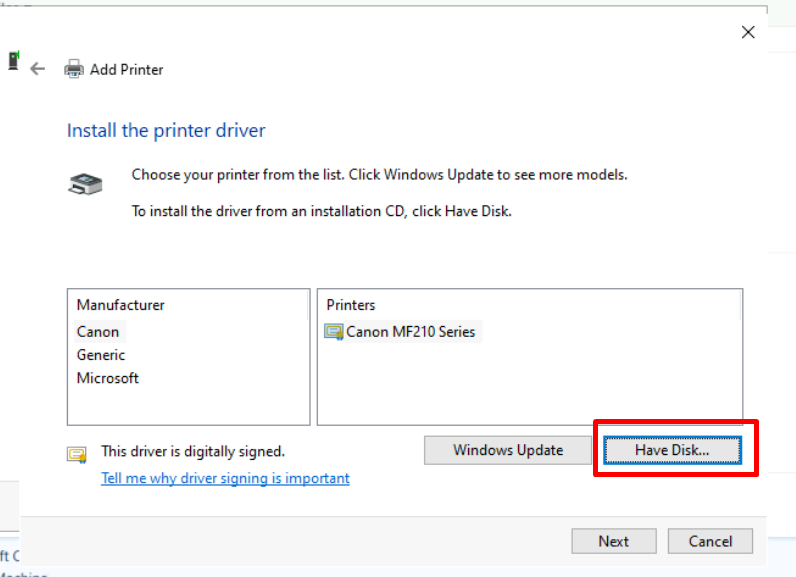
- Browse to the printer driver files and install the appropriate printer driver.
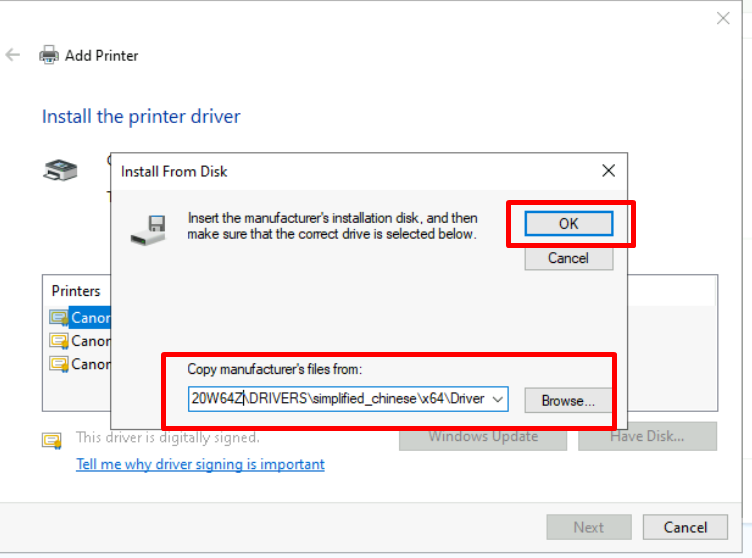
- Complete the installation wizard.
Step 4: Perform a Test Print
After the printer driver installation is complete:
- Open a document on the remote Windows server.
- Select Print.
- Choose the redirected local printer.
- Print a test page to verify that printing works correctly.
You should now be able to print documents from the Windows server through your local printer.
Troubleshooting Printer Redirection
If your remote desktop local printer does not appear or disappears:
- Repeat the above steps.
- Ensure that the printer driver is installed both locally and on the remote server.
- Confirm that the Printers option is checked in Remote Desktop local devices and resources.
Summary
Using RDP printer redirection is an easy way to print from Remote Desktop to your local printer without moving files.
By enabling printer redirection in the Remote Desktop settings and ensuring the Print Spooler service is running, you can use your local printer in Remote Desktop just like it’s directly connected to your VPS.
remote desktop printer redirection, rdp printer redirection, rdp printer, printer redirection, print to local printer from remote desktop, remote desktop local printer, rdp print to local printer, print from remote desktop to local printer, print over rdp, use local printer in remote desktop, add printer to remote desktop, remote desktop local devices and resources