


How to Install FileZilla Server to Transfer Files
Introduction
FileZilla is a free and open-source FTP software that makes it easy to transfer files between computers. It comes in two parts:
- FileZilla Server – Used to set up an FTP or SFTP service on your computer or VPS. Other people can connect to it and upload or download files.
- FileZilla Client – Used to connect to an FTP or SFTP server and transfer files to and from it.
If you’re looking for the download FileZilla FTP client for your Windows computer, you can get it from the official website. If you want to set up a FileZilla server and share files easily, follow this beginner-friendly guide.
Easy Steps to Download and Install FileZilla Server
Step 1: Install FileZilla Server on Windows
In the FileZilla License Agreement window, select I Agree.
Next, choose the components: FileZilla Server (Service), Administration Interface, Start Menu Shortcuts, and Desktop Icon, then click Next.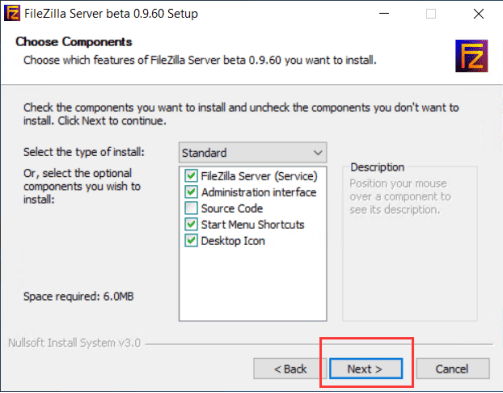
Select the install location and click Next to continue.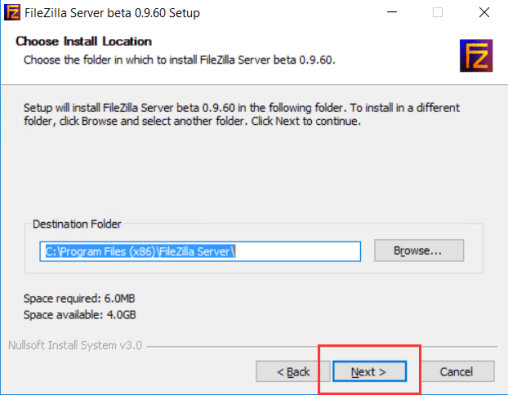
When you start the FileZilla Server install, you will be asked to choose how it should run on your Windows system. You’ll see three options:
- Install as a service (recommended) – Starts automatically when Windows starts.
- Install as a service (manual start) – Installed as a service, but you start it manually.
- Do not install as a service – Just starts when you run it.
You will also see the Admin port option. By default, this is set to 14147. This port is only for managing the FileZilla server (not for FTP connections). You can change it if you want.
For the Startup settings, you also get three choices:
- Start if user logs on, apply to all users (default)
- Start if user logs on, apply only to current user
- Start manually
Here we choose Start if user logs on, apply to all users (default). Click Install.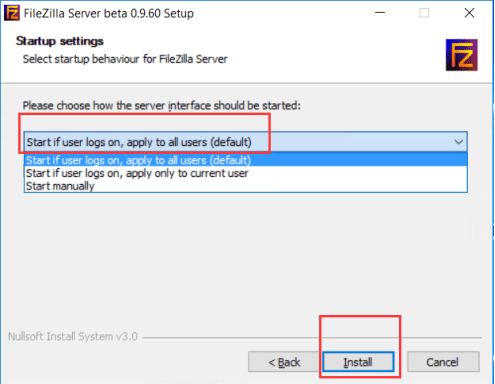
If the following page appears, FileZilla has been successfully installed. Click Close.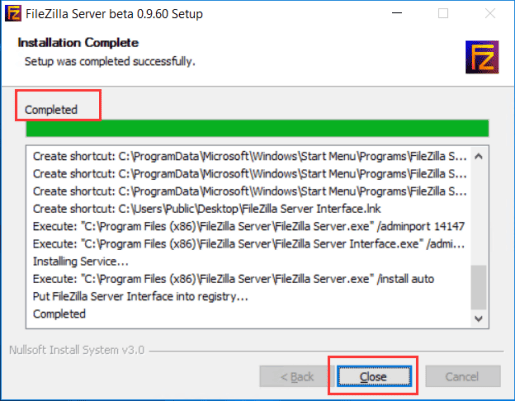
Once installed, the FileZilla Server settings console will open.
- Host: 127.0.0.1 or localhost
- Port: The admin port you set earlier (default is 14147)
- Password: Leave blank for the first login
Select Always connect to this server, and click Connect.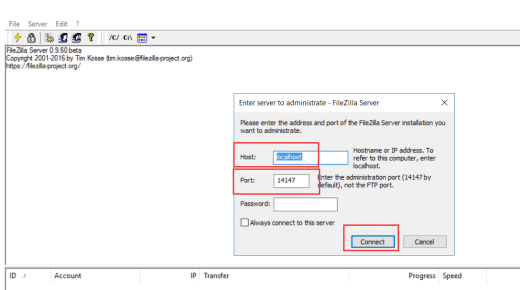
Step 2: Create Users and Configure Permissions
The default FTP port for the FileZilla server setup is 21.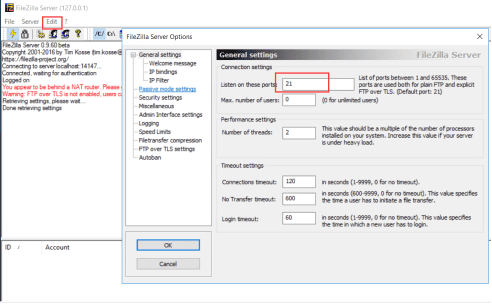
To make sure your FTP connections work properly, you’ll also need to configure passive mode ports (commonly 5001–5010).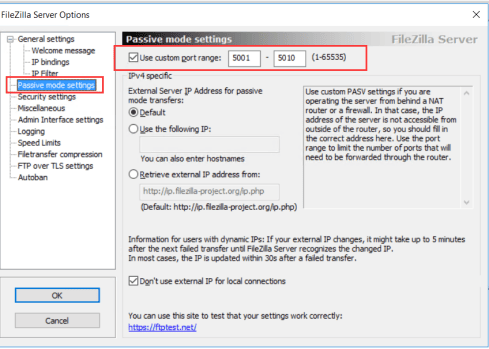
Don’t forget: open these ports in your Windows Firewall (20, 21, 5001–5010).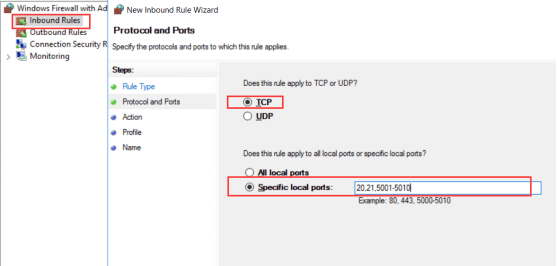
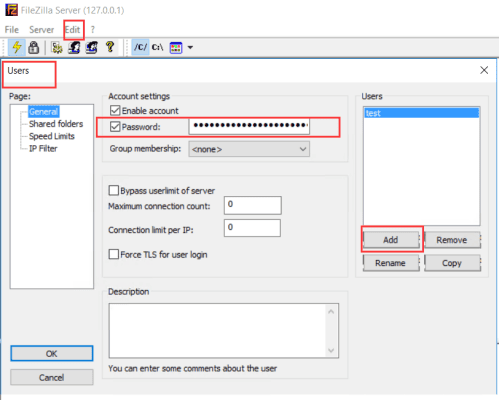
1. Add a New User
- Go to Edit → Users.
- Under General, click Add, then enter a username.
- Check the Password and set a secure password.
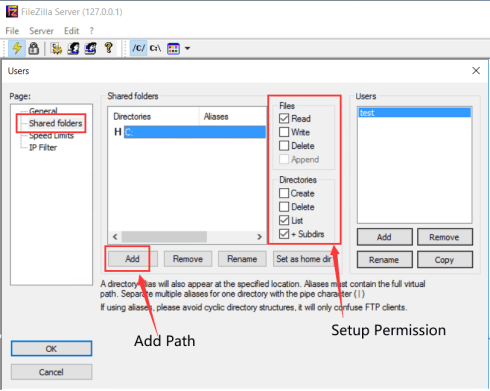
2. Set a Shared Folder
- Go to Edit → Users → Shared folders.
- Select the user you created.
- Click Add, then select a folder to be the user’s FTP root directory.
- Assign permissions (read, write, delete, create).
Step 3: Test Your FileZilla Server
Now that the server is running, you can test it using FileZilla Client.
- Open FileZilla Client and install it on your computer.
- Enter your server IP, username, and password.
- Connect and start uploading or downloading files.
This is the easiest way to confirm that your FileZilla server install is successful.
Conclusion
Setting up a FileZilla server may sound complicated, but once you go step by step, it’s very beginner-friendly. With this guide, you now know how to:
- Install FileZilla server on Windows
- Configure users and permissions
- Set passive mode and firewall rules
- Connect with FileZilla Client for file transfer
If you’re new, just remember:
- Use the FileZilla Server install for hosting files
- Use Download FileZilla Client for Windows to connect to servers
With this, you can easily start setting up a FileZilla server and use it as a reliable solution for file transfers.
filezilla client download, filezilla software download, download filezilla, ftp filezilla client, filezilla for ftp, filezilla download windows, download filezilla client for windows, download filezilla client windows, install filezilla, filezilla server setup, config filezilla server, filezilla client install, filezilla server install, filezilla server settings, setting up a filezilla server, setting up filezilla, filezilla windows