


How to Install LEMP Stack on Ubuntu
Prerequisites
Before we start installing the Ubuntu LEMP stack, you’ll need:
- An Ubuntu 20.04 server (works for Ubuntu 22.04 as well).
- A non-root sudo user.
- A firewall is enabled for security.
Steps to Install LEMP Stack on Ubuntu
Step 1: Installing Nginx Web Server
To serve web pages, we’ll install Nginx, a lightweight and fast web server:
sudo apt update
sudo apt install nginx
After installation, open your browser and visit your server’s IP. If you see the default Nginx welcome page, your web server is running successfully.
Step 2: Installing PHP
Nginx doesn’t process PHP by itself, so we’ll install PHP-FPM (FastCGI Process Manager) and php-mysql to connect PHP with MySQL:
sudo apt install php-fpm php-mysqlThis ensures that PHP scripts can run and interact with the database.
Step 3: Installing MySQL Database
Now let’s install MySQL to store and manage your website data:
sudo apt install mysql-serverSecure your installation:
sudo mysql_secure_installationTest the connection:
sudo mysql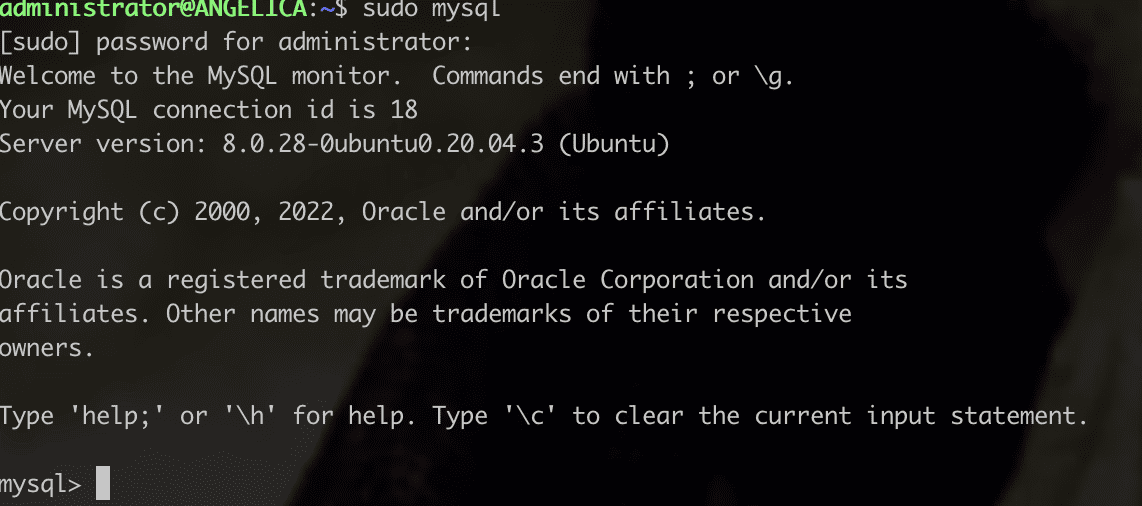
Exit MySQL with:
exit;Pro tip: Always use strong passwords and create dedicated database users for each application.
Step 4: Configuring Nginx to Use PHP
Next, we’ll configure Nginx to process PHP files.
- Create a directory for your website:
sudo mkdir /var/www/your_domain
sudo chown -R $USER:$USER /var/www/your_domain
- Create a new Nginx server block:
sudo nano /etc/nginx/sites-available/your_domain- Add this configuration:
server {
    listen 80;
    server_name your_domain www.your_domain;
    root /var/www/your_domain;

    index index.html index.htm index.php;

    location / {
        try_files $uri $uri/ =404;
    }

    location ~ \.php$ {
        include snippets/fastcgi-php.conf;
        fastcgi_pass unix:/var/run/php/php7.4-fpm.sock;
    }

    location ~ /\.htaccess {
        deny all;
    }
}- Enable the new site and disable the default:
sudo ln -s /etc/nginx/sites-available/your_domain /etc/nginx/sites-enabled/
sudo unlink /etc/nginx/sites-enabled/default- Test configuration and reload Nginx:
sudo nginx -t
sudo systemctl reload nginx
Now your LEMP server on Ubuntu is serving content from /var/www/your_domain.
Step 5: Testing PHP with Nginx
Create a test file to confirm PHP is working:
sudo nano /var/www/your_domain/info.phpInsert:
<?php
phpinfo();
Visit http://your_domain/info.php in your browser. If you see PHP information details, your LEMP stack Ubuntu installation is working.
Don’t forget to remove the file afterward:
sudo rm /var/www/your_domain/info.phpStep 6: Testing Database Connection with PHP
- Create a database and user:
CREATE DATABASE example_database;
CREATE USER 'example_user'@'%' IDENTIFIED WITH mysql_native_password BY 'password';
GRANT ALL ON example_database.* TO 'example_user'@'%';
exit;- Create a PHP script to connect and display data:
nano /var/www/your_domain/quote_list.php<?php
$user = "example_user";
$password = "password";
$database = "example_database";
$table = "quote_list";
try {
$db = new PDO("mysql:host=localhost;dbname=$database", $user, $password);
echo "<h2>Quotes</h2><ol>";
foreach($db->query("SELECT content FROM $table") as $row) {
echo "<li>" . $row['content'] . "</li>";
}
echo "</ol>";
} catch (PDOException $e) {
print "Error!: " . $e->getMessage() . "<br/>";
die();
}
?>
- Access it in your browser: http://your_domain/quote_list.php
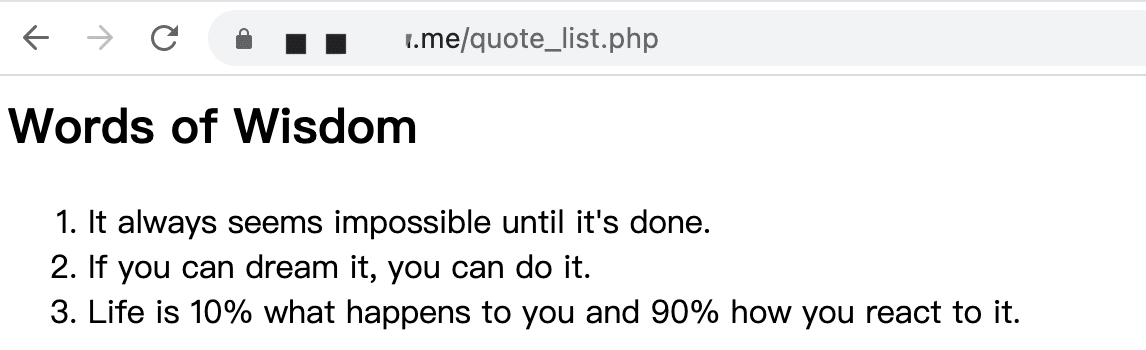
If it displays data, your LEMP Linux environment is functioning properly.
Conclusion
Congratulations! You have successfully installed the LEMP stack on Ubuntu 20.04.
Now you can:
- Host PHP applications with Nginx
- Manage data with MySQL
- Run everything smoothly on your LEMP Ubuntu server
This setup is secure, efficient, and ready for production. If you’re planning to upgrade, the same steps apply when you install LEMP on Ubuntu 22.04.
lemp stack, lemp server, lemp ubuntu, lnmp stack, install lemp, install lemp ubuntu, install lemp ubuntu 22.04, install lemp on ubuntu 22.04, lemp linux, lemp stack ubuntu, lemp stack ubuntu 22.04, lemp ubuntu 22.04, ubuntu lemp stack, install lemp ubuntu 20.04