


How to Install Multiple PHP Versions Ubuntu
This tutorial is beginner-friendly, so even if you’re new to installing PHP on Ubuntu Linux servers, you’ll be able to follow along.
Why Install Multiple PHP Versions?
- Some applications still require older PHP versions like PHP 5.6 or PHP 7.0.
- Modern apps need PHP 7.4, PHP 8, or PHP 8.1+.
- With Ubuntu, you can easily set up a PHP server to run different sites with different PHP versions.
Whether you’re learning how to install PHP 7 on Ubuntu or want to run the latest Ubuntu PHP 8.2, this guide will help.
Steps to Install Multiple PHP Versions
Step 1: Update Your System
First, make sure your Ubuntu system is up to date:
apt-get update
apt-get upgrade
Step 2: Add PHP Repository
The Sury.org repository provides multiple PHP versions for Ubuntu servers.
apt-get install apt-transport-https lsb-release ca-certificates
add-apt-repository ppa:ondrej/php
apt-get update
apt-get upgrade
Step 3: Install Different PHP Versions
You can now install the PHP versions you need.
- Install PHP 5.6
apt-get -y install php5.6 php5.6-fpm php5.6-cli php5.6-mysql php5.6-xml php5.6-mbstring- Install PHP 7.0 / 7.1 / 7.2 / 7.3 / 7.4
apt-get -y install php7.0 php7.0-fpm php7.0-cli php7.0-mysql
apt-get -y install php7.1 php7.1-fpm php7.1-cli php7.1-mysql
apt-get -y install php7.2 php7.2-fpm php7.2-cli php7.2-mysql
apt-get -y install php7.3 php7.3-fpm php7.3-cli php7.3-mysql
apt-get -y install php7.4 php7.4-fpm php7.4-cli php7.4-mysql
- Install PHP 8.0 / 8.1 / 8.2
For modern projects, install the latest versions:
apt-get -y install php8.0 php8.0-fpm php8.0-cli php8.0-mysql
apt-get -y install php8.1 php8.1-fpm php8.1-cli php8.1-mysql
apt-get -y install php8.2 php8.2-fpm php8.2-cli php8.2-mysql
Now you have multiple PHP versions ready in Ubuntu.
Step 4: Configure PHP in ISPConfig
If you’re using ISPConfig for hosting, you can add the new PHP versions:
- Go to System → Additional PHP Versions. Choose Add new PHP version
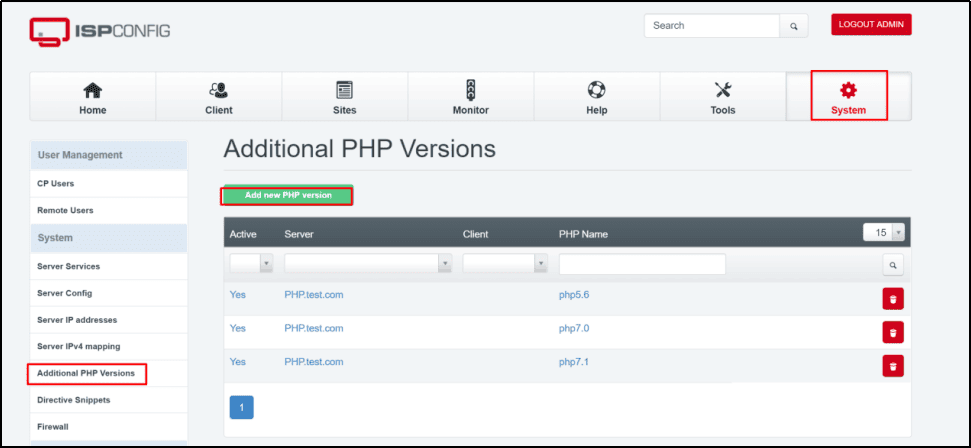
- Select the server and input the PHP server name here. Then click Save

- Enter details:
- FastCGI Settings
- Path to PHP FastCGI Binary:
/usr/bin/php5.6-cgi - php.ini directory:
/etc/php/5.6/cgi/php.ini
- Path to PHP FastCGI Binary:
- FastCGI Settings
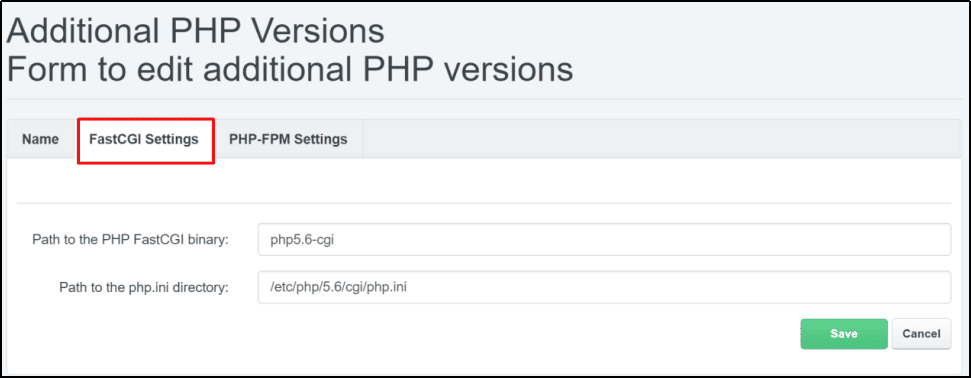
* PHP-FPM Settings
* Path to PHP-FPM init Script: php5.6-fpm
* php.ini directory: /etc/php/5.6/fpm/php.ini
* Pool directory: /etc/php/5.6/fpm/pool.d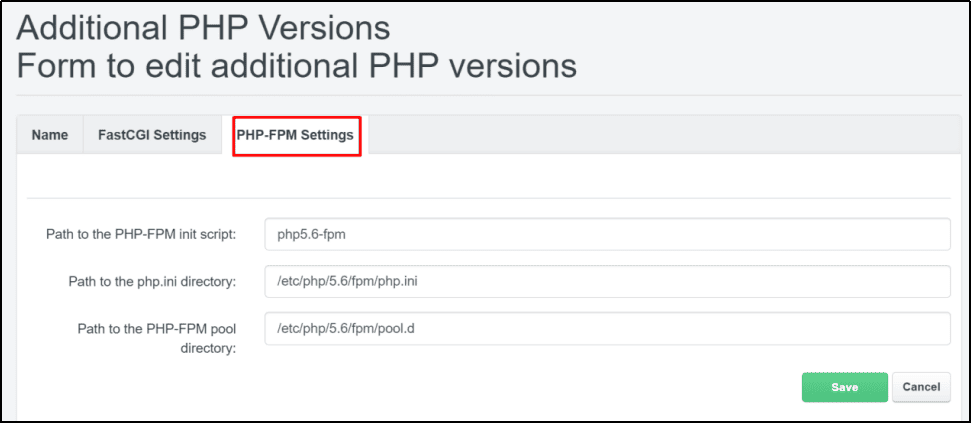
Repeat for PHP 7.0, PHP 7.2, PHP 8.1, etc.
Step 5: Restart PHP and Apache
After installation, restart services so your changes take effect:
systemctl restart php5.6-fpm
systemctl restart php7.0-fpm
systemctl restart php7.1-fpm
systemctl restart php7.2-fpm
systemctl restart php7.3-fpm
systemctl restart php7.4-fpm
systemctl restart php8.0-fpm
systemctl restart php8.1-fpm
systemctl restart php8.2-fpm
systemctl restart apache2
Step 6: Enable Auto-Start for PHP-FPM
Ensure PHP-FPM runs automatically after a reboot:
systemctl enable php5.6-fpm
systemctl enable php7.0-fpm
systemctl enable php7.1-fpm
systemctl enable php7.2-fpm
systemctl enable php7.3-fpm
systemctl enable php7.4-fpm
systemctl enable php8.0-fpm
systemctl enable php8.1-fpm
systemctl enable php8.2-fpm
Conclusion
You’ve successfully learned how to:
- Install multiple PHP versions on Ubuntu 18.04 (PHP 5.6, PHP 7.x, PHP 8.x).
- Configure PHP for ISPConfig with FastCGI and FPM.
- Restart and enable PHP services for smooth operation.
With this setup, you can run legacy apps with PHP 5.6 and modern frameworks with PHP 8.2 on the same Ubuntu server.
install multiple php versions ubuntu, install php on ubuntu, install php linux ubuntu, setup php in ubuntu, php for ubuntu, php linux ubuntum, install php 7.4 ubuntu, install php 8 ubuntu, install php 8.1 ubuntu, install php fpm ubuntu, ubuntu install php 8, ubuntu install php 8.1, ubuntu install php 7.4, install php7, install php 7 ubuntu, install php on ubuntu server, install php in ubuntu server, ubuntu install php 7, setup php server ubuntu, ubuntu php 8.2