


How to Install WordPress on Ubuntu 22.04
Whether you want WordPress in Ubuntu, WordPress on Linux, or are just starting your first blog, this tutorial will help you get it running smoothly.
Prerequisites
Before starting, make sure you have:
- You’ll need access to an Ubuntu 20.04 server.
- You have installed a LEMP stack.
- WordPress will need a web server, a database, and PHP to function correctly. Setting up a LEMP (Linux, Nginx, MySQL, and PHP) stack fulfills all of these requirements. Follow the following tutorials to install and configure a LEMP stack.
Once you have finished the setup, log in to your server as the sudo user to proceed.
How to Install WordPress on Ubuntu 22.04?
Step 1: Install Required PHP Extensions
- WordPress needs certain PHP extensions to work properly. Run the following command:
sudo apt install php-curl php-gd php-intl php-mbstring php-soap php-xml php-xmlrpc php-zip- Restart PHP-FPM so the changes take effect:
sudo systemctl restart php8.0-fpmNow your server is ready to support WordPress installation on Linux.
Step 2: Configure Nginx for WordPress
- Open your WordPress Nginx config file:
sudo nano /etc/nginx/sites-available/wordpress- Update your server block with these rules:
server {
    ...
    location = /favicon.ico { log_not_found off; access_log off; }
    location = /robots.txt { log_not_found off; access_log off; allow all; }
    location ~* \.(css|gif|ico|jpeg|jpg|js|png)$ {
        expires max;
        log_not_found off;
    }
    location / {
        #try_files $uri $uri/ =404;
        try_files $uri $uri/ /index.php$is_args$args;
    }
    ...
}- Check syntax and reload Nginx:
sudo nginx -t
sudo systemctl reload nginx
Step 3: Download WordPress
- Get the latest WordPress download package from the official site:
cd /tmp
curl -LO https://wordpress.org/latest.tar.gz
tar xzvf latest.tar.gz- Copy files to your web root:
sudo cp -a /tmp/wordpress/. /var/www/wordpress
sudo chown -R www-data:www-data /var/www/wordpress
Now WordPress files are ready in your server’s document root.
Step 4: Configure WordPress Settings
- Copy the sample config file:
cp /var/www/wordpress/wp-config-sample.php /var/www/wordpress/wp-config.php- Edit the configuration:
sudo nano /var/www/wordpress/wp-config.php- Update with your database name, username, and password:
define( 'DB_NAME', 'wordpress' );
define( 'DB_USER', 'wpuser' );
define( 'DB_PASSWORD', 'password' );- Generate secure keys:
curl -s https://api.wordpress.org/secret-key/1.1/salt/Replace the dummy values in your wp-config.php file.
- Add this line so WordPress can update without FTP:
define( 'FS_METHOD', 'direct' );Save and exit.
Step 5: Complete WordPress Setup in Browser
Now, go to your domain or server IP in a browser:
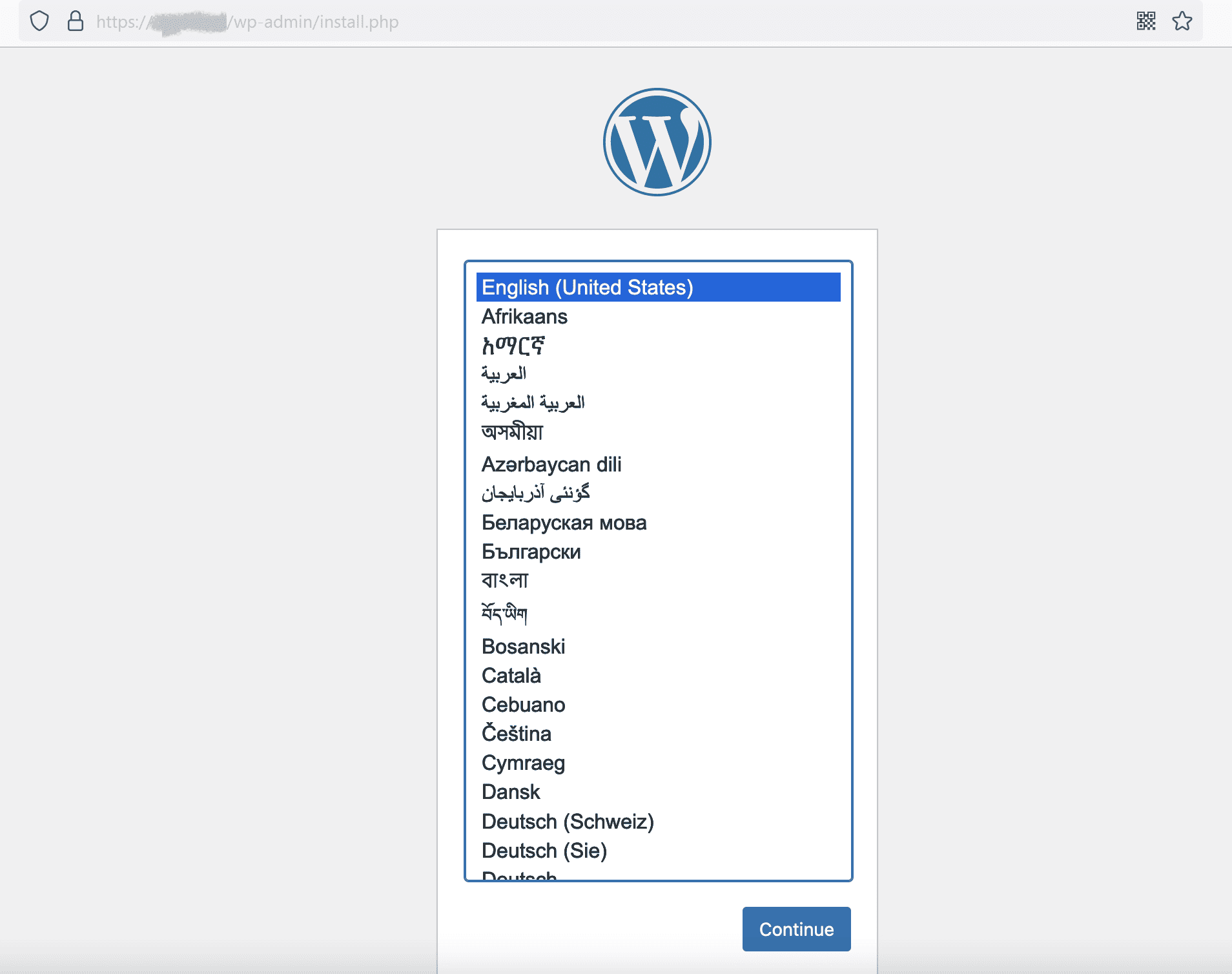
http://yourdomain.com/wordpress- Select your language.
- Enter site title, username, password, and email.
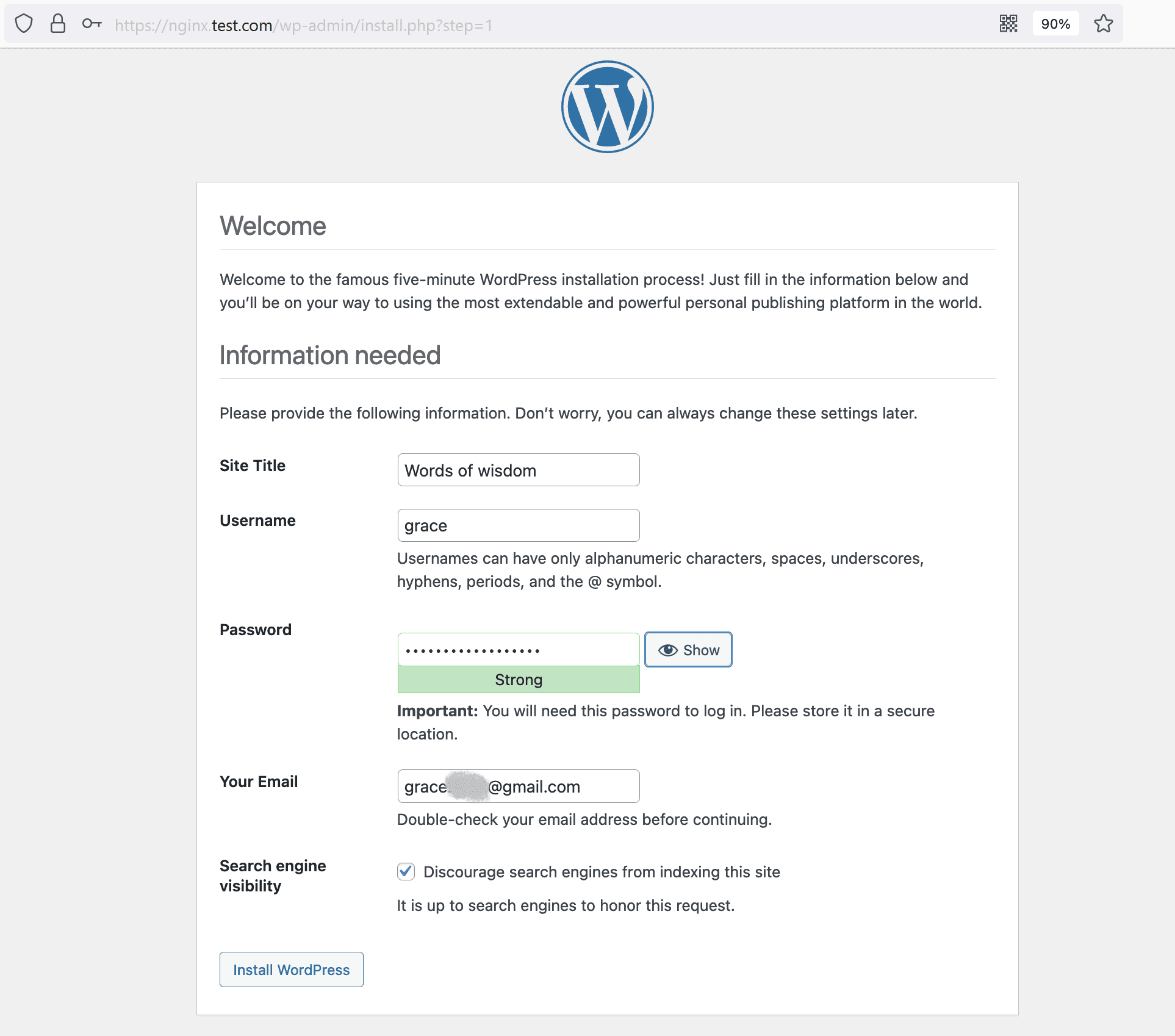
- (Optional) Disable search engine indexing if it’s a test site.
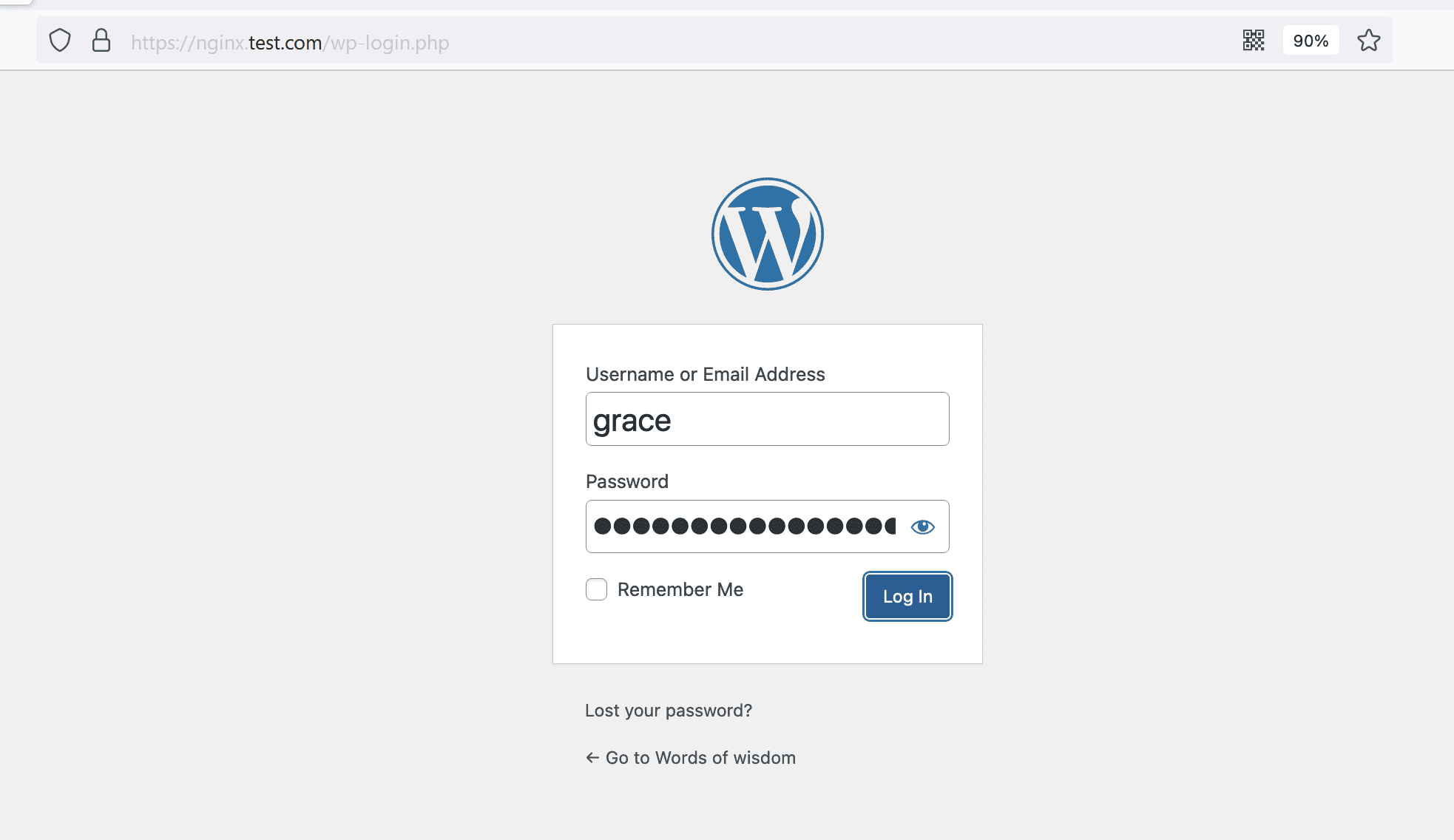
- Log in with your admin credentials.
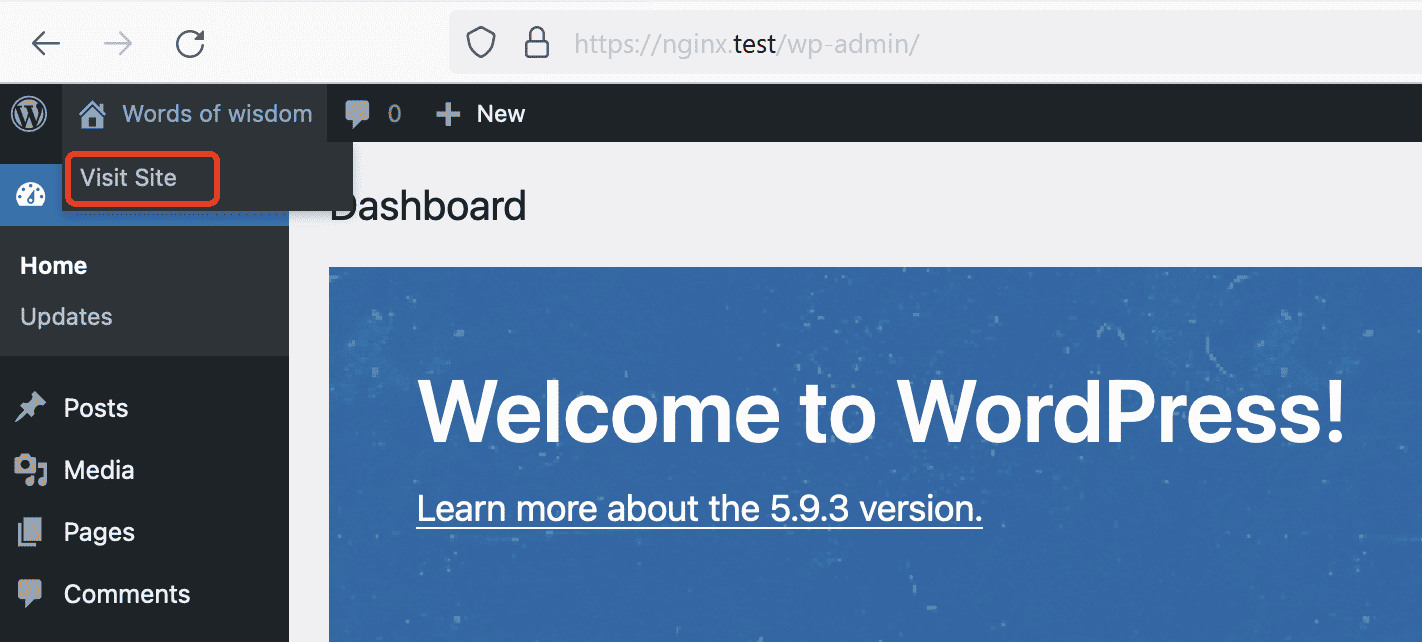
You’ll land on the WordPress dashboard, where you can manage your site.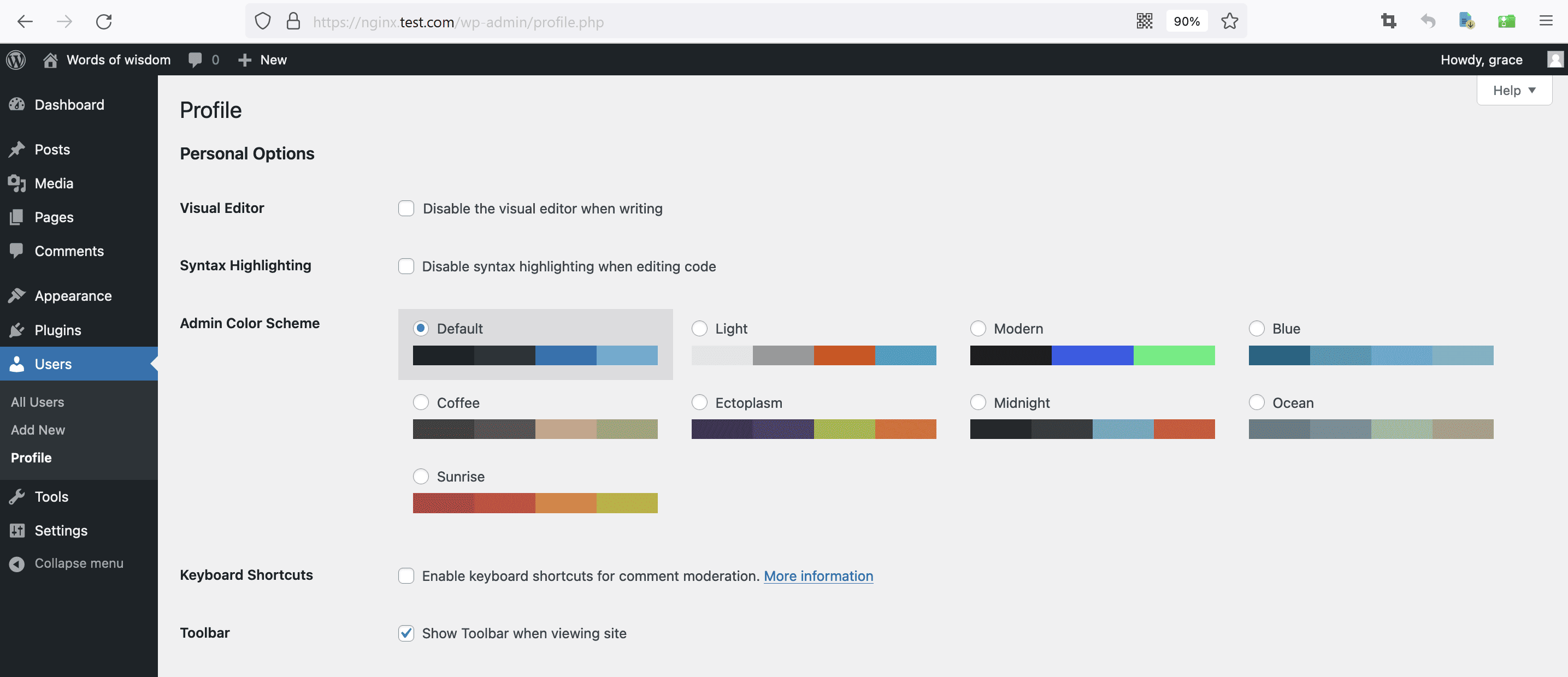
- Right-click on Visit Site, and select Open in new tab. Your site will open in a new tab.
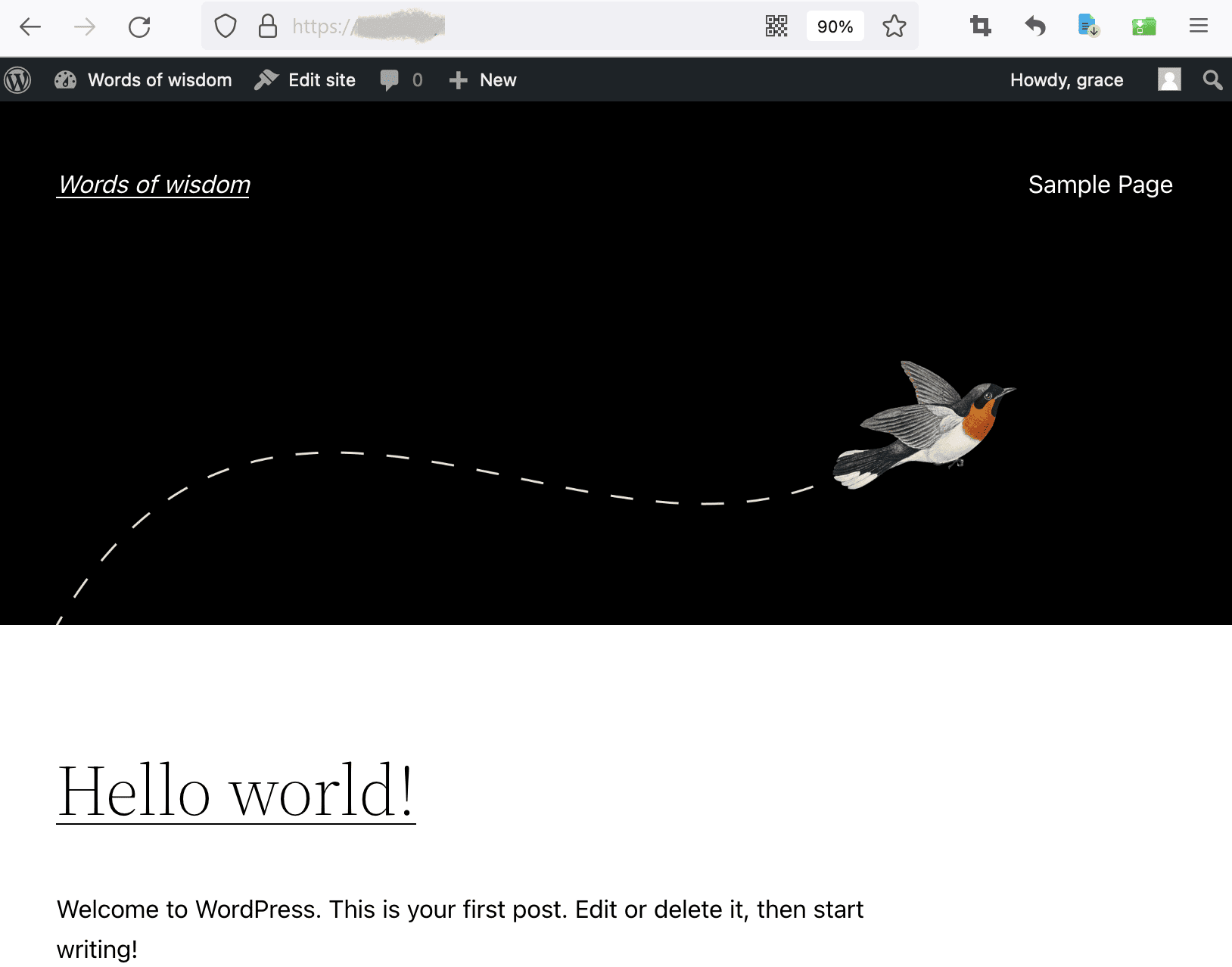
- The default home page of the latest version 5.9.3 of WordPress looks like the following.
Conclusion
Congratulations! You’ve completed the WordPress install on Ubuntu 22.04.
Now that WordPress is installed, you can:
- Choose a theme
- Install essential plugins
- Add content
- Customize your site
This WordPress installation guide helps you set up your website quickly, whether it’s for a blog, business, or e-commerce.
wordpress download, install wordpress, install wordpress on ubuntu, ubuntu wordpress, wordpress in ubuntu, wordpress setup, install wordpress linux, wordpress install on linux, wordpress setup guide, install wordpress ubuntu 22.04, install wordpress step by step, wordpress installation steps, download wordpress for linux, download wordpress for ubuntu, download wordpress on ubuntu, install wordpress on ubuntu 22.04, wordpress installation guide