


How to Install XRDP Automatically on Linux
This guide will show you how to install XRDP automatically on CentOS, Ubuntu, and Debian using a single script — no complex manual setup required.
What is XRDP?
XRDP is an open-source implementation of the Microsoft Remote Desktop Protocol (RDP) for Linux. With XRDP installed, you can:
- Connect to your Linux server using the Remote Desktop app on Windows or macOS.
- Use a graphical desktop environment instead of the command line.
- Access your server from anywhere with a secure RDP connection.
Steps to Install XRDP on Linux
Step 1: Install wget Tool
Before downloading the XRDP installation script, install wget:
- For Ubuntu:
sudo -i
apt-get -y install wget- For CentOS:
yum -y install wgetStep 2: Download the XRDP Installation Script
Run:
wget https://gitlab.cloudclusters.net/public_package/dbm-script/raw/master/xrdp_install.sh
Step 3: Run the Installation Script
Run:
bash xrdp_install.sh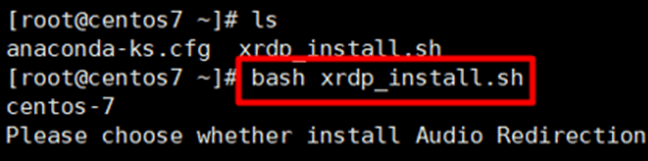
The script will detect your Linux distribution and guide you through installation.
3.1 Install XRDP on CentOS 7.x 64-bit
After running the script, you’ll be asked whether to install audio support. Default: No (skip audio for faster setup).
3.2 Install XRDP on Ubuntu Server 20 LTS & 18 LTS
After running the script, you’ll be prompted to choose a desktop environment: GNOME (full-featured but heavier) or Xfce4 (lightweight and faster)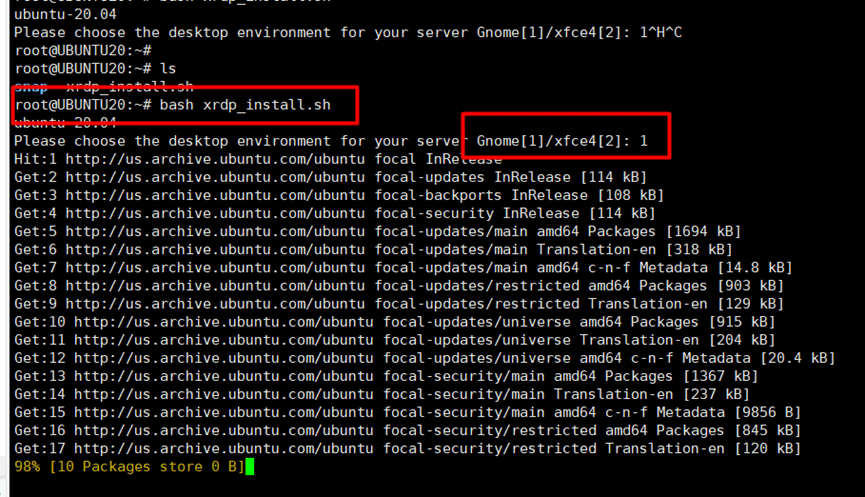
3.3 Install XRDP on Debian 9
After running the script, a "Software Selection" interface will appear. Select the Debian desktop environment, and then select GNOME as the desktop.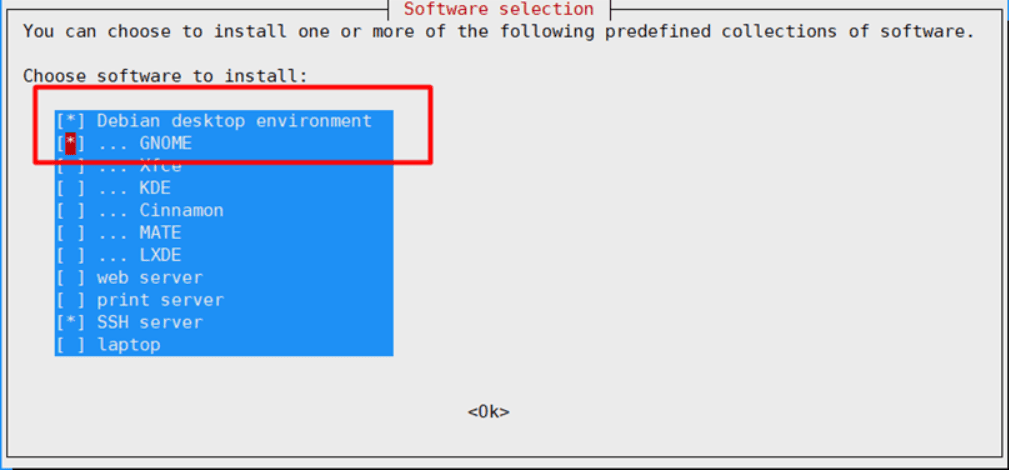
Step 4: Test Your XRDP Connection
Once XRDP is installed, you can test it from your Windows machine:
Press Win + R and type:
mstsc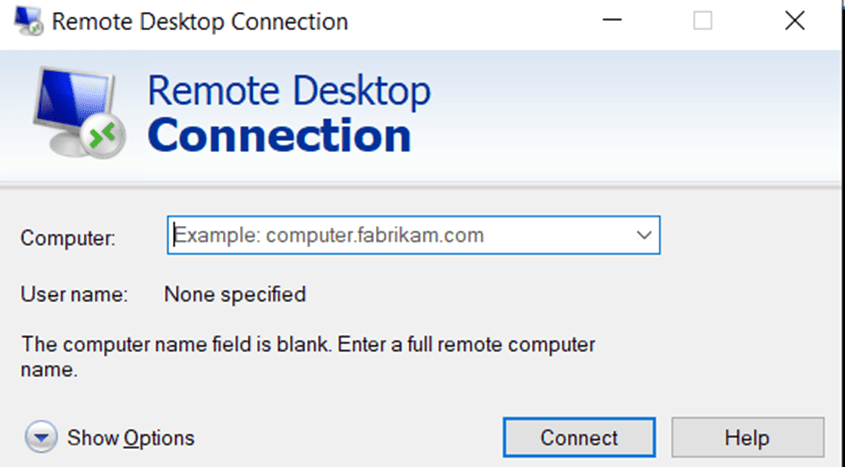
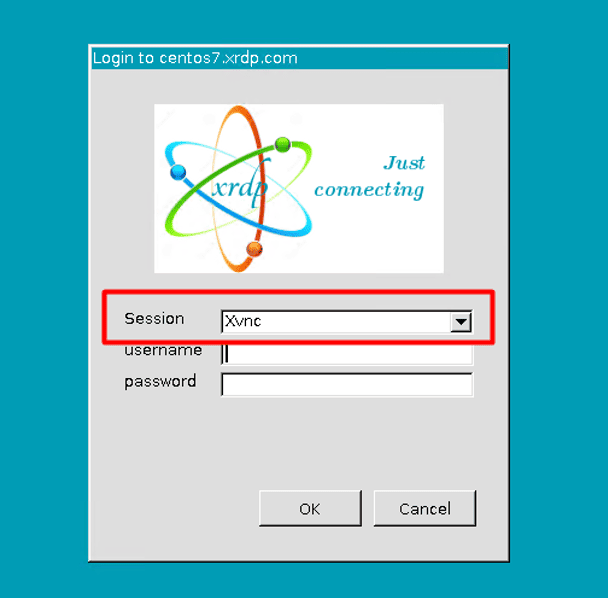
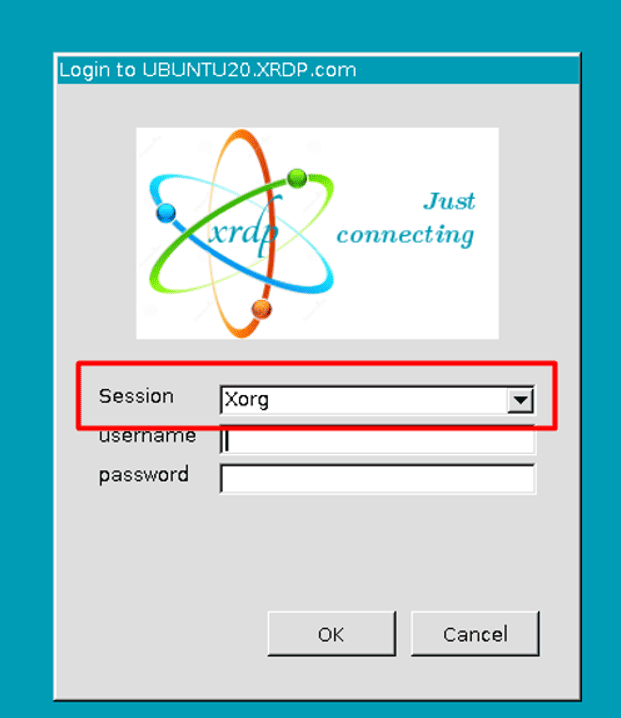
Enter your server IP and username root or administrator, and then enter your username and password:
- CentOS 7: Session = Xvnc
- Ubuntu 20/18: Session = Xorg
- Debian 9: Session = Xvnc
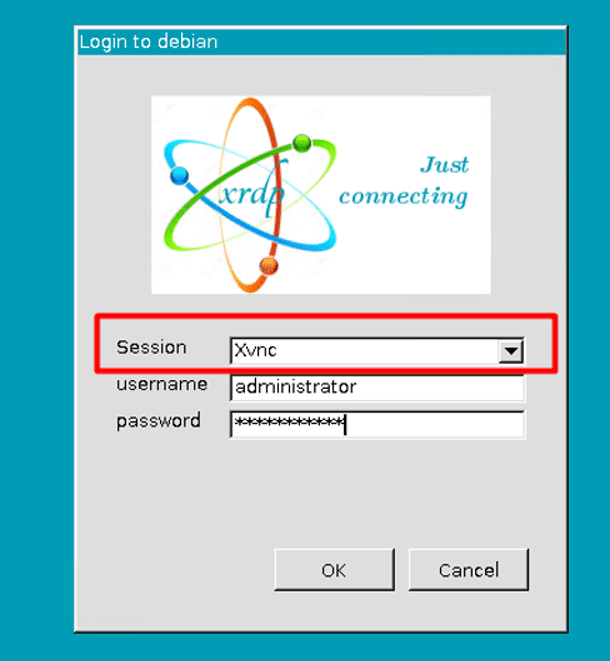
You should now see your Linux desktop via RDP.
Tips for Better Linux XRDP Setup
- Firewall: Make sure port 3389 is open for RDP connections.
- Security: Change your SSH port and use strong passwords to protect remote access.
- Performance: If your network is slow, use XFCE instead of GNOME for a faster remote experience.
install xrdp, linux xrdp, debian xrdp, xrdp setup, xrdp configuration, xrdp remote desktop, linux xrdp setup, debian xrdp