


How to Install XRDP on Ubuntu 20.04/22.04
Introduction
If you want to connect to your Ubuntu server using Remote Desktop Protocol (RDP), the best way is to set up XRDP on Ubuntu. This guide will walk you through the complete process of installing XRDP on Ubuntu 20.04 and 22.04, enabling RDP, and fixing common issues like the blue screen, black screen, and authentication required errors.
Whether you are new to Linux or just setting up your first Ubuntu remote desktop XRDP, don’t worry — this tutorial is written in simple steps for beginners.
How to Install XRDP on Ubuntu?
Step 1: Log into Ubuntu Server
First, connect to your Ubuntu server via SSH: How to SSH to Linux Server Remotely
Step 2: Install Ubuntu Desktop Environment
Since Ubuntu Server does not come with a GUI, you need to install the Ubuntu desktop environment.
sudo apt update
sudo apt install ubuntu-desktop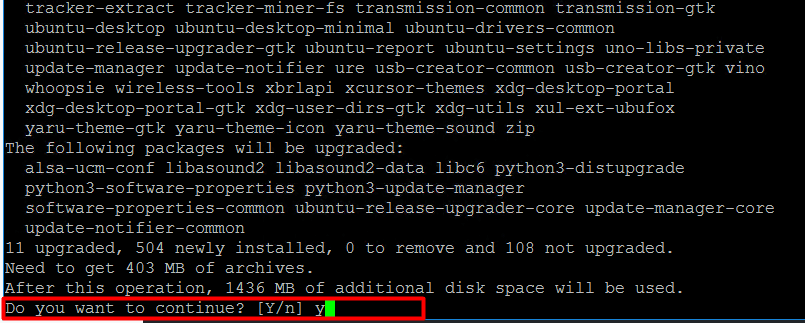
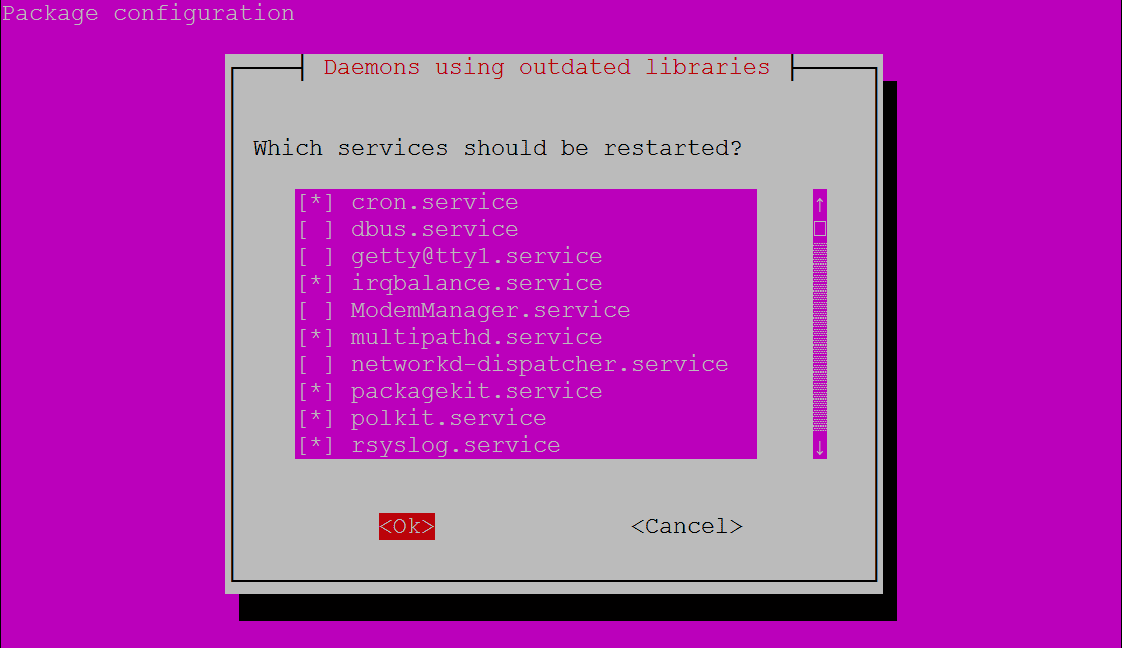
This will take a while since it installs the full desktop environment.
Step 3: Install XRDP on Ubuntu
Now install XRDP:
sudo apt install xrdp
This completes the basic Ubuntu XRDP install.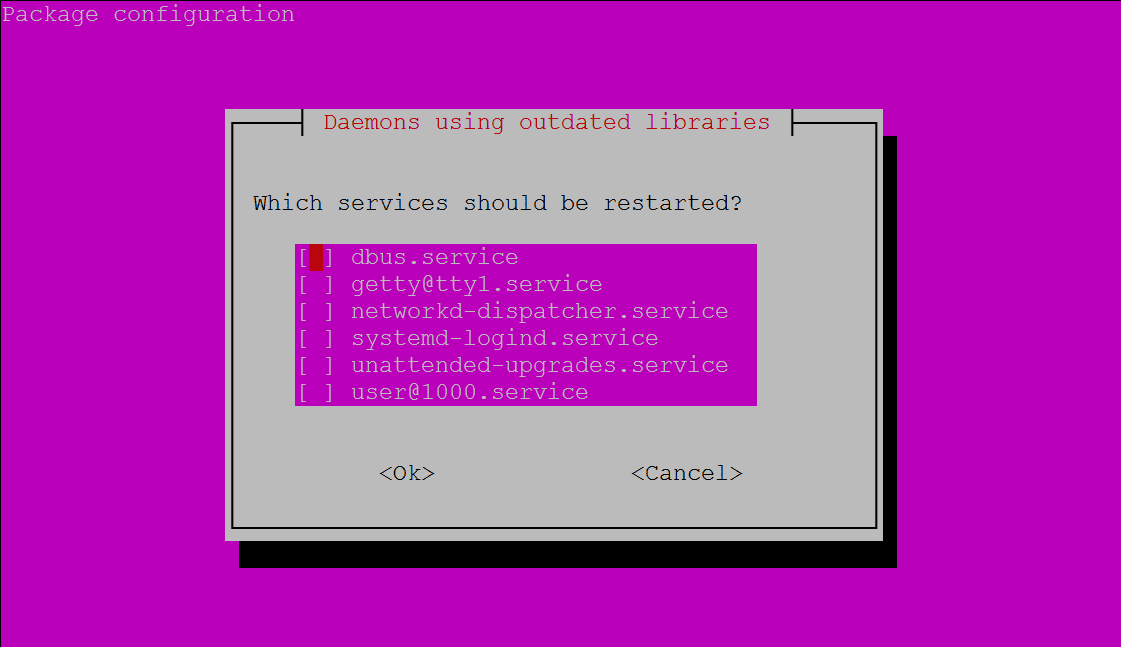
This completes the basic Ubuntu XRDP install.
Step 4. Open Firewall Port 3389
Allow RDP traffic through the firewall:
sudo ufw allow 3389/tcp
Step 5. Test XRDP Connection
On your Windows PC:
- Press Win+R → type
mstsc→ press Enter. - Enter your server IP or hostname.
- Log in with your Ubuntu username and password.
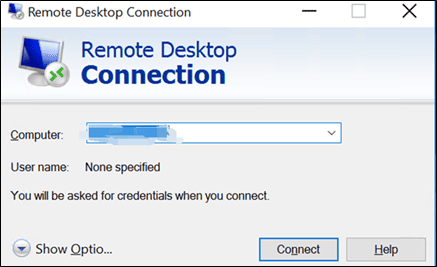
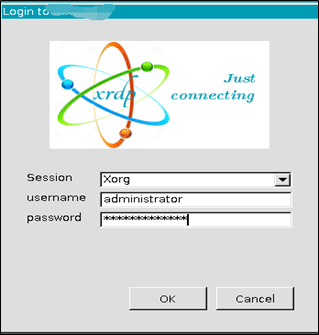
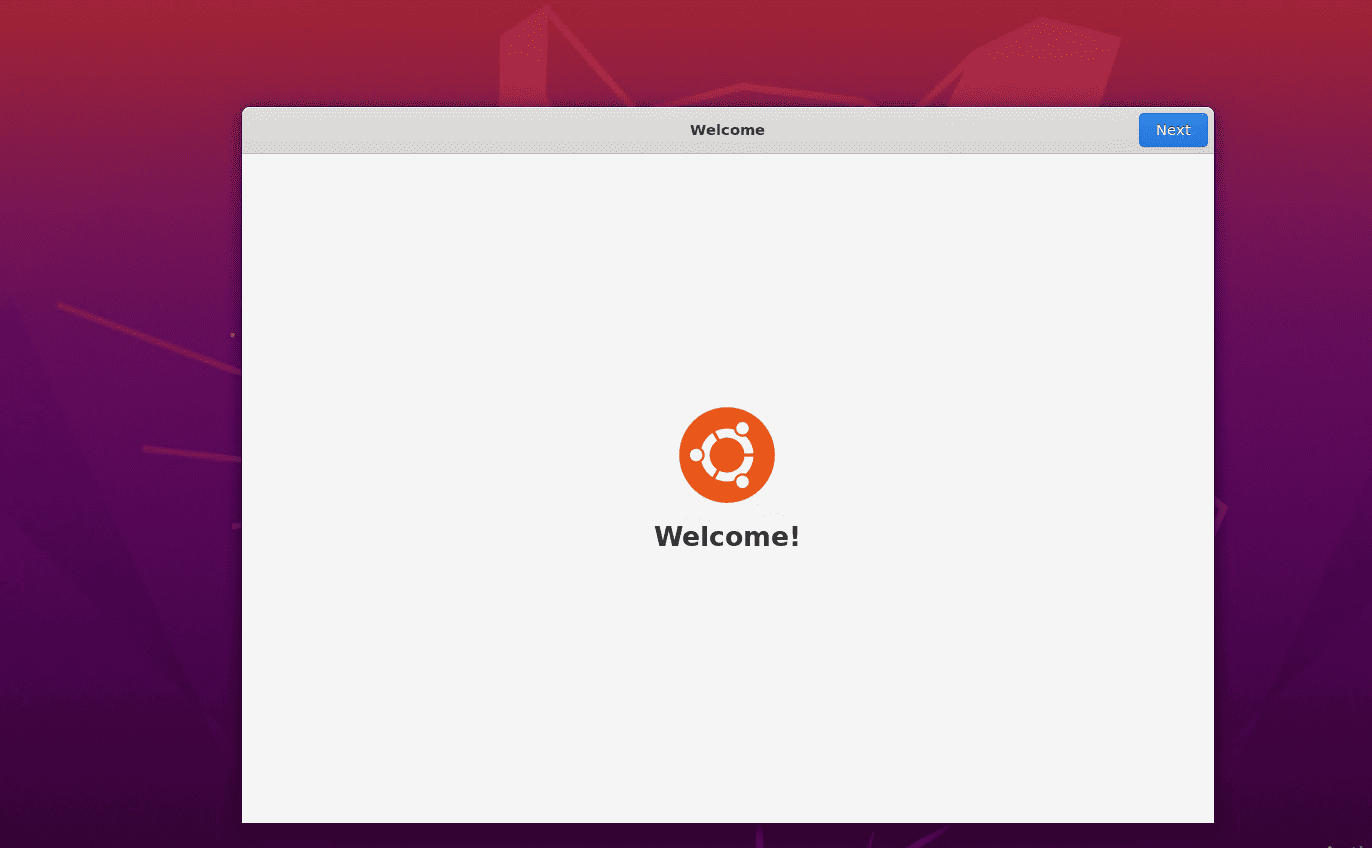
Now you should be connected to your Ubuntu Remote Desktop XRDP session.
Step 6. Done! Connect to Ubuntu via RDP
Congratulations! You have successfully set up XRDP on Ubuntu 20.04 and 22.04. You can now use RDP to access your Ubuntu desktop remotely from any Windows or Mac computer.
XRDP Connection Issues and Solutions
1. Fix XRDP Blue Screen Issue
If you get a blue screen after login:
sudo apt-get install xorgxrdp
sudo systemctl restart xrdp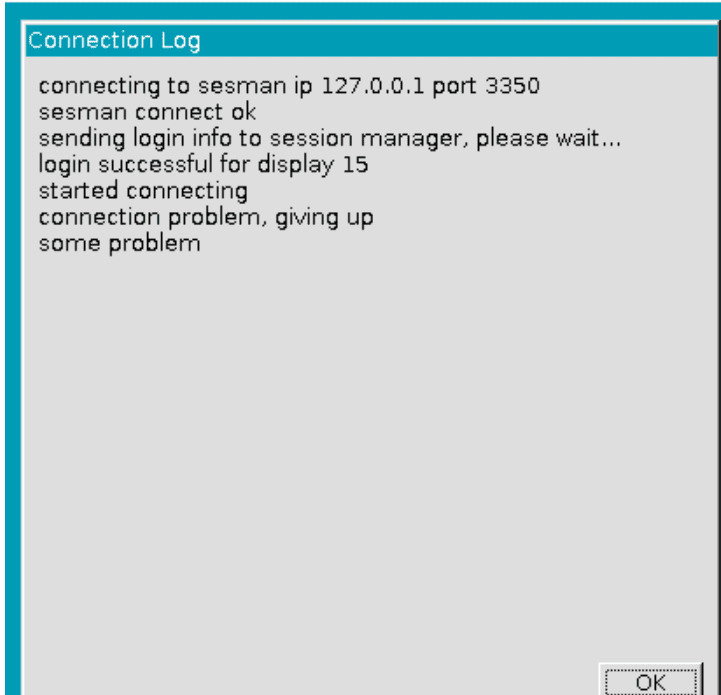
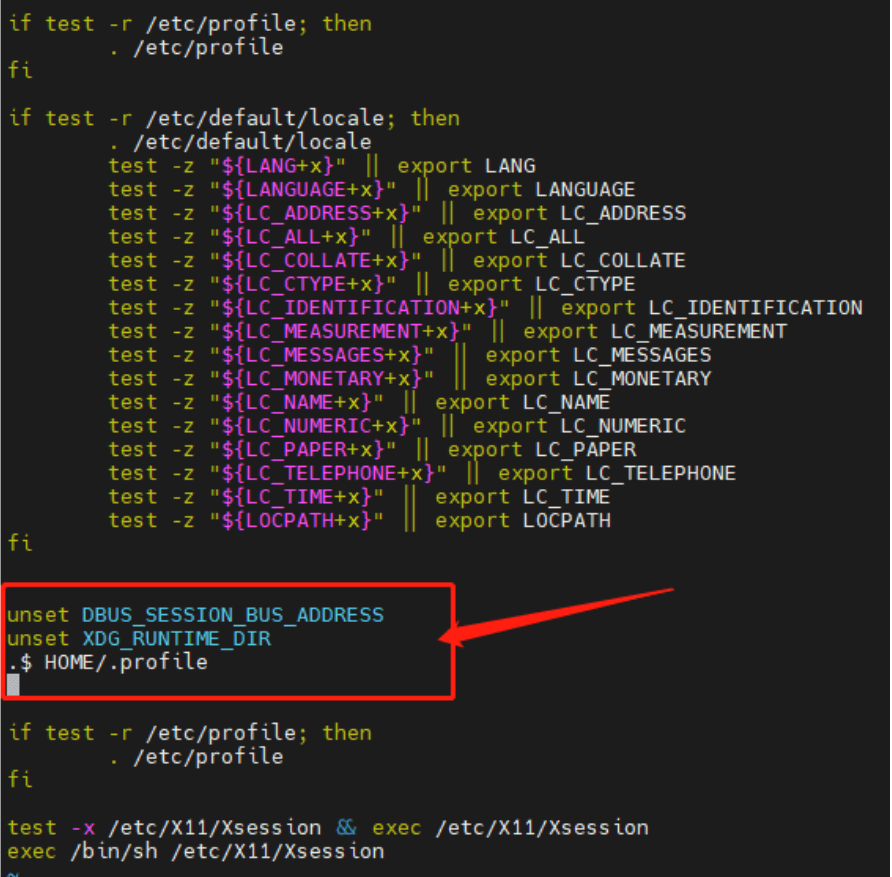
2. Fix XRDP Black Screen Issue
If you see a black screen instead of the desktop:
- Open the XRDP startup file:
sudo -i
sudo vim /etc/xrdp/startwm.sh- Add these lines at the top:
unset DBUS_SESSION_BUS_ADDRESS
unset XDG_RUNTIME_DIR
. $HOME/.profile- Restart XRDP service:
sudo systemctl restart xrdp
3. Fix XRDP “Authentication Required” Error
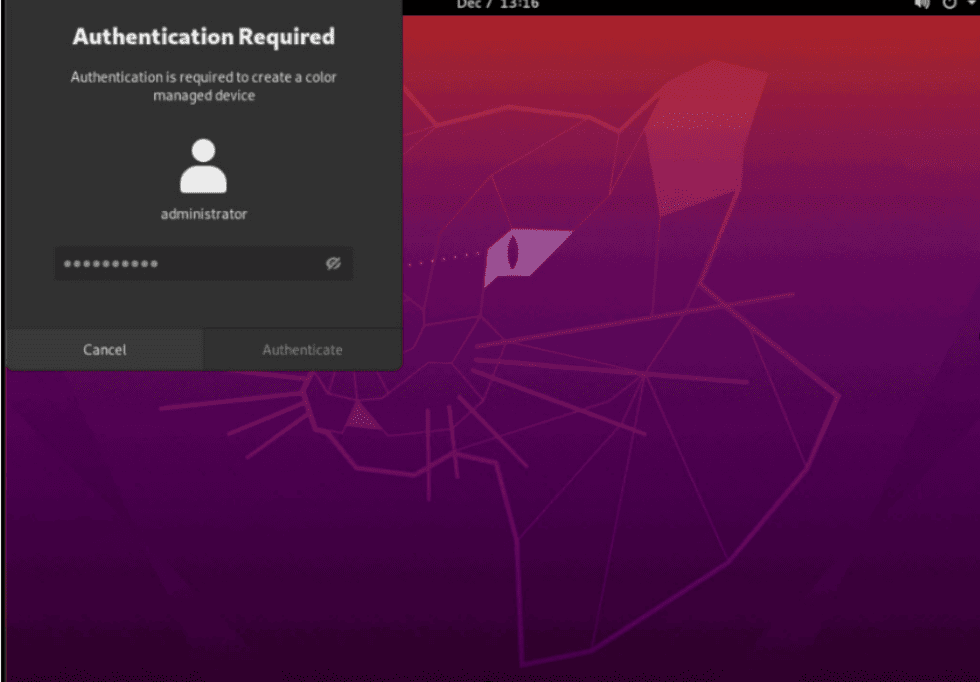
If you can’t log in and see the Authentication Required message:
- Edit the XRDP config file:
sudo vi /etc/xrdp/sesman.ini- Under
[Xvnc], add these two lines:
param8=-SecurityTypes
param9=None- Restart XRDP:
sudo systemctl restart xrdp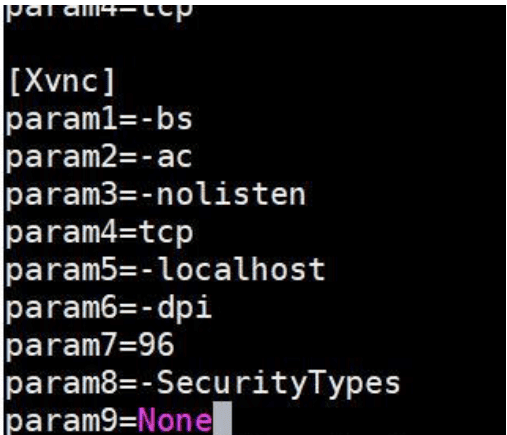
Conclusion
Setting up XRDP Ubuntu is the easiest way to get a remote desktop environment on your server. Whether you are using Ubuntu 20.04 XRDP or Ubuntu 22.04 XRDP, the steps are the same.
By following this guide, you now know how to:
- Install XRDP on Ubuntu
- Enable RDP on the Ubuntu server
- Fix XRDP blue screen, black screen, and authentication errors
- This makes Linux XRDP setup simple and beginner-friendly.
xrdp ubuntu, install xrdp ubuntu, ubuntu install xrdp, install rdp on ubuntu, install xrdp on ubuntu, install xrdp ubuntu 22.04, xrdp ubuntu 22.04, ubuntu 22.04 xrdp, ubuntu xrdp install, xrdp install ubuntu 22.04, ubuntu server xrdp, xrdp ubuntu 20.04, install xrdp ubuntu 20.04, ubuntu 20.04 xrdp, ubuntu remote desktop xrdp, xrdp ubuntu desktop, linux xrdp setup, linux xrdp