


How to Restrict RDP Access Scope in Windows Firewall
By default, Windows Server allows RDP connections from any IP address. For security reasons, you may want to limit remote desktop access by IP so that only trusted computers can connect.This guide shows you how to configure Windows Firewall to allow RDP only from specific IP addresses, making your server more secure.
Step 1: Locate Remote Desktop Rule in Firewall
- Press Windows + S and search for Windows Defender Firewall.
- Click Advanced settings in the left panel.
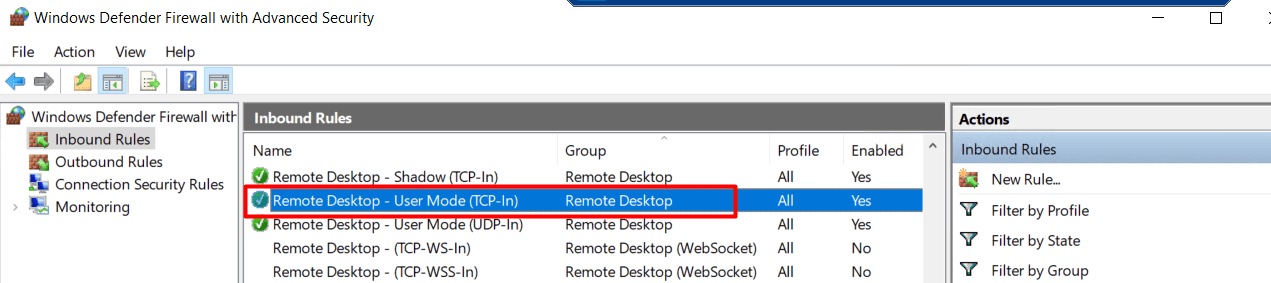
- In the Inbound Rules section, find the rule called Remote Desktop (TCP-In) or similar.
Step 2: Open the Rule Properties
- Right-click the RDP rule.
- Select Properties.
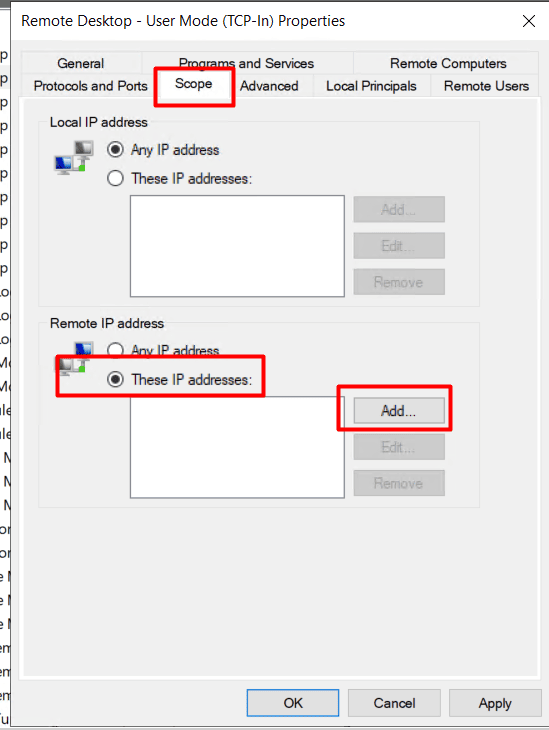
- Go to the Scope tab.
Step 3: Restrict Remote IP Addresses
- In the Remote IP address section, select These IP addresses instead of Any IP address.
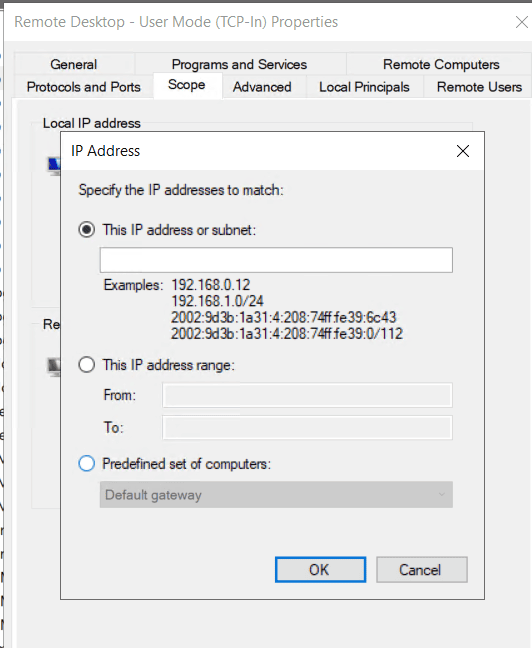
- Click Add to enter the IP address or IP address range that you want to allow for RDP connections.
You can add a single IP address or a range of IP addresses. - Click OK to save the changes.
Step 4: Confirm Changes
Once applied, the RDP connection scope of your server is restricted.
Now only the specified IP addresses can connect via RDP, improving your server security.
Keywords:
windows firewall allow rdp only from specific ip, windows server limit remote desktop connections, limit remote desktop access by ip
Outline