


How to Solve FTP Connection Error: FTP Server Troubleshooting
Introduction
If you are facing FTP issues such as connection errors or problems accessing your files, don’t worry. This guide will walk you through a complete FTP server troubleshooting process. Even if you are new to server management, you can follow these steps to solve your FTP problem.
Common FTP Connection Error Description
When trying to connect to your FTP server, you might see this error message:
Response: 227 Entering Passive Mode (45,35,12,173,228,133)This usually happens because the FTP server passive port range is not properly configured, or the firewall is blocking the required ports. Let’s go step by step to fix this FTP issue.
Step-by-Step FTP Server Troubleshooting
Step 1: View the FTP Service Installed
To check whether your FTP service is running, use the following command:
netstat -ntlpThis will display all the services and their corresponding ports. If your FTP service is not listed, you may need to install or restart it.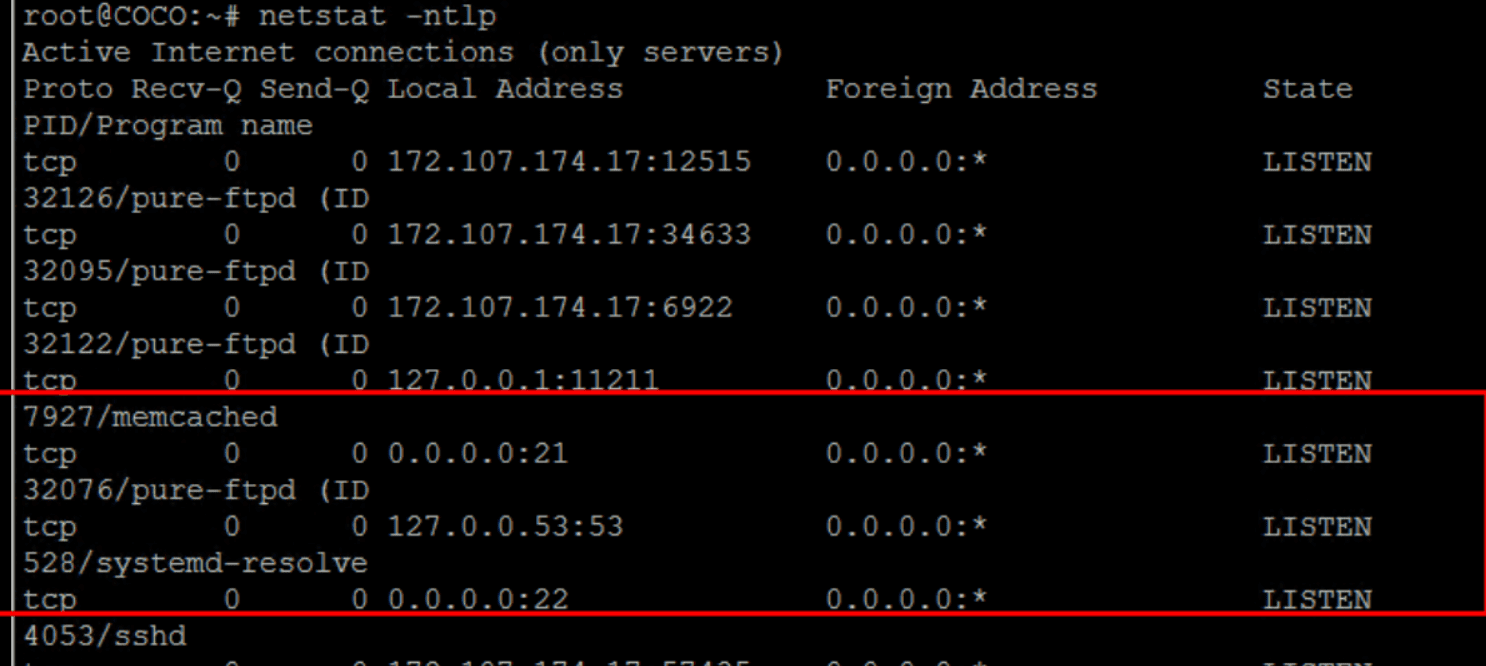
Step 2: Edit the Pure-FTPd Configuration File
Open the FTP server configuration file with this command:
vi /etc/pure-ftpd/pure-ftpd.confThis file controls the behavior of your FTP server.
Step 3: Modify the Passive Port Range
Inside the configuration file, find the line with PassivePortRange.
By default, it may look like this:
# PassivePortRange 5000 5000Remove the # (comment symbol) at the beginning of the line, and change the port range to something like:
PassivePortRange 5001 5010This opens a range of ports for passive mode connections, which is required to avoid FTP problems.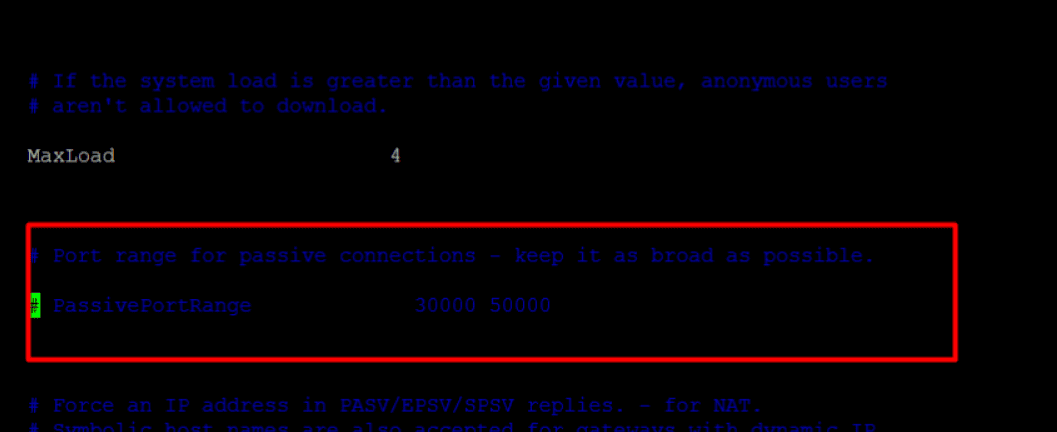
Step 4: Open Passive Ports in the Firewall
Your firewall may be blocking the passive ports. To allow them:
- Check firewall status:
sudo ufw status verbose- Open the port range for TCP:
sudo ufw allow 5001:5010/tcpNow your FTP server can accept passive connections without being blocked.
Step 5: Restart Pure-FTPd Service
After making changes, restart the service to apply them:
systemctl restart pure-ftpd-mysql.serviceThis ensures your FTP server reloads with the new configuration.
Conclusion
By following these steps, you can fix most FTP issues related to passive mode errors. We:
- Checked the FTP service status
- Edited the Pure-FTPd configuration
- Updated the passive port range
- Opened the required ports in the firewall
- Restarted the FTP service
If you still face an FTP problem after this FTP server troubleshooting, double-check whether your FTP client is configured to use passive mode.
ftp issues, ftp problem, ftp server troubleshooting