


How to Upgrade MS SQL Version
Pre-Upgrade Checklist for SQL Server
Before starting the upgrade, make sure you have completed these important steps:
- Check System Requirements
- Verify that your operating system supports the new SQL Server version.
- Example: For SQL Server 2014, check the official [Hardware and Software Requirements for Installing SQL Server].
- Verify Supported Upgrade Path
- Not all SQL Server editions and versions support direct upgrades.
- For example:
- Upgrade SQL Server 2008 to 2014 is supported.
- Upgrade SQL Server 2012 to 2019 requires jumping to a supported edition.
- Refer to the official [Supported Version and Edition Upgrades] guide.
- Back Up All Databases
- Always back up your SQL Server databases, system databases, and any custom objects.
- This ensures you can recover if the upgrade fails.
Step to Upgrade MS SQL Version
Step 1: Back up SQL Server databases
Before upgrading, back up SQL Server databases and other objects associated with the previous SQL Server instance.
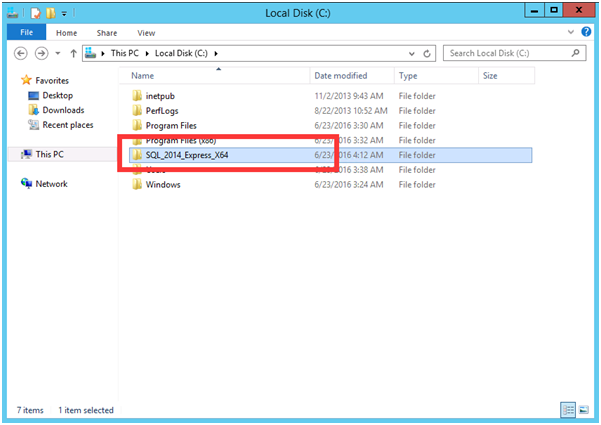
Step 2: Copy Installation Files to Server
Upgrading from SQL Server 2012 Express to SQL Server 2014 Express is used as an example.
Step 3: Upgrade to SQL Server 2014 Express Edition
3.1 Open the Setup Folder
- Open the SQL Server 2014 folder you downloaded or copied to your computer.
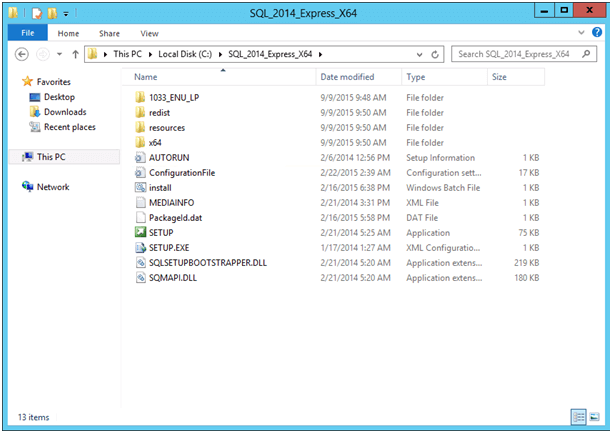
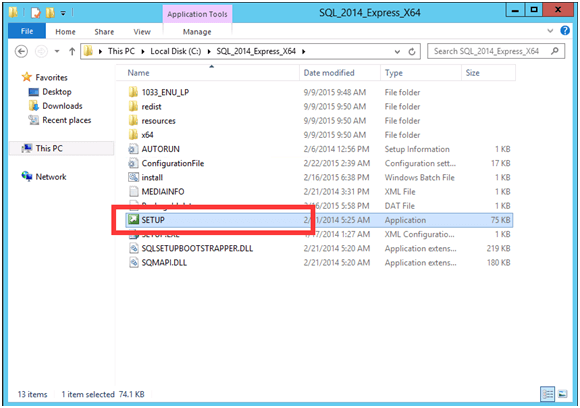
- Double-click SETUP.exe to start the installer.
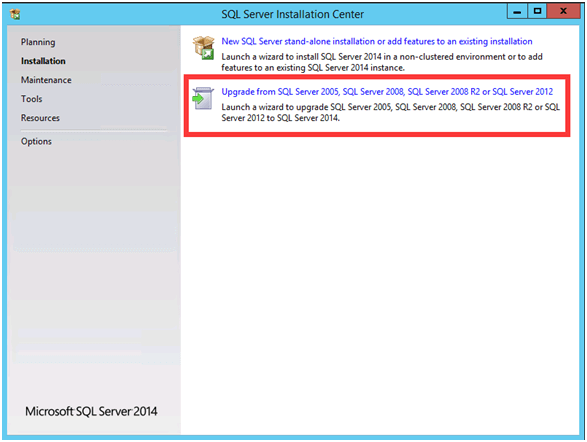
- The SQL Server Installation Center will open. Click Upgrade from SQL Server 2005, 2008, or 2012 to SQL Server 2014.
3.2 Accept License and Optional Updates
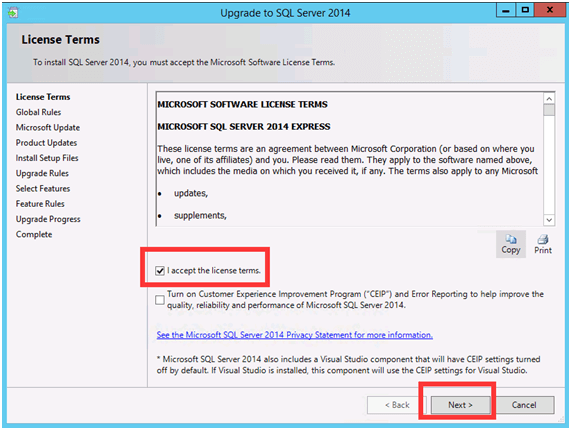
- Check "I accept the license terms" and click Next.
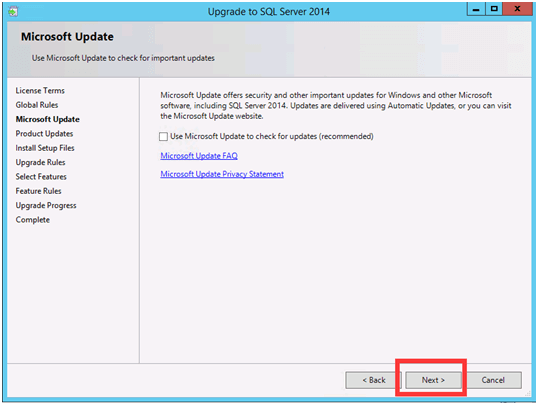
- If you want to receive the latest updates during installation, you can select "Use Microsoft Updates to check for updates (recommended)
3.3 Select Instance and Configure Server
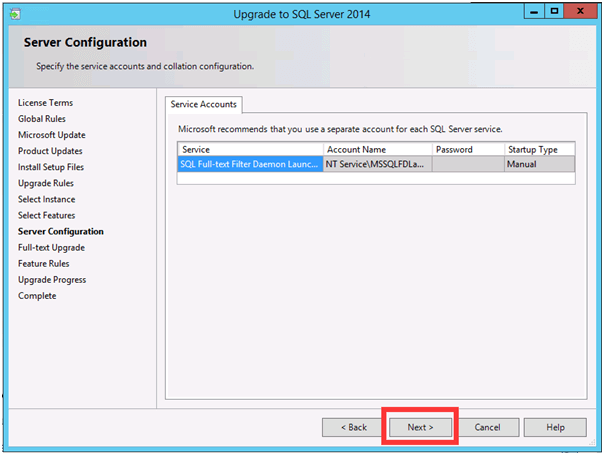
- Choose the SQL Server instance you want to upgrade. If you have only one instance, select the default instance.
- Configure Server Configuration (service account, startup type, etc.).
- Once confirmed, click Next.
3.4 Full-Text Upgrade and Start
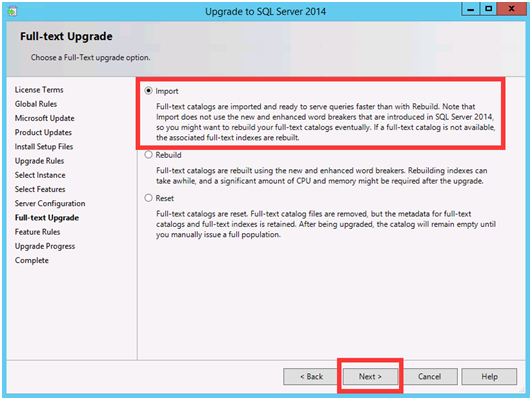
- For Full-text upgrade, select "Import" to migrate existing text indexes and data. Click Next to start the upgrade.
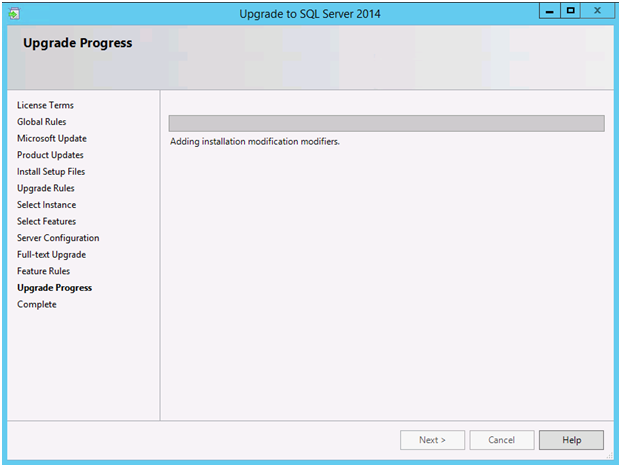
- The progress bar will appear—please wait patiently until it finishes.
3.5 Complete and Verify
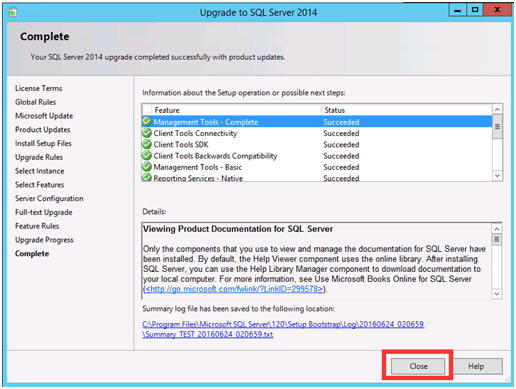
- When the Completed screen appears, the upgrade is finished.
- Open SQL Server Management Studio (SSMS) and connect to the upgraded instance.
- In a new query window, run the following scripts to verify that the SQL Server version is now 2014 Express Edition:
select @@versionTips for Beginners:
- Backup all databases and system databases before upgrading.
- Do not shut down your computer or interrupt the upgrade process.
- If you have custom configurations or service accounts, record your settings before upgrading to restore them if needed.
Conclusion
Upgrading to SQL Server 2014 Express Edition is straightforward if you follow the steps carefully. Always ensure that you back up all databases, verify system requirements, and follow the installation prompts. After completing the upgrade, confirm the new version in SSMS to ensure the upgrade was successful. Following this guide will help you safely transition your SQL Server environment with minimal risk.
Outline