


How to Block IP in Windows Firewall
Case 1: Blocking a Single IP
Follow these steps to block a specific IP address in Windows Firewall:
- Open Windows Firewall with Advanced Security.
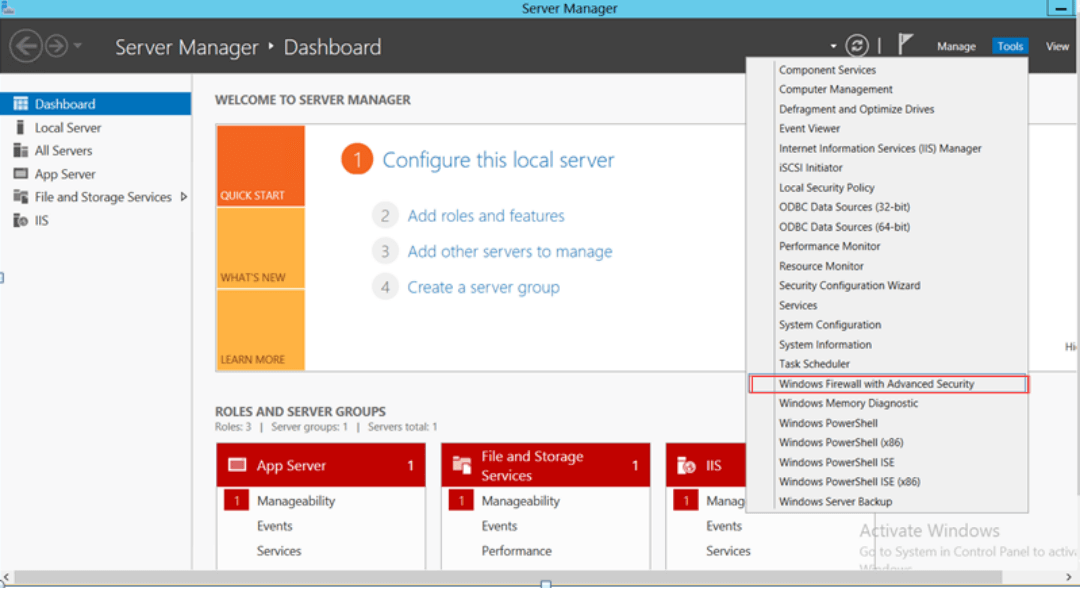
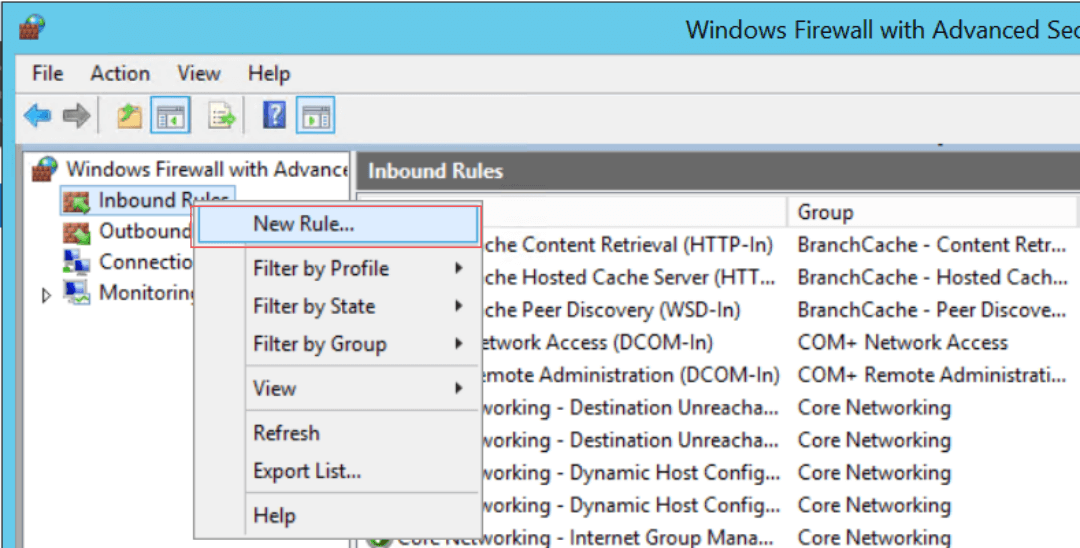
- Create a new rule.
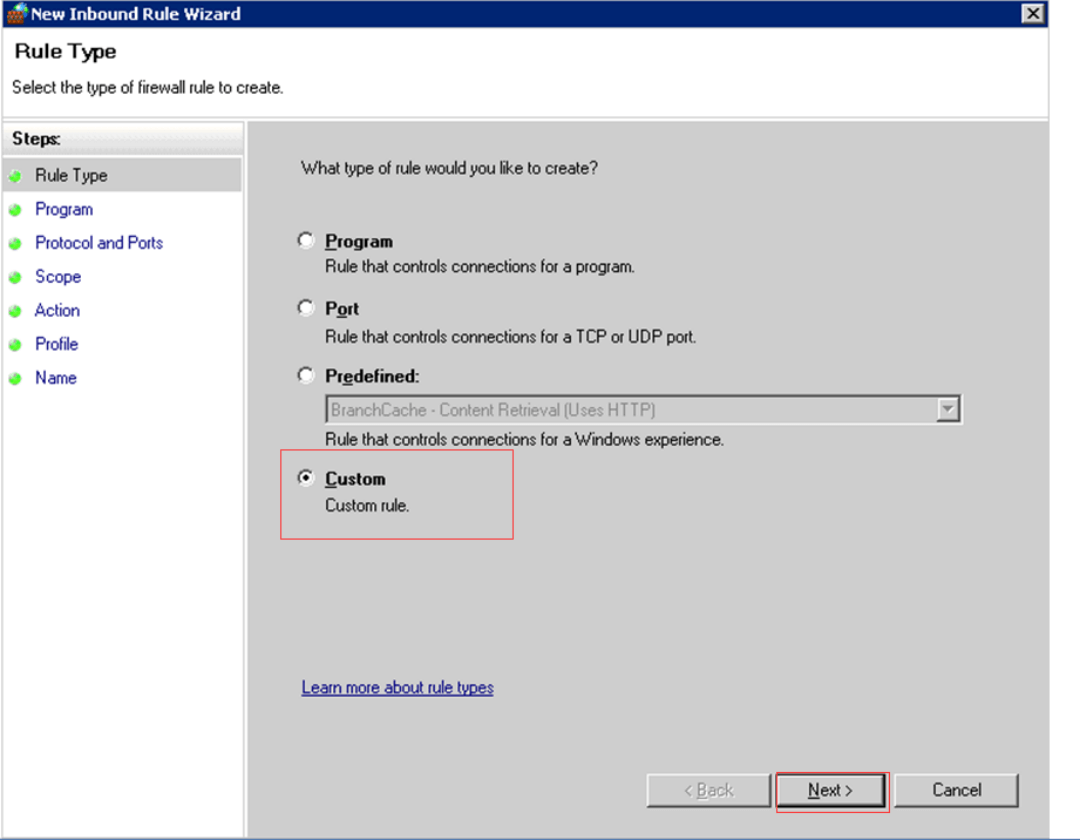
- Select Custom in Rule Type.
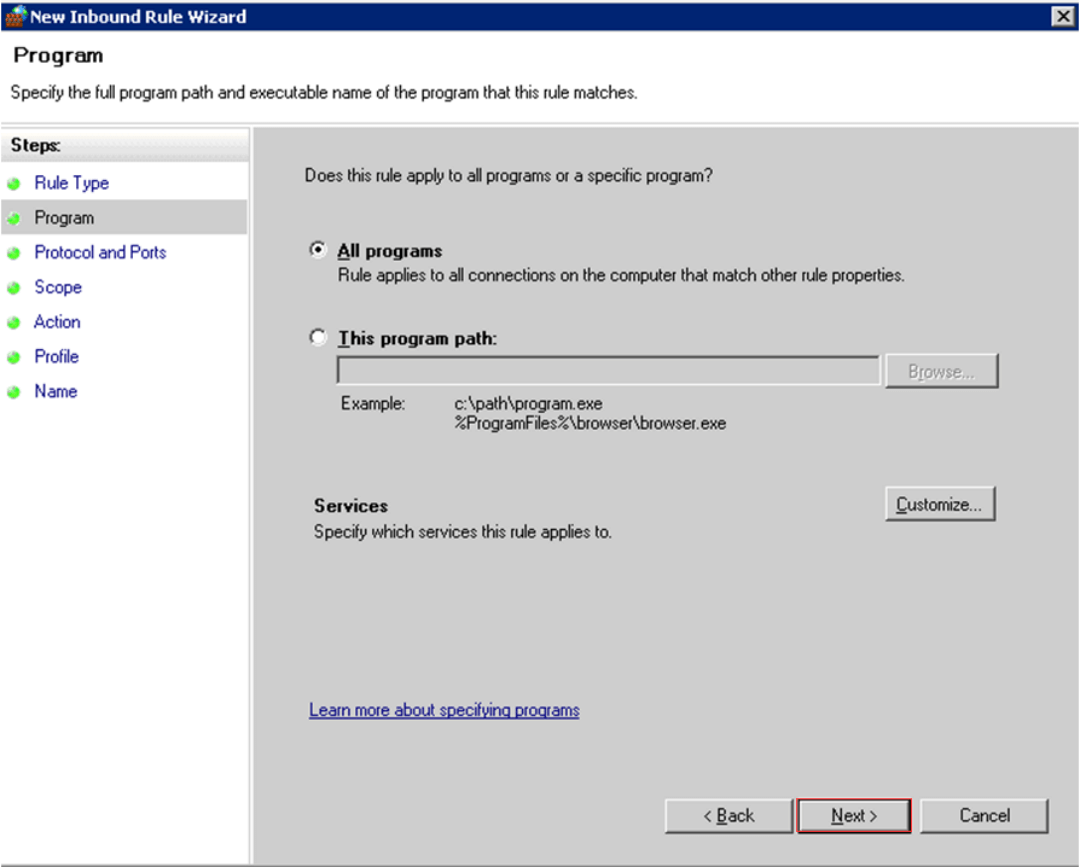
- Choose All Programs under "Does this Rule Apply to All Programs or a Specific Program?".
- Select Any on the Protocol and Ports screen.
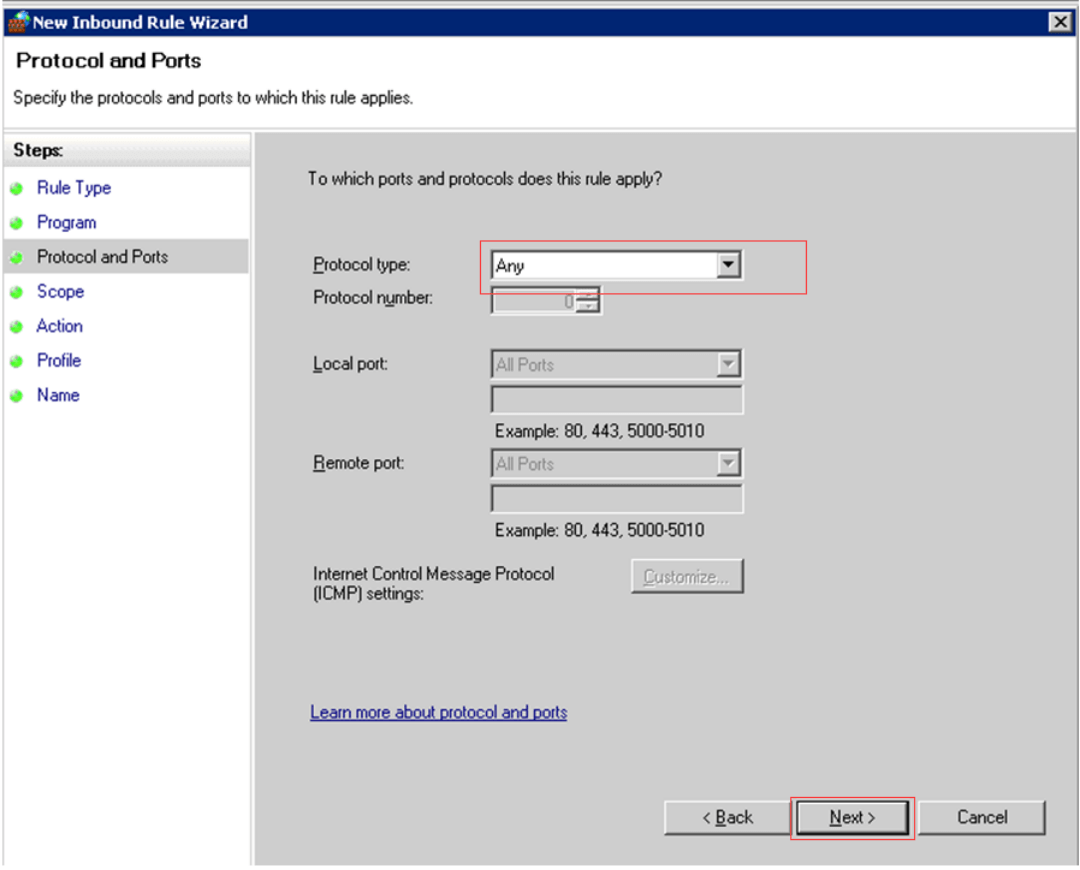
- Click Add to enter the special IP or IP range you want to block.
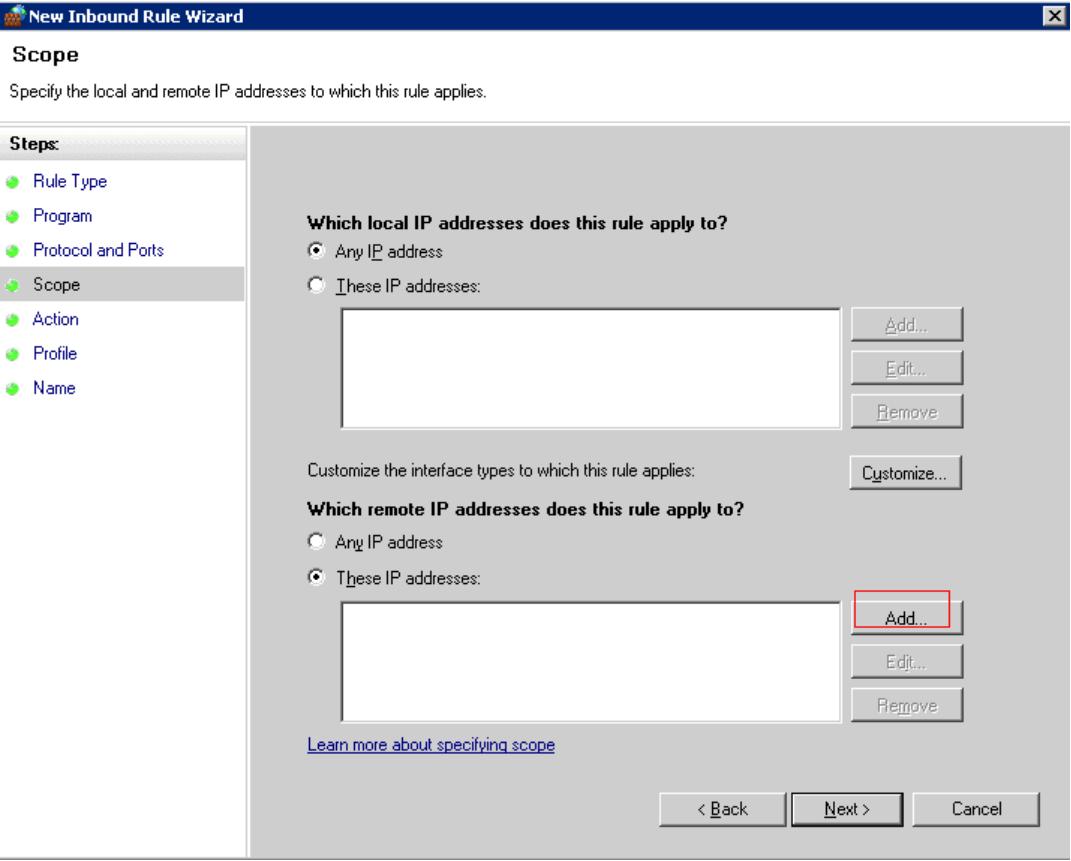
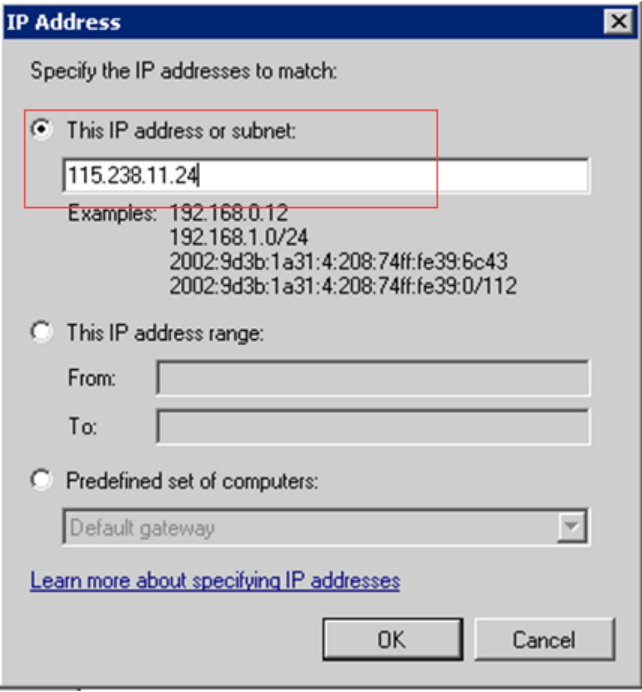
- You can add more IPs if needed.
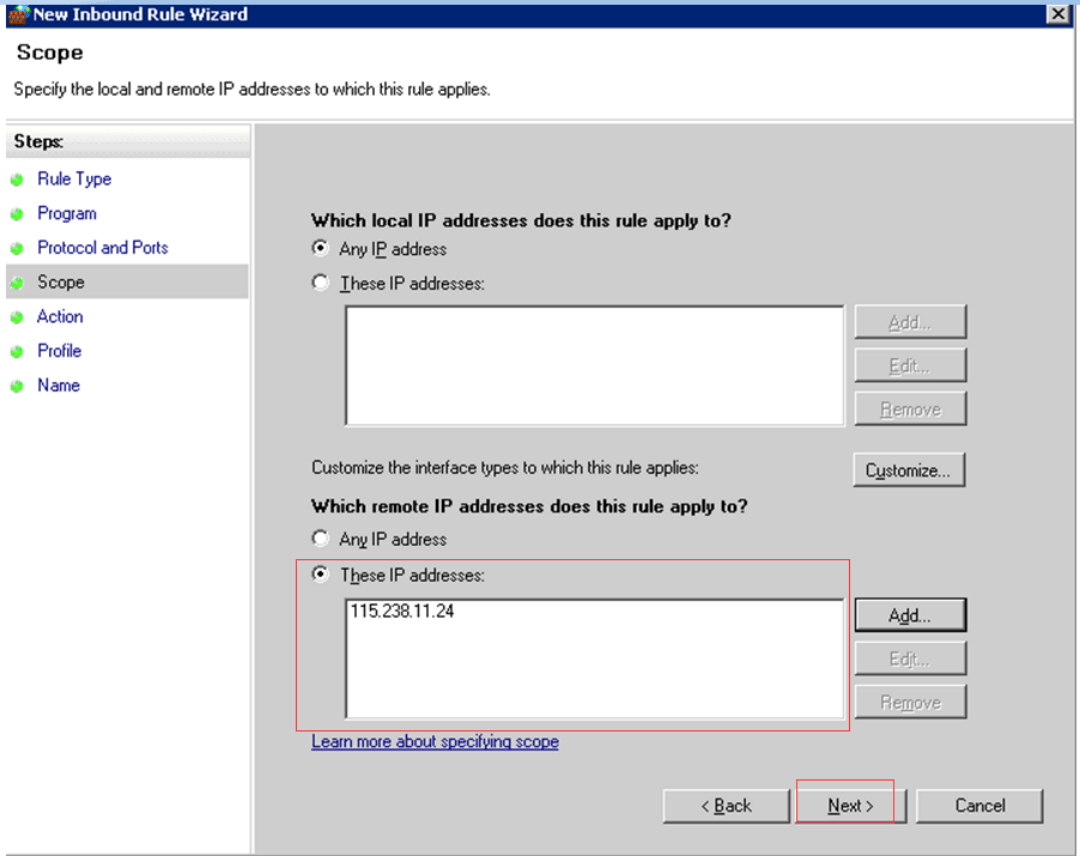
- Select Block the Connection.
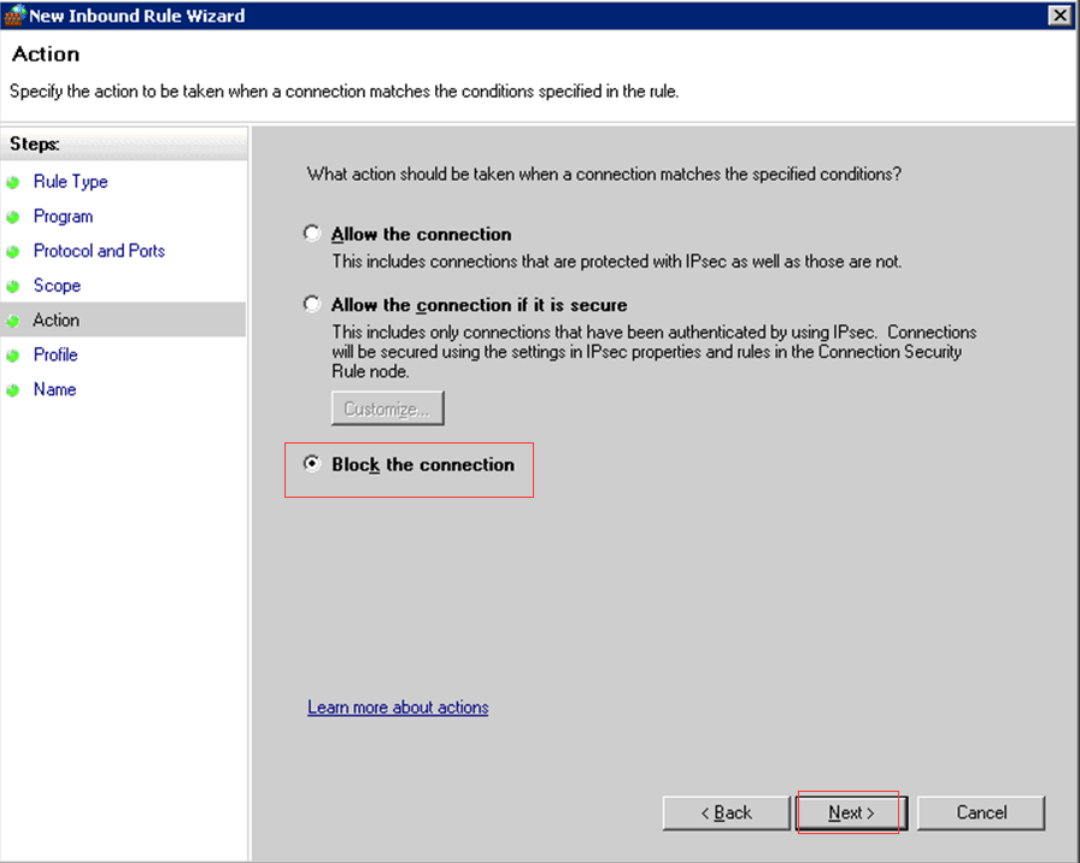
- Apply the rule to all options under "When does This Rule Apply?".
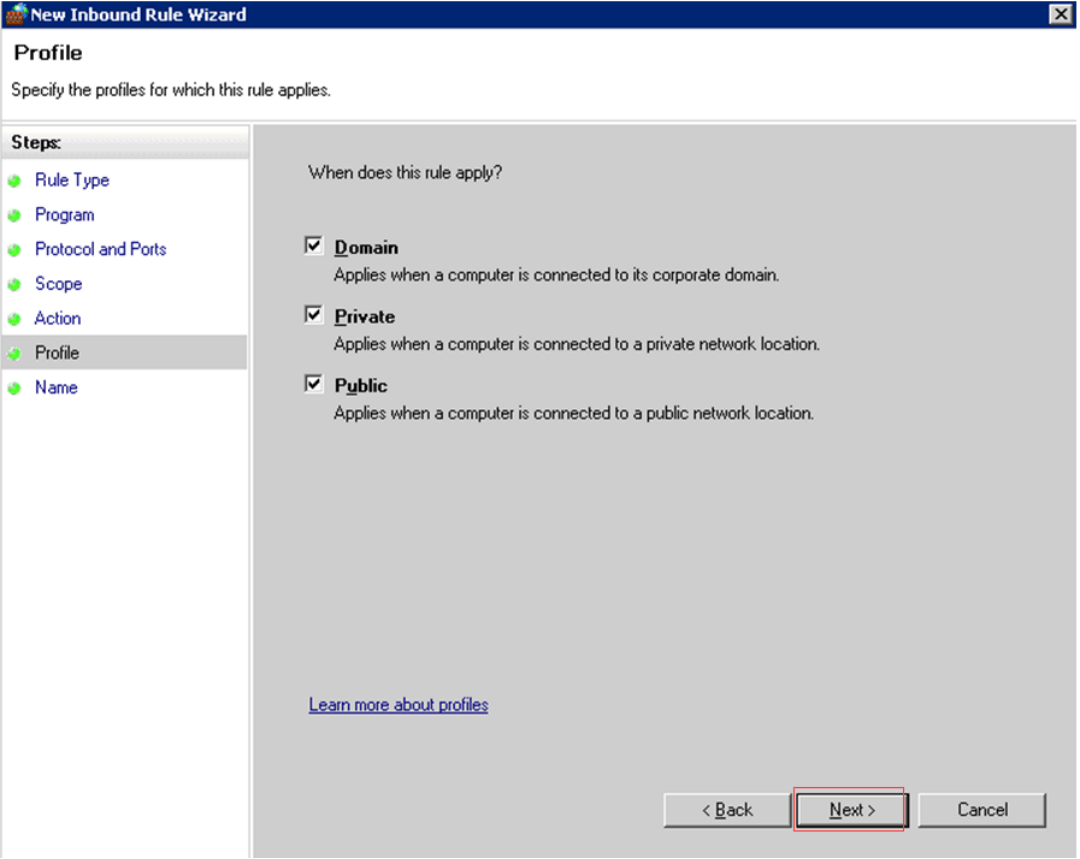
- Set a name for the rule.
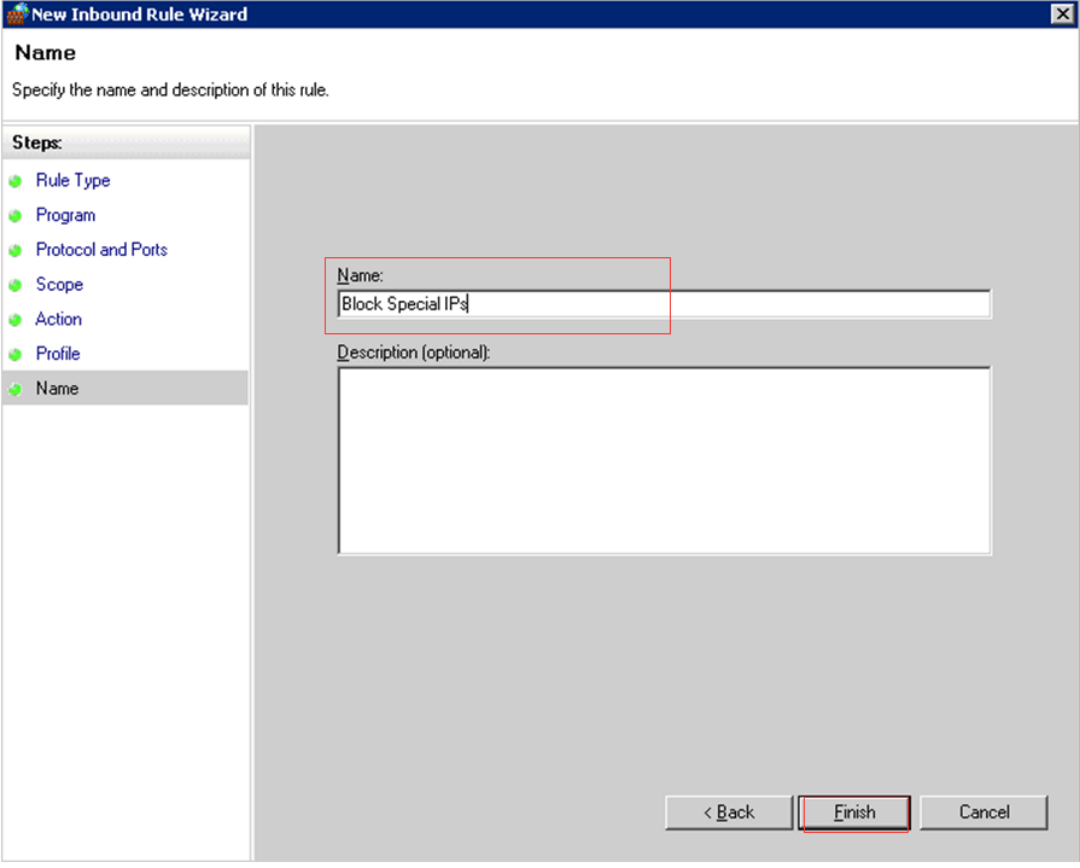
- Click Done.
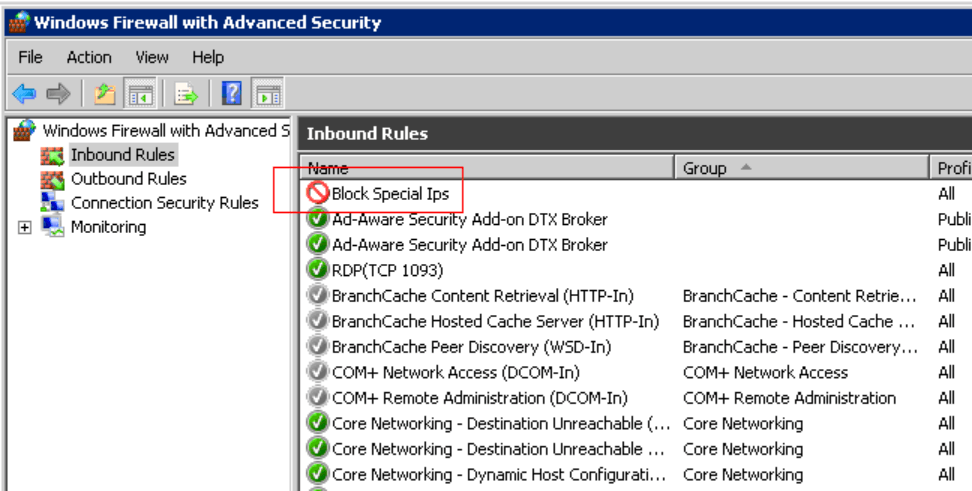
After these steps, the specified IP will no longer be able to access your server applications.
Case 2: Blocking Multiple IPs
When you have many IPs to block, prepare a plain text file (IP list) and use a script to add them in bulk. This method is ideal for blocking large IP lists or automating updates.
Create a file at C:\IP.txt and add one IP address per line, for example:
203.0.113.45
198.51.100.12
192.0.2.0/24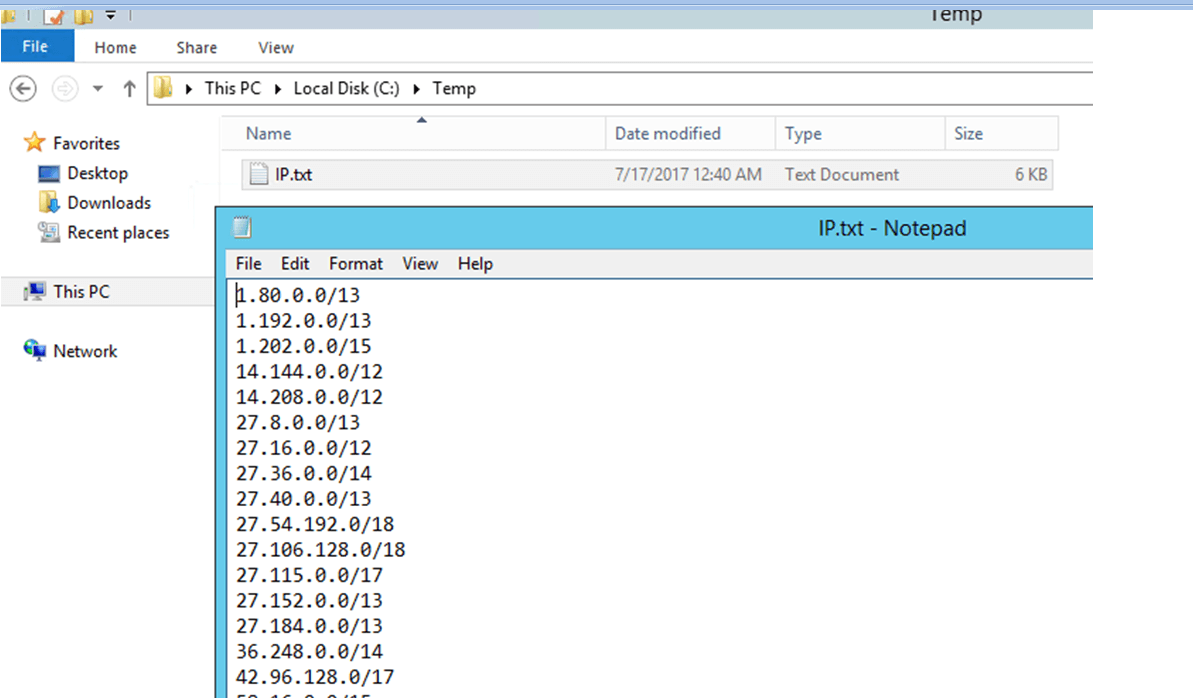
For Windows Server 2008 OS
Run the following PowerShell script in PowerShell:
$IP = Get-Content C:\IP.txt
netsh advfirewall firewall add rule name="_Block Rule" dir=in action=block protocol=TCP localport=any remoteip=$IP
Or, if you want to inline multiple addresses:
netsh advfirewall firewall add rule name="_Block Rule" dir=in action=block protocol=TCP localport=any remoteip="203.0.113.45,198.51.100.12,192.0.2.0/24"Notes:
- netsh accepts comma-separated IPs or CIDR ranges.
- Adjust protocol and localport if you only want to block a service (for example, RDP on port 3389).
For Windows Server 2012 / 2016
Open an elevated PowerShell and run:
$IP = Get-Content C:\IP.txt
New-NetFirewallRule -DisplayName "_Block Rule" -Direction Inbound -LocalPort Any -Protocol TCP -Action Block -RemoteAddress $IP
Or with inline addresses:
New-NetFirewallRule -DisplayName "_Block Rule" -Direction Inbound -LocalPort Any -Protocol TCP -Action Block -RemoteAddress "203.0.113.45,198.51.100.12,192.0.2.0/24"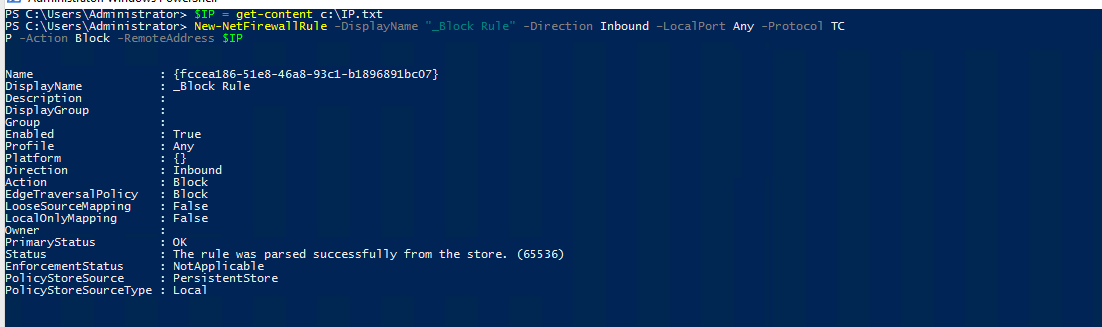
Notes:
- Use -Protocol Any to block all protocols.
- Use -Profile Domain, Private, Public to control which network profiles the rule applies to.
- Use Remove-NetFirewallRule or netsh delete to remove rules later.
Best Practices and Tips
- Test first: apply a rule to a single IP and verify connectivity before bulk blocking.
- Use a descriptive rule name and add a comment if possible to track why the IP was blocked.
- If blocking by CIDR (IP ranges), verify the range is correct to avoid accidentally blocking legitimate users.
- For high-volume automated lists (threat feeds), schedule a script to update the firewall rules and keep backups of previous lists.
- Consider logging: enable Windows Firewall logging to confirm blocked connections.
Summary
Blocking IP addresses on Windows Server is straightforward. Use the Windows Firewall GUI to block specific single IP addresses or use netsh / PowerShell to block multiple IPs quickly. Follow best practices to avoid accidental lockouts and to keep your server accessible to legitimate users.
windows firewall block ip, block ip address windows firewall, block ip in windows firewall, windows server block ip, windows server block ip address, block ip range windows firewall, block ip address in windows firewall, windows server firewall block ip, block ip on windows firewall, block specific ip address windows firewall, windows defender block ip address, windows firewall ip block, block ip firewall windows