


How to Manage Products in Database Mart Control Panel
Database Mart's control panel lets you manage your hosting products, access server login credentials, monitor resource usage, upgrade server configurations, control power operations, manage billing, and contact technical support. Whether you use a VPS or a dedicated server, this guide explains how to manage your services efficiently, review invoices, and maintain your account through one interface. These tools help customers manage their server hosting services without performing every operation manually.
1. Manage Your Hosting Products
Log in to the Database Mart control panel and locate the product you want to manage. From the product management interface, you can view server information, renew services, monitor resources, change configurations, cancel products, and review operation logs.
1.1 View Server Login Credentials
Find your product on the overview page or product list, then click the product or its management button.
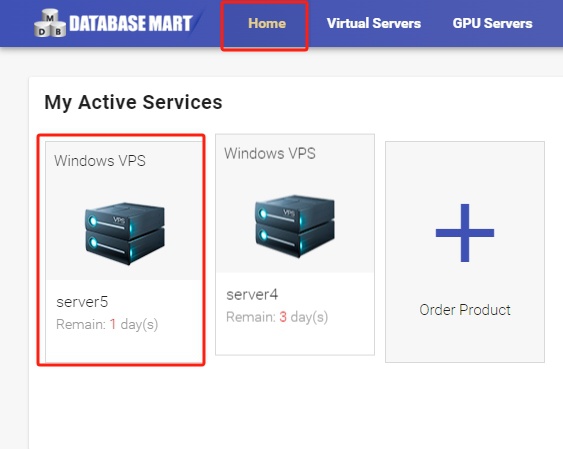
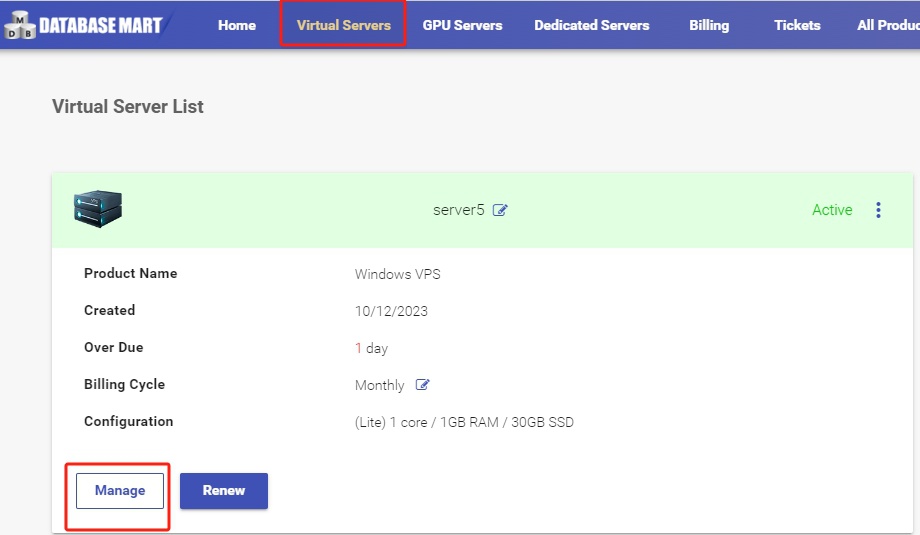
The Overview page displays essential information, including the server IP address, operating system, login details, and package information.
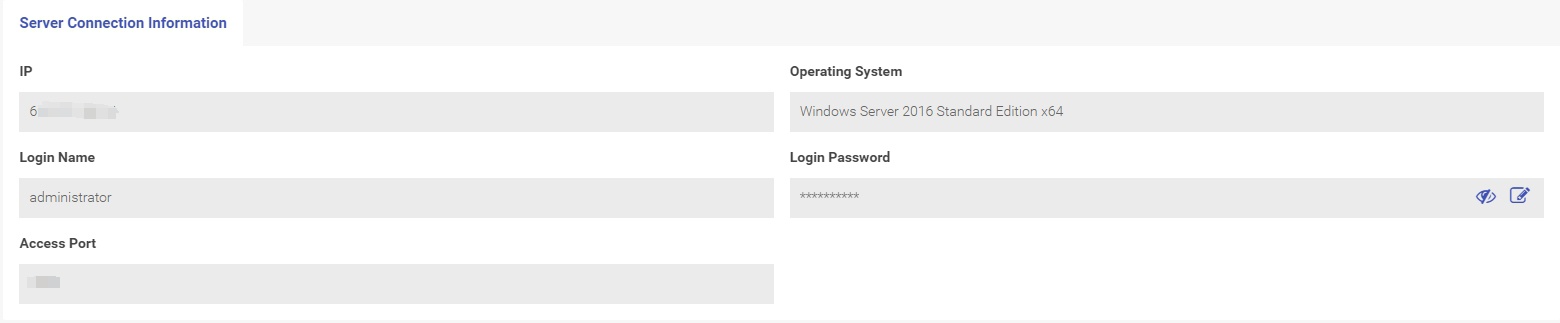
Use these details to connect to your server. For step-by-step instructions, see:
Keep your server credentials secure and avoid sharing them with unauthorized users.
1.2 Renew a Hosting Package
In the Overview section, click the renewal button to extend your product's service period. Before renewing, you can use the edit option to modify available settings, such as the product name, billing cycle, or payment method.
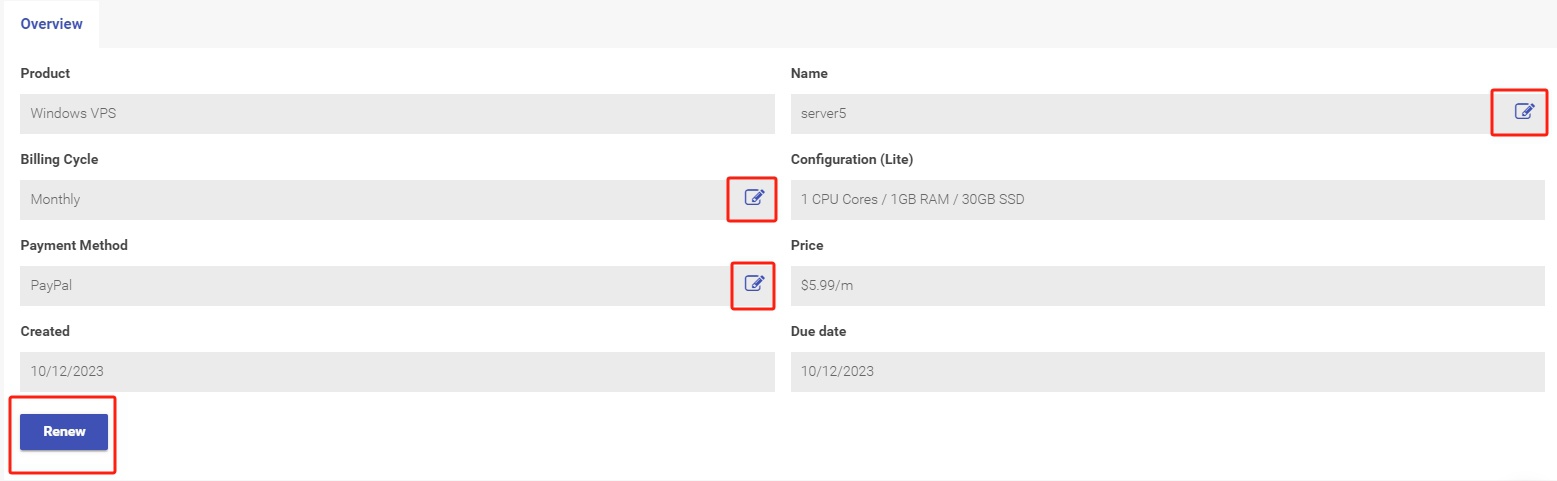
Review the renewal details before completing payment to avoid unintended billing changes.
1.3 Monitor Real-Time Server Resources
For VPS products, the Real-time Status section displays resource usage and server status, including CPU, RAM, and disk space.

If resource utilization remains above 80% for an extended period, investigate whether your workload requires additional capacity. High usage does not automatically mean you need an upgrade, but sustained resource pressure may affect application performance.
1.4 Upgrade or Modify Server Resources
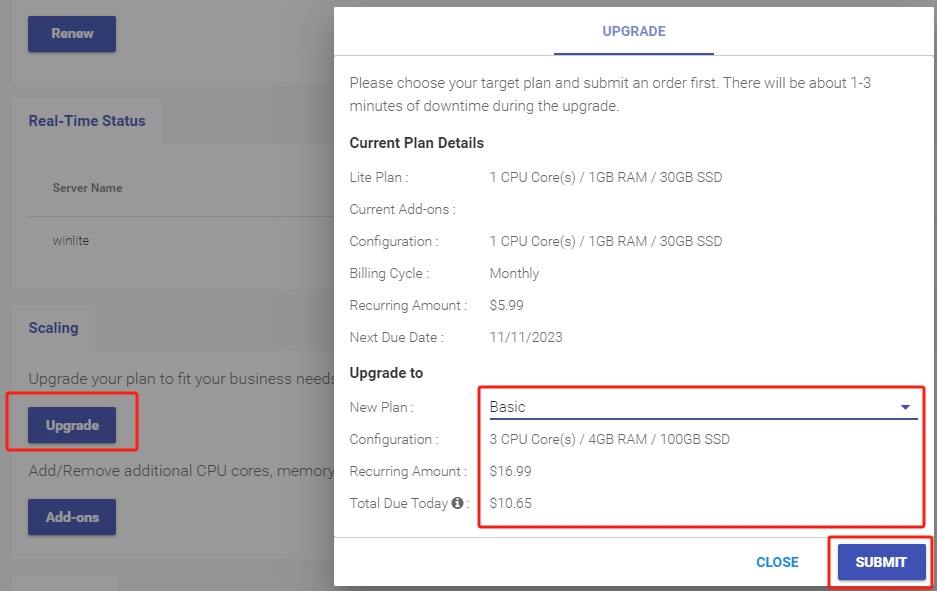
The Scaling section allows you to upgrade a VPS plan or add and remove individual resource add-ons. Dedicated server upgrades may require purchasing a higher-level plan or adding available options.
Upgrade or downgrade a plan
Click Upgrade, select the target package, submit the request, and pay any applicable price difference. The system then processes the configuration change. A short interruption of approximately 1–3 minutes may occur.
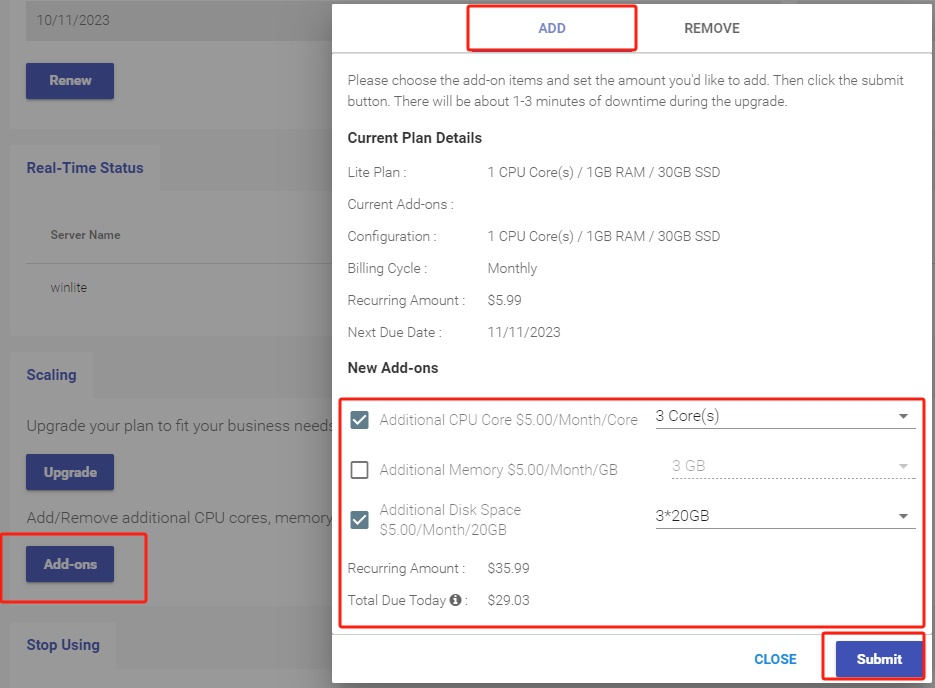
Add resources
Click Add-ons, select the resources you want to add, choose the target configuration, and submit the request. Pay any applicable charges to complete the change.
Remove resources
Click Add-ons, open the Remove section, select the resources to remove, and submit the request.
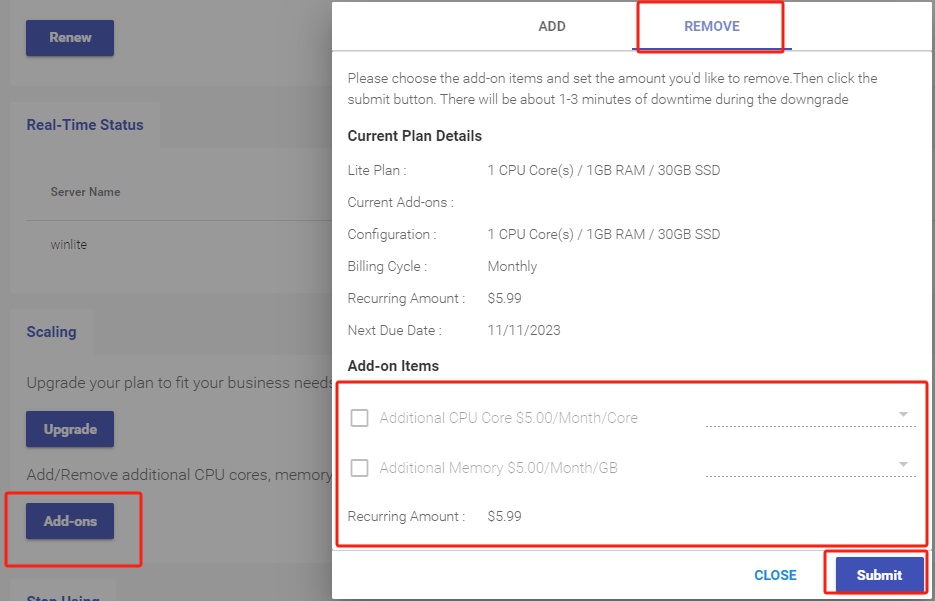
Resource changes may cause brief downtime. Plan upgrades carefully if your server hosts production applications, databases, or other business-critical workloads.
1.5 Cancel a Product
To request cancellation, open the Stop Using section and click Request Cancellation. Enter the product name, choose whether to cancel immediately or at the end of the billing cycle, and submit the request.
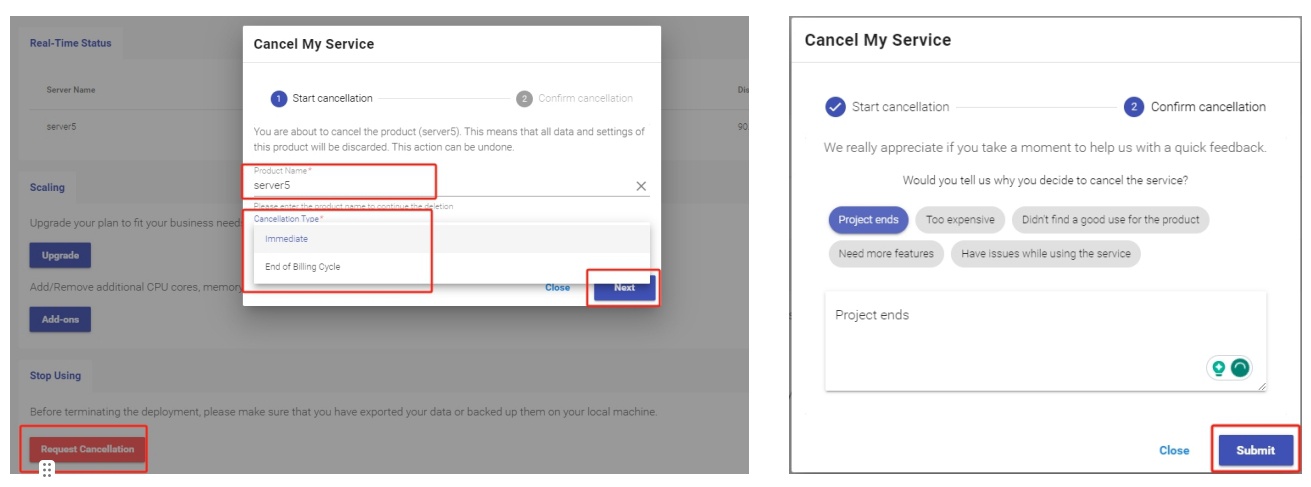
If you change your mind before the product is deleted, you may be able to withdraw the cancellation request by clicking Delete Cancellation Request and confirming the action.
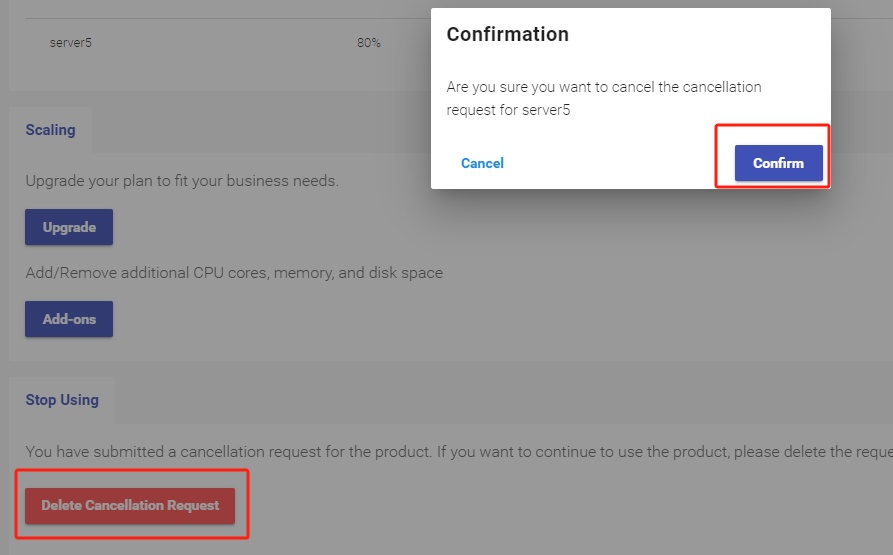
Review the cancellation timing and any applicable billing conditions before submitting your request.
1.6 Restore a Cancelled VPS Package
For eligible VPS products, backups may remain available for a limited period after cancellation. If you need to restore a cancelled package, submit the restoration request before its backup is deleted.
First, display cancelled virtual servers, locate the required package, and click Restore.
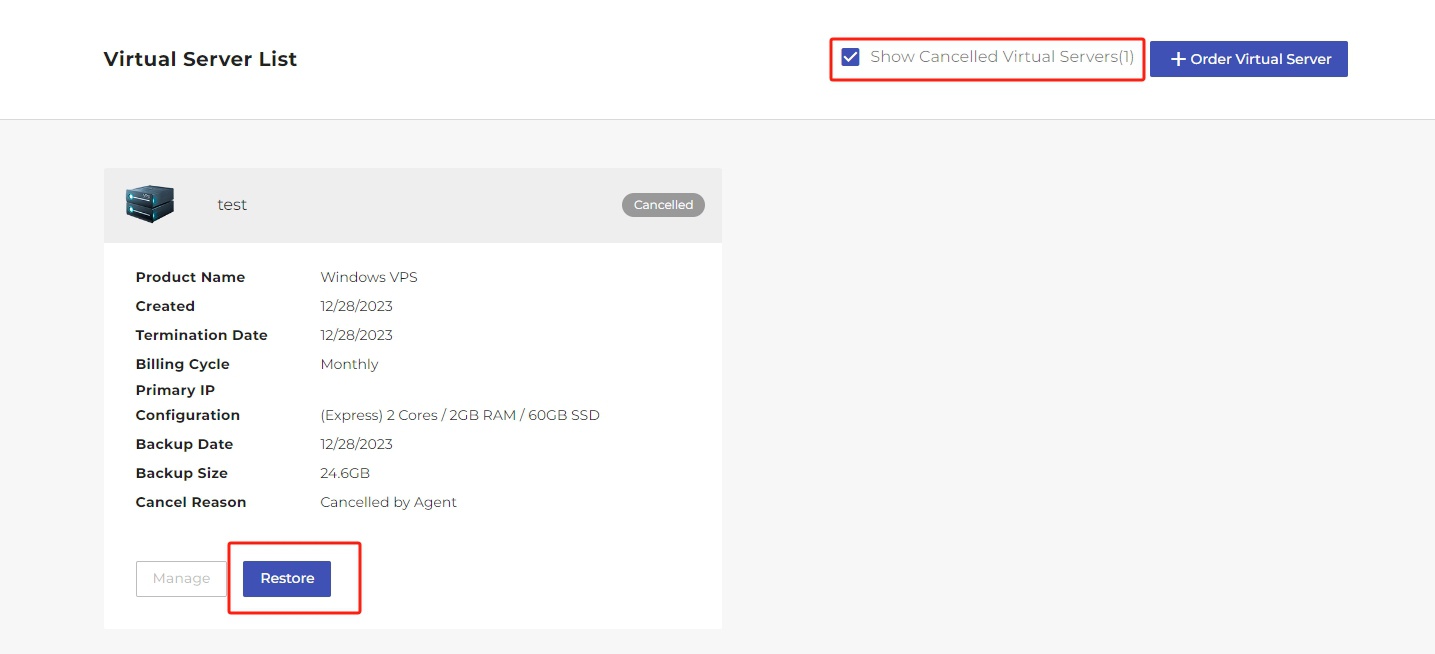
Confirm the request and pay the invoice for the next billing cycle. Once payment is completed, the service can be restored. Processing may take several minutes.
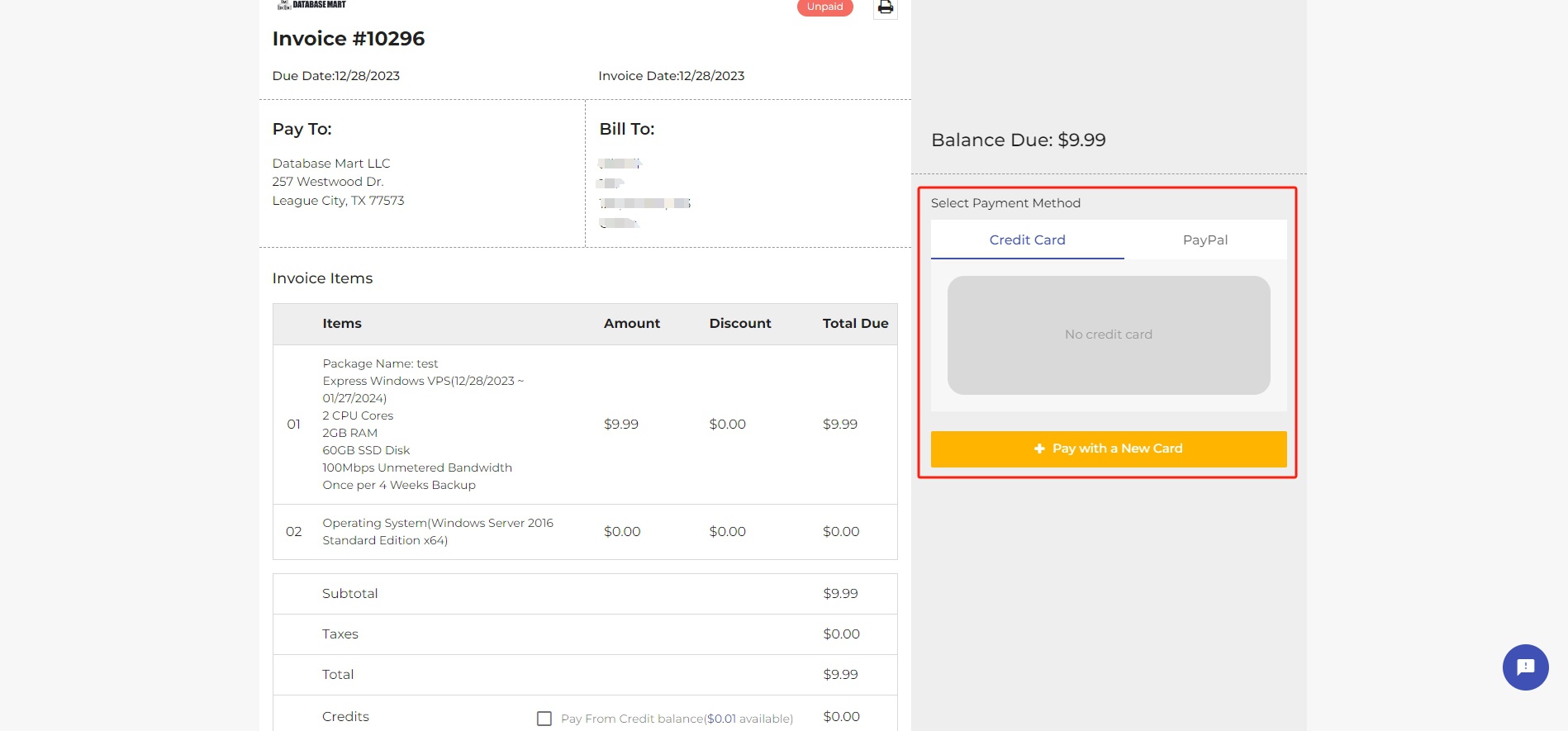
Availability depends on whether the product's backup is still retained. Do not rely on this feature as a substitute for maintaining your own backups.
2. Server Management
The server management interface provides power controls, IP information, operating system reinstallation options, and operation logs. Available functions differ between VPS and dedicated server products.
2.1 Control Server Power
VPS management
The VPS interface provides several power and state controls:
- Reset: Immediately restarts the server without a graceful shutdown. Unsaved data may be lost.
- Turn Off: Stops the server and terminates running processes; unsaved data may be lost.
- Shut Down: Attempts to shut down the operating system gracefully.
- Pause: Suspends the VPS so it can later be resumed.
- Reboot: Restarts the VPS through a graceful shutdown process.
- Power On: Starts a stopped VPS.
- Resume: Continues a previously paused VPS.



Choose the appropriate action for your situation. For routine maintenance, prefer a graceful shutdown or reboot when the operating system is responsive.
Dedicated server management
The dedicated server interface provides power controls, including rebooting, shutting down, and powering on the physical server.


Power operations can interrupt hosted websites, applications, databases, and remote sessions. Check your workload before initiating an operation.
2.2 View IP Information
Open IP Management to view your server's IP address, subnet mask, and gateway.

These details can help when configuring network interfaces, troubleshooting connectivity, or connecting to your server.
2.3 Reinstall the Operating System
For eligible VPS products, you can reinstall the operating system if the server experiences persistent startup issues, system corruption, malware infections, or unresolved software conflicts.
Click Reinstall and confirm the request.
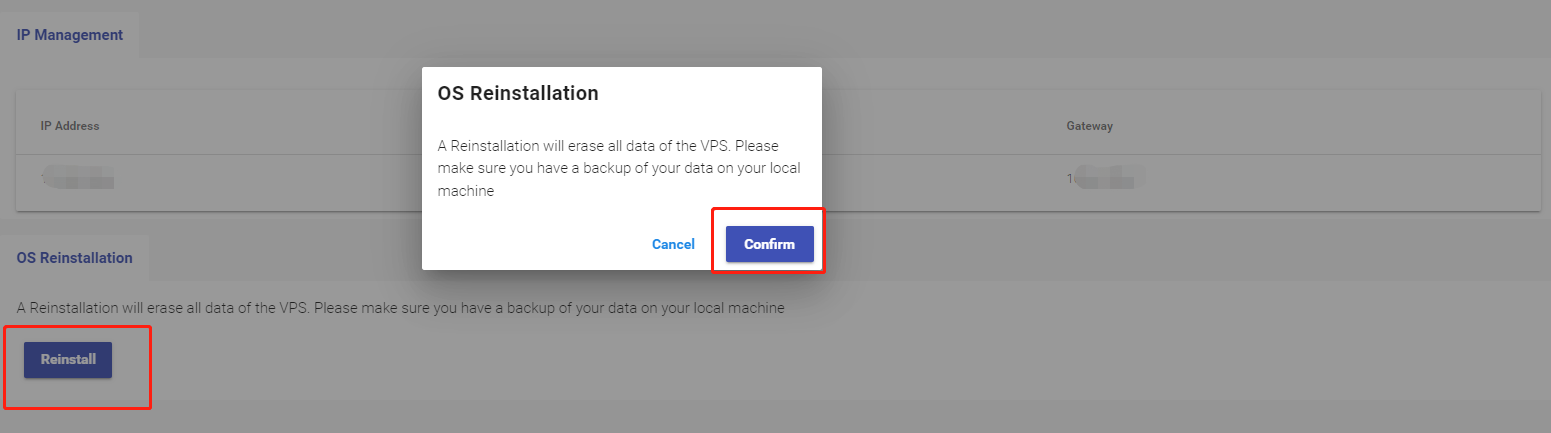
Select the desired operating system, enter the required server password, and confirm the reinstallation.
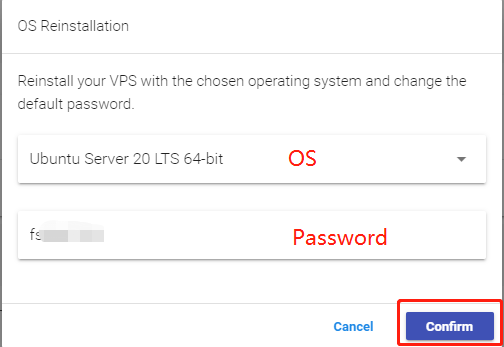
Warning: Reinstalling the operating system deletes server data. Back up important files, databases, and configurations before proceeding. This self-service feature is available for VPS products; contact the support team for dedicated server OS reinstallation.
2.4 Review Server Operation Logs
Open the Events page to review operation history. Enter a keyword in the search field and click the search icon to find matching records.
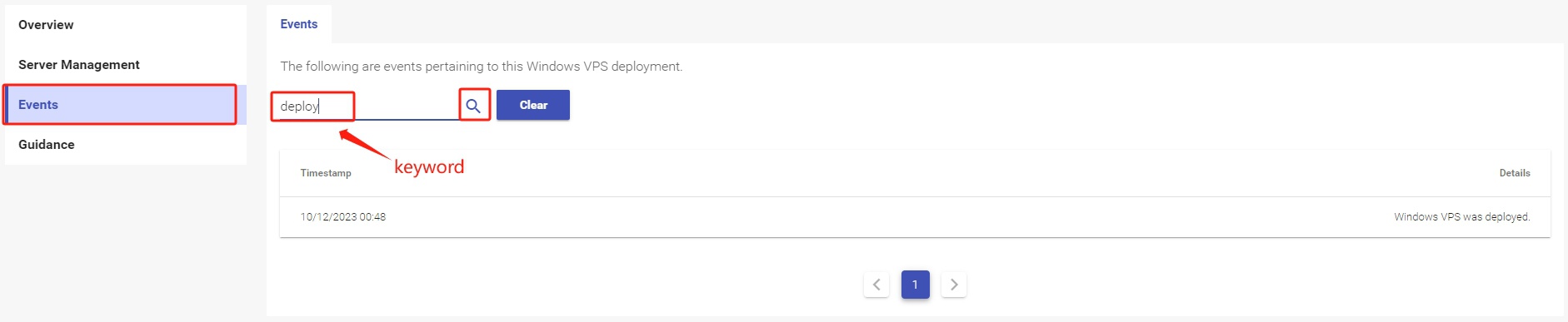
Reviewing operation logs can help you investigate configuration changes and understand recent server management activity.
3. Billing Management
The Billing section allows you to maintain billing information, review invoices, manage payment methods, and track account credits.
3.1 Update Billing Information
Open Billing Information to update the details required for billing and invoice generation.
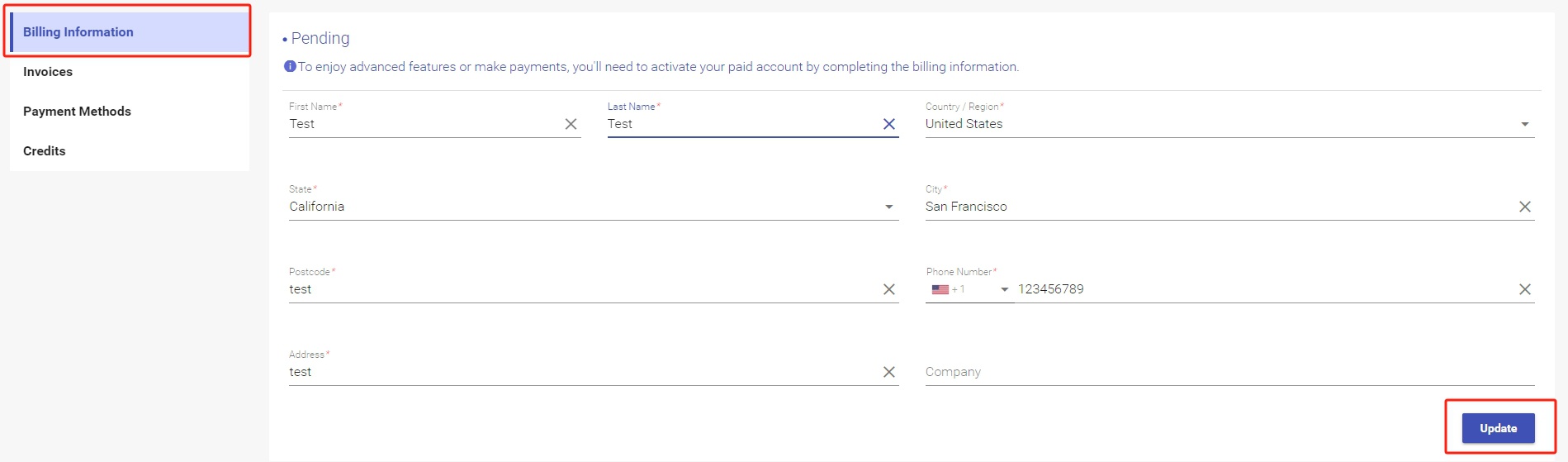
Keep your billing information accurate to help prevent payment and invoicing issues.
3.2 View and Pay Invoices
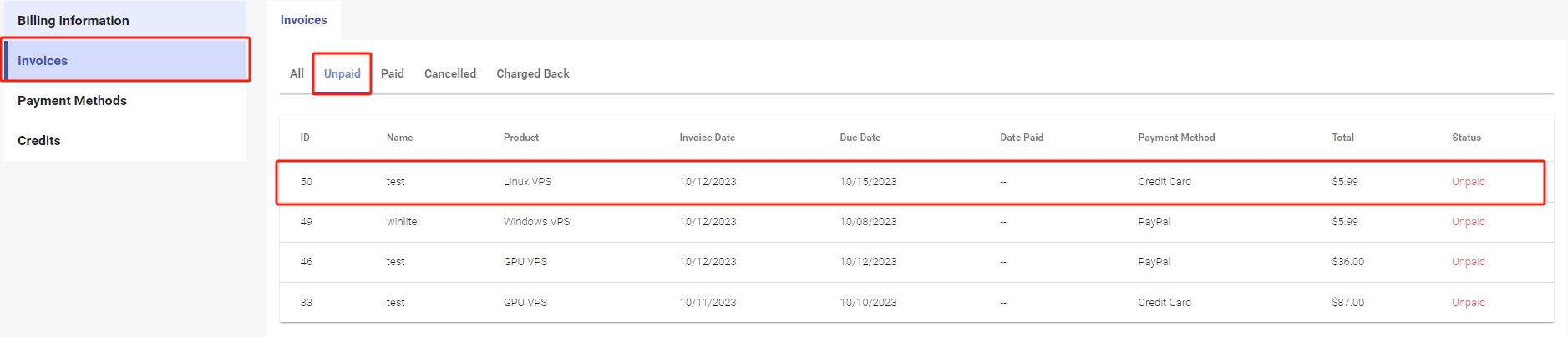
Under Invoices, use the available tabs to filter invoices by status, including All, Unpaid, Paid, Cancelled, and Charged Back. Select an invoice to view its details.
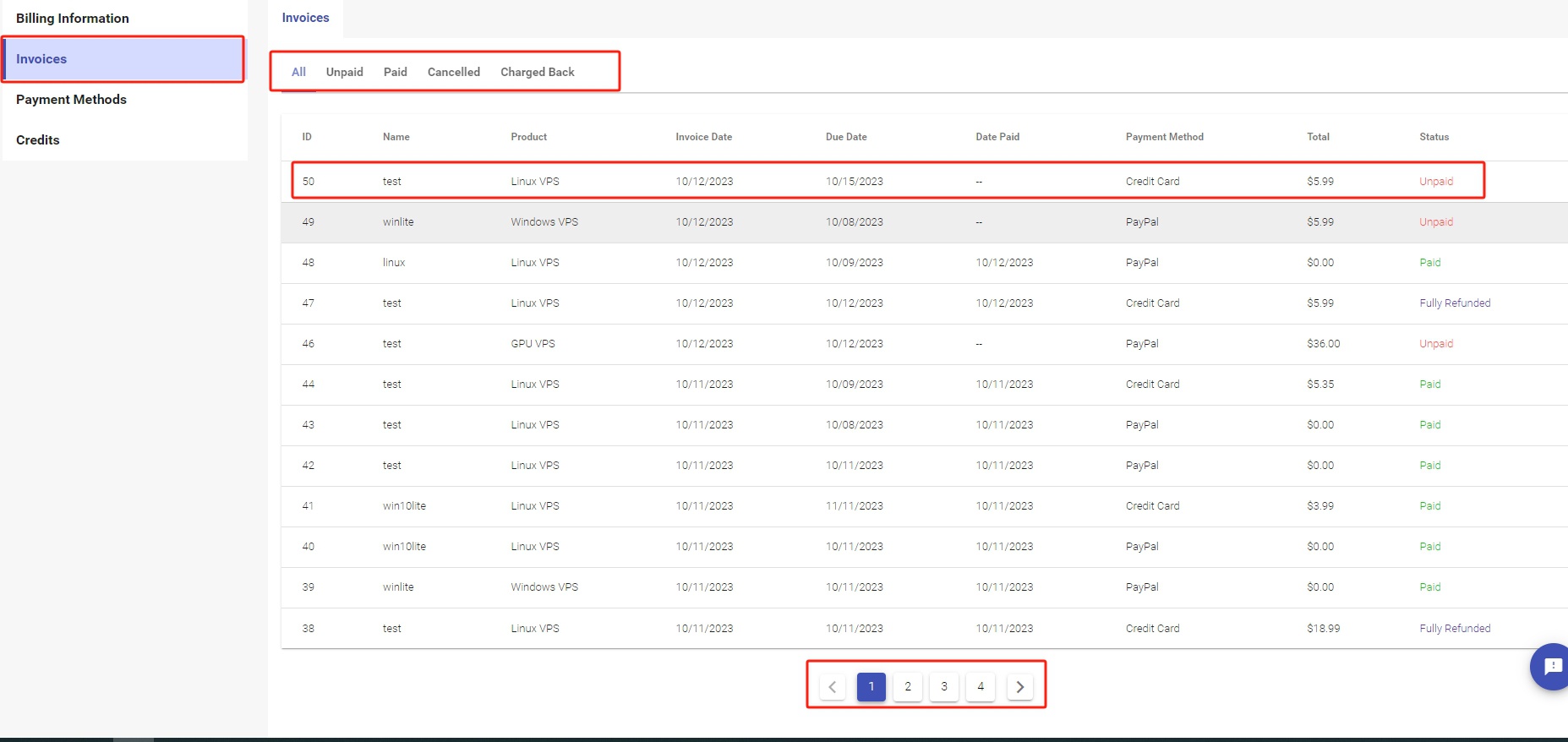
To pay an outstanding invoice, open the Unpaid tab and select the invoice.
If your account has credits, you can apply them toward the invoice. If the balance does not cover the full amount, pay the remainder using an available payment method, such as a credit card or PayPal.
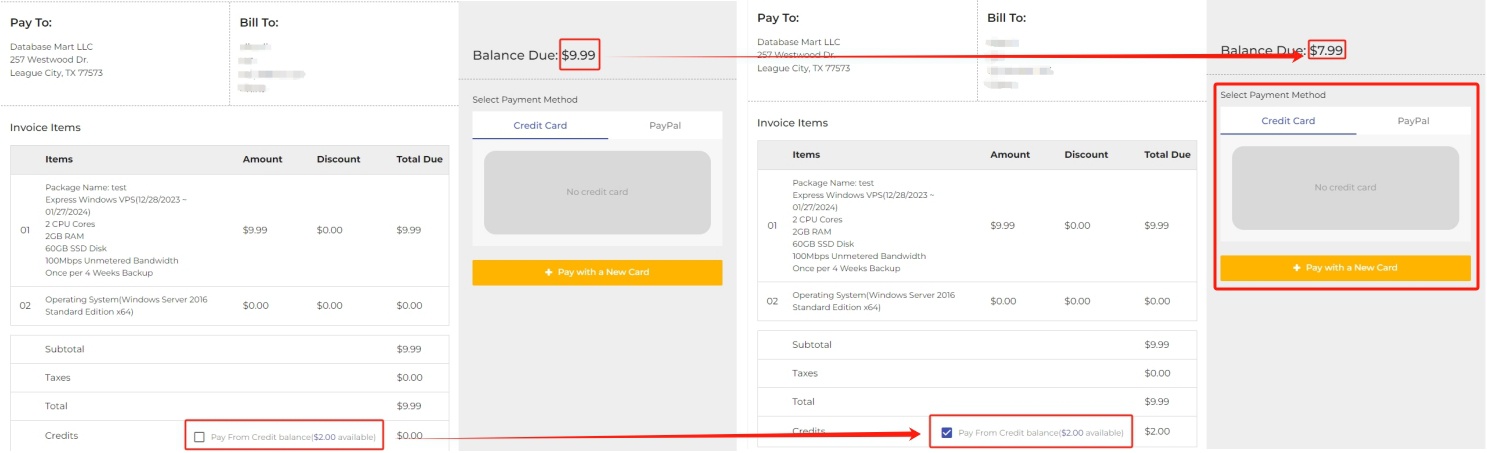
Review invoice details and the amount due before completing payment.
3.3 Manage Payment Methods and Auto-Charge
Auto-charge allows recurring invoices to be paid automatically using an eligible credit card or PayPal subscription.
Add a credit card
Open Payment Methods and add a credit card to your account.
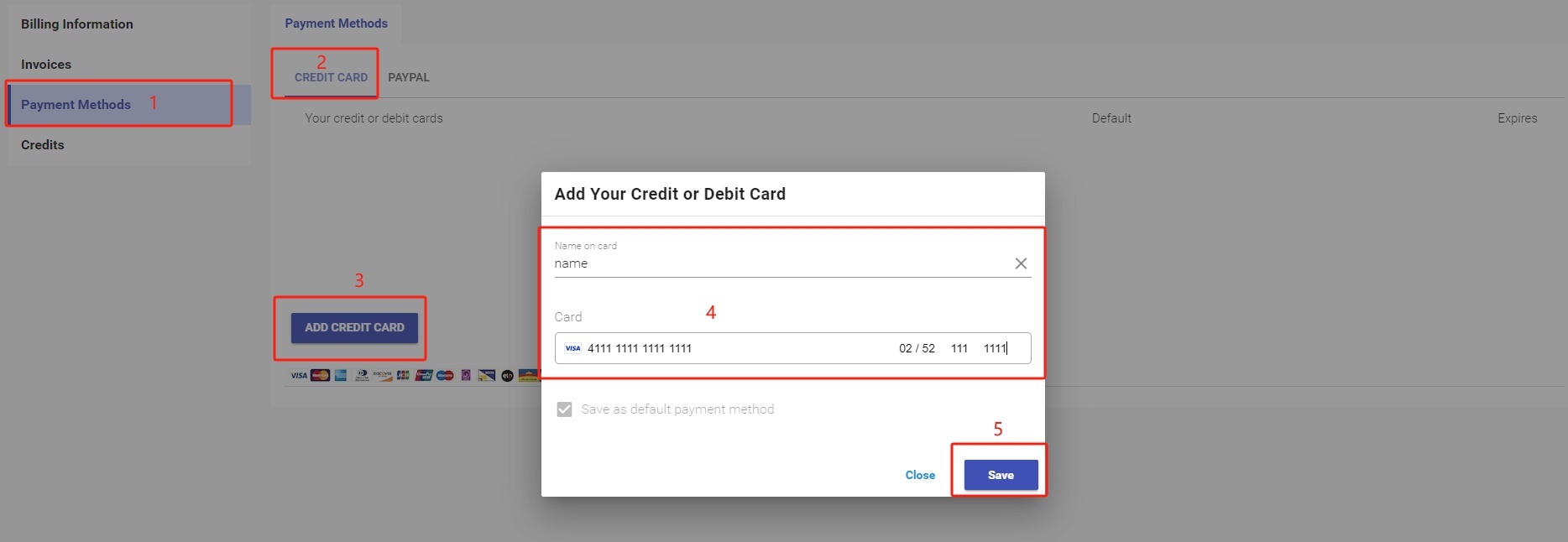
Set up a PayPal subscription
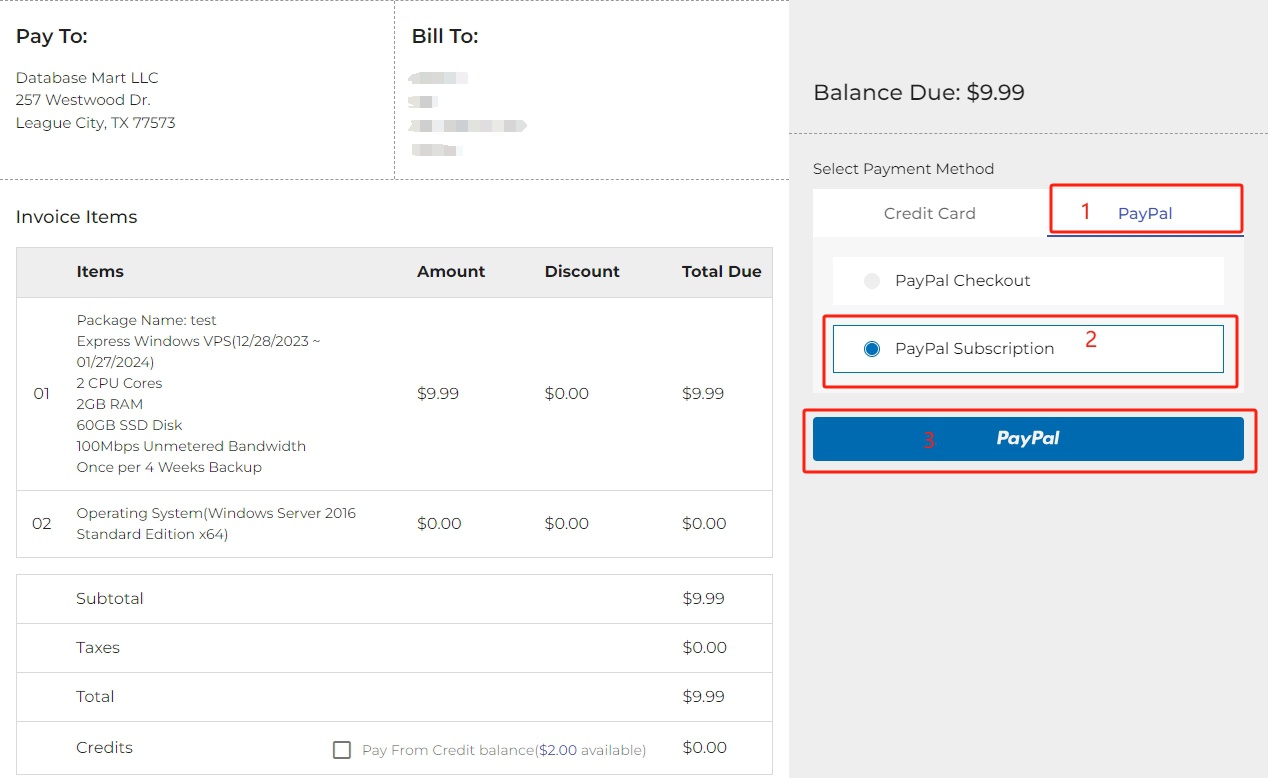
To configure recurring PayPal payments, select an eligible unpaid recurring invoice and open the PayPal subscription option.
- Choose an unpaid invoice.
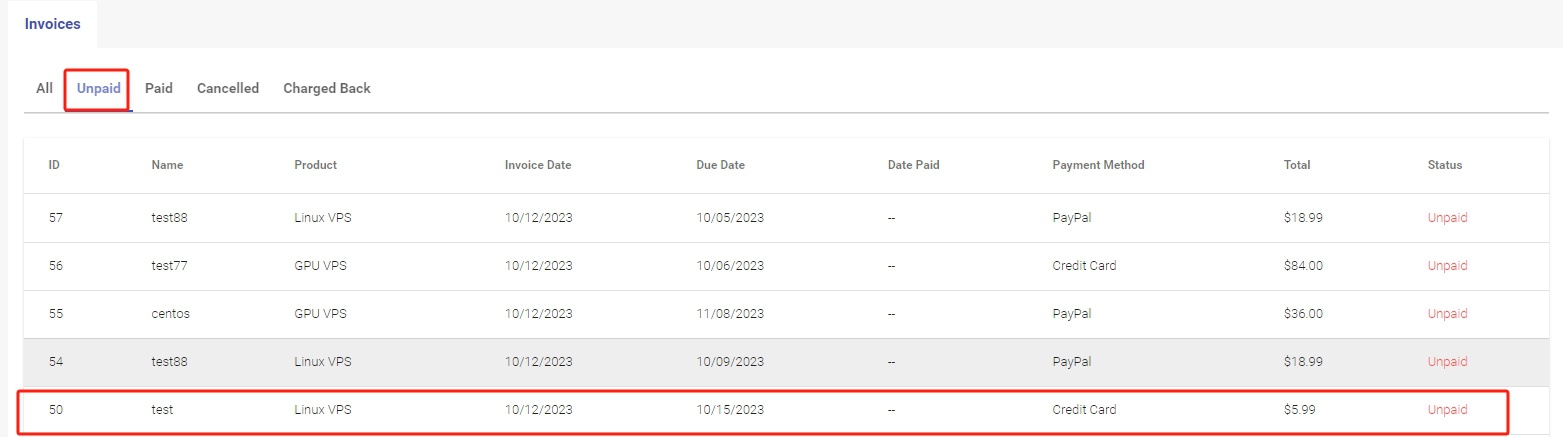
- Select PayPal Subscription and click the PayPal button.
- Sign in to PayPal and approve the subscription.
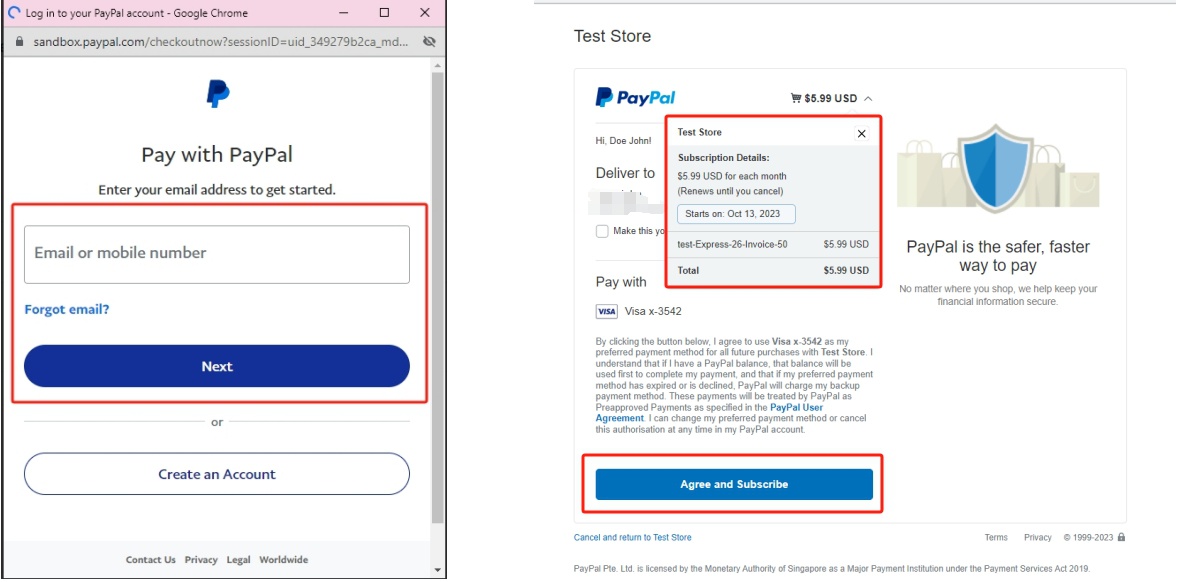
- Return to Payment Methods to verify the subscription status.

PayPal subscriptions can only be configured before the applicable payment is completed and apply to eligible recurring invoices. If the product or price changes, the existing subscription may be cancelled, requiring a new subscription for a subsequent invoice.
3.4 Review Account Credits
Open Credits to view your available balance and credit usage history.

Account credits can be applied to eligible invoices. Check your balance before making a payment.
4. Ticket Management
The ticket system lets you contact the support team, submit technical questions, respond to existing requests, and close tickets.
To create a ticket, open Tickets and click Submit Ticket. Describe the issue clearly and attach relevant screenshots or files when necessary.

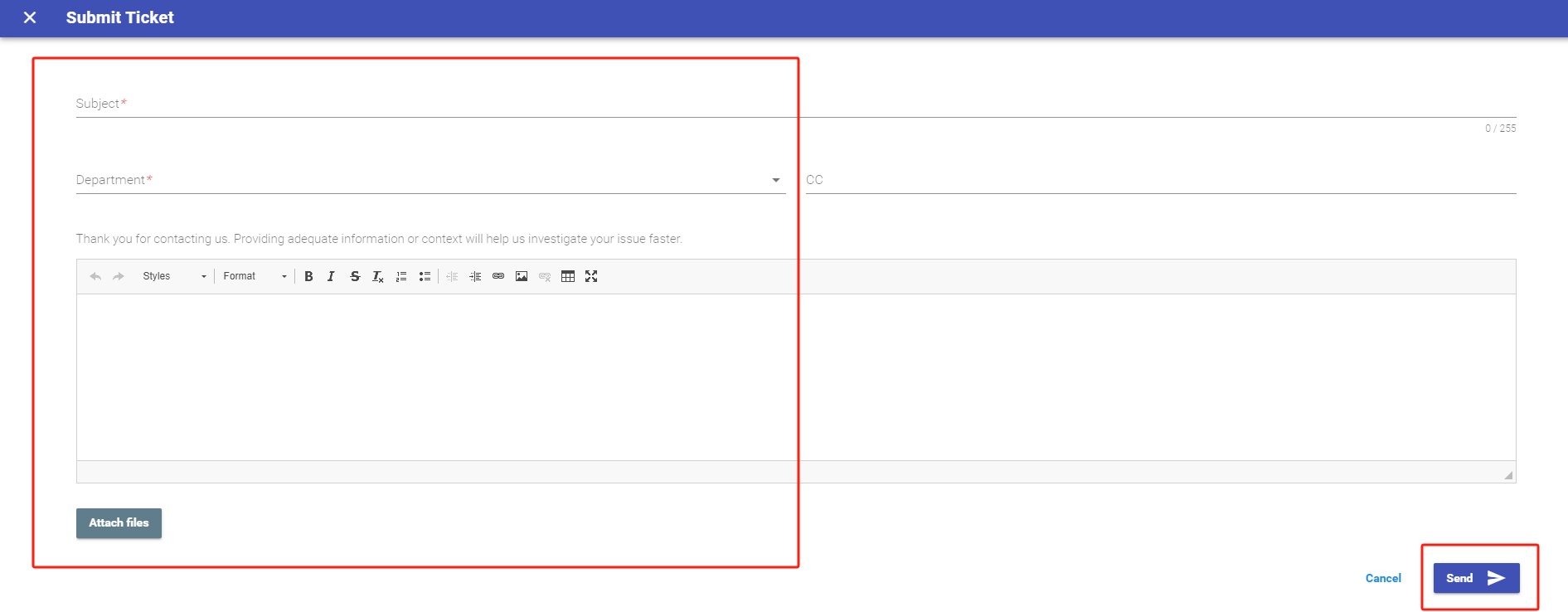
For server hosting issues, include relevant details such as the affected product, error messages, and troubleshooting steps already attempted. Never include passwords or other sensitive credentials in a support ticket.
5. Account Management
The Account Management section lets you update your personal or company information and change your account password.
5.1 Update Account Information
Click your username in the upper-right corner and select Account Information. Update the available fields, such as your name, company, phone number, and address, then click Update to save the changes.
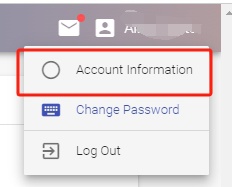
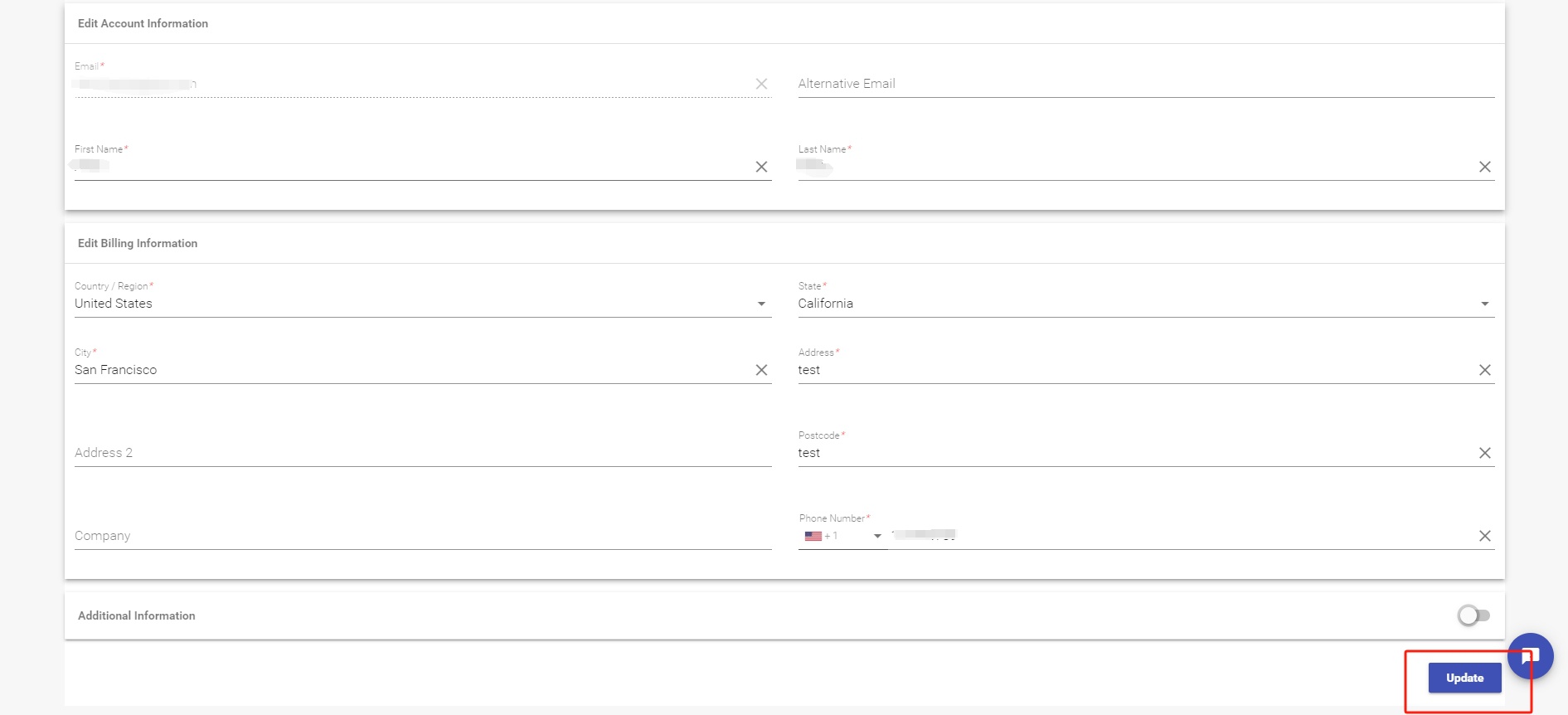
Keeping account details current helps ensure that billing and account information remains accurate.
5.2 Change or Reset Your Password
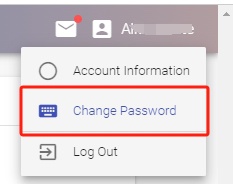
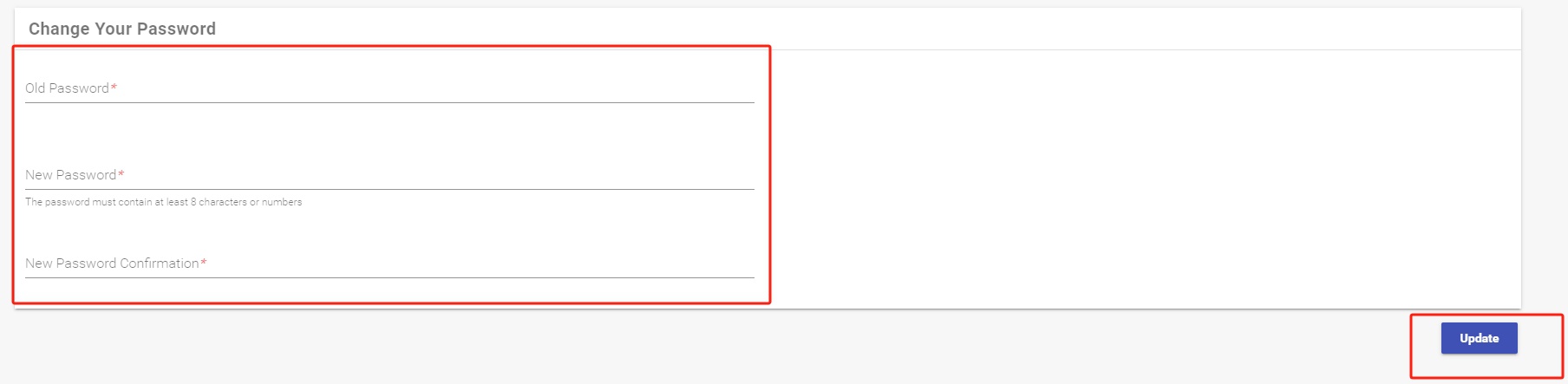
To change your password, click your username and select Change Password. Enter your current password and the new password, then click Update.
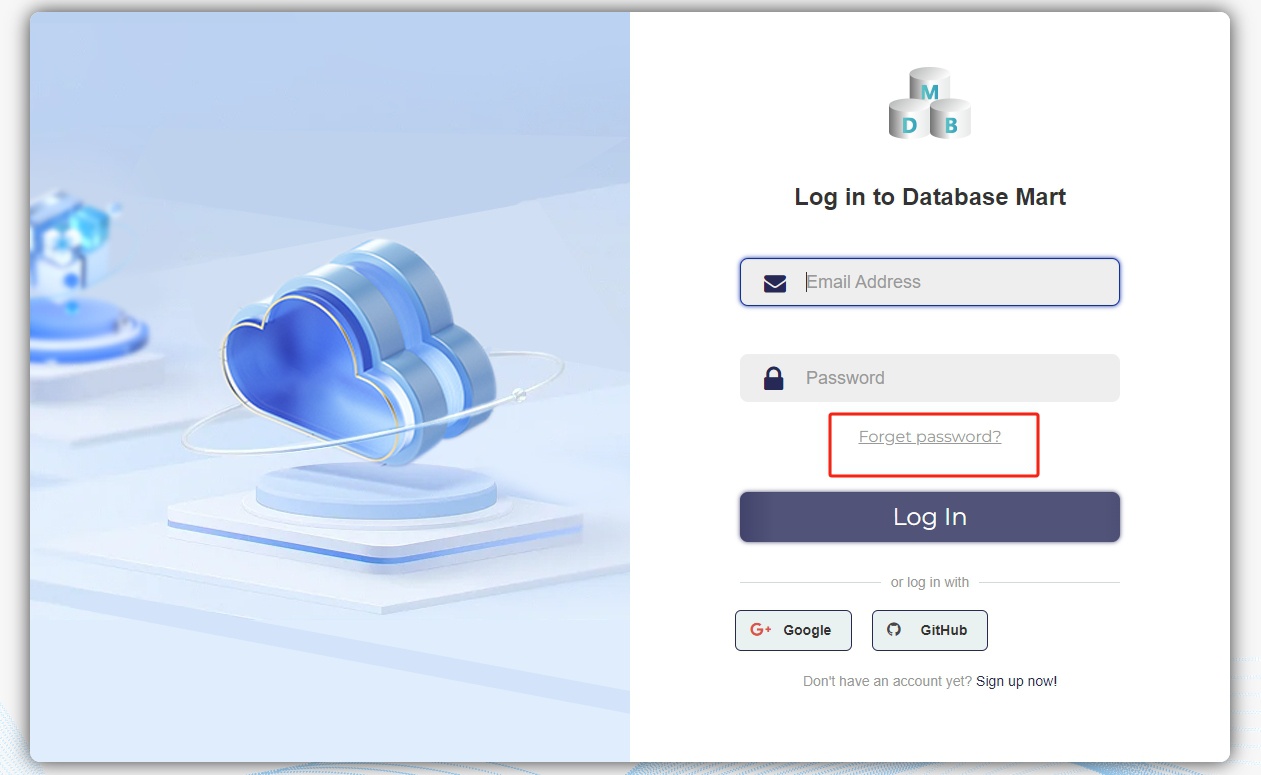
If you have forgotten your current password, use Forgot Password on the login page to begin the password reset process.
Use a strong, unique password to protect your account and the server hosting products associated with it.
Conclusion
Database Mart's control panel centralizes product management, server operations, billing, support tickets, and account settings. You can retrieve server credentials, renew services, scale VPS resources, manage power operations, review invoices, and contact support without navigating separate systems.
For reliable server hosting, monitor resource usage, review billing deadlines, maintain independent backups before destructive operations, and keep your account information secure. Whether you manage a VPS or dedicated server through a USA hosting provider, understanding these control panel features helps you maintain your services and respond to common operational needs efficiently.