


How to Create MySQL DB in ISPConfig
Introduction
If you are managing a website with ISPConfig, you will often need to create MySQL databases for applications such as WordPress, Joomla, or custom web apps. This guide will show you, step by step, how to create MySQL DBs, configure MySQL users, and complete the MySQL database setup process in ISPConfig.
Why You Need a MySQL Database
MySQL is one of the most widely used database systems. To run most dynamic websites, you must set up a MySQL database and link it to your website. ISPConfig makes it easy to create DBs and assign users with proper permissions.
Steps to Create a MySQL Database
Step 1: Log in to ISPConfig
- Open your browser and go to your ISPConfig control panel login page (usually
https://your-server-ip:8080). - Enter your admin or client credentials and click Login.
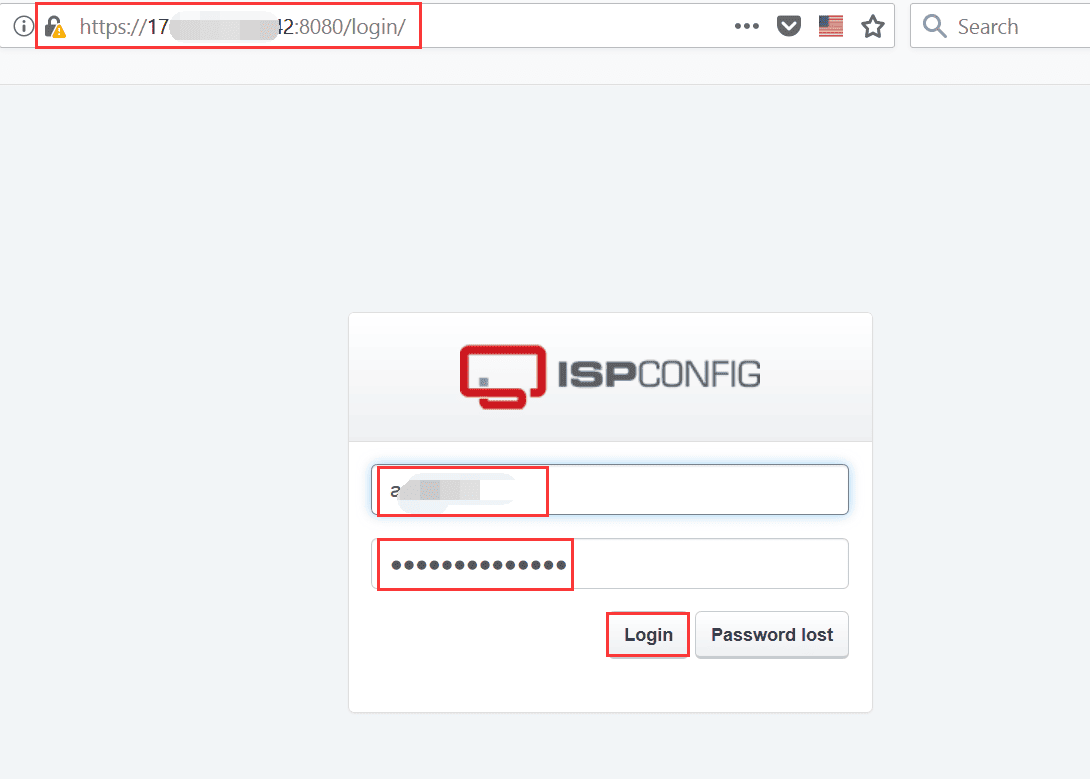
Step 2: Navigate to Database Management
- In the ISPConfig dashboard, click the Sites tab.
- In the left menu, select Databases.
- Under the database section, click Add new Database to start the MySQL database setup.
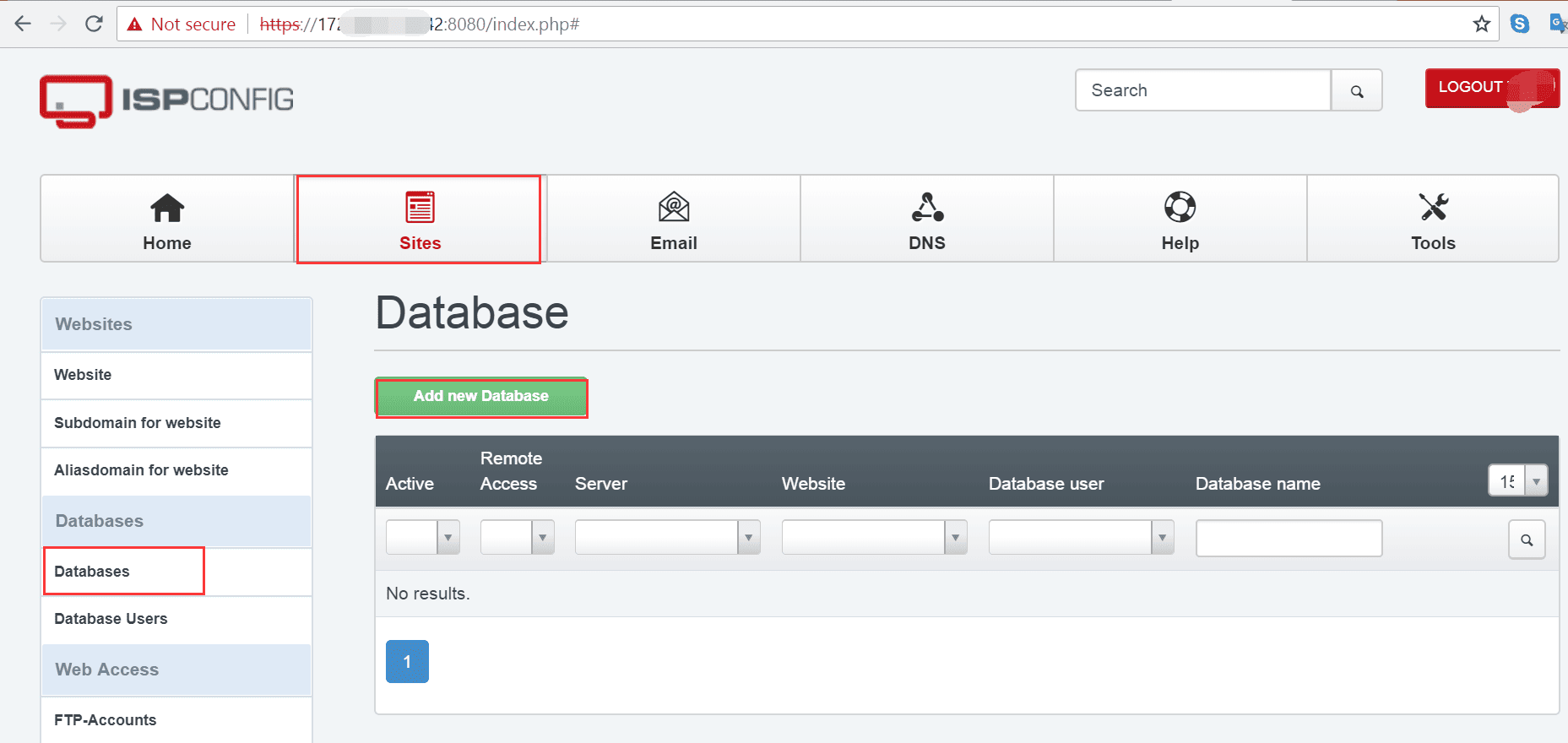
Step 3: Create a MySQL Database
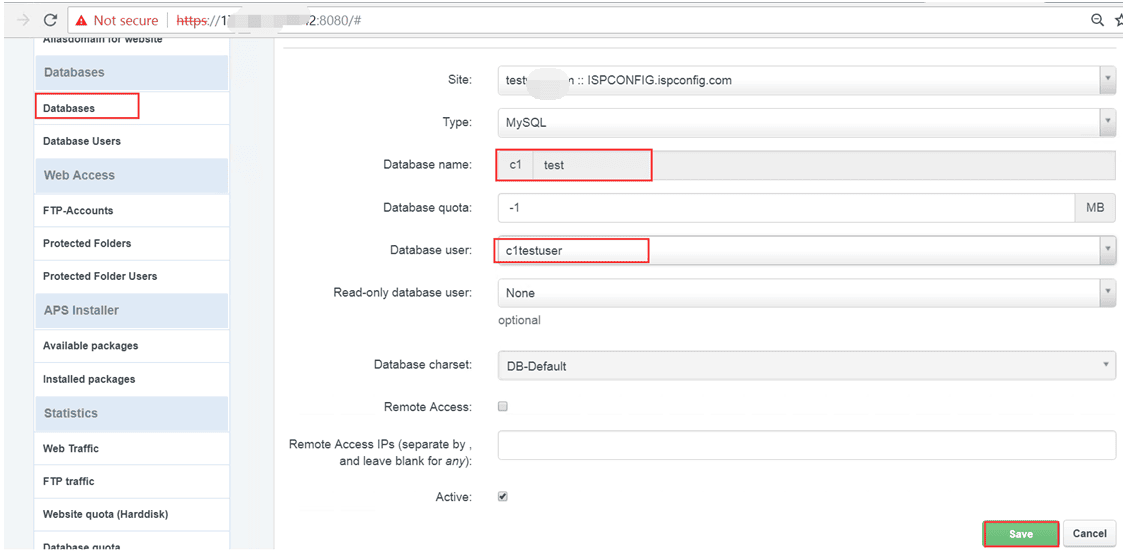
- Choose the site you want to assign this database to (important if you host multiple websites).
- Enter a database name. Example:
test.Tip: Use a clear and short name to make management easier.
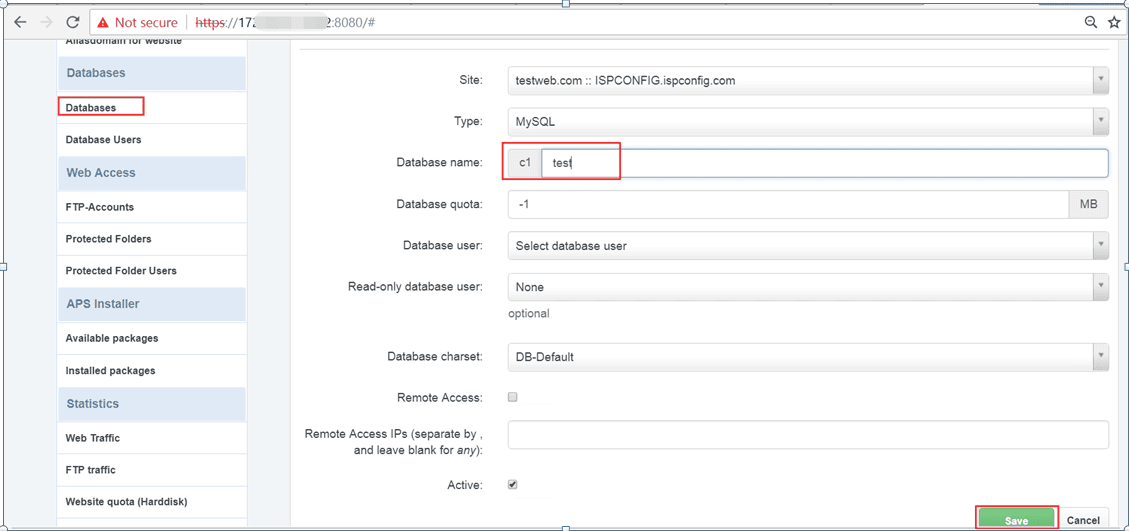
Step 4: Create a MySQL Database User
- Scroll to the Database User section.
- Enter a Database user for your database. Example:
testuser. - Set a secure password for the user.
Use a mix of uppercase, lowercase, numbers, and special characters to keep your database secure.
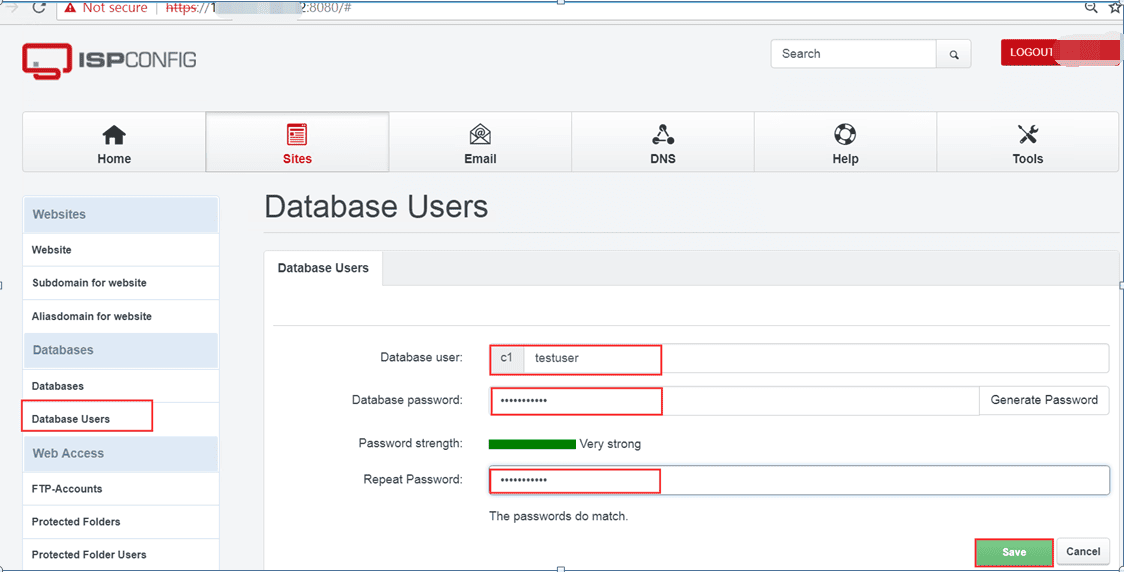
Step 5: Grant User Permissions
- Assign the newly created user to your database.
Example: give userc1testuserpermission to access databasetest. - Ensure the user has full privileges so applications (like WordPress) can configure MySQL tables automatically.
Step 6: Verify Database Setup
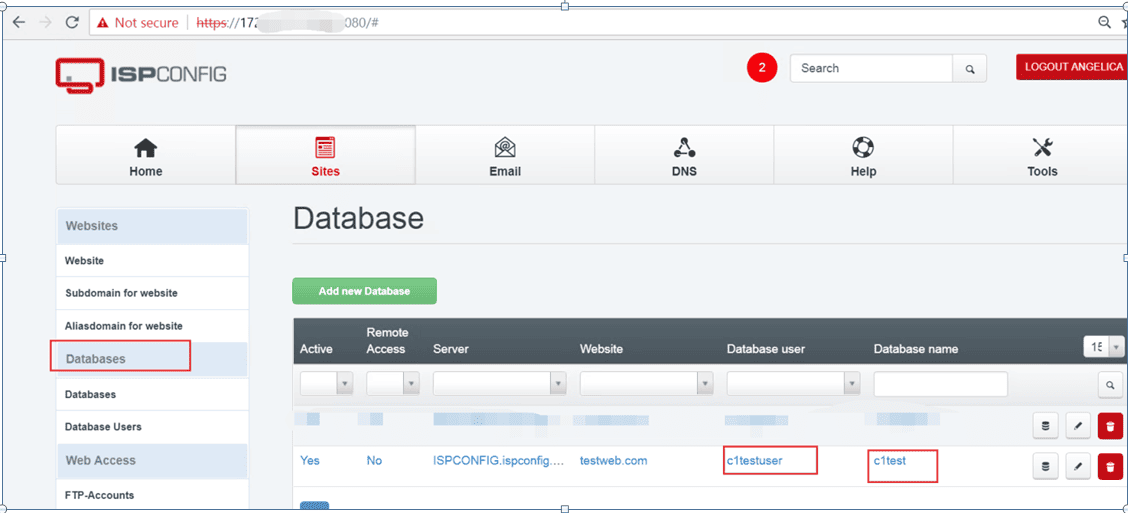
- Go back to the Database in ISPConfig.
- Check that your new MySQL database and user appear correctly.
- Use phpMyAdmin or connect via a script to test the database connection.
Conclusion
You have completed the MySQL database setup in ISPConfig. Now you know how to:
- Create MySQL databases for your websites.
- Create DB users and secure them with passwords.
- Configure MySQL permissions properly.
This process is essential whenever you set up a new website or install applications like WordPress.
create mysql databases, create mysql db, create db, create database, configure mysql, setup mysql, mysql database setup, setup database