


How to Backup Database in SSMS
Why You Need to Back Up Your Database
Databases store critical business information. Without a proper SQL backup and recovery plan, a system crash or accidental deletion could cause serious data loss.
Here are common use cases:
- Protecting customer or financial data
- Migrating to a new server
- Testing new features safely with a restore copy
Step-by-Step Guide to Back Up a Database
Step 1: Open SSMS
From the Start Menu, launch SQL Server Management Studio.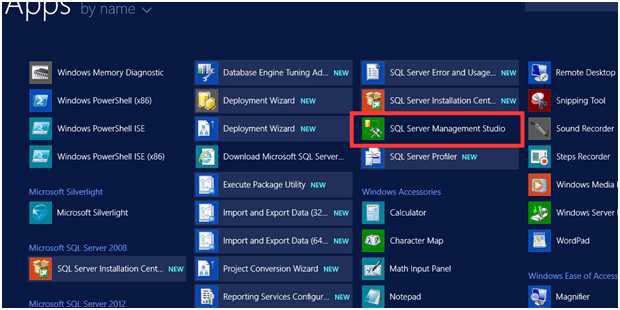
Step 2: Configure Backup
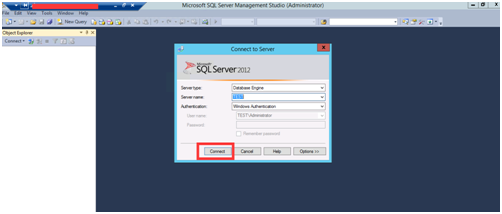
- Connect to the SQL Server.
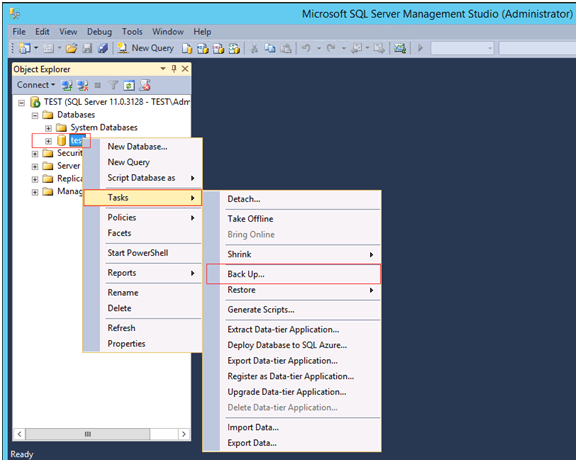
- In Object Explorer, right-click your database (e.g., test) → Tasks → Back Up.
- In the Backup dialog:
Remove any existing destination.
Click Add and choose your desired backup folder.
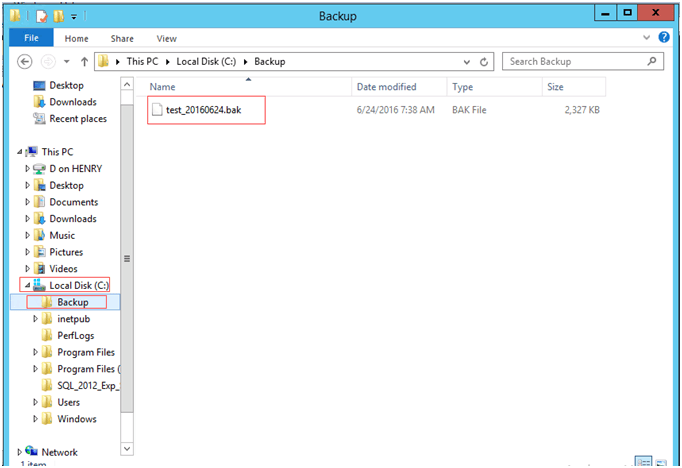
Then, confirm the backup file location.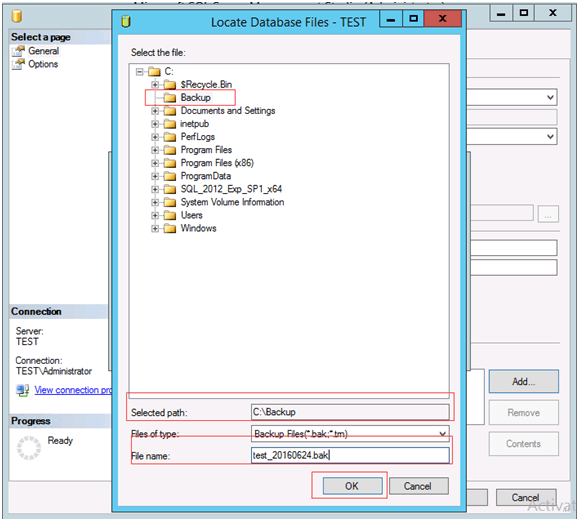
Step 3: Run Backup
Click OK to start. A confirmation window will appear once the backup is successful.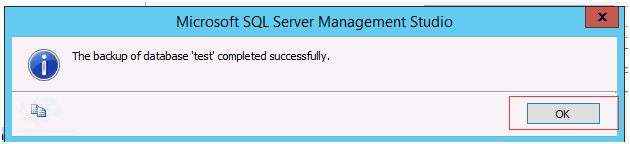
Conclusion
By following the above steps, you can easily back up a database in SQL Server Management Studio. Always store the backup file in a secure and accessible location, and keep multiple copies if possible. Regular database backups help prevent data loss and ensure quick recovery in case of system failures or unexpected issues.
ssms backup, sql server backup, backup database, how to backup database in ssms, aws rds backup, rds backup, backup database sql server, airtable backup, mysql backup database, sql backup, backup database sql server, sql backup database, ssms backup database, ms sql backup, sql backup and recovery