


How to Use LDPlayer on GPU VPS
Introduction
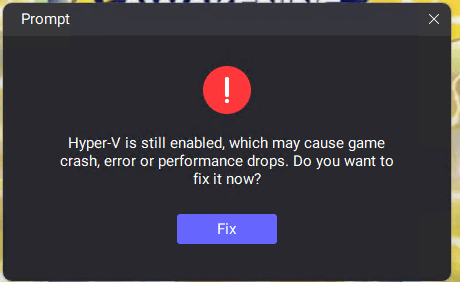
This document records a startup issue encountered while running LDPlayer 9.1.93.1 (64-bit) on Windows 11 Pro Evaluation. Each launch triggers a pop-up window requiring user intervention such as system repair or forced closure before normal operation can resume. The report includes screenshots of both Chinese and English pop-ups for reference in problem analysis.
Step 1: Download and Install LDPlayer
Download the latest version from the official website:
Download LDPlayer
Step 2: Open LDPlayer
1. First pop-up
Every time the emulator starts, the following window pops up first, indicating that a repair is needed:
2. Choose whether to repair
If you click 'Fix':
Wait for about a minute, and the following window will appear:
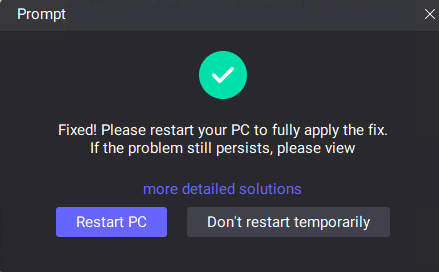
At this time, do not click 'Restart PC'; instead, choose 'Don't restart temporarily'
If you click restart, the computer will reboot, and you will have to start over.
If you don't click 'Restart PC':
Simply ignore this window, close it, and then proceed to the next step.
3. The second popup
Next, you will see a prompt window like this: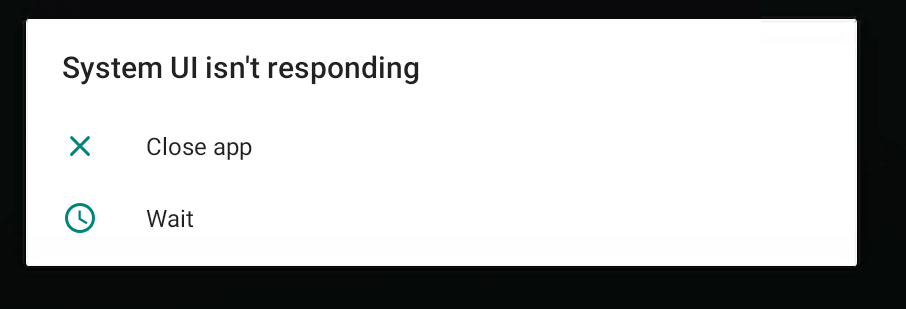
Please click 'Close App' or a similar option to directly close this window.
✅ Completed
After performing the above steps, LDPlayer can start normally without pop-up interruptions. If pop-ups still appear each time you start it afterwards, simply repeat Step 2.
LDPlayer GPU VPS, use ldplayer on gpu vps, LDPlayer VPS setup, Android emulator VPS, run LDPlayer on cloud server, GPU VPS Android emulator, LDPlayer installation guide, high performance VPS emulator, cloud gaming Android emulator