


How to Install Odoo 14 on Ubuntu
Introduction
Odoo is one of the most popular open-source ERP systems used by businesses worldwide. Installing Odoo on Linux requires setting up some dependencies first, including PostgreSQL, Python3, and wkhtmltopdf.
In this guide, we’ll walk you step by step through how to install Odoo 14 on Ubuntu 20.04. Even if you are a beginner, this tutorial will help you understand the process of Odoo installation in Ubuntu and get your ERP up and running.
By the end of this tutorial, you’ll have a fully working Odoo instance accessible via a browser.
Prerequisites
Before starting, make sure you have:
- A fresh Ubuntu 20.04 server
- Root access or a sudo-enabled user
- Basic knowledge of Linux commands
How to Install Odoo 14 on Ubuntu?
Step 1: Update Packages
First, update your system packages:
sudo apt update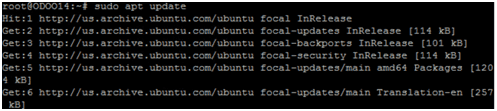
Then, create a dedicated user for Odoo:
sudo useradd -m -d /opt/odoo14 -U -r -s /bin/bash odoo14
Step 2: Install Python3 and Required Dependencies
Odoo requires Python 3 and several supporting libraries. Install them using:
sudo apt install git python3-pip build-essential wget python3-dev python3-venv \
python3-wheel libfreetype6-dev libxml2-dev libzip-dev libldap2-dev libsasl2-dev \
python3-setuptools node-less libjpeg-dev zlib1g-dev libpq-dev \
libxslt1-dev libldap2-dev libtiff5-dev libjpeg8-dev libopenjp2-7-dev \
liblcms2-dev libwebp-dev libharfbuzz-dev libfribidi-dev libxcb1-dev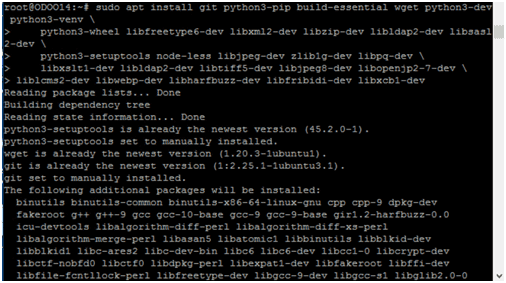
Step 3: Install PostgreSQL
Odoo needs PostgreSQL as its database server.
3.1 Install PostgreSQL
sudo apt install postgresql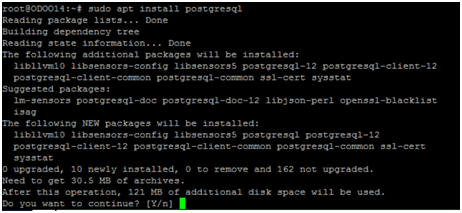
3.2 Create PostgreSQL User for Odoo
sudo su - postgres -c "createuser -s odoo14"
Step 4: Install wkhtmltopdf
wkhtmltopdf is required for generating PDFs in Odoo.
sudo wget https://github.com/wkhtmltopdf/packaging/releases/download/0.12.6-1/wkhtmltox_0.12.6-1.bionic_amd64.deb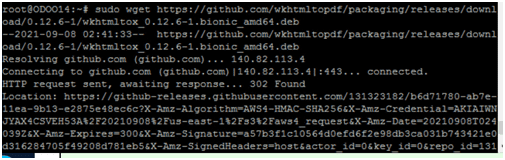
sudo apt install ./wkhtmltox_0.12.6-1.bionic_amd64.deb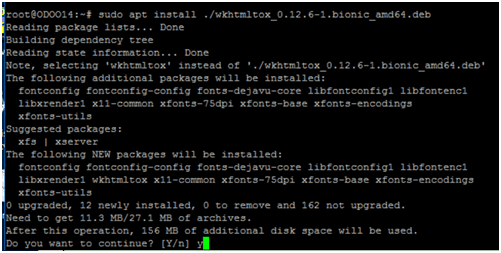
(For Ubuntu 22, use the Jammy package instead.)
Step 5: Install and Configure Odoo 14
5.1 Switch to Odoo User
sudo su - odoo145.2 Download Odoo Source
git clone https://www.github.com/odoo/odoo --depth 1 --branch 14.0 /opt/odoo14/odoo
5.3 Setup Virtual Environment
cd /opt/odoo14
python3 -m venv odoo-venv
source odoo-venv/bin/activate
pip3 install wheel
pip3 install -r odoo/requirements.txt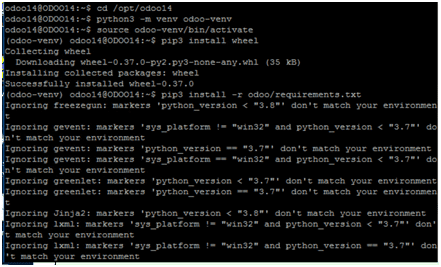
deactivate
5.4 Configure Odoo
Create a custom addons directory:
mkdir /opt/odoo14/odoo-custom-addons
Switch back to root and create the Odoo configuration file:
sudo vim /etc/odoo14.conf
Paste:
[options]
admin_passwd = my_admin_passwd
db_host = False
db_port = False
db_user = odoo14
db_password = False
logfile = /opt/odoo14/odoo-server.log
addons_path = /opt/odoo14/odoo/addons,/opt/odoo14/odoo-custom-addons
xmlrpc_port = 8069
longpolling_port = 8072
Step 6: Set up Odoo Service
Create a Systemd unit file:
sudo vim /etc/systemd/system/odoo14.service
Paste:
[Unit]
Description=Odoo14
Requires=postgresql.service
After=network.target postgresql.service

[Service]
Type=simple
SyslogIdentifier=odoo14
User=odoo14
Group=odoo14
ExecStart=/opt/odoo14/odoo-venv/bin/python3 /opt/odoo14/odoo/odoo-bin -c /etc/odoo14.conf
StandardOutput=journal+console

[Install]
WantedBy=multi-user.target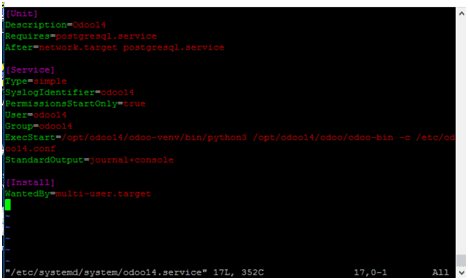
Reload systemd and start Odoo:
sudo systemctl daemon-reload
sudo systemctl enable --now odoo14
sudo systemctl status odoo14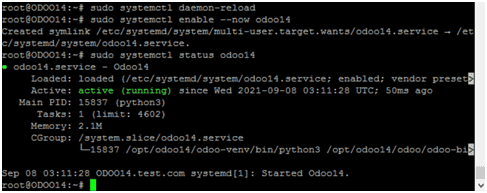
Step 7: Configure Reverse Proxy (Optional)
For production, you can configure Apache or Nginx as a reverse proxy. Example Apache config:
vim /etc/apache2/apache2.conf
<VirtualHost *:80>
    ServerAdmin admin@site.com
    ServerName odoo.example.com
    ProxyRequests off
    <Proxy *>
        Require all granted
    </Proxy>
    ProxyPass / http://127.0.0.1:8069/
    ProxyPassReverse / http://127.0.0.1:8069/
</VirtualHost>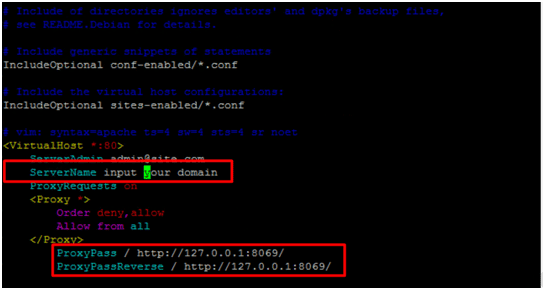
Enable required modules and restart Apache:
a2enmod proxy_http
sudo a2enmod ssl
sudo a2enmod proxy
sudo a2enmod proxy_balancer
sudo a2enmod proxy_http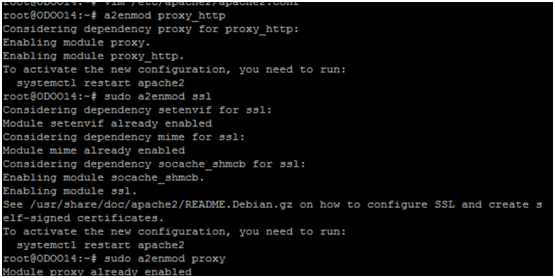
Step 8: Verify Installation
Open your browser and visit:
http://your-server-ip:8069If you configured Apache, just use your domain name:
http://odoo.example.comYou should see the Odoo setup page.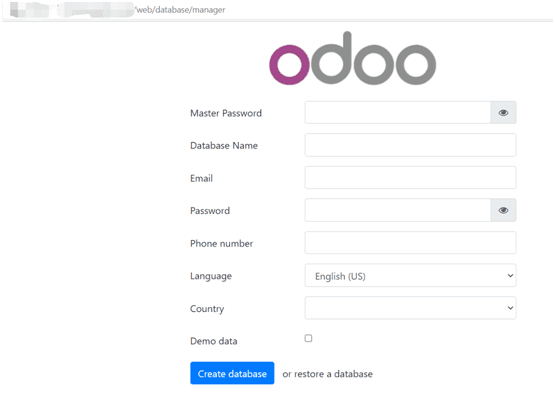
Conclusion
Congratulations! You have successfully installed Odoo 14 on Ubuntu 20.04.
We covered everything from installing dependencies, PostgreSQL, Python3, wkhtmltopdf, configuring Odoo, setting up a system service, and reverse proxy configuration.
Now you’re ready to use Odoo for Ubuntu or Odoo Linux hosting for your business needs.
install odoo, install odoo on ubuntu, odoo installation in ubuntu, odoo install on ubuntu, odoo setup, odoo for ubuntu, odoo ubuntu, odoo linux, odoo for linux, install odoo 14, odoo 14 install, install odoo in ubuntu, install odoo linux, install odoo 14 on ubuntu 20.04