


How to Transfer Your MailEnable Email Server to a New Server
Are you looking to migrate your MailEnable email server safely to a new server? This step-by-step guide will show beginners how to transfer MailEnable settings, mailboxes, and configurations without downtime. Follow these simple instructions for a smooth MailEnable server transfer.
Preparation for MailEnable Migration
Before starting the MailEnable server transfer, make sure
- Same MailEnable Version
Both old and new servers must run the same version of MailEnable to avoid errors during migration. - Matching System Architecture
Ensure the servers have the same architecture (32-bit to 32-bit or 64-bit to 64-bit). " - Same Installation Path
For a smooth MailEnable migration, the installation path on the new server must match the one on the old server.
Attention: This Knowledge article is only applicable to the Standard Edition (free). "
Steps to MailEnable Server Transfer
1. Export MailEnable Registry Settings
- On the old server, press Win + R, type regedit, and press Enter.
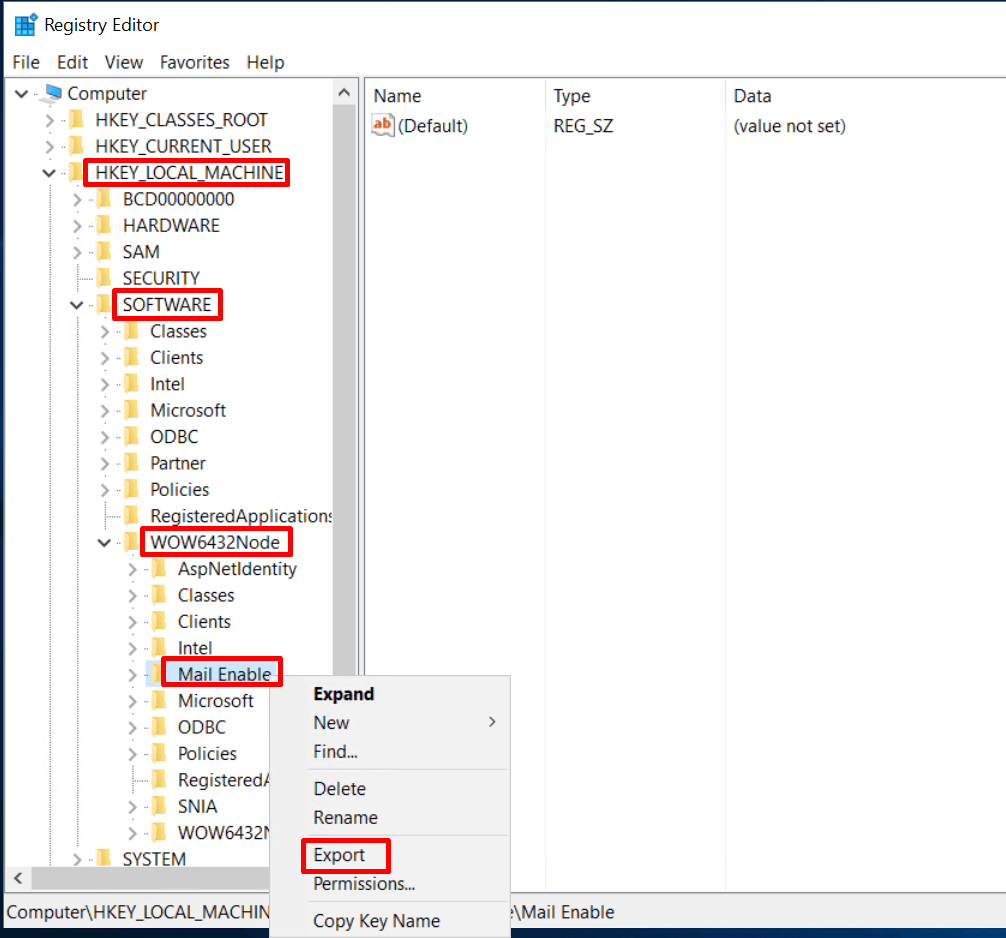
- Navigate to:HKEY_LOCAL_MACHINE\Software\Wow6432Node\Mail Enable
- Click File → Export and save as MailEnable.reg.
- Move this file to the new server and double-click it to import your settings.
2. Stop MailEnable Services
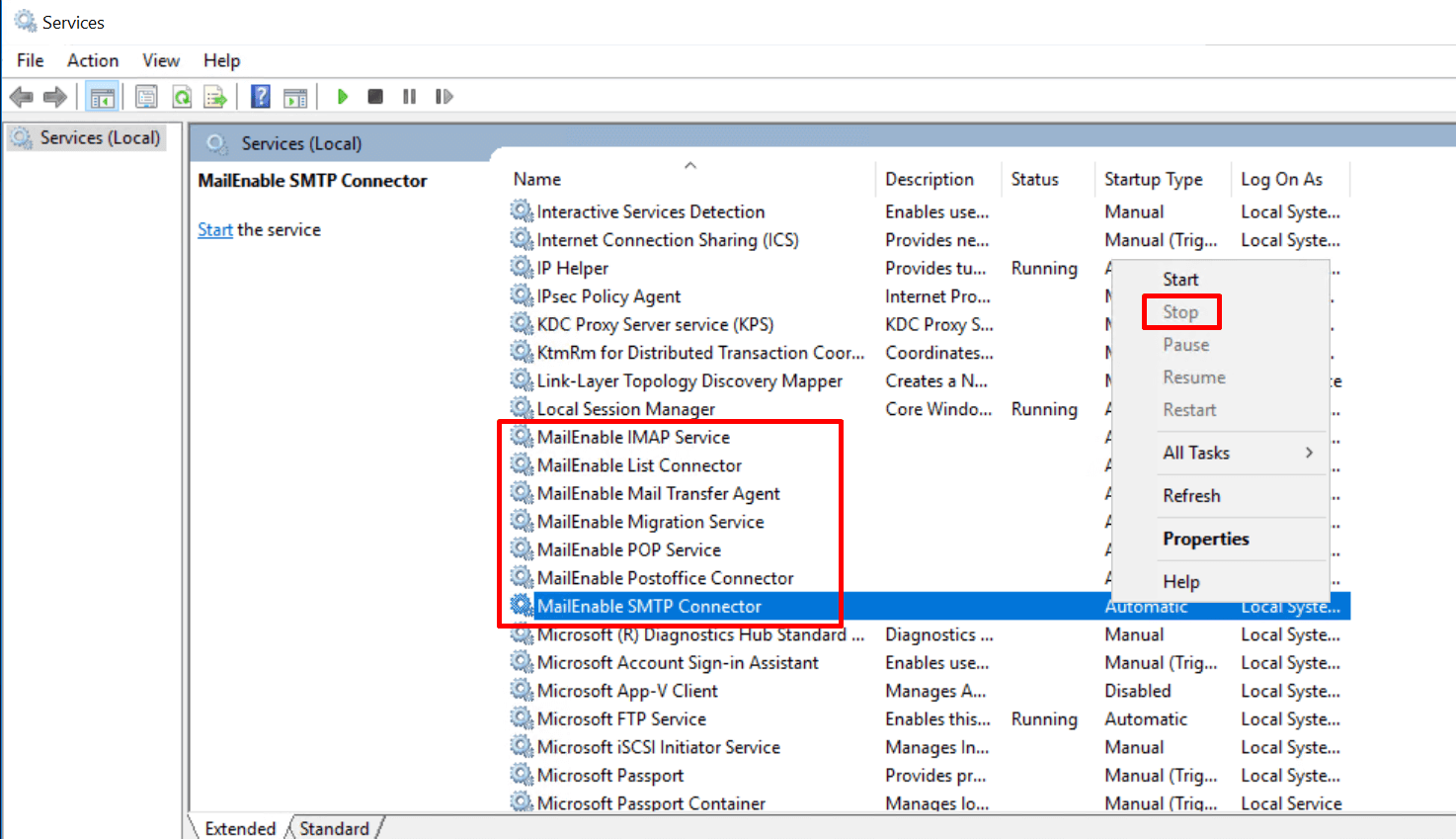
- Stop all MailEnable services on the source server.
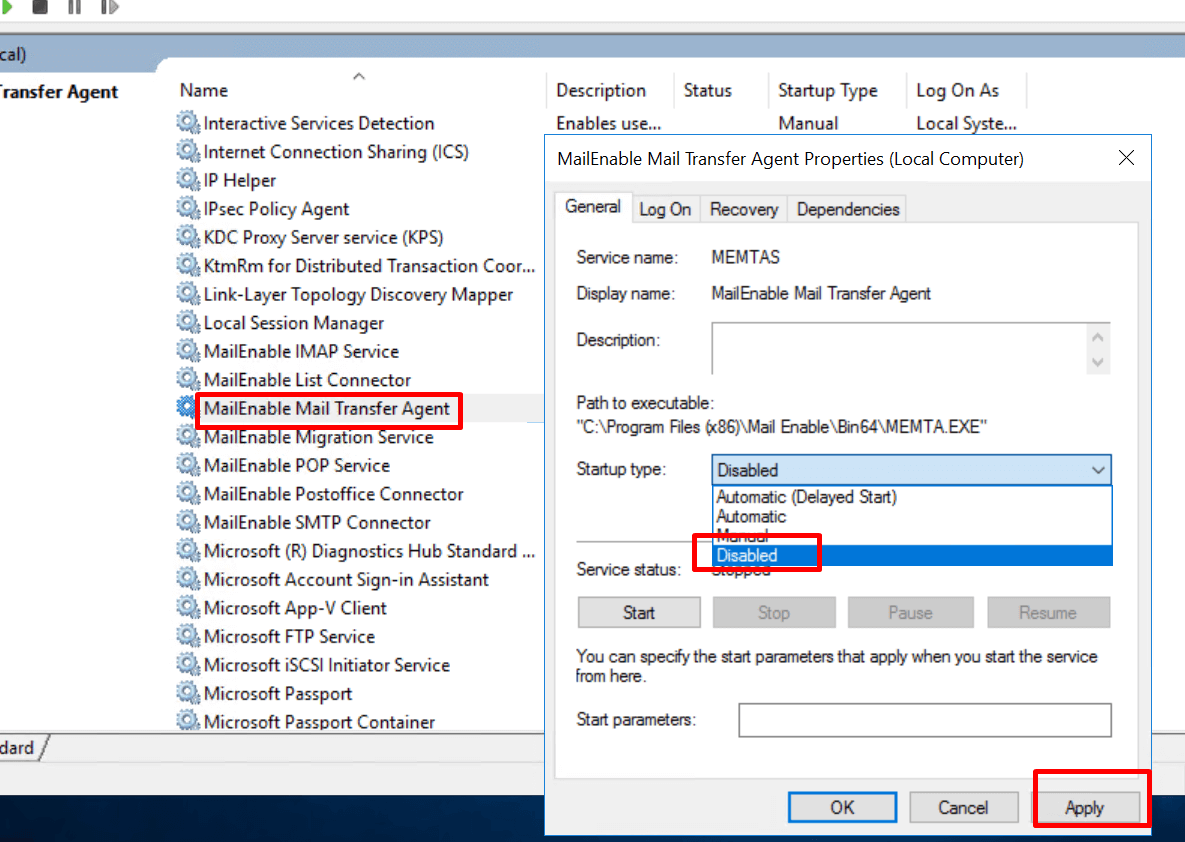
- Navigate on the source server to Services and locate the "MailEnable Mail Transfer Agent" service in the list and access the properties window for the MailEnable Mail Transfer Agent. Set the startup type to "disabled". This is to ensure the service does not restart automatically after a server reboot.
- Stop all MailEnable services on the destination server.
3. Copy MailEnable Data Files
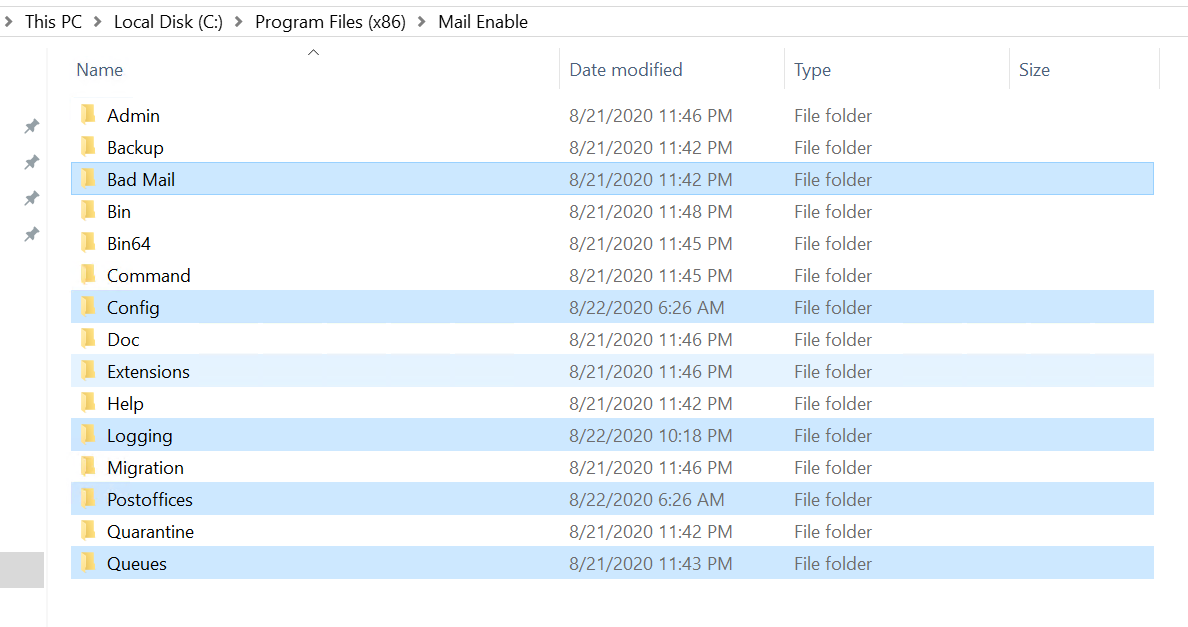
- Copy the following directories and subdirectories from the source server to the destination server via FTP:
C:\Program Files (x86)\Mail Enable\Config (Mandatory - contains configuration information)
C:\Program Files (x86)\Mail Enable\Postoffices (Mandatory - contains postoffices and messages)
C:\Program Files (x86)\Mail Enable\Bad Mail(Optional - contains Bad Mail messages)
C:\Program Files (x86)\Mail Enable\Logging(Optional - contains log files)
C:\Program Files (x86)\Mail Enable\Queues(Optional - contains messages queued for delivery) - NOTE: If an alternate install path has been specified in the installation of MailEnable, you will need to adjust the above paths appropriately.
4. Set Folder Permissions
- Ensure the following accounts have full access:
IME_ADMIN
IME_SYSTEM
IME_STORE_GROUP - Use this command (adjust paths if needed):
CACLS“C:\ Program Files(x86)\Mail Enable\Config”/ t / e / g IME_ADMIN:F
CACLS“C:\ Program Files(x86)\Mail Enable\Queues”/ t / e / g IME_ADMIN:F
CACLS“C:\ Program Files(x86)\Mail Enable\Bad Mail”/t /e /g IME_ADMIN:F
CACLS“C:\ Program Files(x86)\Mail Enable\Postoffices”/ t / e / g IME_ADMIN:F
CACLS“C:\ Program Files(x86)\Mail Enable\Logging”/ t / e / g IME_ADMIN:F
CACLS“C:\ Program Files(x86)\Mail Enable\Queues”/ t / e / g IME_SYSTEM:F
CACLS“C:\ Program Files(x86)\Mail Enable\Logging”/ t / e / g IME_SYSTEM:F
CACLS“C:\ Program Files(x86)\Mail Enable\Bad Mail”/ t / e / g IME_SYSTEM:F
CACLS“C:\ Program Files(x86)\Mail Enable\Config”/ t / e / g IME_SYSTEM:F
CACLS“C:\Program Files(x86)\Mail Enable\Postoffices”/t /e /g IME_STORE_GROUP:F
5. Start Services and Verify
- Start all MailEnable services on the new server.
- Check that emails, mailboxes, and settings are working correctly.
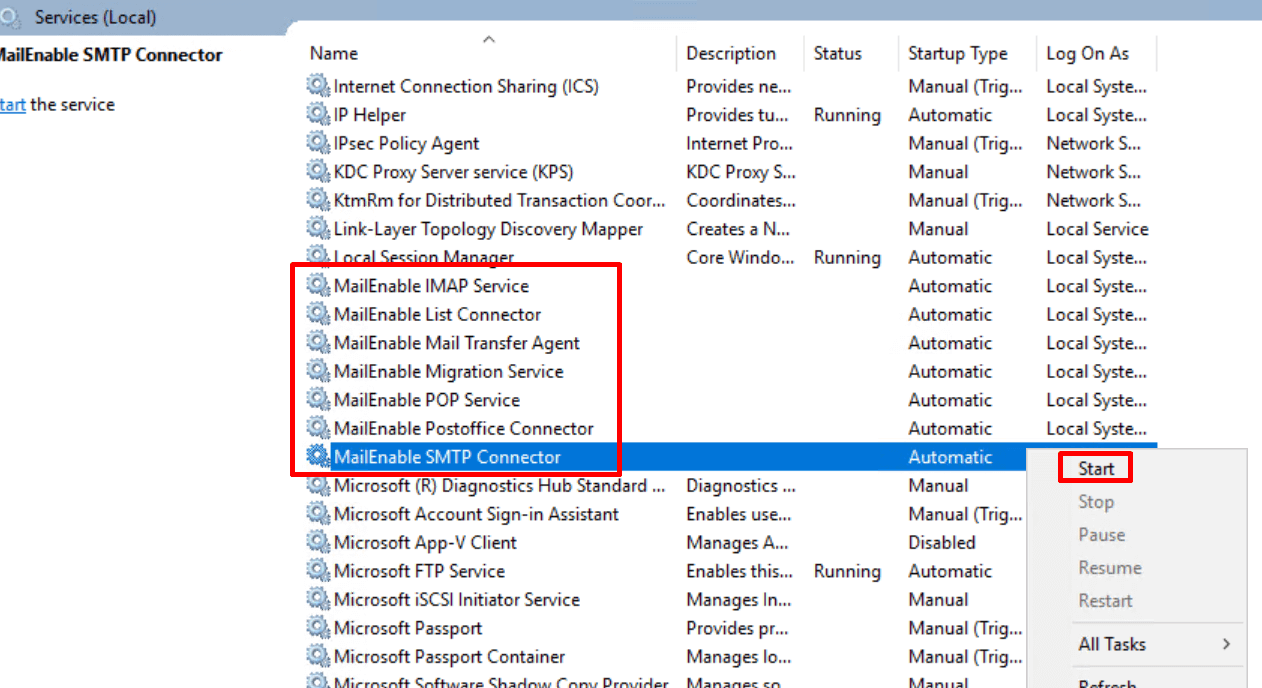
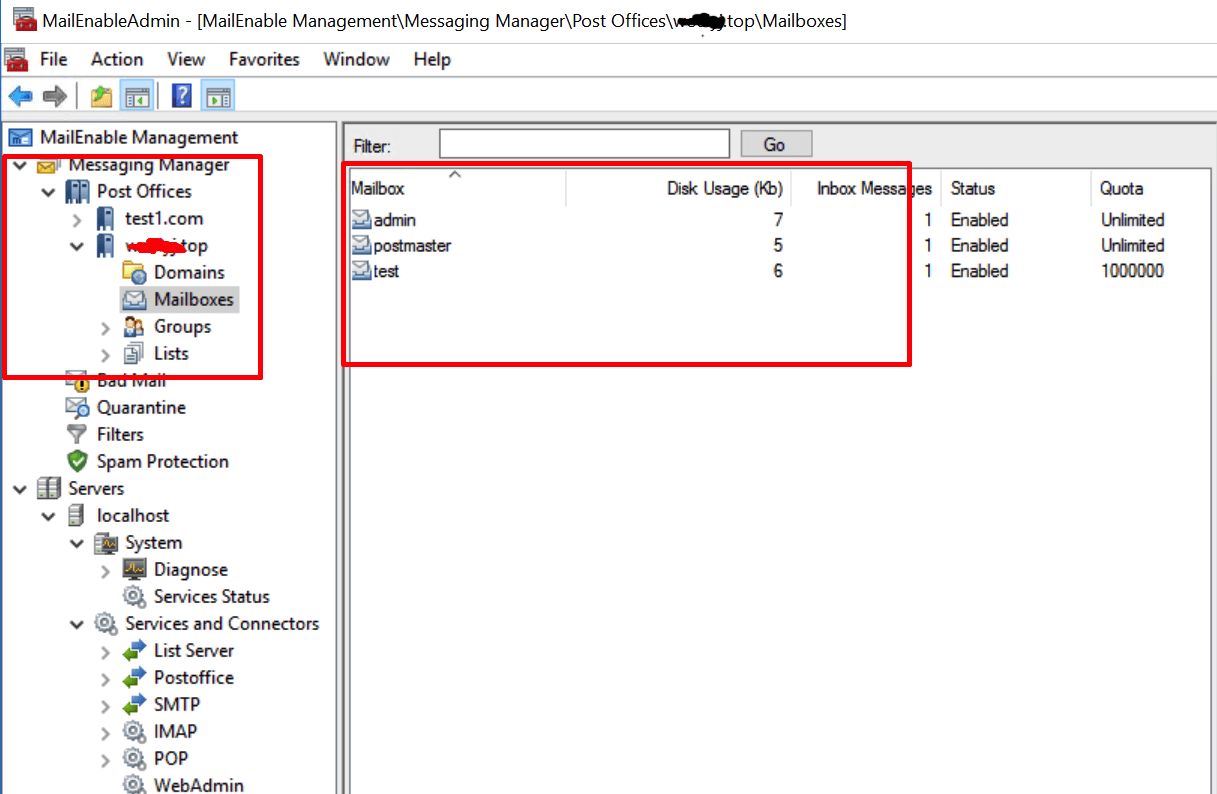
6. Update DNS Records
- Point your domain’s MX records to the new server IP.
- This ensures all emails are delivered to your new MailEnable server.
7. Optional: Sync Pending Emails
- Before DNS propagation, copy the SMTP inbound queue from the old server to the new one.
- This step prevents lost emails during MailEnable migration.
Important Tips for MailEnable Migration
- Always back up your MailEnable data before migration.
- Ensure version, architecture, and installation paths match.
- Monitor the new server to verify all MailEnable email services are running properly.
This MailEnable migration guide ensures a safe, beginner-friendly MailEnable server transfer. For additional support, contact MailEnable official support or an IT professional experienced in email server migration.
Keywords:
MailEnable migration, MailEnable server transfer, MailEnable email server, Email server migration, Copy MailEnable data, Migrate MailEnable emails
Outline