


How to Stop Spam Emails in MailEnable
Introduction
If you’re wondering how do I stop spam emails or how to stop getting spam emails, MailEnable 11 provides built-in settings that help you prevent your server from sending and receiving unwanted messages. This guide will walk you through each step clearly, even if you are a beginner.
Why You Need to Prevent Spam Emails
Spam emails not only clutter your inbox but can also be dangerous if they contain phishing links or malware. Learning how to stop spam emails ensures your email server remains secure and your communication stays reliable.
Steps to Stop Spam Emails
Step 1: Open MailEnable Admin
- Log in to your server where MailEnable 11 is installed.
- Open MailEnable Administration from the Start Menu or Desktop shortcut.
- In the left panel, expand Messaging Manager, then click MailEnable, and select Post Offices.
Step 2: Restrict Relay to Prevent Sending Spam
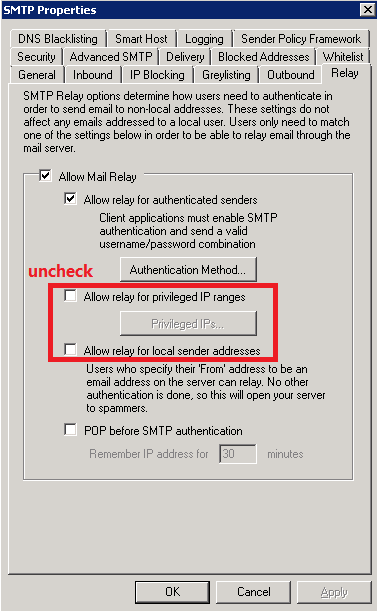
Restricting relay ensures that only authorized users can send emails through your server. This is key to how do I stop spam emails from being sent from your domain.
- In the left panel, navigate to:
MailEnable > Servers > localhost > Connectors > SMTP. - Right-click SMTP and select Properties.
- Under the Relay tab, you will see two options:
Allow relay for authenticated sendersAllow relay for local host only
- Uncheck both options if you want to strictly control who can send emails through your server.
This step helps prevent unauthorized users from sending spam emails from your server.
- Click Apply, then OK to save changes.
Step 3: Restrict Sender Domain
Restricting sender domains can block emails from suspicious or spammy domains, a direct solution for how to stop receiving spam emails.
- Open MailEnable Administration and navigate to:
MailEnable > Servers > localhost > Connectors > SMTP. - Right-click SMTP and select Properties.
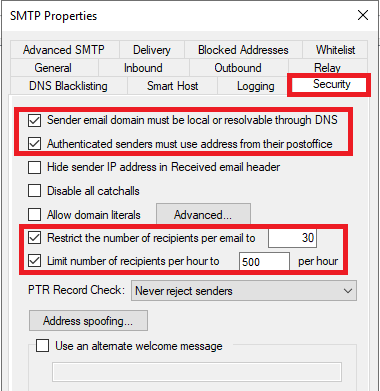
- Go to the Security tab. You will see several options to help prevent spam emails.
- Enable the following settings:
- Sender email domain must be local or resolvable through DNS
Ensures that only senders with valid, resolvable domains can send emails, reducing spam risks.
- Authenticated senders must use address from their postoffice
Prevents users from sending emails with fake addresses, directly answering how do I block spam emails.
- Restrict the number of recipients per email
Set a limit, e.g.,
30, to prevent a single email from being sent to too many recipients, which is a common spam behavior. - Limit number of recipients per hour
Set a limit, e.g.,
500 per hour, to control mass emailing and reduce spam.
- Sender email domain must be local or resolvable through DNS
- Click Apply, then OK to save the settings.
- Test your settings by sending a test email from an unauthorized address or domain to ensure the restrictions work correctly.
By restricting sender domains, you can answer how do I block spam emails effectively.
Tips to Further Prevent Spam Emails
- Always keep MailEnable updated.
- Educate users not to open suspicious emails.
- Consider using additional spam filters or third-party anti-spam tools.
These measures help answer questions like how do you stop spam emails and how I stop spam emails comprehensively.
Conclusion
Following these steps, you can effectively stop spam mail and ensure your MailEnable 11 server remains secure. By controlling relay and restricting sender domains, you take strong measures to prevent spam emails and maintain a clean inbox.
how to stop spam emails, how to stop getting spam emails, how to block spam emails, how do i stop spam emails, how to stop receiving spam emails