


Customer Story: Running SocksDroid with LDPlayer 9 on a P600 GPU Server
Introduction
You may need proxy services to bypass geo-restrictions and access content that is blocked in your region. They also help when managing multiple accounts on platforms that limit one account per IP address, reducing the risk of bans. Additionally, proxies enhance online security by masking your IP and acting as a protective layer between your device and the internet.
What's SocksDroid?
SocksDroid stands as a powerful solution for Android users seeking a secure and private internet experience. Built around the SOCKS5 proxy protocol, SocksDroid offers free, customizable VPN capabilities without demanding root access. This flexibility makes it ideal for users who value both security and simplicity on their mobile devices.
Application Scenario
This article will show you how to use the SocksDroid App, how to install it, how to use it in an Android emulator, and how to run multiple instances on a P600 server at the same time. The system used is Windows OS, the emulator is LDPlayer 9, and there are also common apps such as Chrome, YouTube, Facebook, etc.
Why Choose SocksDroid for Your Android VPN Needs?
Secure Browsing: SocksDroid allows users to route their internet traffic through a SOCKS5 proxy server, which can act as a middleman between the user and the websites they visit. This helps mask the user’s original IP address and encrypts the data as it travels through the proxy, offering an extra layer of security—especially useful when visiting unfamiliar or untrusted websites.
Ideal for Bypassing Restrictions: Geo-restrictions, network censorship, and blocked websites create barriers to open internet access. SocksDroid offers a simple yet effective way to bypass these limitations. By rerouting traffic through proxy servers, users can access their favorite apps, websites, and services from anywhere in the world, without compromising security.
Testing Proxy Servers: Developers, network administrators, and privacy-conscious users often need to test the reliability and functionality of proxy servers.
Server Specifications
Product Name: Lite GPU Dedicated Server - P600
- CPU: Quad-Core Xeon E3-1230
- RAM: 16GB
- Storage: 120GB + 960GB SSD
- Bandwidth: 100Mbps-1Gbps
- OS: Windows OS
- GPU: Nvidia Quadro P600 (2GB VRAM)
Deployment Process
Prerequisite
We ordered a P6000 GPU Server on Database Mart, selected the Windows system, waited for the system to be installed, checked the server login account in the user panel, and then used the RDP client tool to connect to the GPU Server.
Step 1: Open Task Manager
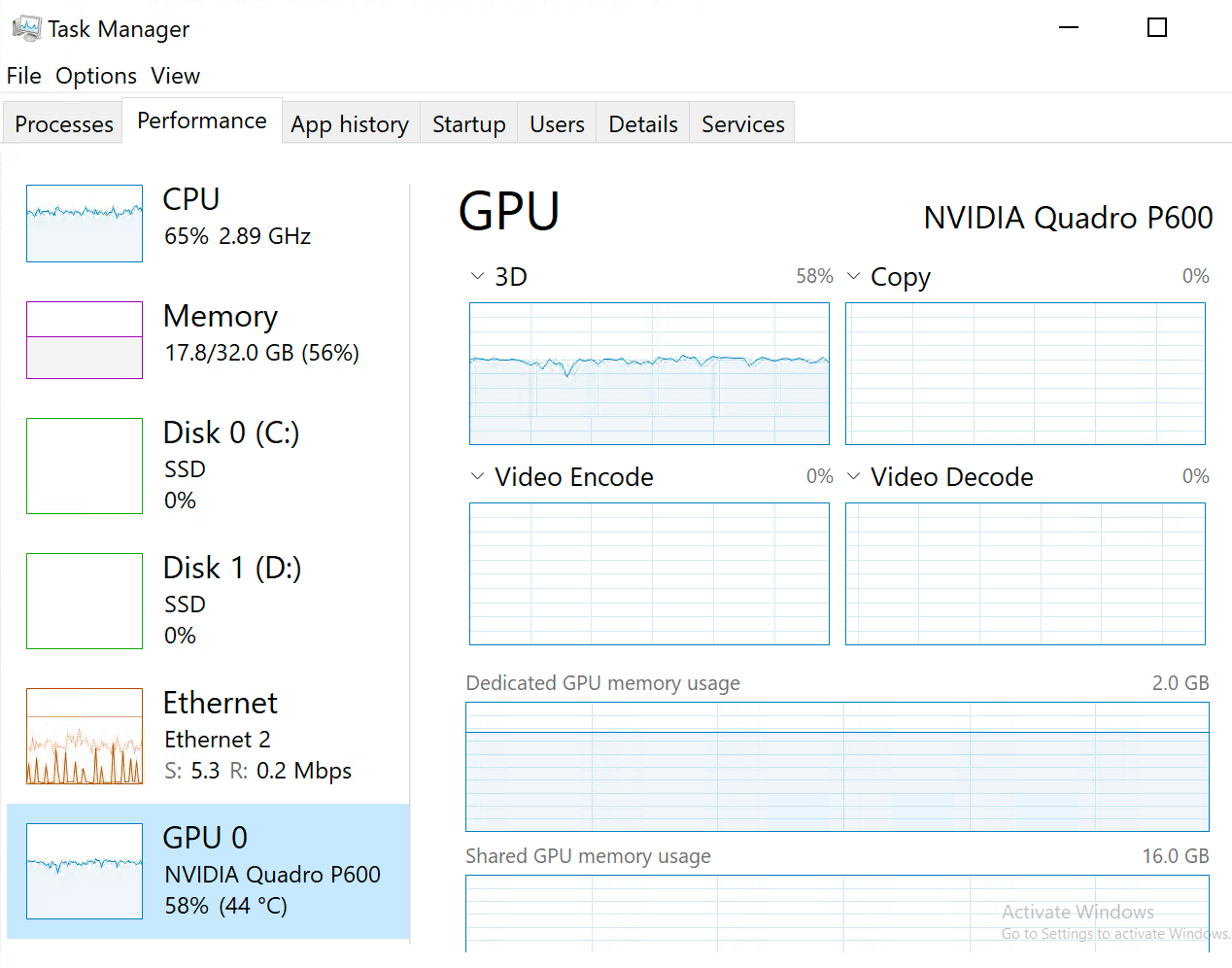
Check the server's hardware configuration. The graphics driver is installed by default and you can see the GPU performance indicators.
Step 2: Download and Install LDPlayer 9
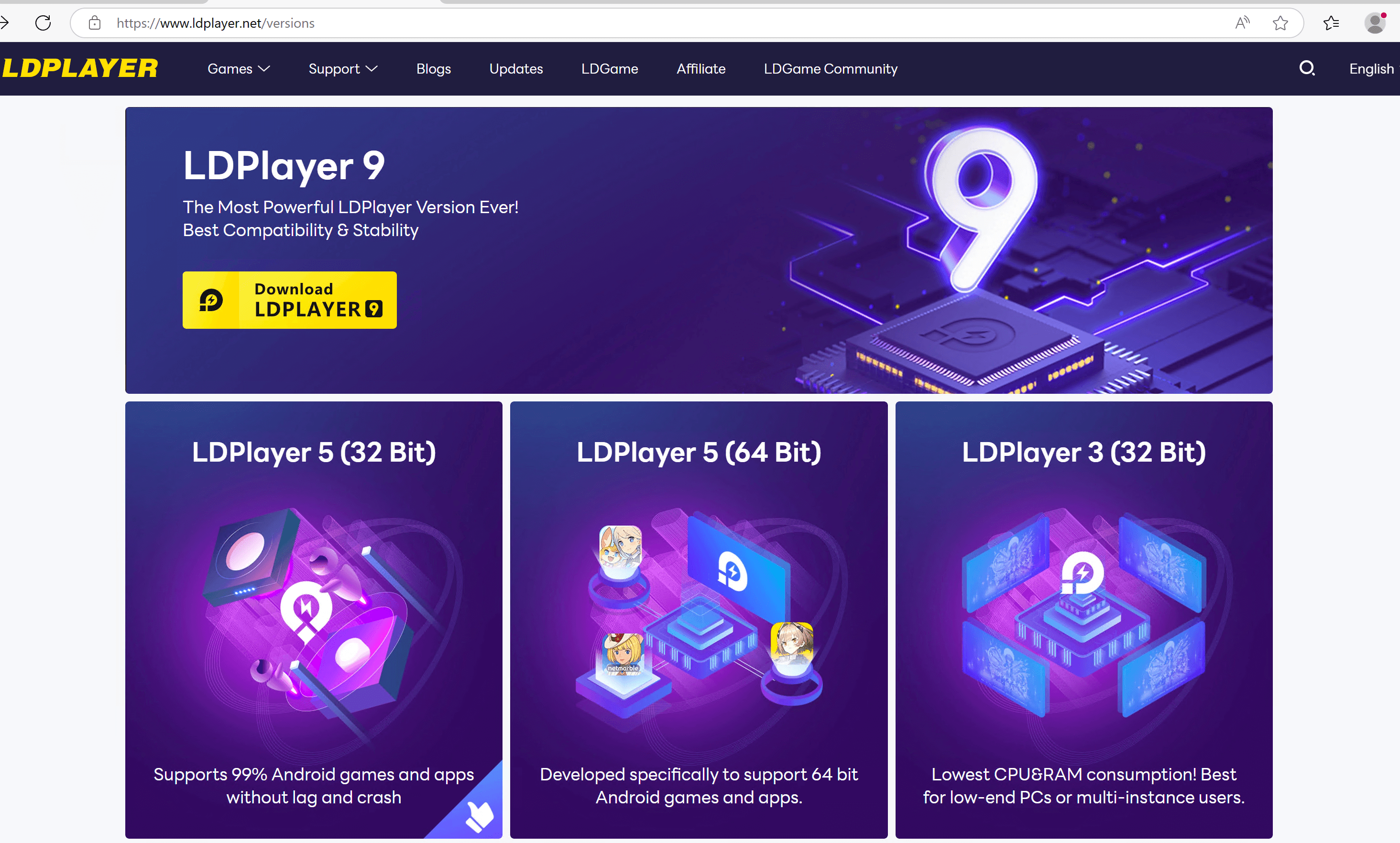
Download Link: Download LDPlayer - All Versions Available on Windows PC
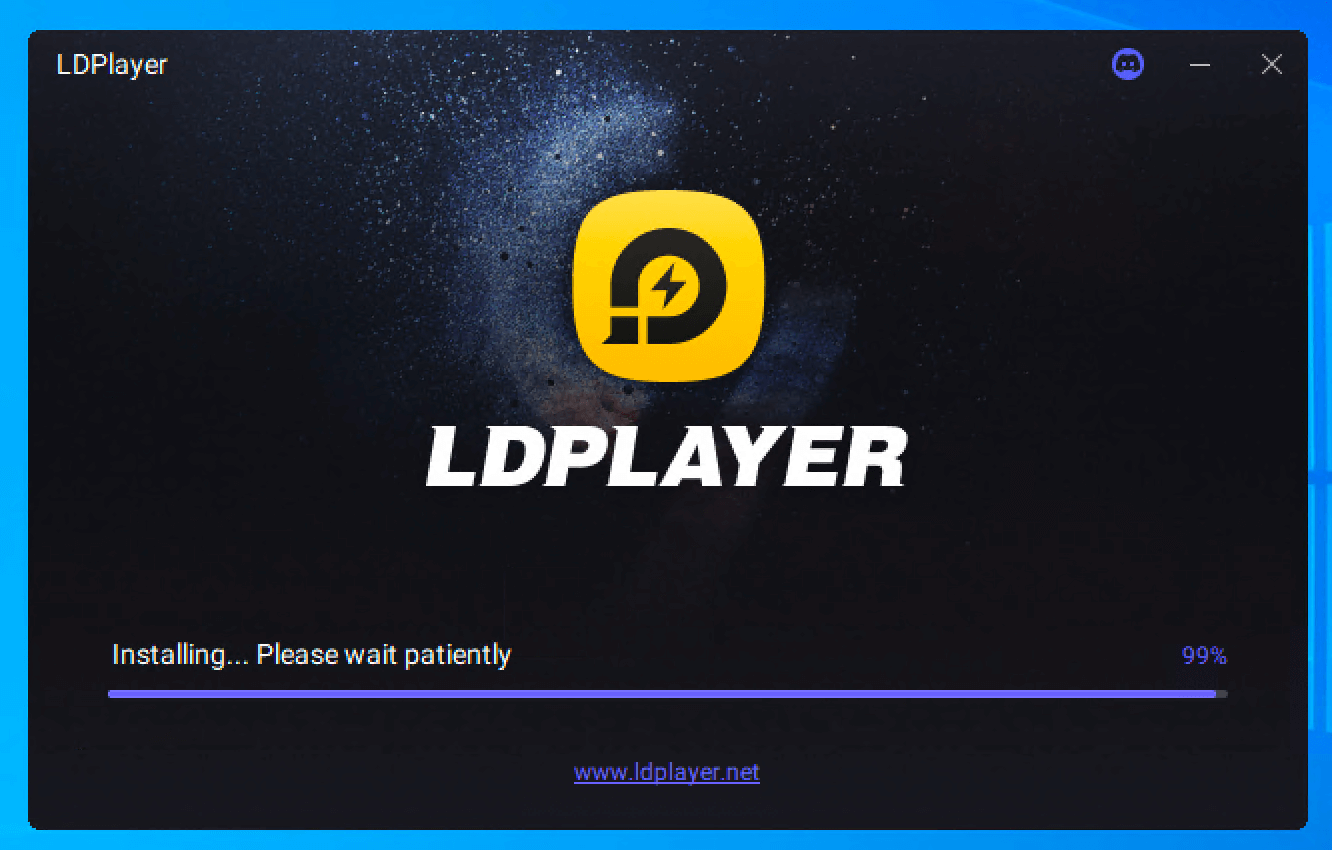
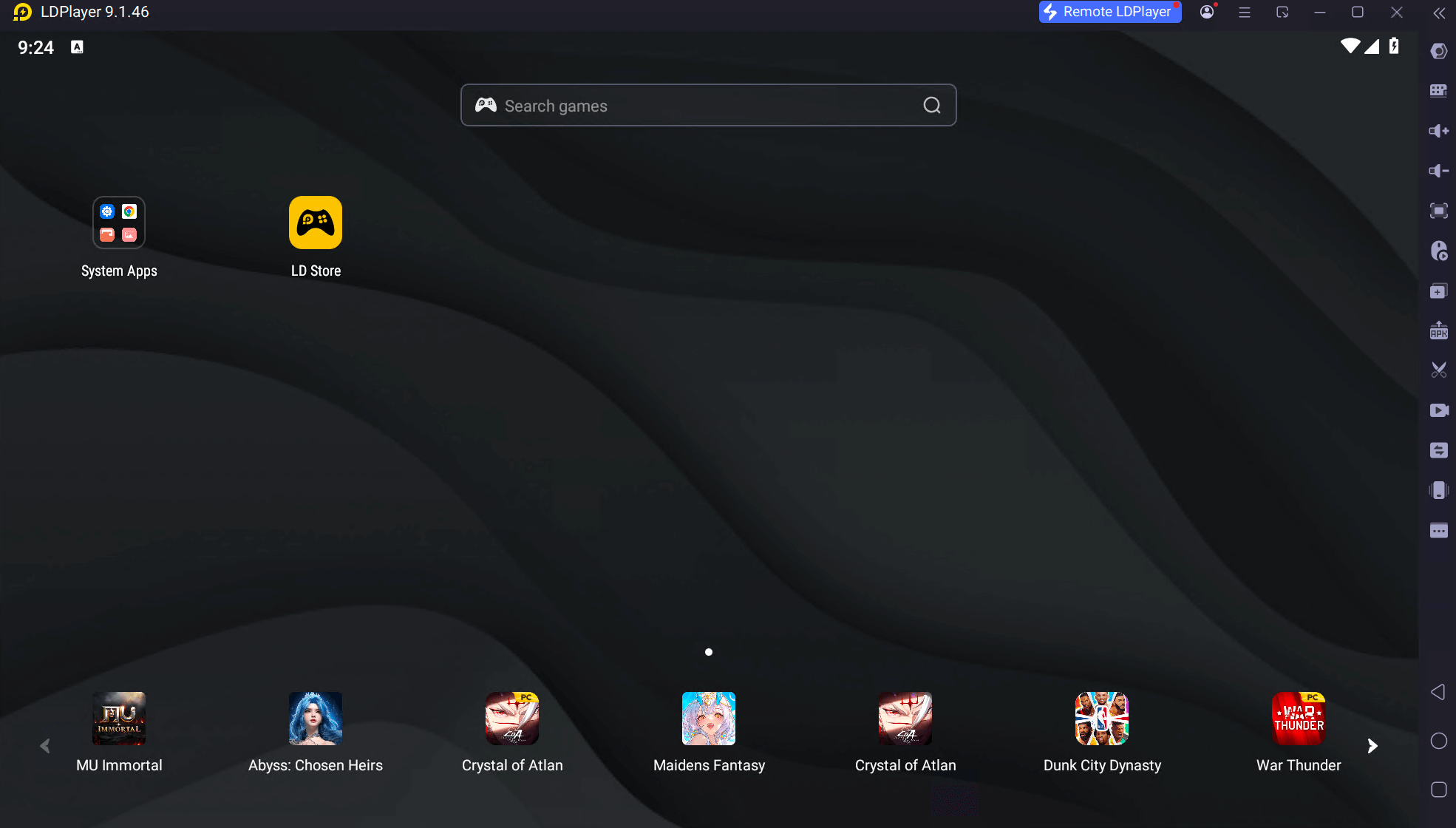
After the download is complete, click the installation package to start the installation. It is recommended to install it to the D drive. Select Next to enter the installation waiting interface.
Click Diagnostic Information under Menu to view the information of the hardware and software used.
 |
 |
|---|---|
 |
|
Step 3: Download and Install SocksDroid
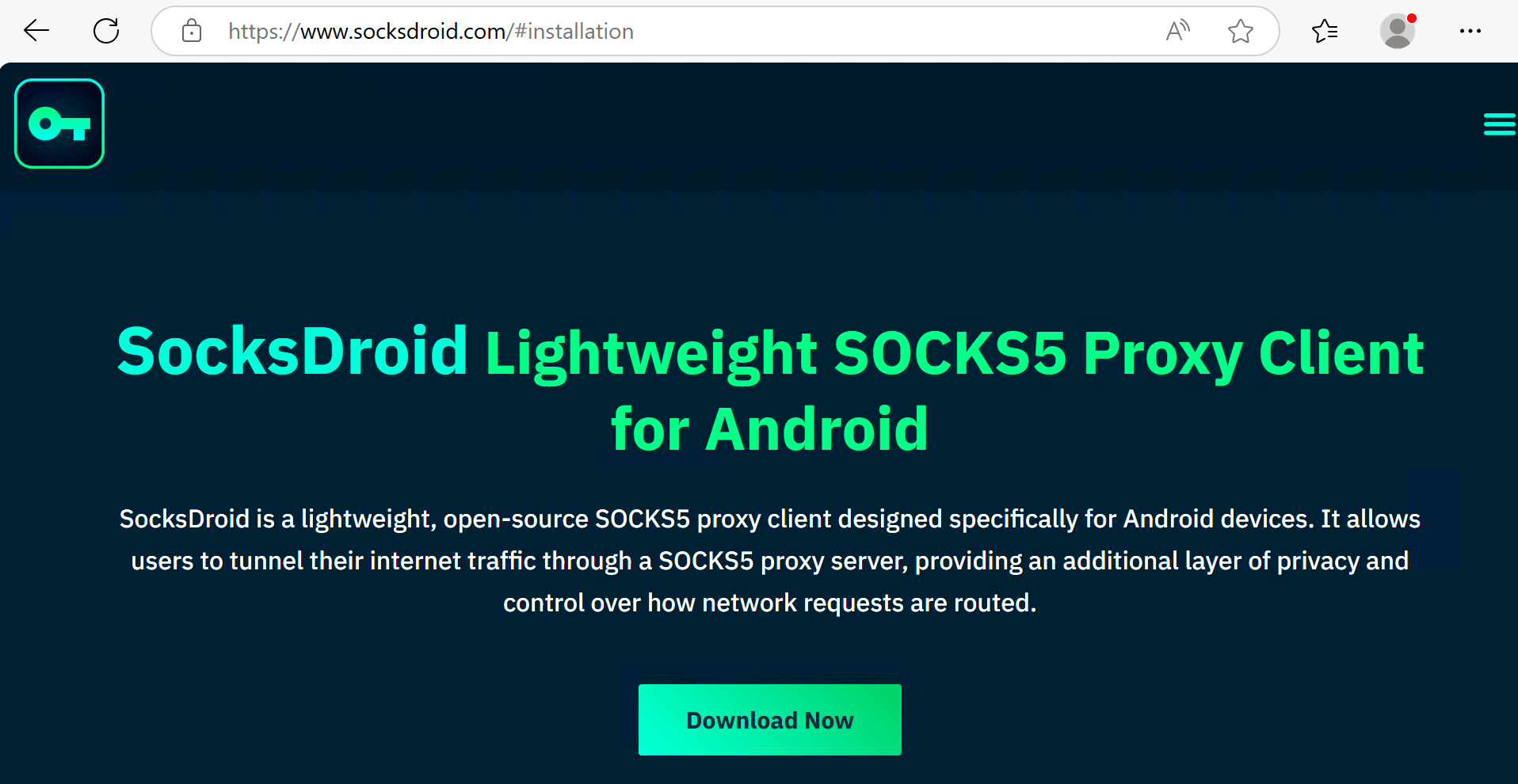
Typically, SocksDroid is not available on the Play Store. It is mainly distributed through F-Droid or GitHub for open-source transparency. We download it from the SocksDroid official website:
After downloading the zip package, unzip it and click Install directly. SocksDroid will be automatically installed to LDPlayer.
 |
 |
|---|
Step 4: Install Other Apps
You can install any apps you need from the Google Play Store. Here we installed YouTube and Facebook.

Performance Review
When the Proxy Is Not Turned On
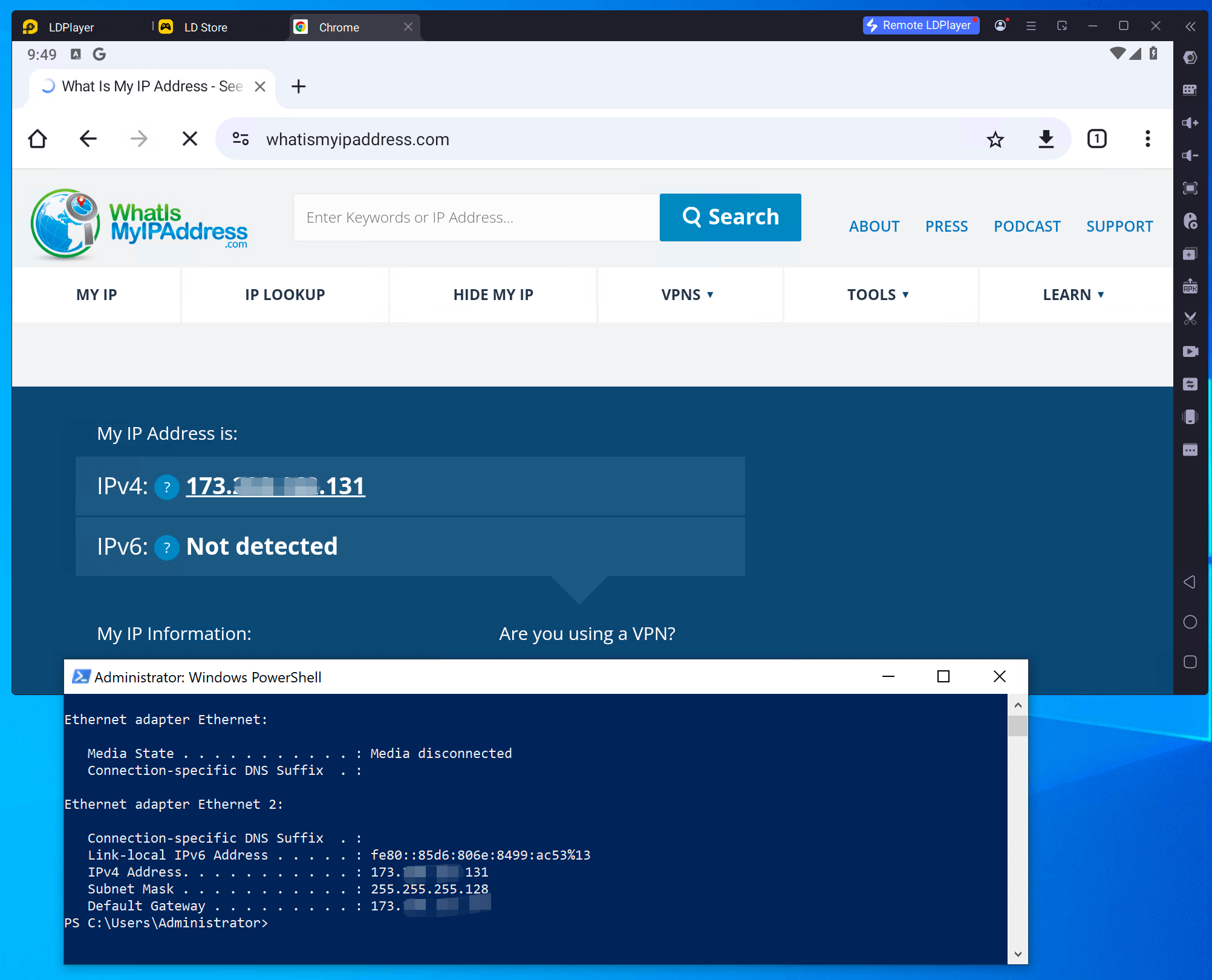
Open the Google browser in the simulator and visit whatismyipaddress.com. The detected IP is the same as that of the local machine.
After Configuring and Enabling SocksDroid Proxy
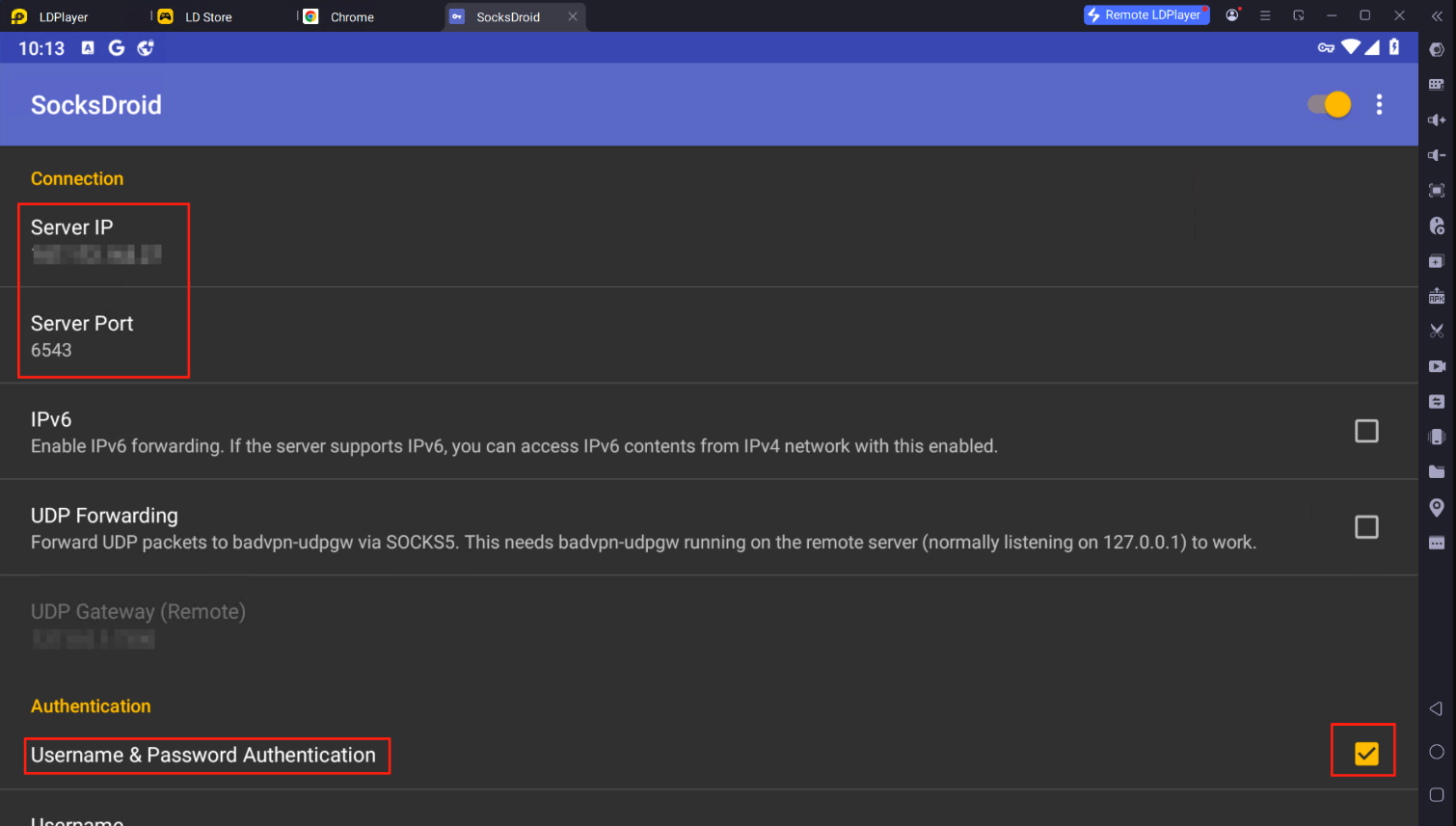
Note: How to Set Up Proxy in SocksDroid on Android?
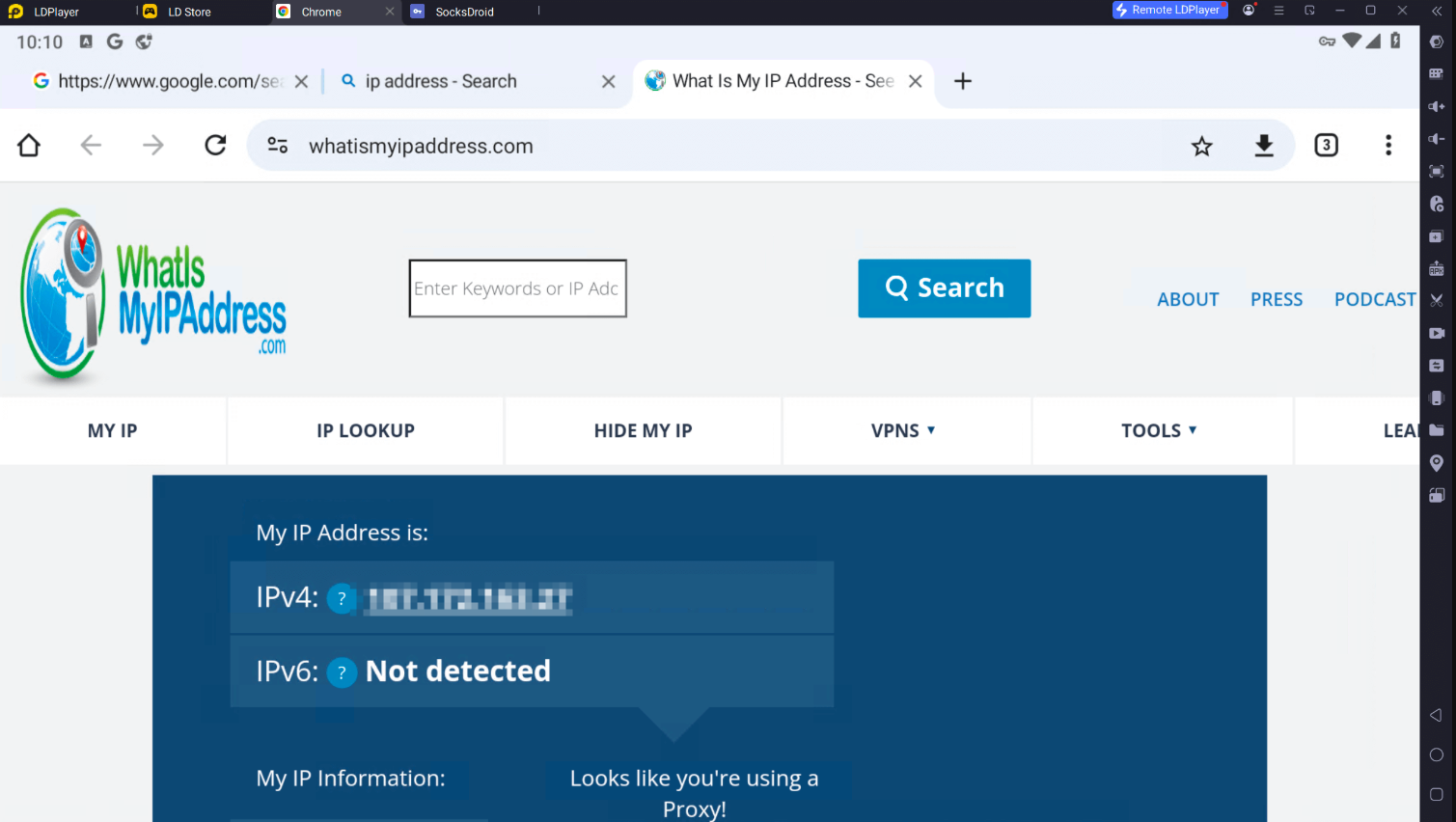
Refresh the page to view the detected IP and find that it has become the newly configured proxy IP. This means that the proxy is effective.
 |
 |
|---|
Network Performance
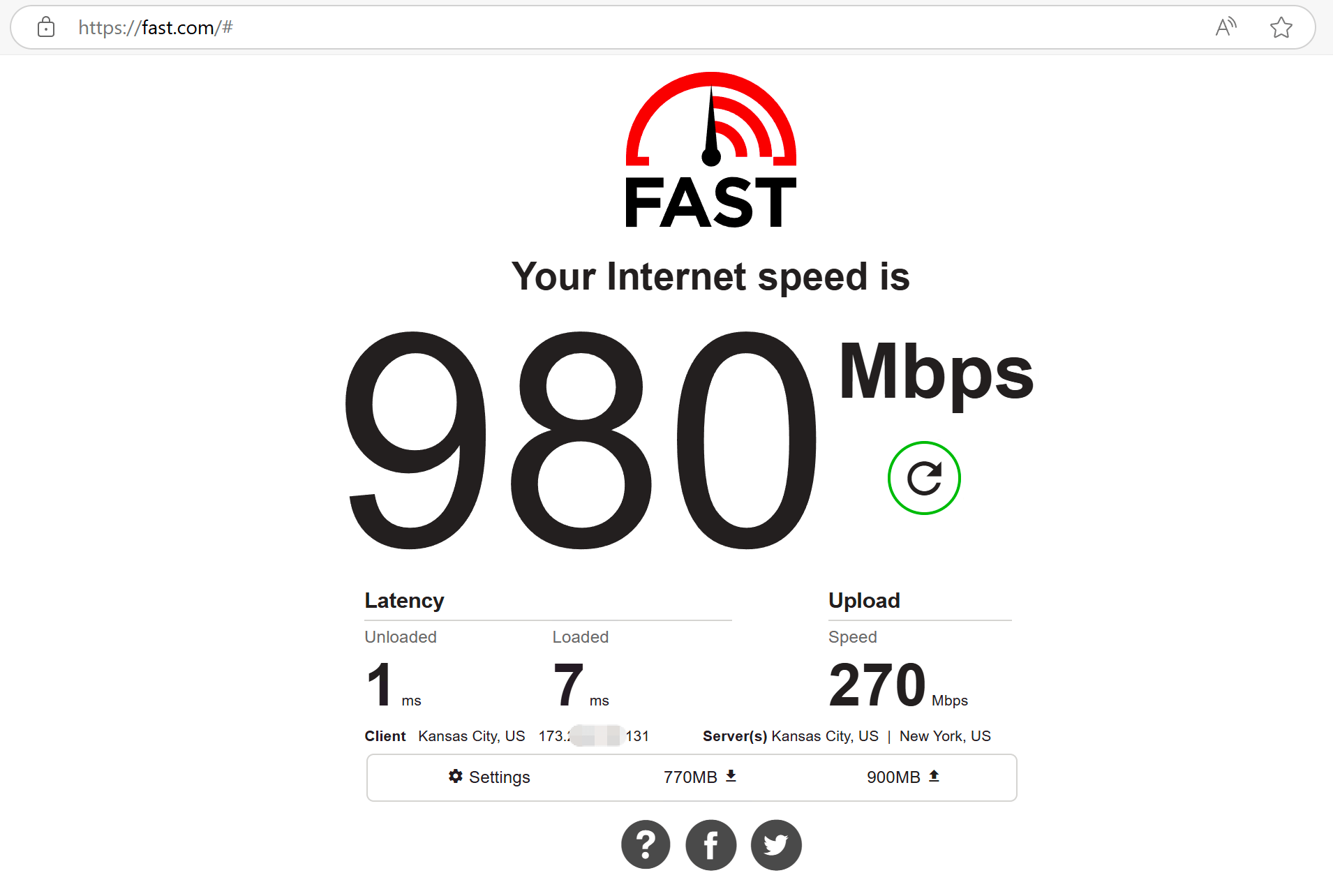
On the server, opening fast.com to test internet performance, the downstream speed was up to 980 Mbps and the upstream speed was up to 270 Mbps.
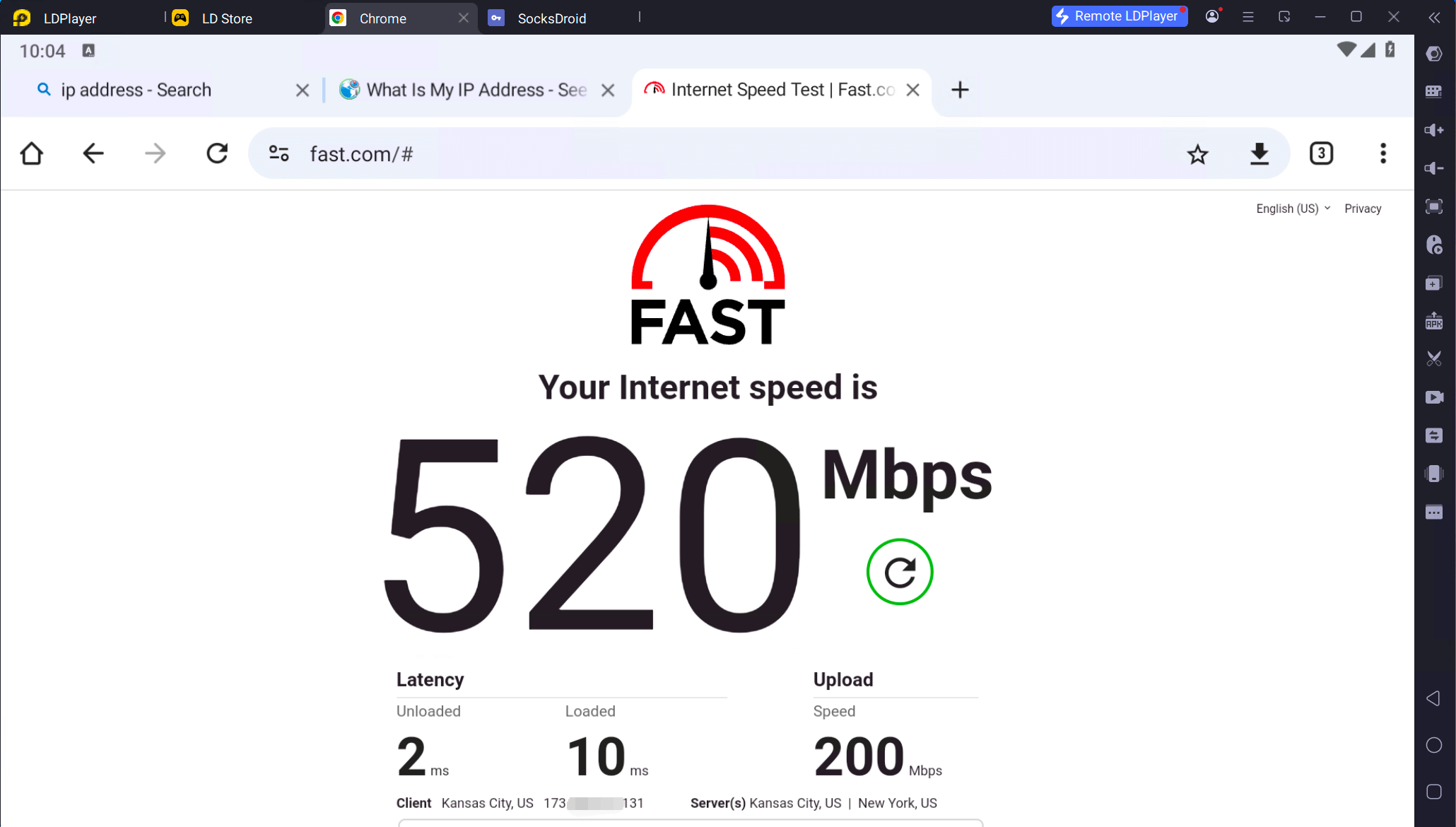
In the simulator, before turning on the proxy, open Chrome and visit fast.com. The test results are as follows:
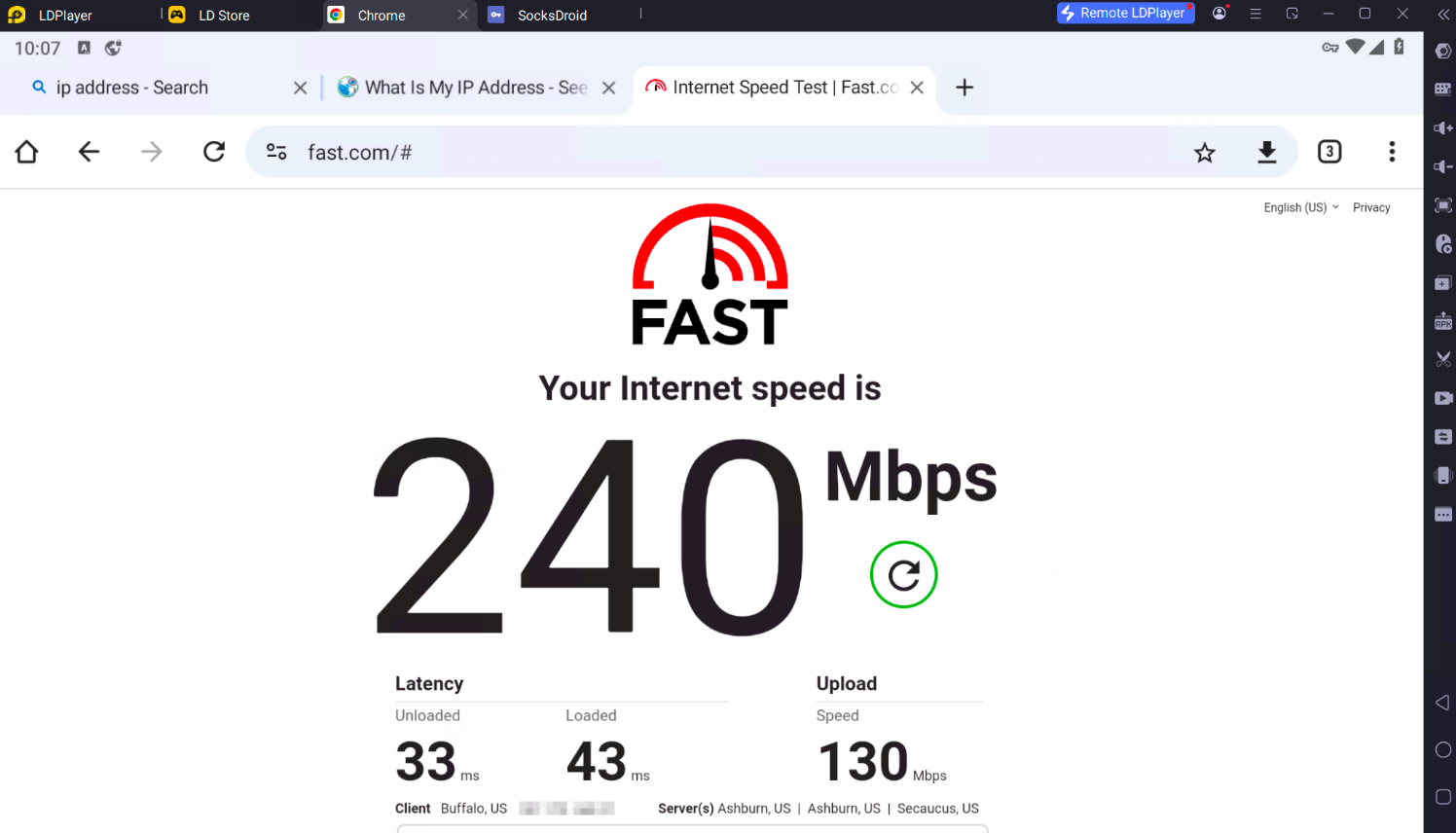
In the simulator, after turning on the proxy, refresh the fast.com page, and the test results are as follows:
 |
 |
 |
|---|
Note: The test speed is different when accessing the network through different proxy IPs. Therefore, SocksDroid proxy needs to be used with a suitable SOCKS5 proxy service. You can select a suitable proxy node from Webshare. Webshare's one of the more reliable global proxy with 30M+ IPs from 195 countries globally enables effortless public web data gathering.
Resource Utilization
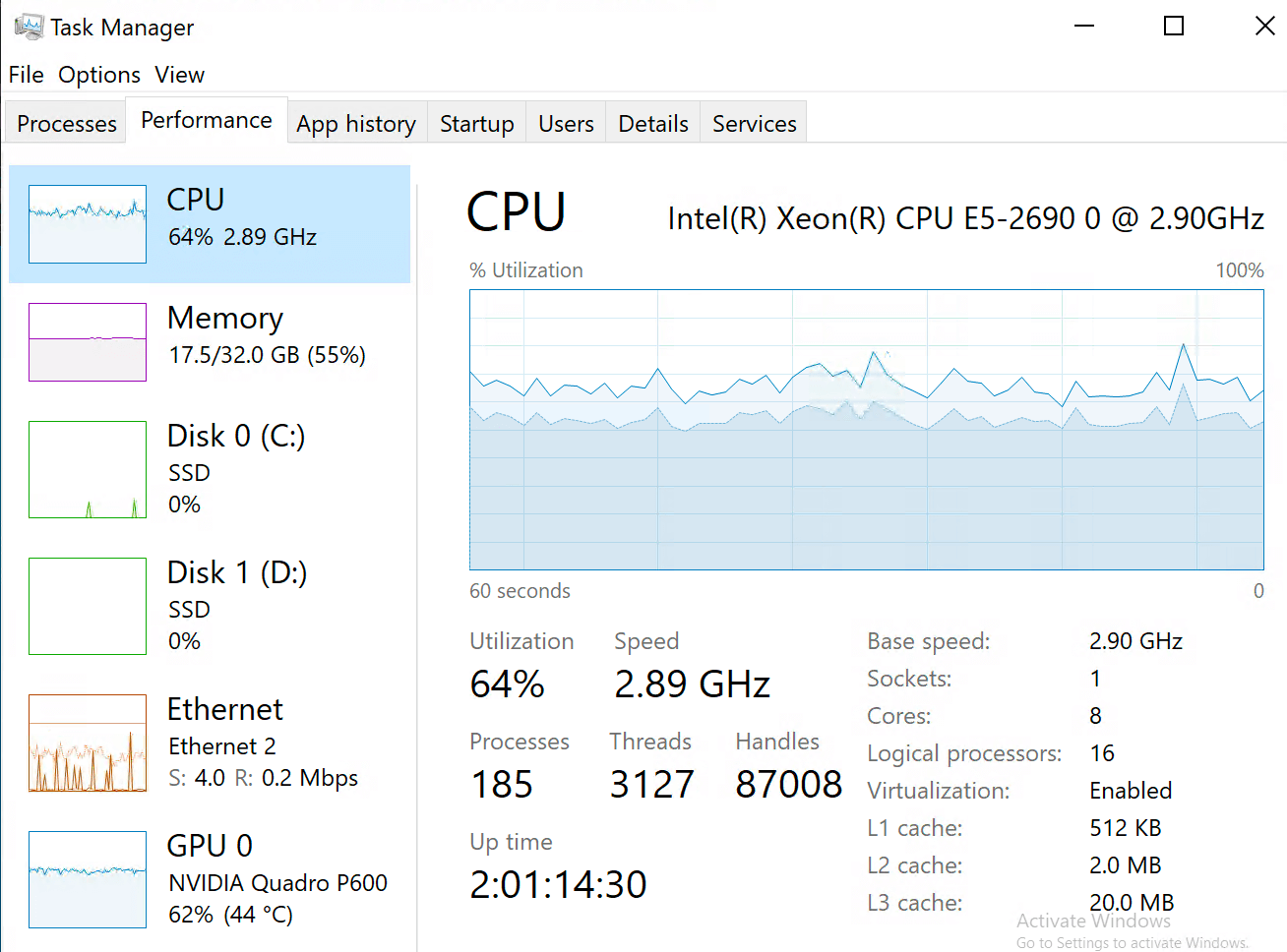
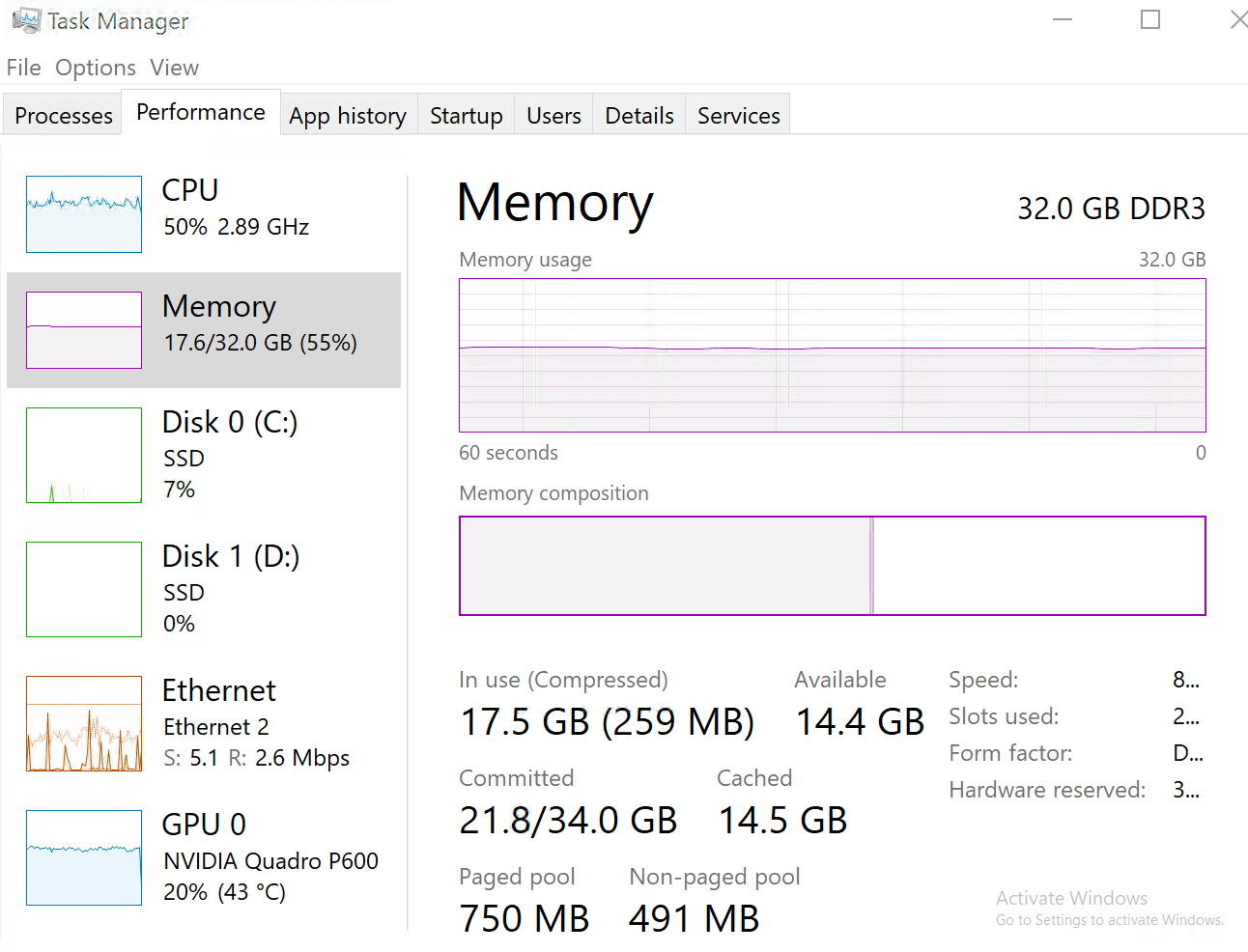
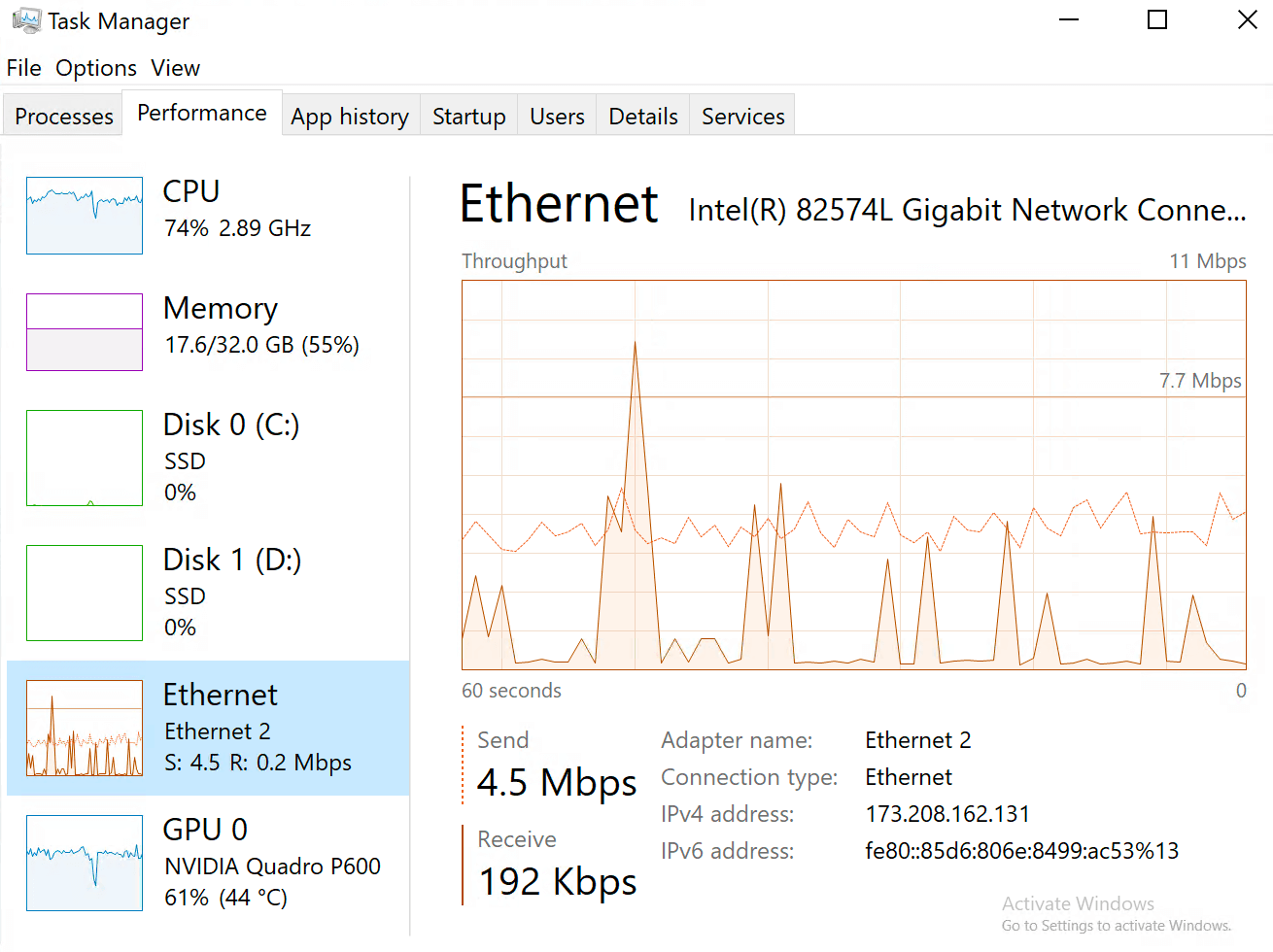
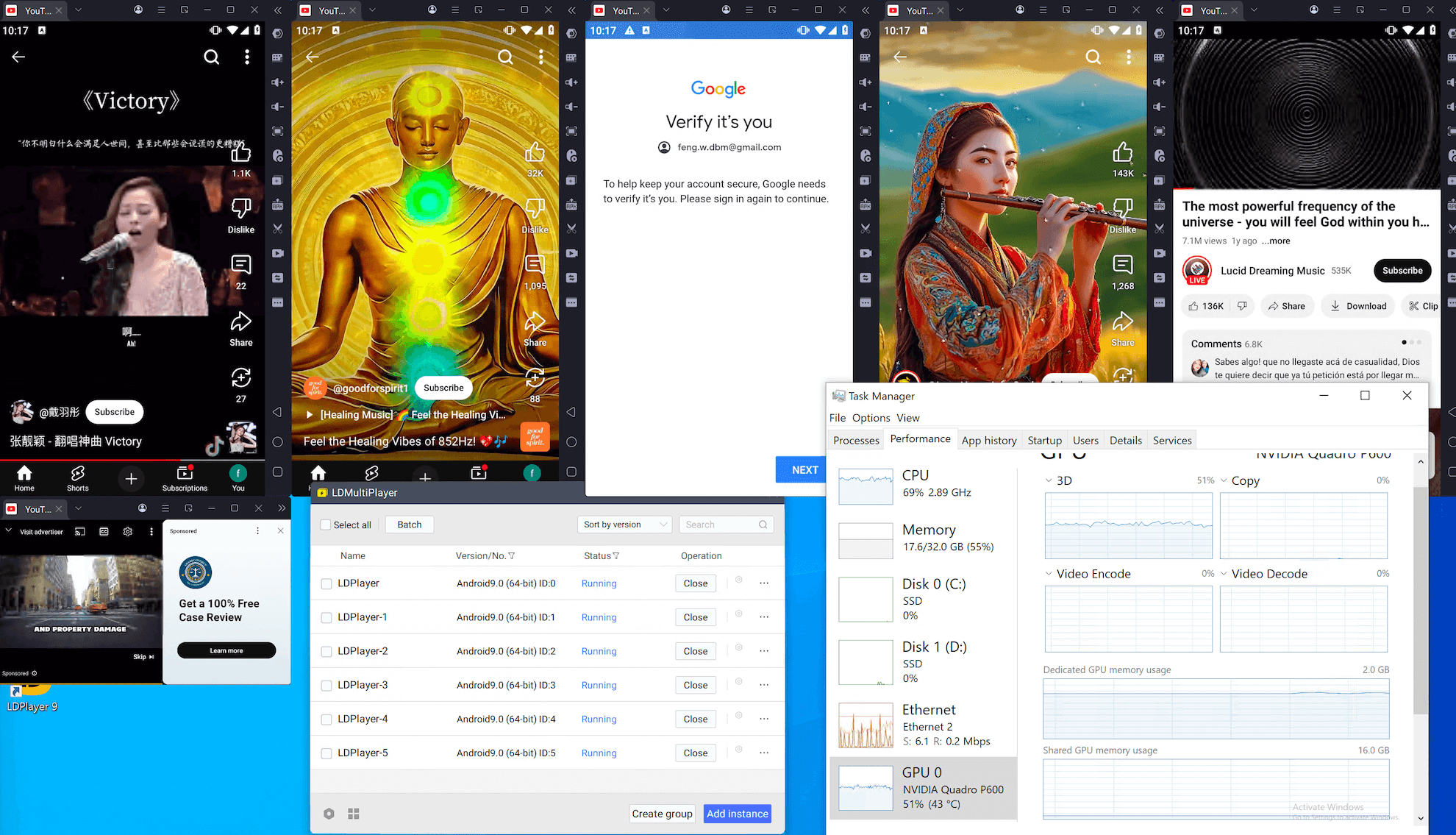
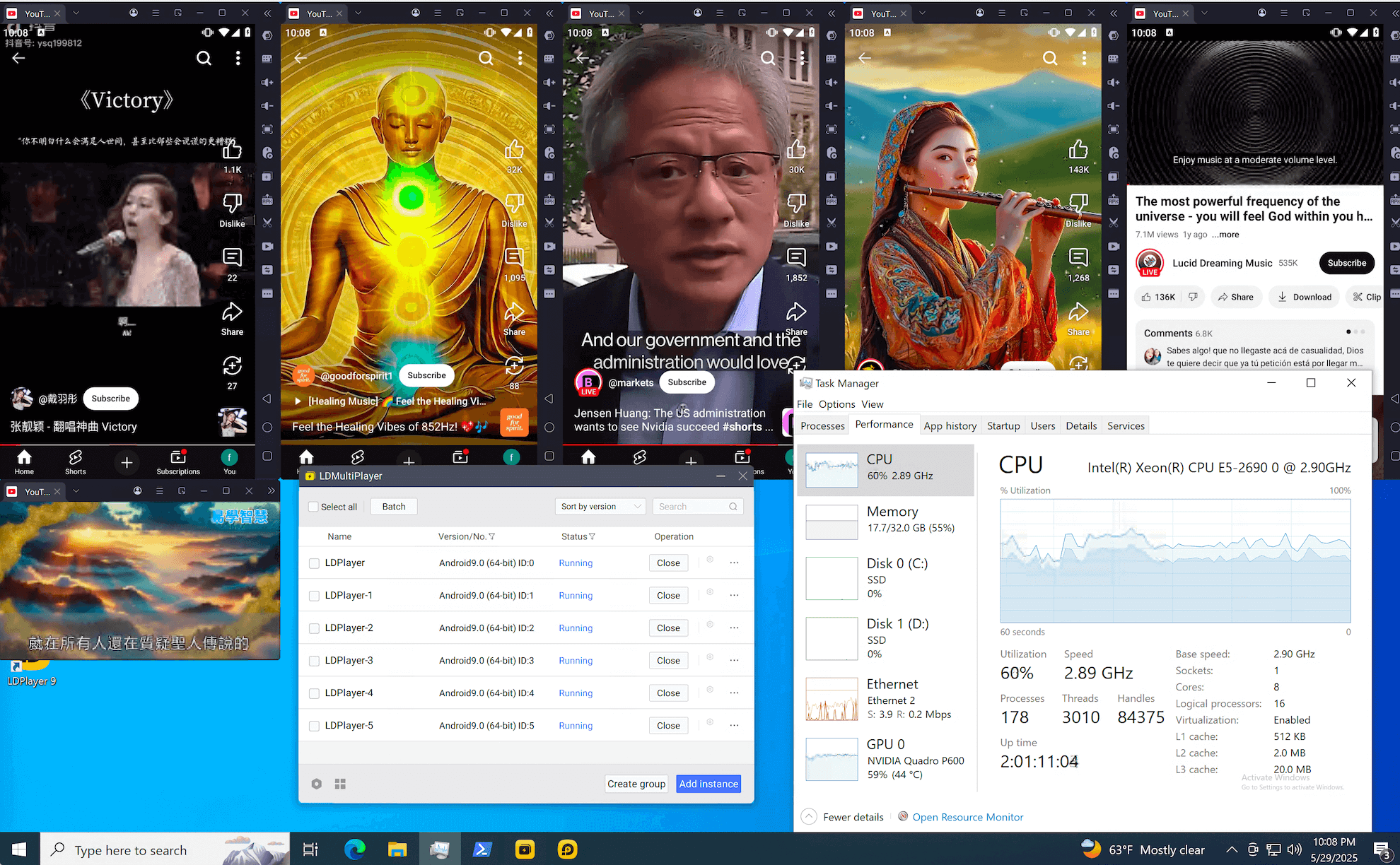
- CPU Usage: 50%-81%
- GPU Usage: 50%-65%
- GPU VRAM Usage: 78%
- RAM Usage: 55%
Resource Utilization Screenshots
 |
 |
|---|---|
 |
 |
Application Performance Evidence
 |
 |
|---|
Optimization Tips
Choose the Best SOCKS5 Proxy Service
It is necessary to choose an excellent SOCKS5 proxy service, otherwise the network speed may be reduced. Sometimes you may even encounter polluted IPs, and you need to check and update the proxy address regularly.
Run More LDPlayer Instances
In order to support as many LDPlayer instances as possible, you can try to reduce the instance configuration, such as 1 core, 1GB RAM, 30 FPS, and lower resolution, etc.

Conclusion
It is so easy to use LDPlayer 9 + SocksDroid on Database Mart's GPU physical machine. This golden combination not only increases network security, but also reduces costs, which can meet many of your international trade, marketing and promotion needs. For only $31.20/mo, you can have a physical machine with a discrete graphics card, and get started now.
Notes & Troubleshooting
How to Fix the "System UI Isn't Responding" Issue When Multiple Instances Are Launched in Parallel?
This issue is usually caused by high CPU load. You can increase the time interval between each instance launch, which can effectively reduce the pressure on the CPU. Or try restarting it after the CPU usage returns to a stable level. If this prompt still appears, it means that the system support limit has been reached. If you really need more instances, it is recommended that you upgrade to a higher GPU Plan.
Why Choose Database Mart?
Database Mart's servers are easy to use, attractively priced, and have real technical support. They provide real physical servers, and customers have the highest administrator privileges on the servers, and can freely install and configure applications.
What Are the Best SOCKS5 Proxy Service Providers?
- Decodo (formerly Smartproxy): The best value SOCKS5 provider.
- Webshare: Flexible plans and complete self-service.
- SOAX: Proxies with flexible filtering options.
- Oxylabs: The best premium SOCKS5 proxy provider for business.
- Bright Data: SOCKS5 proxies with the most features for secure browsing.