


How to Change the Administrator Password on Windows Server
To change the local Administrator password on Windows Server 2012 R2, Windows Server 2016/2019, or Windows 10/11, open Computer Management > Local Users and Groups > Users, right-click Administrator, select Set Password, and enter the new password. This guide covers each Windows version with step-by-step instructions for users managing Windows VPS, remote desktop, and dedicated server hosting environments.
Change the Administrator Password on Windows Server 2012 R2
Step 1: Connect via Remote Desktop
Log in to your Windows Server using Remote Desktop Protocol (RDP).
Step 2: Open Computer Management
Right-click Start and select Computer Management.
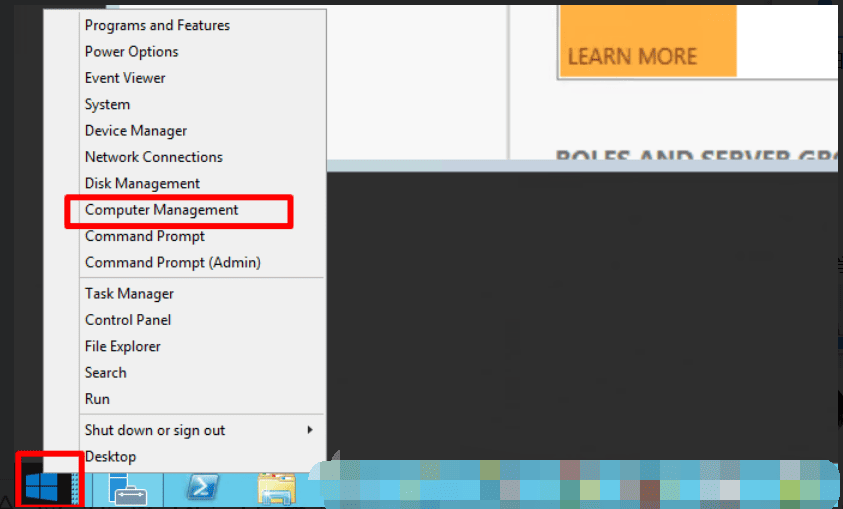
Step 3: Navigate to Local Users
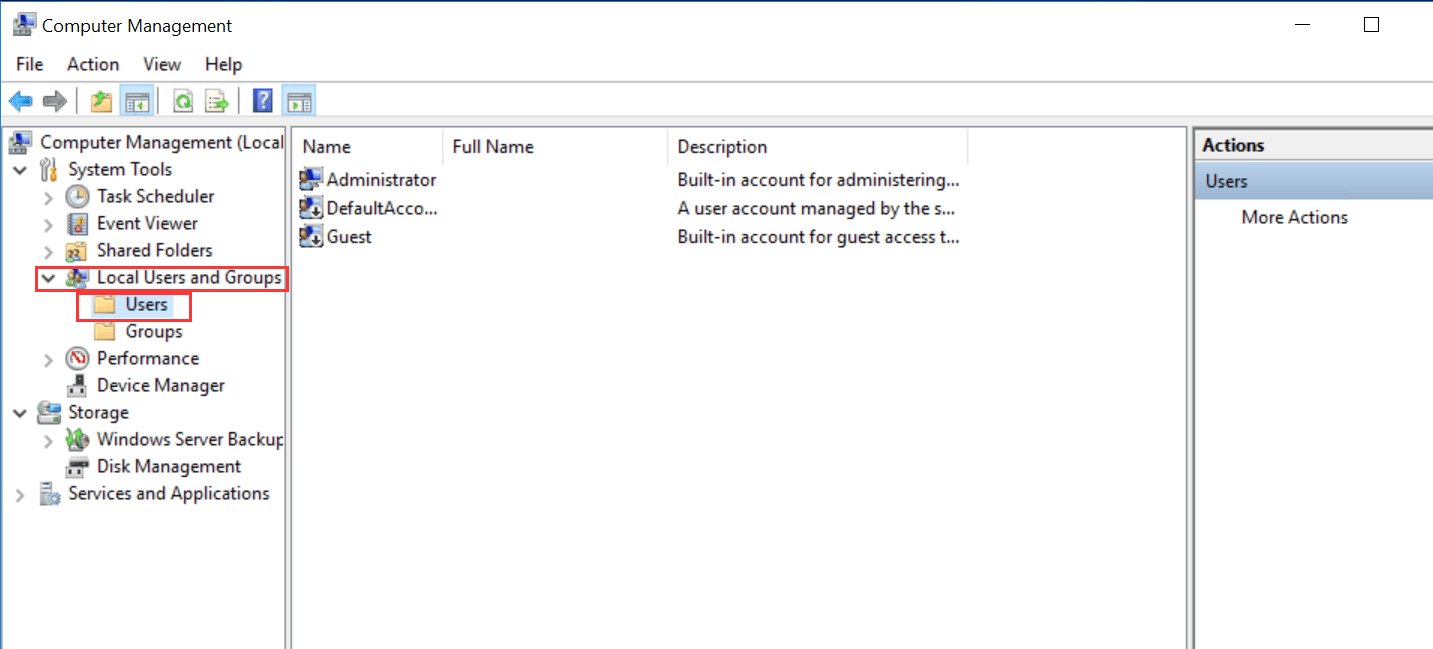
Expand Local Users and Groups, then select Users.
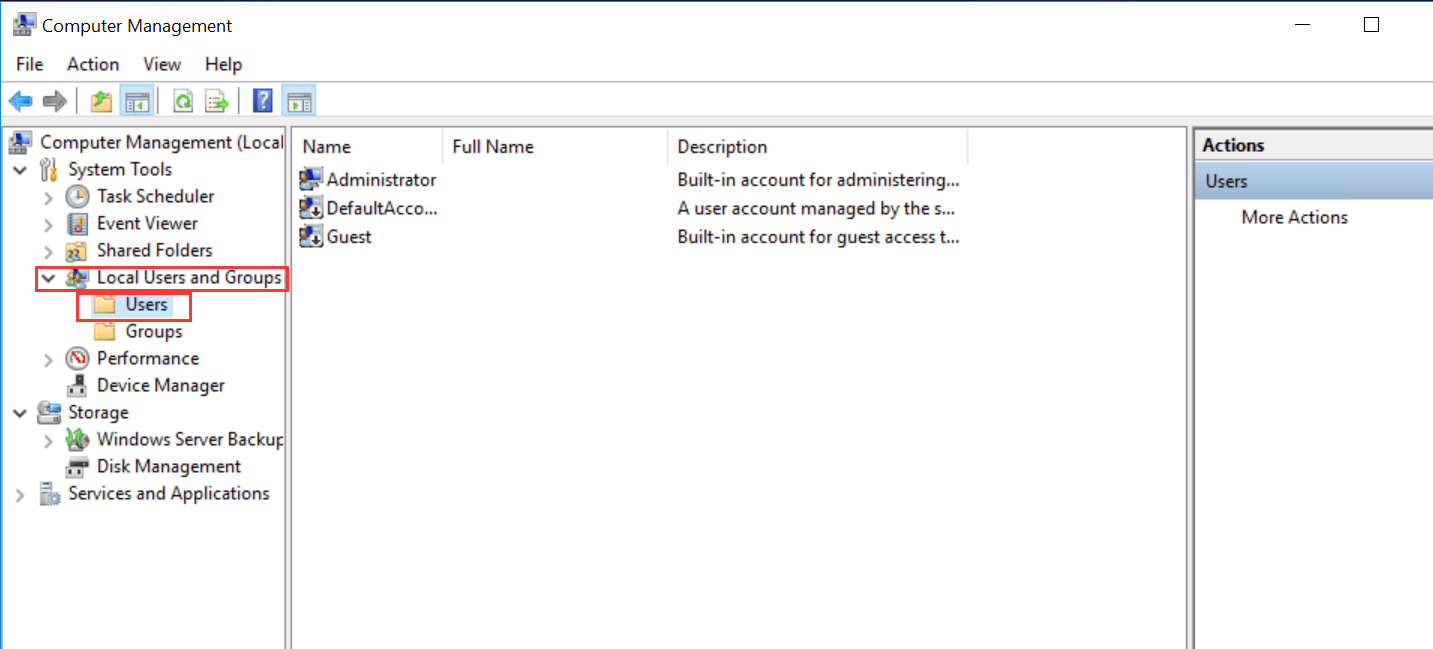
Step 4: Select Set Password
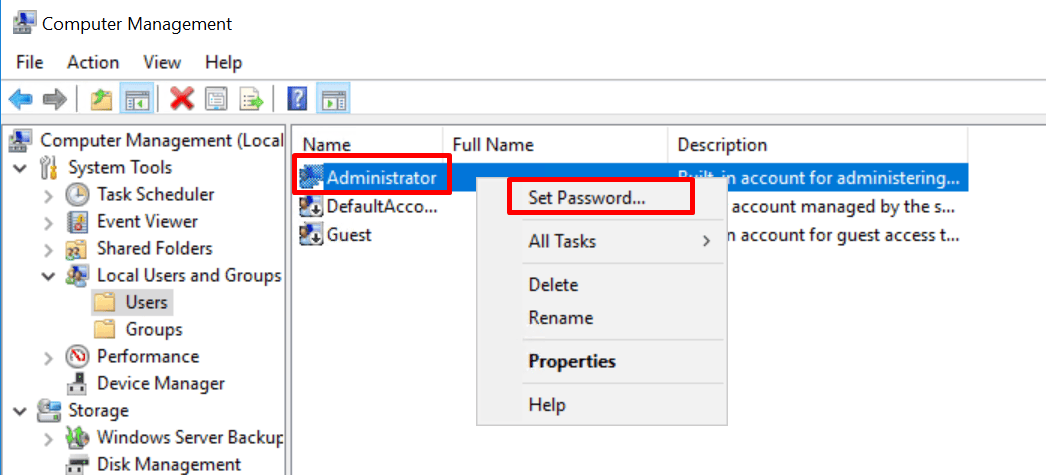
Right-click Administrator and select Set Password.
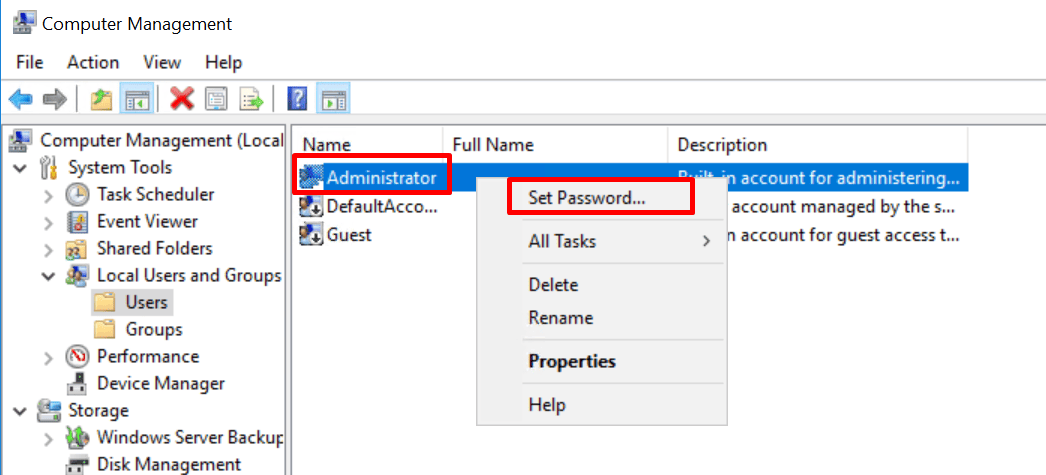
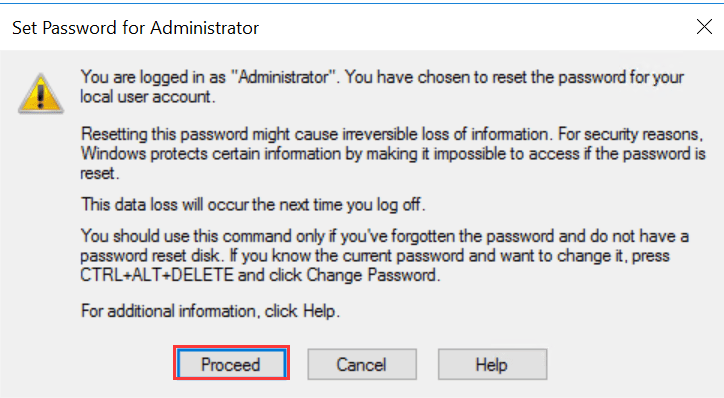
Read the warning and click Proceed to continue.
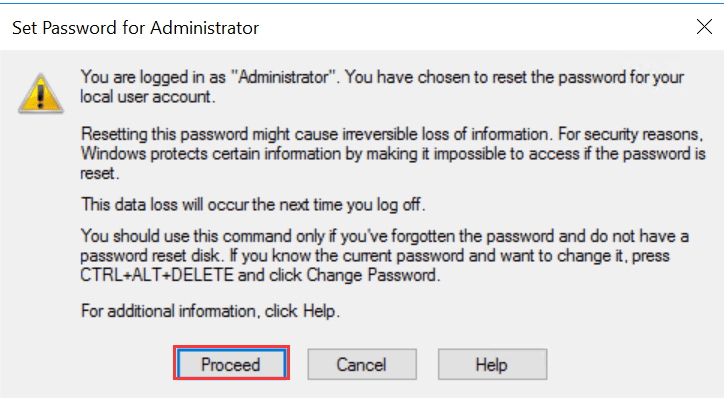
Step 5: Enter the New Password
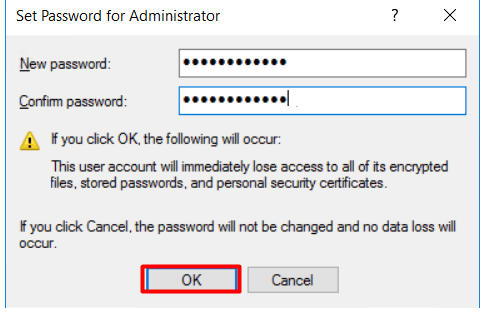
Enter the new password, confirm it, and click OK.
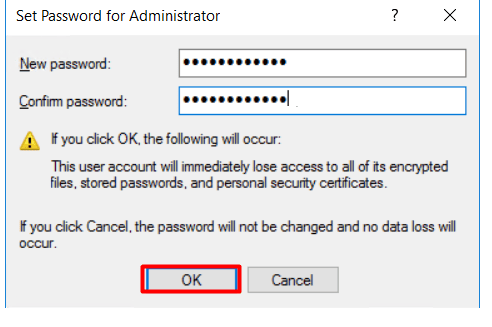
Your local Administrator password has now been changed.
Change the Administrator Password on Windows Server 2016/2019
Step 1: Connect via RDP
Log in to your Windows Server using Remote Desktop.
Step 2: Open Computer Management
Open Server Manager, click Tools in the upper-right corner, and select Computer Management.
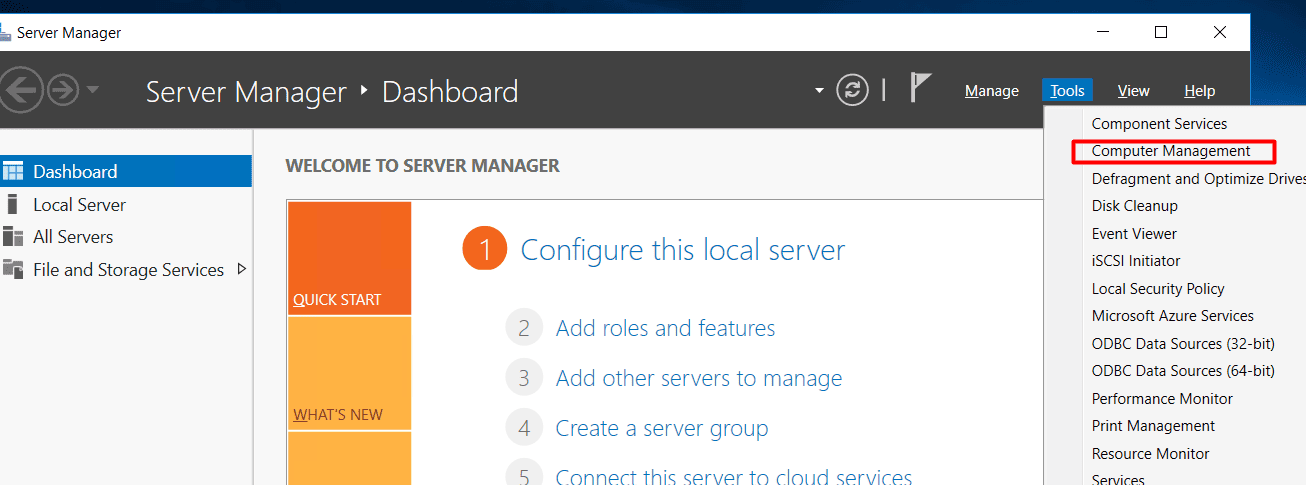
Step 3: Change the Password
- Expand Local Users and Groups > Users.
- Right-click Administrator and select Set Password.
- Click Proceed after reviewing the warning.
- Enter and confirm the new password, then click OK.
The local Administrator password is now updated.
Change the Administrator Password on Windows 10
Step 1: Open Computer Management
Log in to Windows, right-click Start, and select Computer Management.
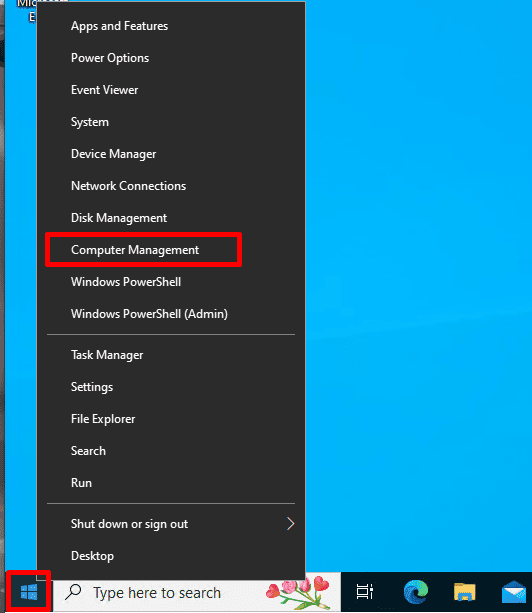
Step 2: Open the Users List
Expand Local Users and Groups, then click Users.
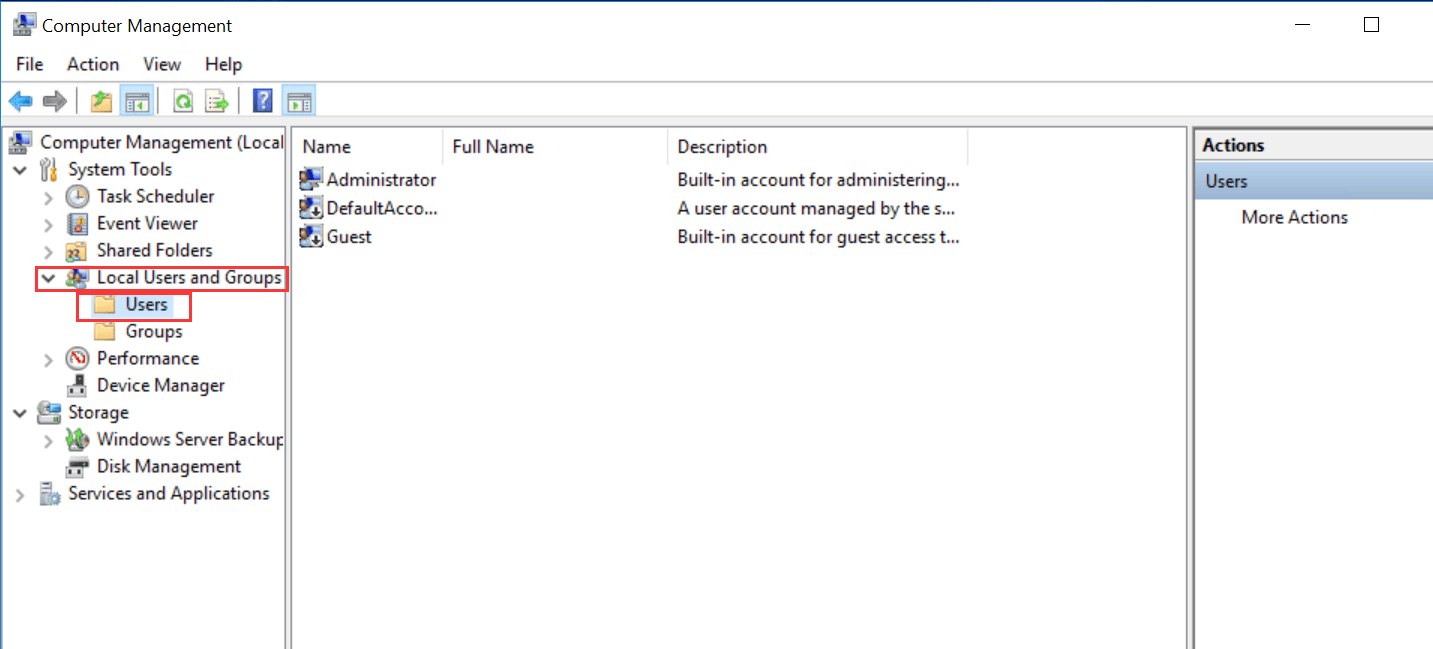
Step 3: Set a New Password
Right-click Administrator and select Set Password.
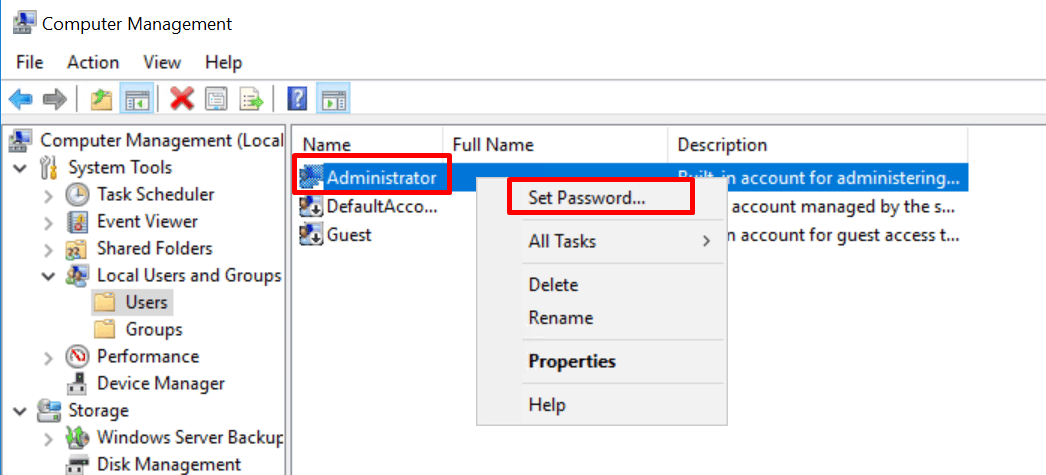
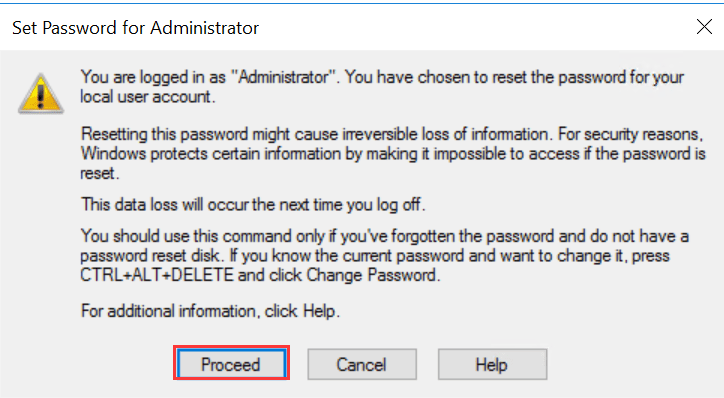
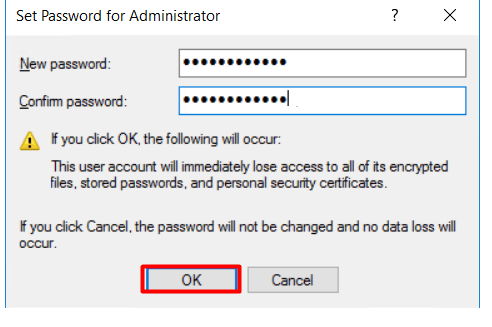
Confirm the warning, enter the new password twice, and click OK.
Change the Administrator Password on Windows 11
The process is similar on Windows 11.
- Log in to Windows.
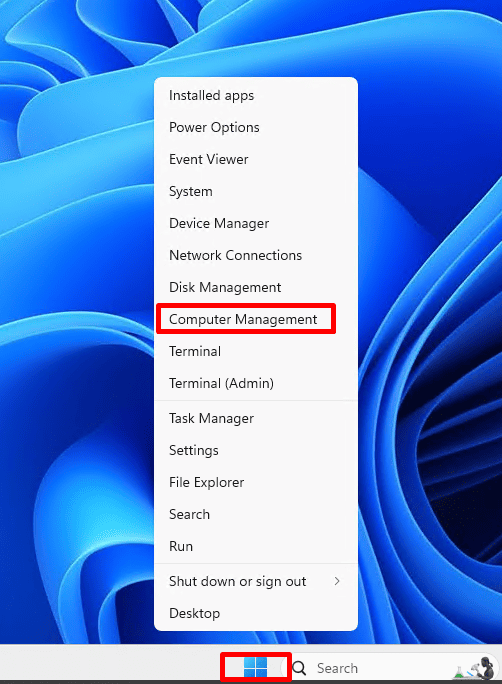
- Right-click Start and select Computer Management.
- Expand Local Users and Groups > Users.
- Right-click Administrator and select Set Password.
- Click Proceed after reviewing the warning.
- Enter and confirm the new password, then click OK.
Note: The Local Users and Groups tool is not available in some Windows Home editions. If your account is managed by an organization or domain, the password may need to be changed through the relevant account-management process instead.
Administrator Password Security Recommendations
- Use a unique password that you do not reuse for email or other accounts.
- Choose a long, unpredictable password or passphrase; 14 or more characters is a useful target.
- Avoid personal information, company names, domain names, and easily guessed patterns.
- Store credentials in a reputable password manager and restrict administrator access.
- After changing the password on a remote server, update any services or scheduled tasks that rely on the old credentials.
Conclusion
You can change a local Administrator password through Computer Management on supported Windows Server and Windows desktop editions. Use a strong, unique password and verify that you can reconnect after the change. These steps are useful for maintaining security on Windows VPS and dedicated servers, whether managed independently or through a USA hosting provider. For domain-managed accounts, follow the appropriate domain password-management procedure.