


How to Configure Gmail in Moodle for Sending Emails
If you are using Moodle and want to send emails from Moodle, you might notice that the old method using “Less secure app access” no longer works. Since September, Google has removed this feature. Now, you need to use a Gmail App Password for a proper Gmail SMTP configuration.
Follow these simple steps to configure Gmail in Moodle, even if you are a beginner.
Step 1: Configure Application-specific password Gmail
Login to Gmail and click on security on the left bar
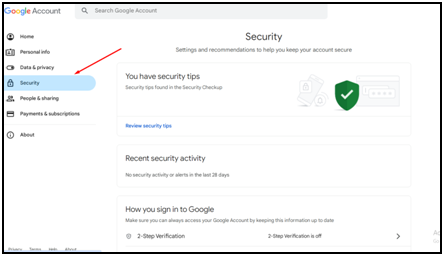
Generate the Application-specific password on Two-step verification
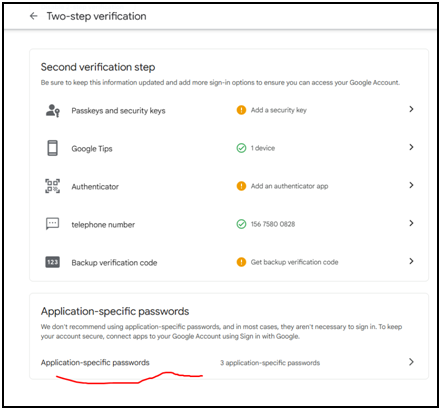
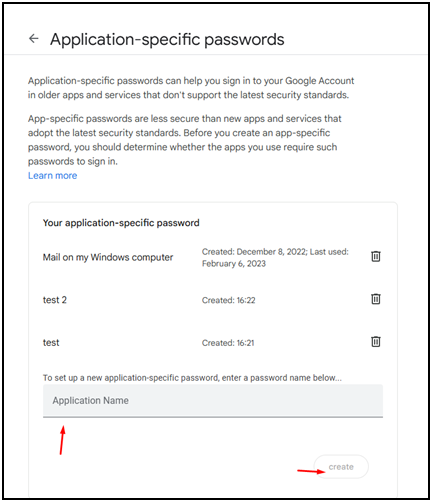
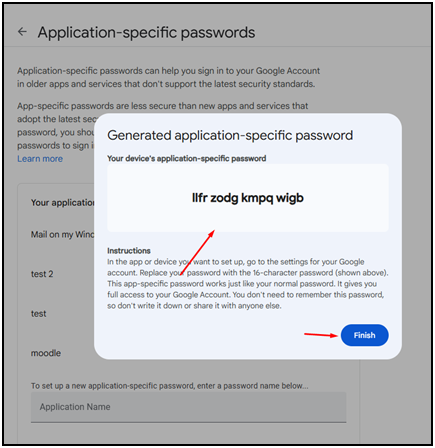
Step 2: Configure the Gmail to Moodle application
Login to Moodle management page
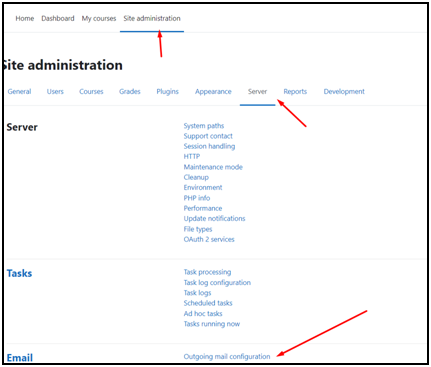
Locate to Outgoing mail configuration page: Click on Site administration, then click on server bar and move to the bottom to find Outgoing mail configuration
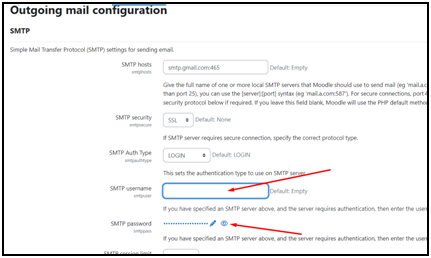
Input email address on SMTP username and copy paste the application-specific password on SMTP Password bar
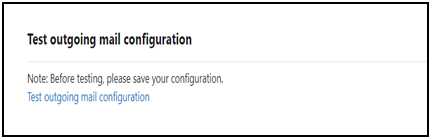
Test if mail is sending out properly: Move down on the same page and then click on Test outgoing mail configuration. Then sending a test mail to check if everything is working
Moodle email configuration, send test email in Moodle, Gmail SMTP for Moodle