


How to Transfer FTP Files with Non-English File Names via FTP
Introduction
When performing FTP file transfer, many beginners face problems when trying to upload or download files that contain non-English file names (such as Chinese, Japanese, or accented characters). Without proper configuration, your FTP upload file may fail or display garbled characters.
This guide will walk you through, step by step, how to solve this FTP transfer problem using FileZilla FTP Client. Even if you are completely new to FTP, you can follow along easily.
Why Do Non-English File Names Fail in FTP Upload?
By default, some FTP clients and servers don’t correctly handle UTF-8 encoding, which is necessary to transfer files with special or non-English characters. If the encoding is wrong, you may face:
- File names showing as garbled text
- Upload or download failures during FTP file transfer
- Difficulty managing files on your FTP server
Step-by-Step FTP File Transfer Guidance
Step 1: Install FileZilla FTP Client
To perform reliable FTP file transfer with non-English characters, always use the latest version of FileZilla FTP Client.
- Go to the official FileZilla download page.
- Download and install the client for your operating system (Windows, Linux, or macOS).
- Once installed, open FileZilla.
FileZilla is free and works across all platforms, making it ideal for both beginners and advanced users who perform FTP upload or FTP file transfer Linux tasks.
Step 2: Configure FTP Site in FileZilla
Now, let’s add your FTP server details to FileZilla.
- Open FileZilla.
- Go to File > Site Manager (or press
Ctrl+S). - Click New Site and enter:
- Host: Your server’s IP address or domain name
- Protocol: FTP – File Transfer Protocol
- Encryption: Use “Only use plain FTP” (unless your server requires FTPS)
- Logon Type: Normal
- User/Password: Enter your FTP account credentials
Step 3: Enable UTF-8 Charset
This is the most important step to fix FTP file transfer issues with non-English characters.
- In Site Manager, go to the Charset tab (on the right side).
- Select Force UTF-8.
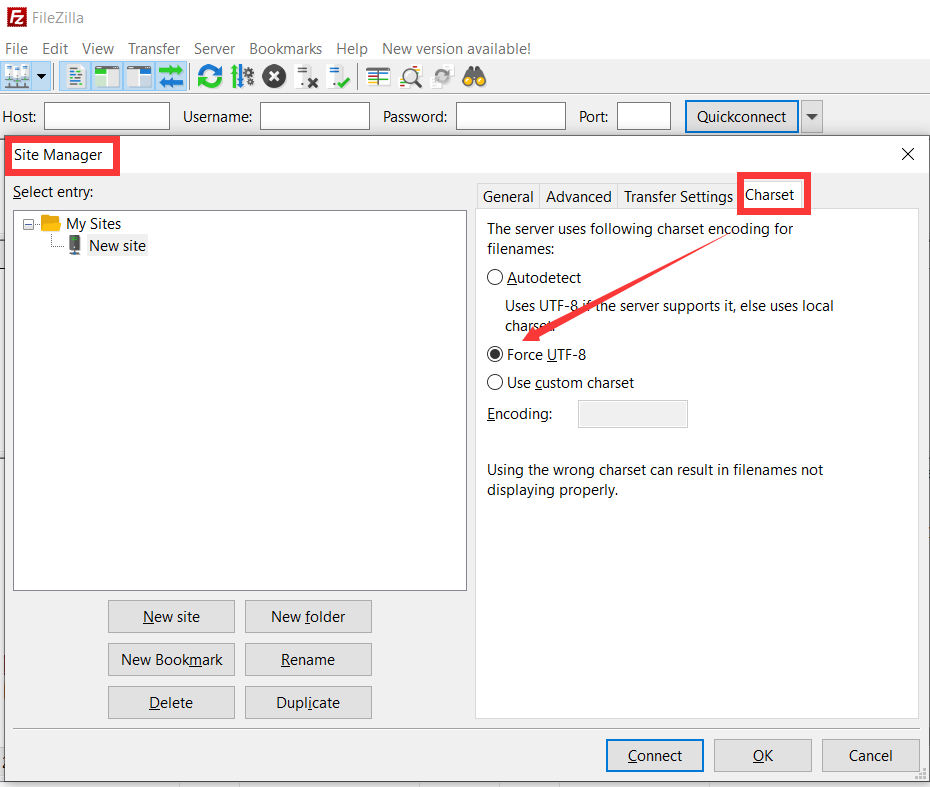
- Save your settings and connect to your FTP server.
By forcing UTF-8, FileZilla ensures that all your FTP upload file operations handle non-English names correctly.
Step 4: Test File Upload and Download
- Connect to your FTP server from FileZilla.
- Drag and drop a file with non-English characters (for example:
测试文件.txt) into your web server directory. - Download the same file back from the server to confirm it displays correctly.
If the file names are displayed properly, your FTP file transfer Linux or Windows environment is successfully configured.
Additional Resources
Conclusion
Handling non-English file names in FTP transfer doesn’t have to be complicated. By using the latest FileZilla FTP Client and enabling UTF-8 charset, you can ensure smooth FTP upload, FTP file transfer, and even FTP file transfer Linux tasks without errors.
Following this guide will help beginners solve common FTP file problems while ensuring compatibility across multiple platforms.
ftp file transfer, ftp file, ftp file transfer linux, ftp transfer, ftp upload, ftp upload file