


How to Configure Outlook (Beginner-Friendly Version)
Introduction
This tutorial will walk you through the steps of how to configure Outlook. Let us take the email user demo@databasemart.com for an example.
How to Configure Outlook
1. Create a New Account in Outlook
Open Outlook and go to: Tools → Accounts → Mail → Add.
When prompted, choose to set up the account manually.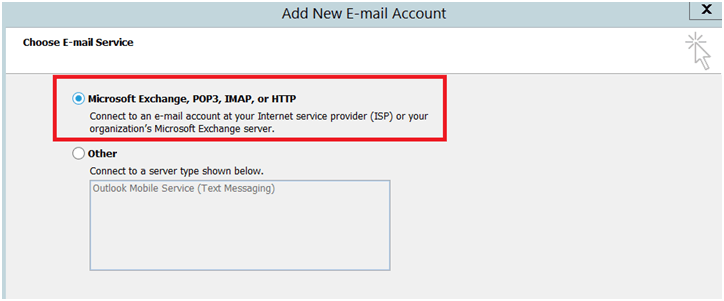
2. Manual Configuration
Check the option “Manually configure Mail server settings or additional server types” and click Next.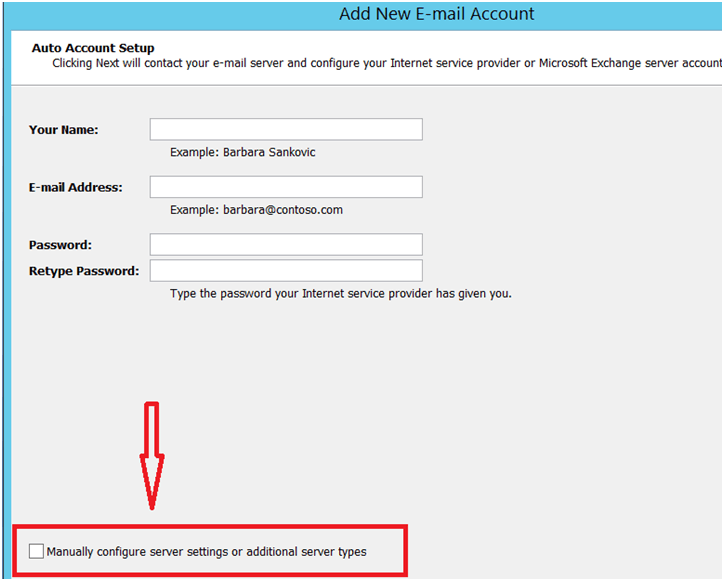
3. How to Configure Outlook
3.1 Fill in All the Required Fields
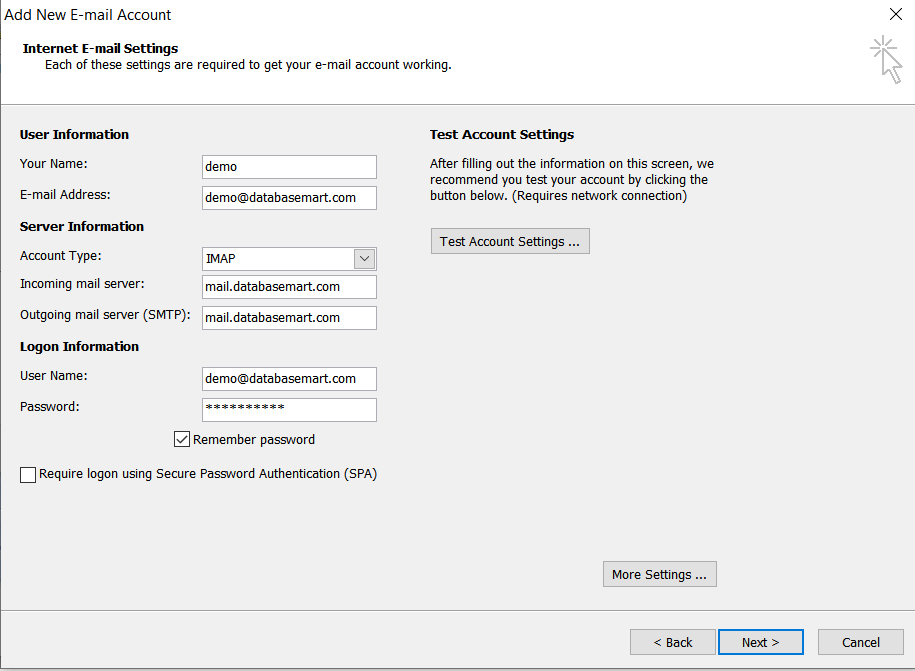
3.2 Click “More Settings” in the Bottom Right to Add More Details
Find the More Settings button at the bottom right and click it to open additional options.
Image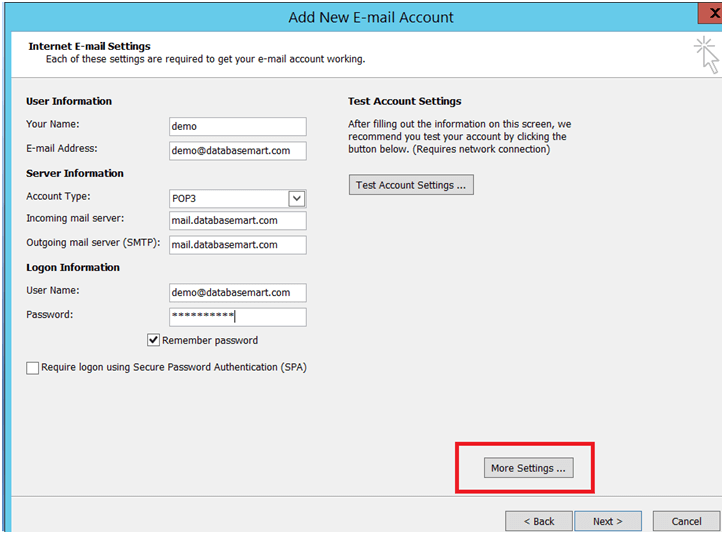
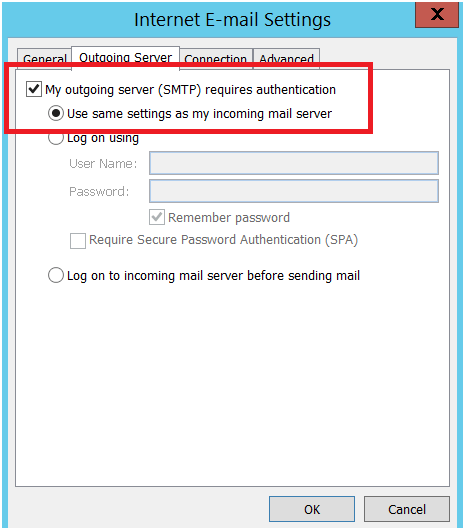
3.3 Enable SMTP Authentication
In the Outgoing Server tab:
- Check “My outgoing server (SMTP) requires authentication”
- Select “Use same settings as my incoming mail server”
3.4 Specifying Port numbers
Specify POP port 110 and SMTP port 25. Try port 587 as an alternate in case port 25 is blocked by an ISP.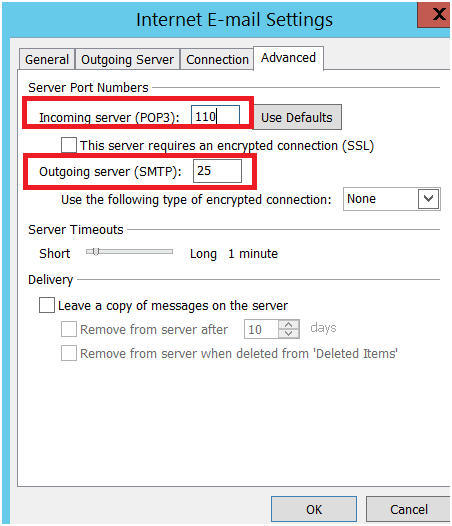
3.5 Go Back to the Previous Page to Test the Email Settings
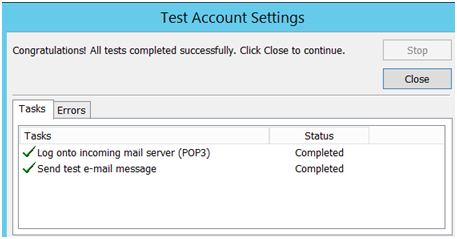
Close the More Settings window and click the Test Account Settings button.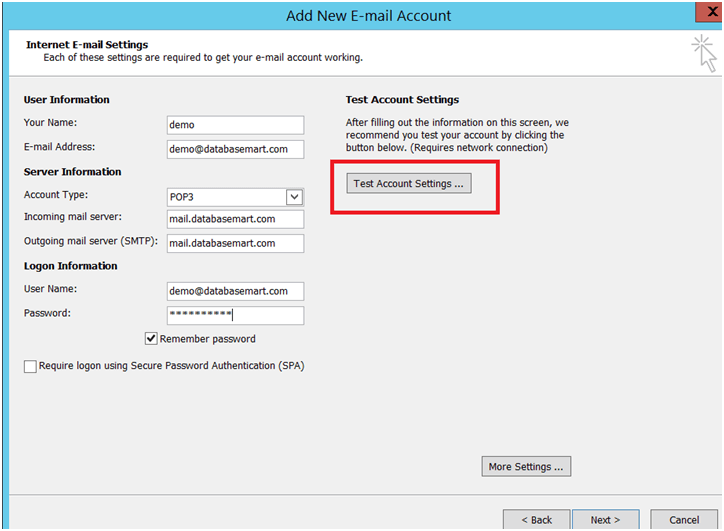
3.6 Done
Conclusion
By following the steps above, you can successfully configure Outlook and ensure smooth email communication. Proper setup helps maintain reliability, security, and efficiency in daily use. For further assistance, please feel free to contact us
outlook smtp, smtp authentication, configure outlook, outlook email setup, outlook smtp settings, outlook pop3 settings, outlook manual setup, microsoft outlook configuration, setup outlook account, outlook email configuration