


How to reset MySQL password on Windows
Why Do You Need to Reset the MySQL Password?
Sometimes, after installing MySQL 8.x on Windows, you may:
- Forget the root password
- Need to change the root password for security reasons
- Get errors like "Access denied for user 'root'@"
In these cases, you must reset MySQL password on Windows using the init_file method.
Step to Reset MySQL 8 Root Password
Step 1: Stop the MySQL Service
- Press
Win + Rto open the Run dialog. - Type
services.mscand press Enter to open the Services list. - Find the MySQL service (usually named
MySQL80orMySQL). - Right-click the service and select Stop.
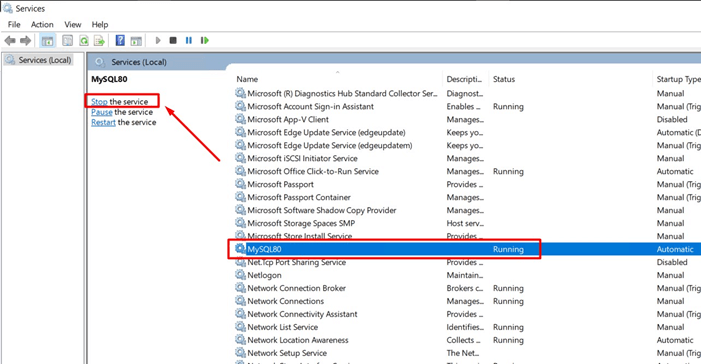
You must stop the service before using init_file; Otherwise, the reset will fail.
Step 2: Create a Password Reset File
- Open Notepad.
- Enter the following line, replacing
MyNewPasswith your desired password:
ALTER USER 'root'@'localhost' IDENTIFIED BY 'MyNewPass';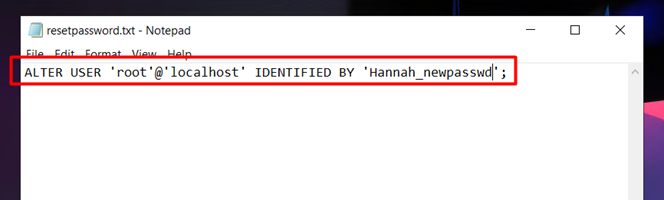
Save the file as:
C:\resetpassword.txtMake sure it is saved as a plain text file.
Step 3: Open Command Prompt in MySQL Directory
- Press
Win + R, typecmd, and press Enter to open Command Prompt. - Navigate to the MySQL installation
binfolder, e.g.:
cd "C:\Program Files\MySQL\MySQL Server 8.0\bin"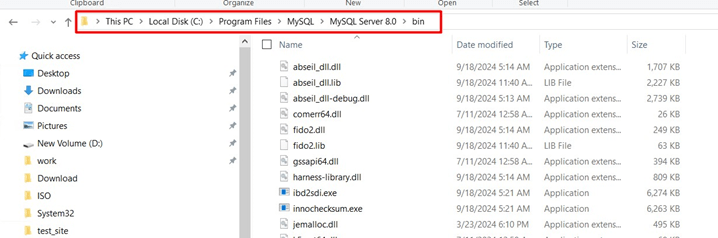
You must run the command from the MySQL directory, otherwise mysqld may not find the configuration file.
Step 4: Start MySQL with init_file
- Run the following command (adjust the paths as needed):
mysqld --defaults-file="C:\\ProgramData\\MySQL\\MySQL Server 8.0\\my.ini" --init-file=C:\\Users\\Administrator\\Desktop\\resetpassword.txt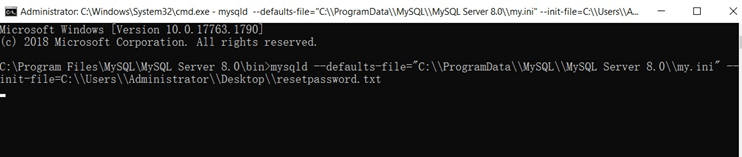
- Wait until the command finishes executing.
Note: Use double backslashes \ in file paths.
Step 5: Test the New Password
- Open a new Command Prompt or MySQL client.
- Log in with the new password:
mysql -uroot -pHannah_newpasswdIf the login is successful, the root password has been reset.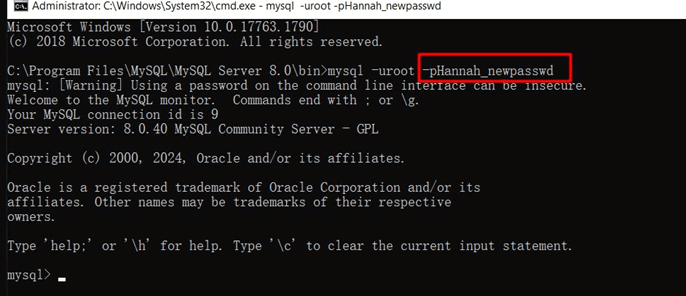
Step 6: Cleanup
- After successful login, delete
resetpassword.txtfor security. - Restart the MySQL service in Services by clicking Start.
Tips for Beginners
- Make sure the MySQL service is completely stopped before Step 4.
- Check all file paths carefully; the
init-filepath must be correct. - Avoid complex special characters in the password on the first try; use letters and numbers.
reset MySQL password, mysql forgot root password windows, mysql 8 reset root password, reset mysql password windows, change mysql root password windows, change password mysql 8, change root password mysql 8, forgot root password mysql windows, mysql 8 change password, mysql 8 change root password, mysql 8 set root password