


How to Restore Database in SSMS
Introduction
If you are new to SQL Server Management Studio (SSMS), you might be wondering how to restore database in SQL Server Management Studio from a backup. Whether your database was created on-premise, backed up from Azure SQL backup, or exported as a .bak file, this step-by-step guide will help you understand how to restore database in SSMS easily.
We will walk through restoring a SQL backup database from a .bak file, configuring restore options in SQL Server, and handling common tasks such as deleting users and fixing user mapping issues after restore.
Step 1: Run the SSMS from the Start Menu
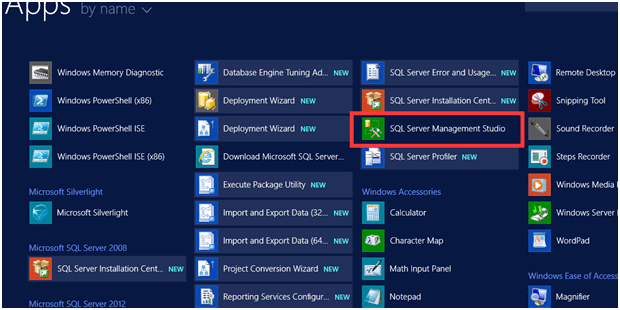
Step 2: Restore the Database
- Connect to the Server
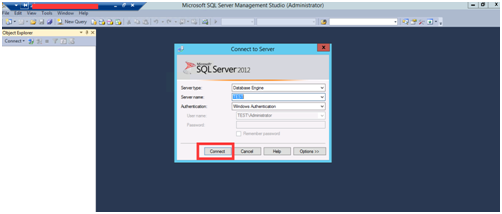
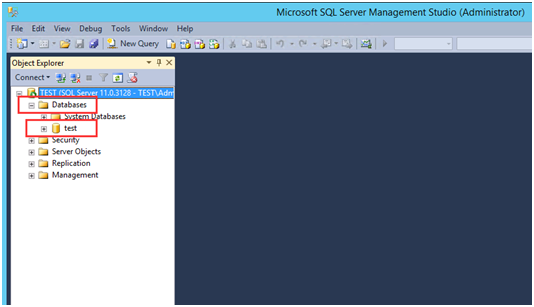
- Choose the Database
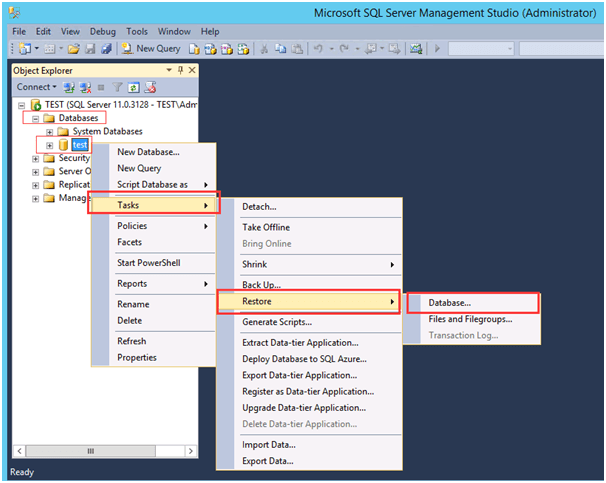
- Right-click on the Database Name “test” and click “Tasks”. Click “Restore”, then click ”Database”.
- Choose “Device”, then click “…”
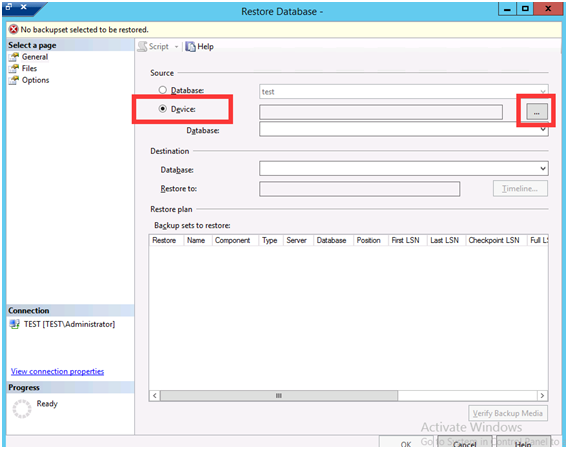
- Select the Backup Devices
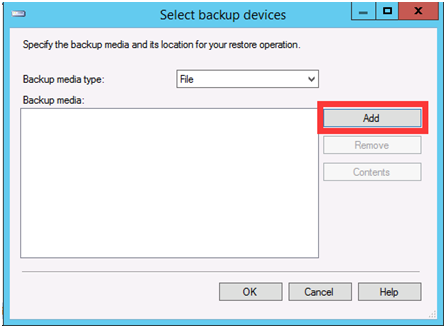
- Find the Backup Database from the Folder
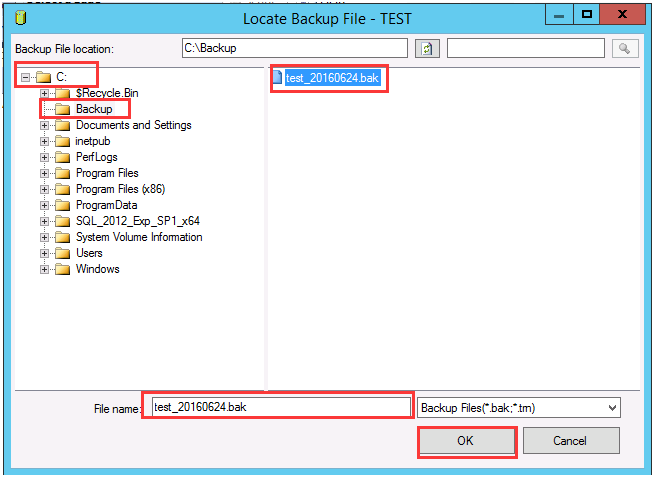
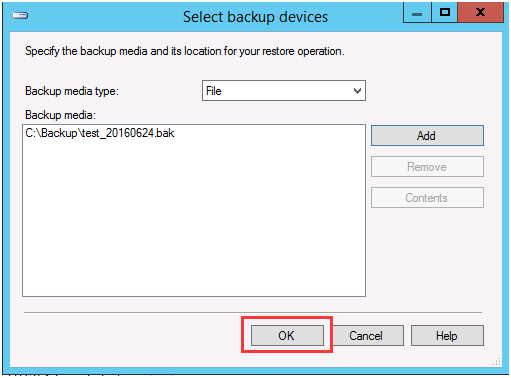
- Restore the Database
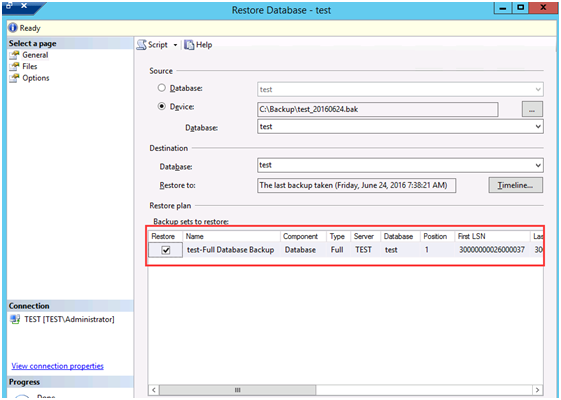
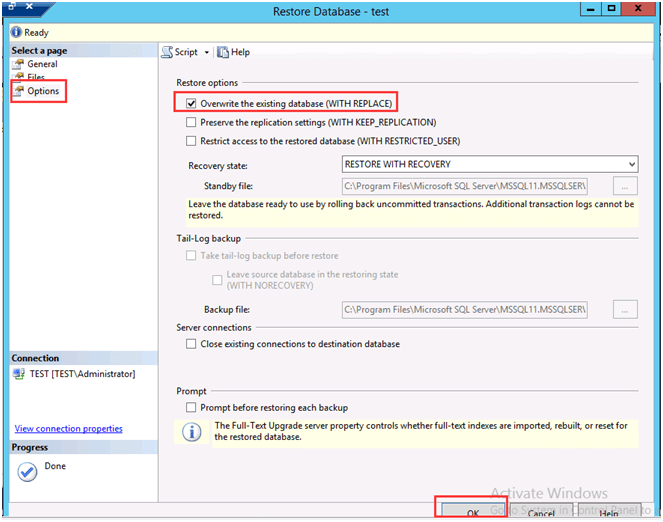
- Choose “options” and Restore the Options. Overwrite the existing database (WITH REPLACE)
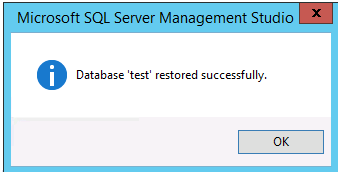
- Restored successfully
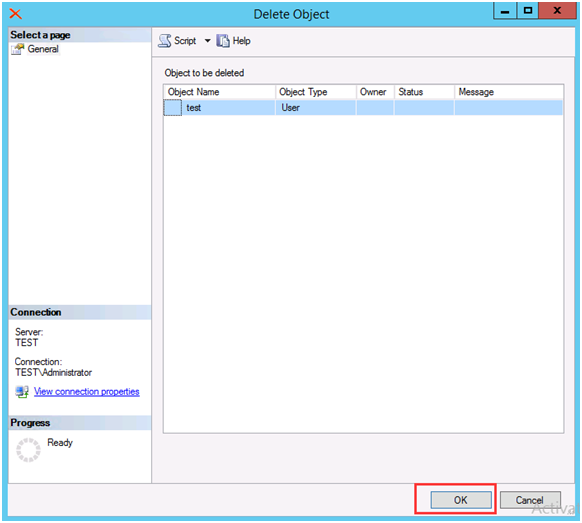
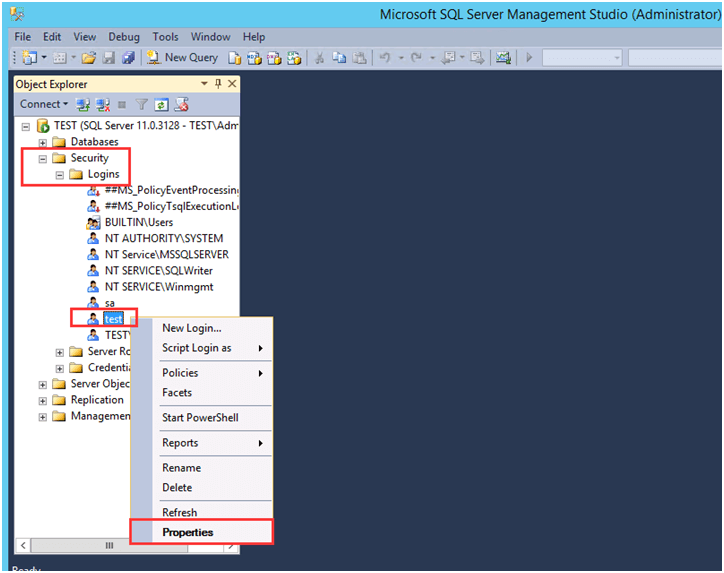
- Delete the Database Existing User
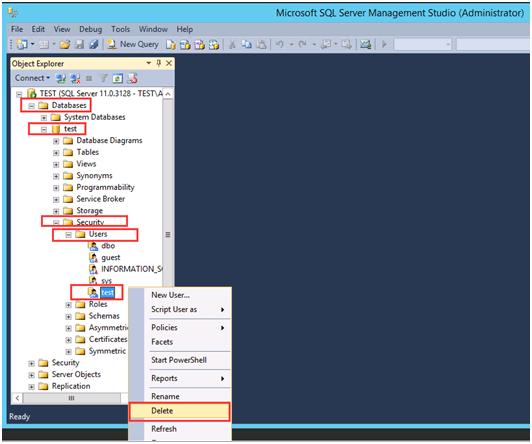
- Delete the Object
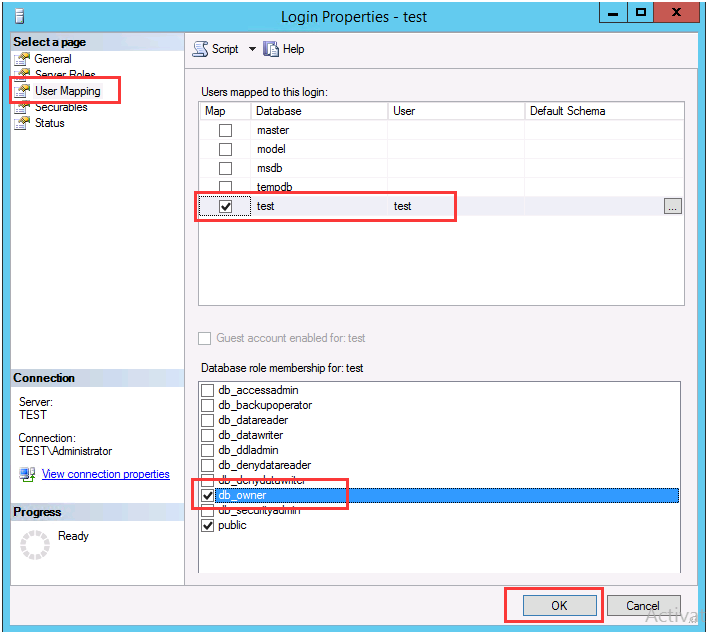
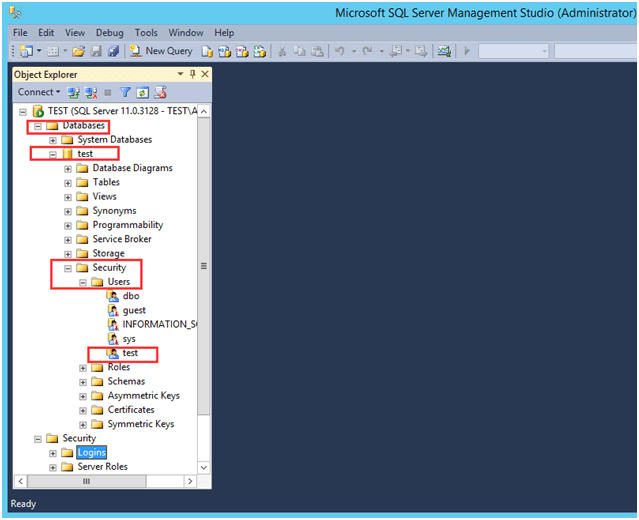
- Connect to User mapping
restore database in ssms, how to restore database in sql server management studio, sql server restore database from backup, ssms restore database from bak file, backup database sql server, sql backup, azure sql backup, restore database sql server, sql backup database, backup compression default, backup compression in sql server, norecovery sql server, restore option in sql server