


SQL Server Express Installation via PowerShell
This tutorial focuses on SQL Server 2019 Express, but the same method works for earlier versions like SQL Server 2014 Express or SQL Server 2017 Express Download.
Why Choose SQL Server Express?
SQL Server Express is the free edition of MS SQL Server Express, perfect for:
- Learning and practicing SQL
- Small-scale applications
- Testing environments
The SQL Server 2019 Express edition offers great features with no licensing cost.
You can get it directly from Microsoft:
Download SQL Server 2019 Express
How to Install SQL Server Express via PowerShell
Step 1: Access the Windows Server via RDP
Before starting the SQL Server Express 2019 installation step by step, you need to connect to your Windows Server.
- On your local PC, search for Remote Desktop Connection.
- Enter your server’s IP address, username, and password.
- Click Connect.
Step 2: Open Windows PowerShell ISE
Once you’re logged into your server:
- Click the Windows Search box.
- Type
iseand press Enter. - Click Windows PowerShell ISE to open it.
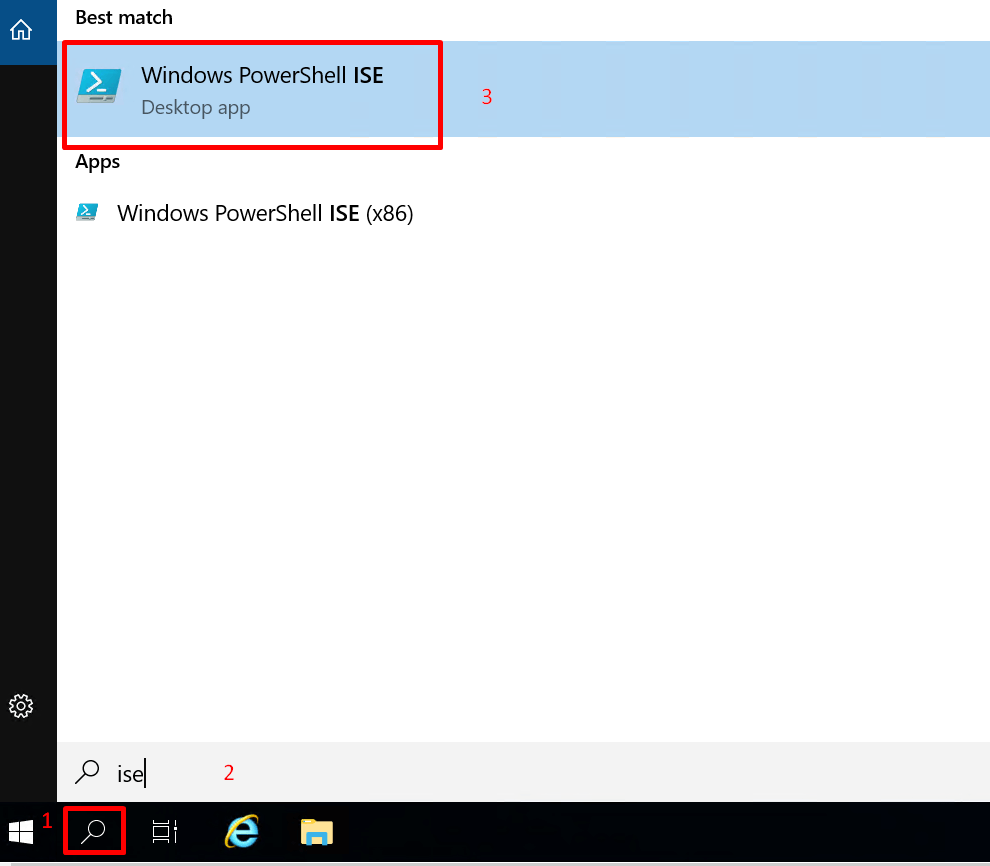
PowerShell ISE is a scripting tool that lets us run commands to install software like SQL Server Express 2019 automatically.
Step 3: Run the PowerShell Installation Script
- Copy the provided installation script into the PowerShell ISE command window.
[Net.ServicePointManager]::SecurityProtocol = [Net.SecurityProtocolType]::Tls12;IEX (New-Object Net.WebClient).DownloadString('https://gitlab.cloudclusters.net/public_package/dbm-script/raw/master/InstallSQLServer_Express.ps1');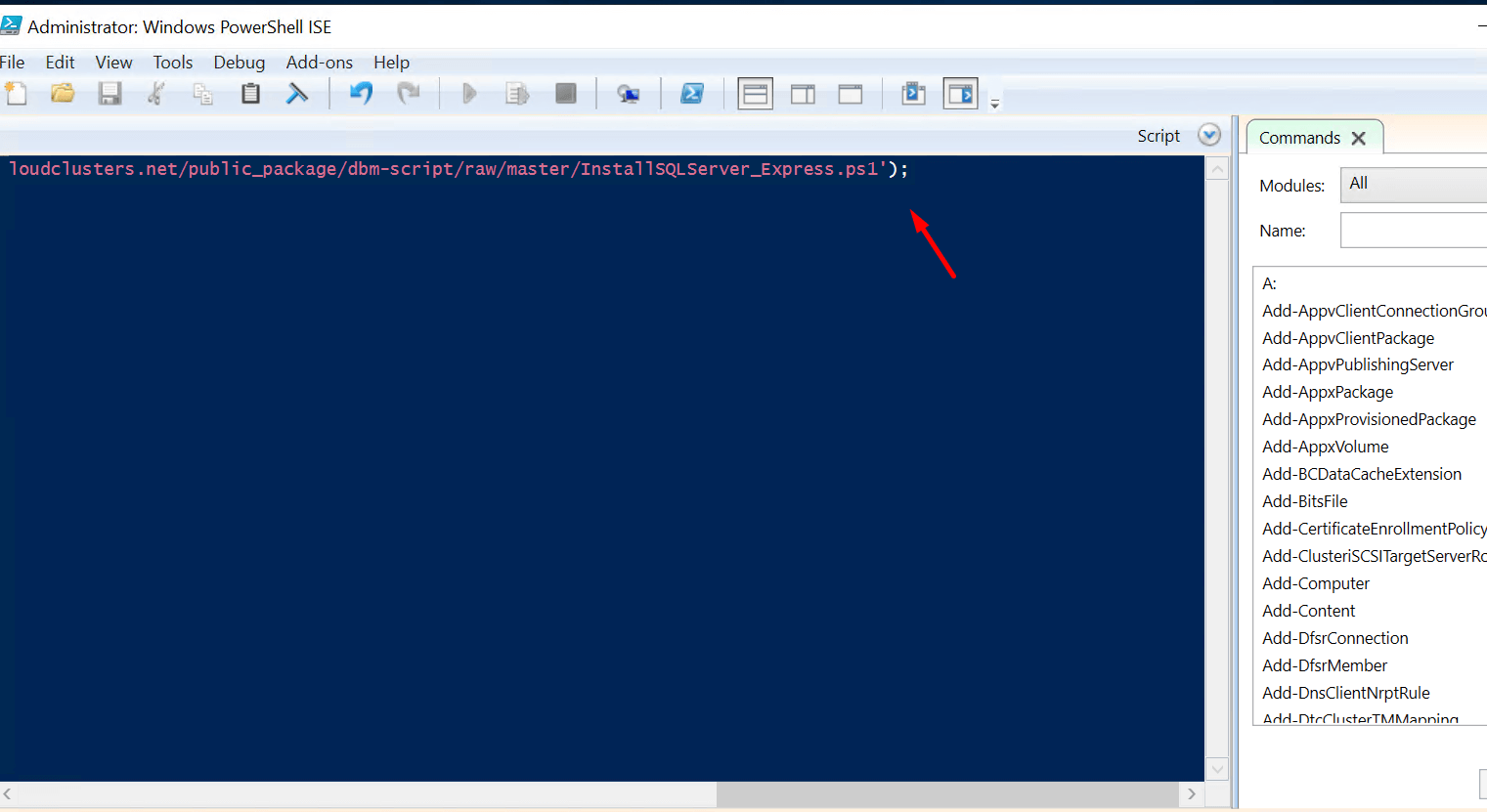
2. Press Enter to execute it.
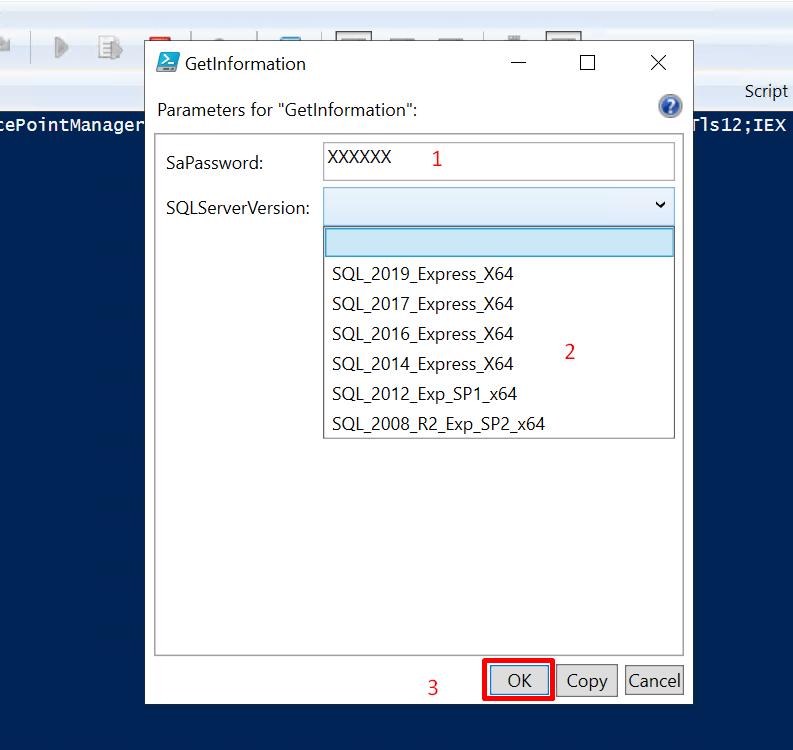
3. A pop-up window will appear:
- Enter the SQL Server
sapassword you want to use. - Select the SQL Server version (e.g., SQL Server 2019 Express).
- Click OK.
⚡ The installation is fully automatic.
⏳ It may take 30–60 minutes depending on your server performance.
⚠ Important: Do not close any windows until the installation is finished.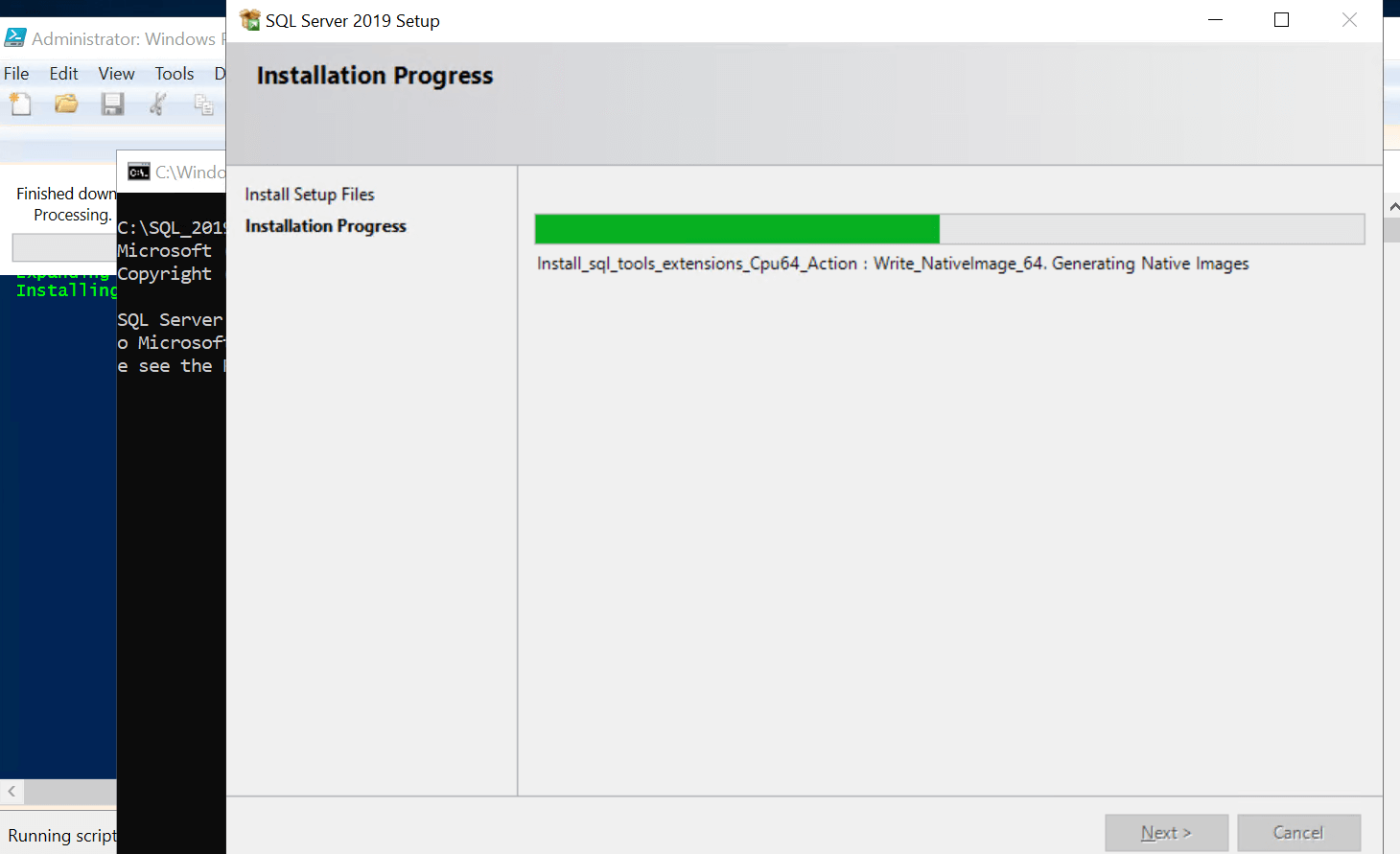
Step 4: Verify the Installation
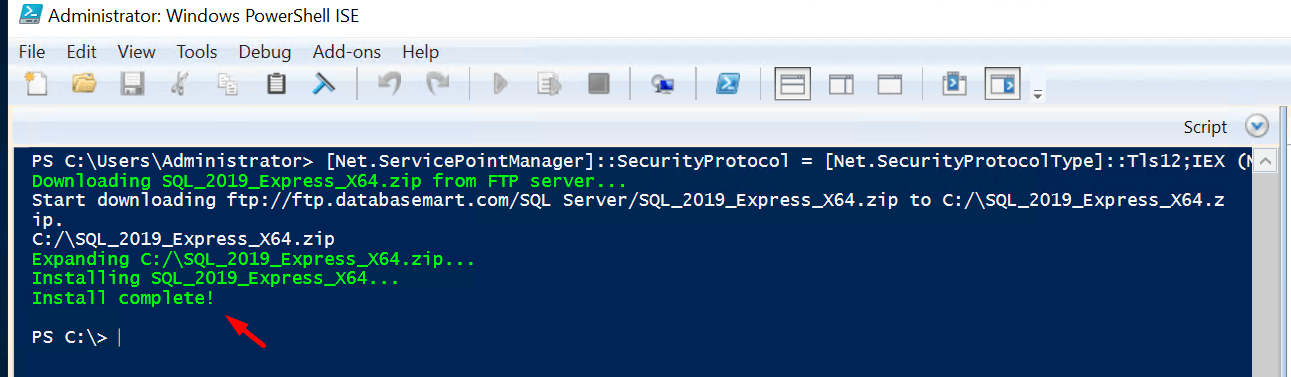
You can now close PowerShell ISE and start using Microsoft SQL Server Express.
Alternative: Manual Download Links
If you prefer downloading and installing manually, here are official resources:
- Download SQL Server Express 2019
- Direct search terms for convenience:
download sql server express 2019download sql server 2019 expressdownload sql express 2019sql server express 2019 downloadsql express 2019 download
Summary
This SQL Server 2019 Express installation step by step guide lets you:
- Install MS SQL Server Express automatically with PowerShell
- Save time compared to manual setup
- Avoid complex configurations
Whether you’re working with SQL 2019 Express, SQL Server 2014 Express, or preparing for a SQL Server 2017 Express download, this method ensures a smooth and beginner-friendly installation.
sql server express install, sql server 2019 express installation step by step, sql server express, sql server 2019 express, sql server express 2019, sql express 2019, sql server 2019 express download, sql 2019 express, sql express 2019 download, sql server express 2019 download, download sql server express 2019, download sql server 2019 express, download sql server express, ms sql server express, sql server 2014 express, sql server 2017 express download, microsoft sql server express download, download sql express 2019