


How to Connect to a Windows Server Remotely
The process for connecting to a Windows server remotely depends on the operating system you use on your local device. This guide explains how to connect to a Windows server from Windows, Linux, macOS, iOS, and Android devices, as well as how to use third-party remote control software.
Whether you use a Windows VPS or a Windows dedicated server, remote access allows you to manage applications, transfer files, and perform administrative tasks from almost anywhere. When choosing a hosting provider, reliable remote access and clear connection instructions are important considerations, especially for businesses evaluating USA hosting or comparing a USA hosting provider with other hosting services.
Prerequisites
Before connecting to your Windows server, make sure you have the following information:
- Server IP address: The public IP address assigned to your server.
- Login name: The username used to access the server.
- Login password: The password associated with your account.
- Remote Desktop port: The port configured for Remote Desktop Protocol (RDP).
After your server is deployed, the login credentials are usually sent to your registered email address. You can also find the server IP address, login name, password, and access port in the Database Mart control panel. Refer to the guide on how to manage servers in the Database Mart control panel.
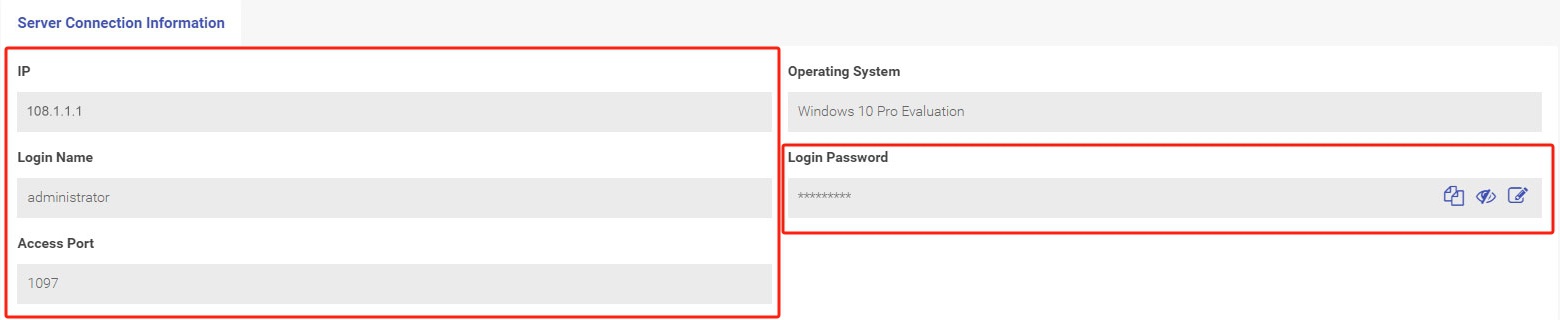
These credentials are required whether you are accessing a Windows VPS for development or managing a dedicated server for production workloads. A hosting provider should make server connection details easy to locate so that you can manage your hosting environment efficiently.
Connect from Windows
The most straightforward way to connect to a Windows server from a local Windows computer is through Remote Desktop Connection, Microsoft's built-in RDP client.
Remote Desktop Protocol (RDP) allows you to access a remote computer's desktop over a network. Once connected, you can interact with the remote Windows environment much as you would with a local computer.
This method is commonly used to manage Windows VPS hosting, dedicated servers, and other remote Windows systems. It is also useful for customers who choose USA hosting for business applications, remote work, or centralized administration.
For a video tutorial, watch How to Access Windows VPS Server via RDP.
Step 1: Open Remote Desktop Connection
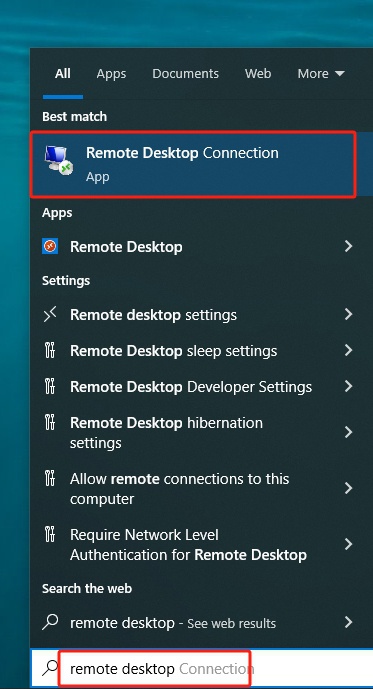
On your local Windows computer, enter Remote Desktop Connection or RDP in the taskbar search box, then open the application.
Step 2: Enter the Server IP Address and Port
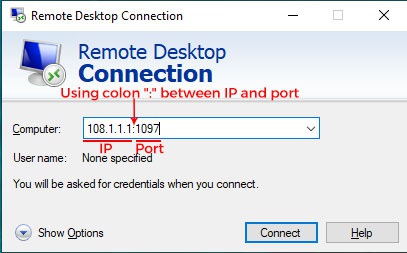
In the Computer field, enter the server's IP address followed by a colon and the RDP port.
For example, if the IP address is 108.1.1.1 and the port is 8888, enter:
108.1.1.1:8888For Database Mart customers, the default RDP ports may vary by product. Windows VPS instances commonly use port 1097, while Windows dedicated servers commonly use port 1098. Some VPS instances using shared IP addresses may have customized ports.
Always check the actual IP address and port displayed in your Database Mart control panel rather than assuming that a particular port applies to every server.
Step 3: Enter Your Login Credentials
- Click Connect.
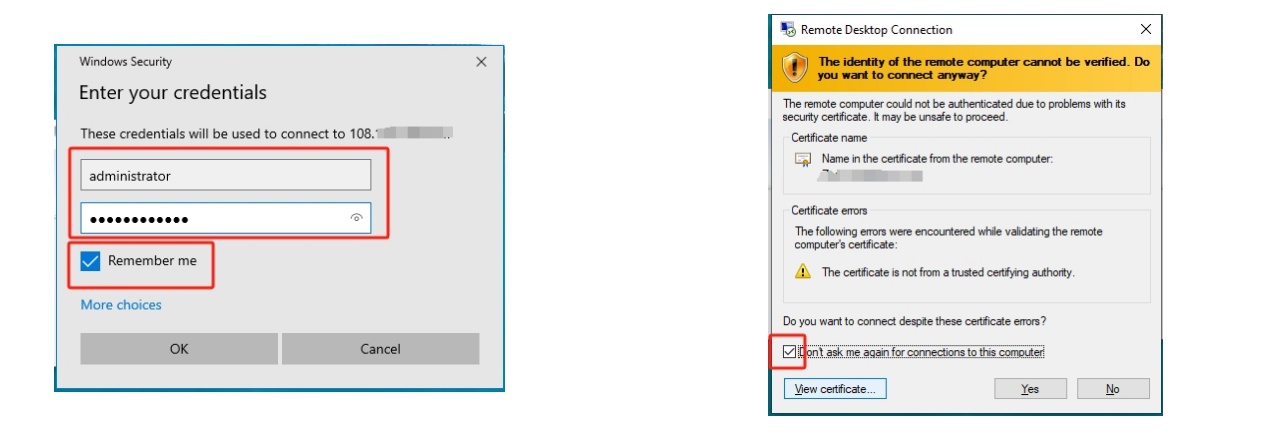
- Enter the server's Login Name and Login Password when prompted.
- Optionally select Remember me if you want Windows to remember your credentials.
- Click OK to establish the remote connection.
Windows may display a certificate or identity warning if it cannot verify the remote computer's identity. Before proceeding, confirm that the IP address belongs to your server and that the certificate warning is expected. Only continue if you trust the connection.
After authentication succeeds, the remote Windows desktop should appear on your local computer.
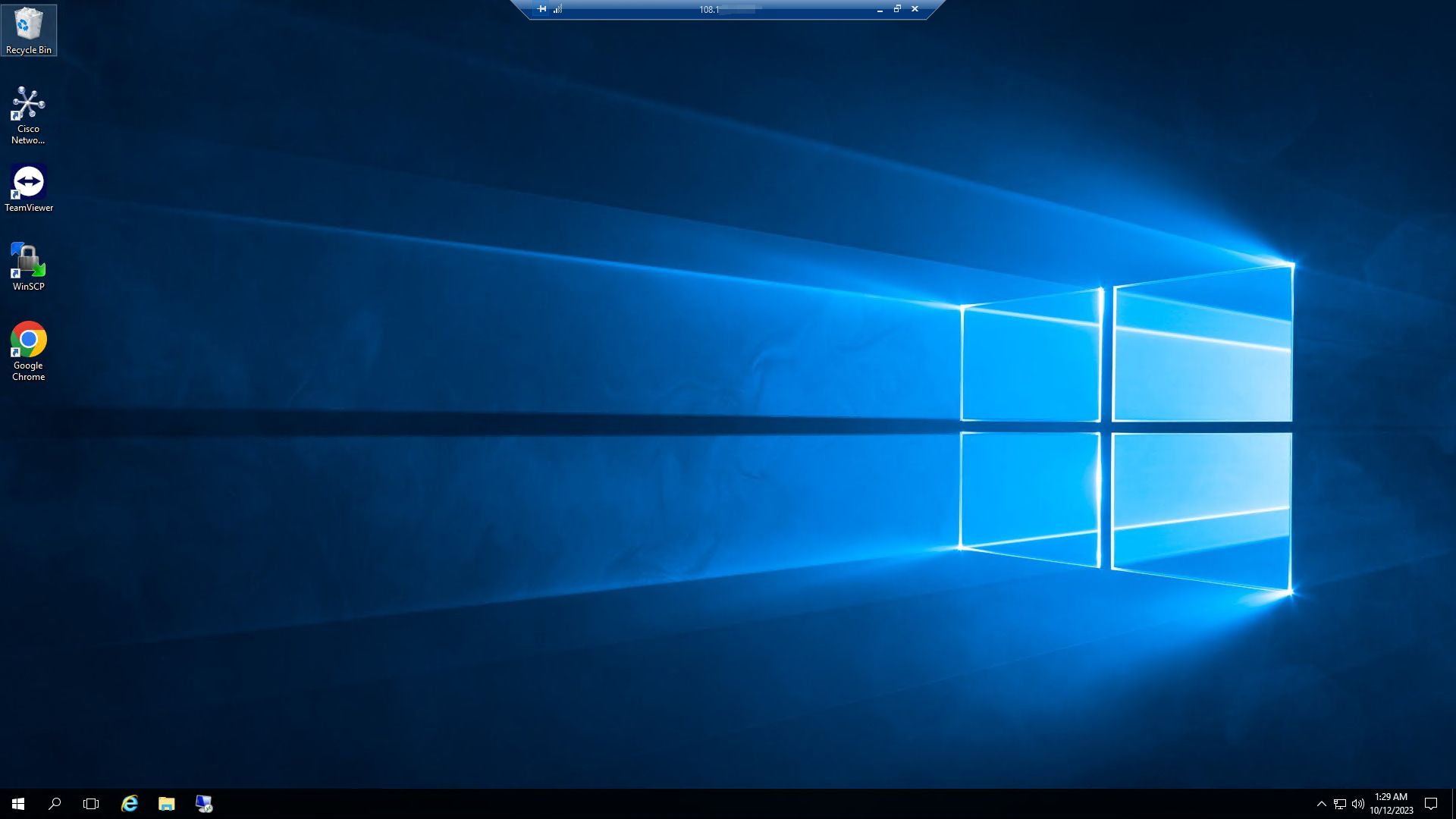
This connection method is suitable for routine Windows server administration, including managing applications, configuring services, and accessing a remote desktop. When evaluating a hosting provider, consider whether its Windows server plans support the remote access configuration your workload requires.
Connect from Linux
You can connect to a Windows server from Linux using an RDP client. Several applications support this, including Remmina, AnyDesk, TeamViewer, and rdesktop.
For a traditional RDP connection, Remmina is a practical option for Linux desktop environments.
To connect:
- Install Remmina and its RDP plugin using the package manager for your Linux distribution, if they are not already installed.
- Open Remmina and create a new remote desktop connection.
- Select RDP as the protocol.
- Enter your Windows server's IP address and RDP port. If the client provides separate fields for the server address and port, enter them in the appropriate fields.
- Enter your Windows login name and password.
- Connect to the server.
For a walkthrough, watch Streamlining Your Workflow: Remotely Access Windows from Linux with Remmina.
RDP lets Linux users manage Windows-based hosting environments without needing a separate Windows computer. This can be useful when administering Windows VPS instances or dedicated servers from a Linux workstation.
Connect from macOS
You can connect to a Windows server from a Mac using a compatible Microsoft Remote Desktop client. Depending on the version available for your device, the application may be listed under Microsoft's Windows App branding.
To connect:
- Install the appropriate Microsoft remote desktop client from an official source.
- Open the application and add a new PC or remote desktop connection.
- Enter your Windows server's IP address and RDP port.
- Add your Windows login credentials when prompted, or configure them in the connection profile.
- Save the profile and open it to connect.
For a detailed walkthrough, watch How to Access Windows Server via Mac.
This method allows Mac users to access Windows applications and manage remote servers without switching to a Windows workstation. It is suitable for many Windows server hosting workloads, including application management and remote administration.
Connect from Mobile Devices
You can also connect to a Windows server from an iOS or Android device using a compatible remote desktop client. This allows you to perform administrative tasks while away from your computer.
Before downloading a client, you may want to check your iPhone model information to confirm your device specifications and compatibility.
The following steps use Microsoft's remote desktop client on iOS as an example. The exact interface and application availability may vary by operating system version and device.
Step 1: Install a Remote Desktop Client
Install a compatible Microsoft remote desktop application from the official App Store or another official distribution source available for your device.
Step 2: Create a Server Profile
- Open the remote desktop client.
- Tap the + icon and select Add PC.
- Tap the PC name field.
- Enter your server's IP address and RDP port, if required by the client.
- Open the user account settings and select the option to add a user account.
- Enter your Windows login name and password, then save the account.
- Return to the Add PC screen and save the server profile.

Step 3: Connect to the Windows Server
Open the saved server profile to initiate the remote desktop connection. If prompted, verify the server's identity before continuing.

Step 4: Disconnect from the Windows Server
When you have finished, open the connection controls and select the disconnect option. Depending on the client version, this may be available through a menu or a close icon.

Mobile remote access can be useful for checking server status and performing occasional administrative tasks. For frequent or complex work, a desktop connection may provide a more convenient experience.
Connect to a Windows Server Using Remote Control Software
In addition to RDP, you can use third-party remote control software such as AnyDesk and TeamViewer.
These applications may support multiple platforms, including Windows, macOS, Linux, Android, and iOS. Depending on the product and configuration, they can provide remote desktop access, file transfers, screen sharing, and collaboration features.
To use this method:
- Install the chosen remote control application on the devices required by its connection method.
- Configure remote access on the Windows server or the computer that will be controlled.
- Follow the application's instructions to establish a connection and authenticate.
- Confirm that the connection is authorized and protected by the software's security settings.
For a practical demonstration, watch AnyDesk Tutorial: Remotely Access Your Computer with Ease.
Third-party remote control software can be useful when you need features beyond standard RDP. However, availability, licensing, and unattended-access requirements vary by application. For a production server, choose a method that meets your security requirements and your hosting provider's policies.