


How to Fix IP Abuse from Spam Emails
Introduction
If your hosting provider reports that your server is sending spam, your IP may be flagged for abusive IP address activity. This can lead to your server being blacklisted, emails being rejected, or even account suspension. This guide will help you check IP abuse, locate spam accounts, remove spam messages, and secure your MailEnable, SmarterMail, or Postfix mail server.
Why Fixing IP Abuse Quickly is Important
An abuse IP address alert means that your server’s IP has been reported for suspicious activity. If ignored, this could result in your server being blacklisted, your website going offline, or even suspension of your hosting account. Therefore, understanding how to check abuse IP and stop the root cause is crucial.
Steps to Guide to Solve IP Abuse Issues
Step 1: Locate the Spam Account or Domain
1.1 Review the IP Abuse Report
- Carefully read the IP abuse report provided by your hosting provider.
- Look for useful details such as the email account, domain name, or suspicious IP addresses involved. Consider using a domain analyzer to further investigate the reputation and activity of any associated domains.
- Use this as a starting point for your abuse IP check.
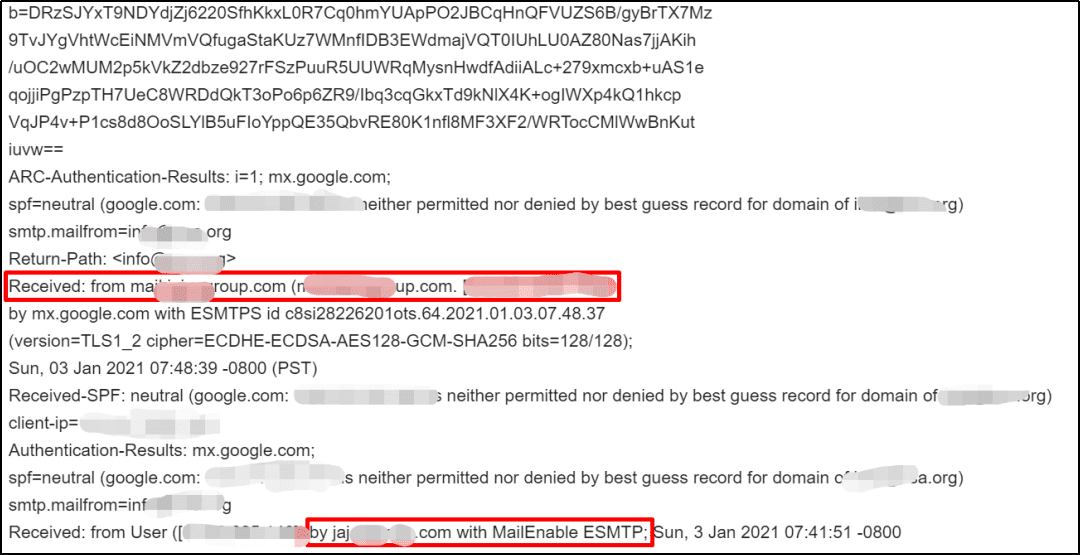
1.2 Find Spam Accounts on Mail Servers
- MailEnable
- Go to:
MailEnable > Servers > localhost > Services and Connectors > SMTP > Queues > Outbound - Open the Outbound queue.
- Review the message details and identify the sender responsible for the bulk spam.
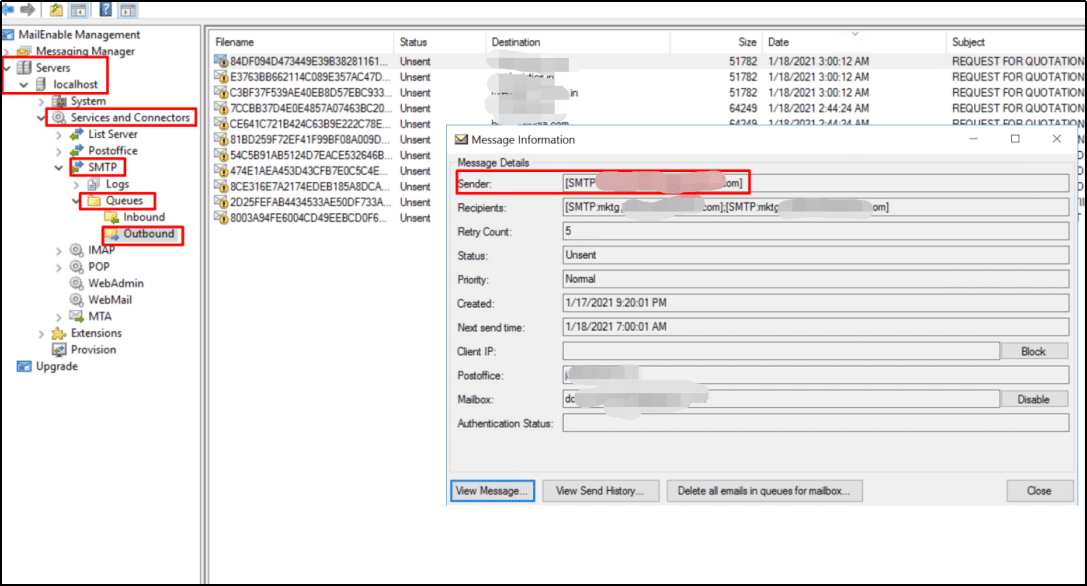
- Go to:
- SmarterMail
- Navigate to:
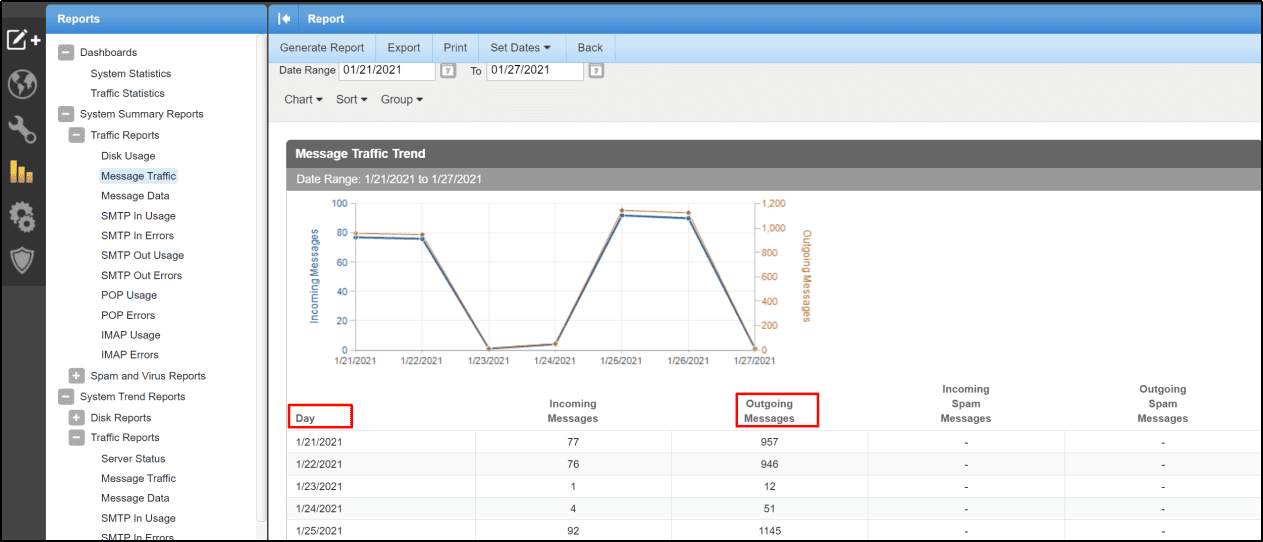
SmarterMail > Reports > System Summary Reports > Traffic Reports > Message Traffic. View domain names and the number of messages sent in the past 7 days.
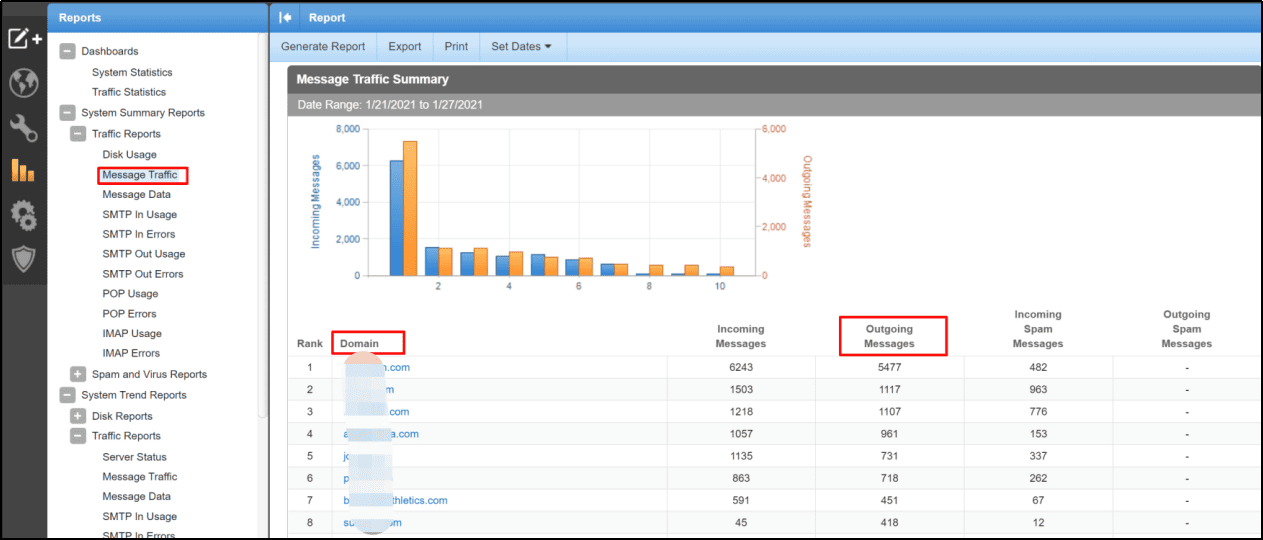
- Identify domains sending large volumes of mail.
- Drill down into specific email accounts to see detailed user statistics.
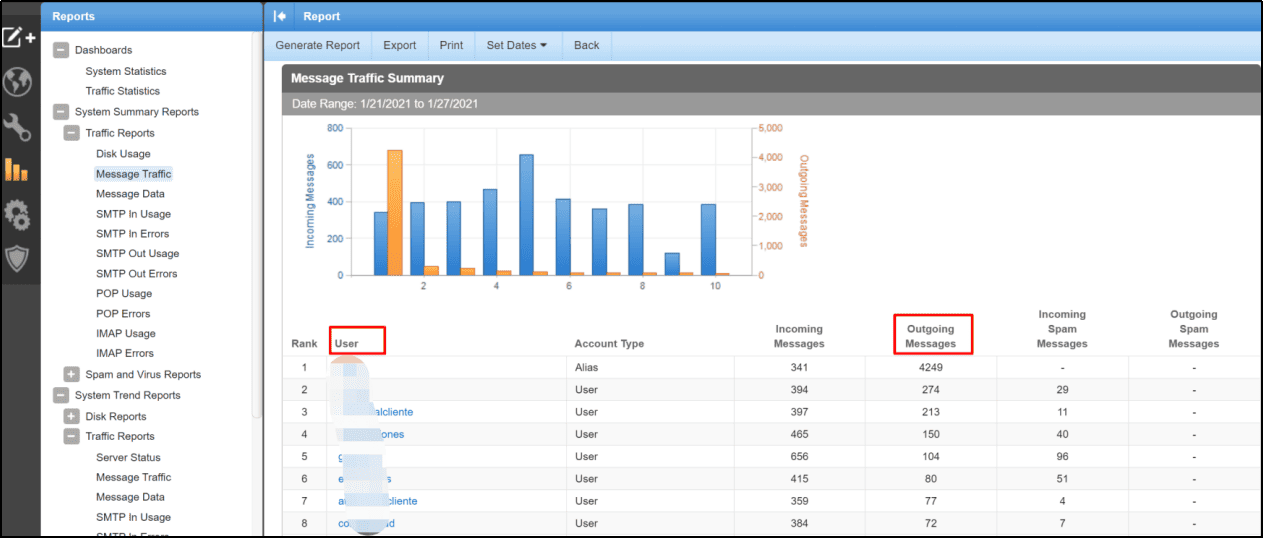
- Search logs for a specific email account using “Search String” (e.g.,
XXX@domain.com). This will show all outgoing spam emails for that account.
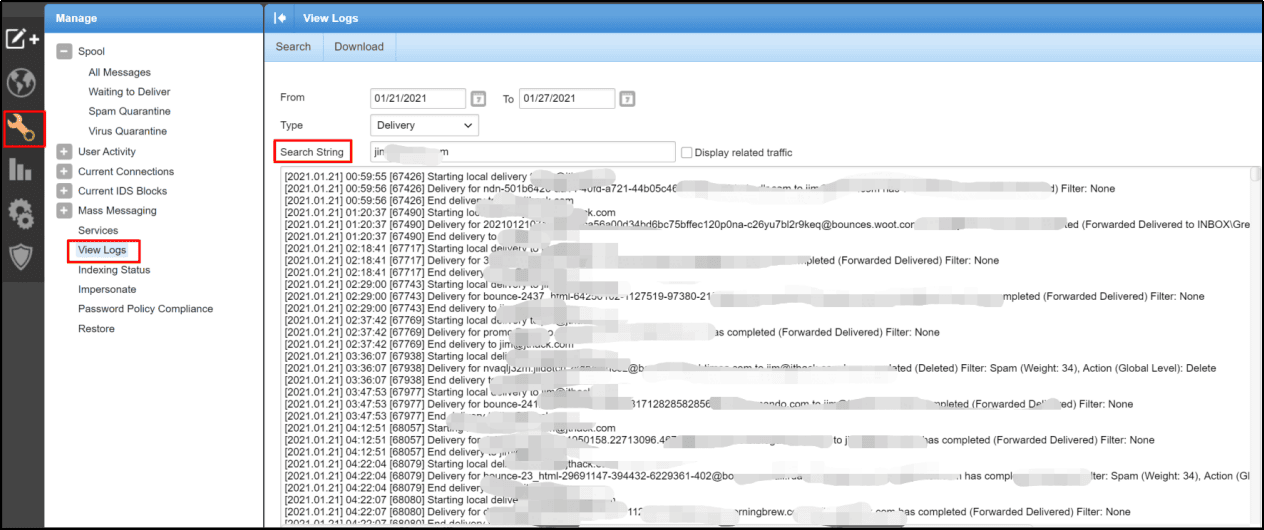
- Navigate to:
- Postfix
- Use pflogsumm, a Postfix log parser, to analyze logs. Guide: [How to Analyze Postfix Logs via Software Pflogsumm]
Step 2: Take Action Against Spam Accounts
2.1 Disable Spam Email Accounts or Domains
- MailEnable
- Go to:
MailEnable > PostOffice > [mail domain] > Mailboxes - Locate the spam account.
- Disable the account.
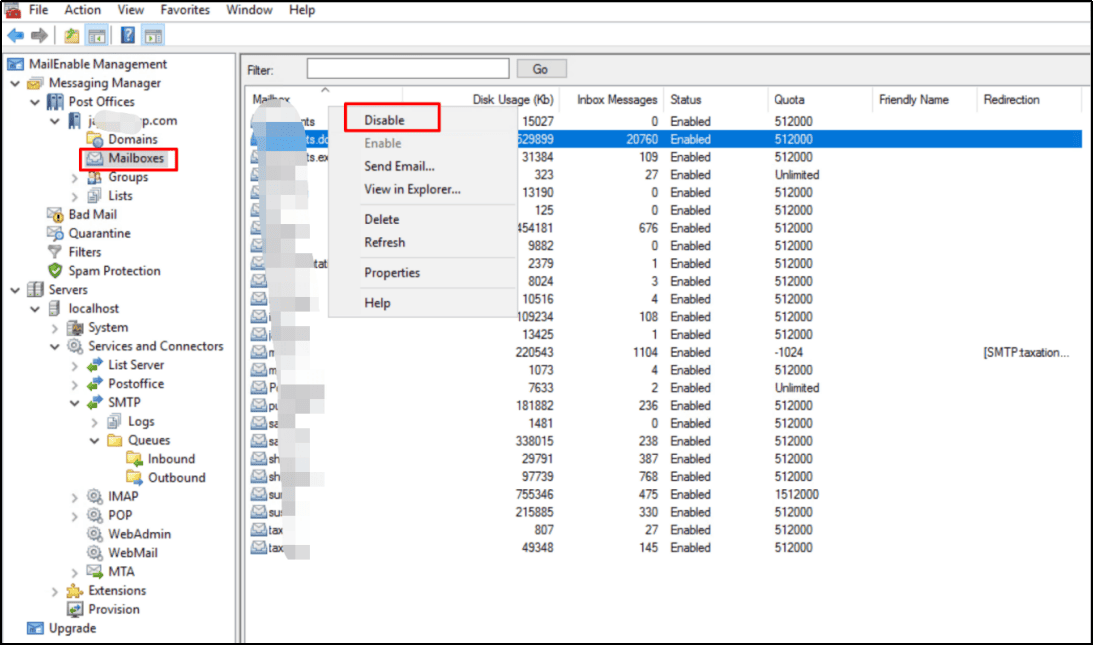
- Go to:
- SmarterMail
- Go to:
SmarterMail > Domains - Search for the domain and click Manage.
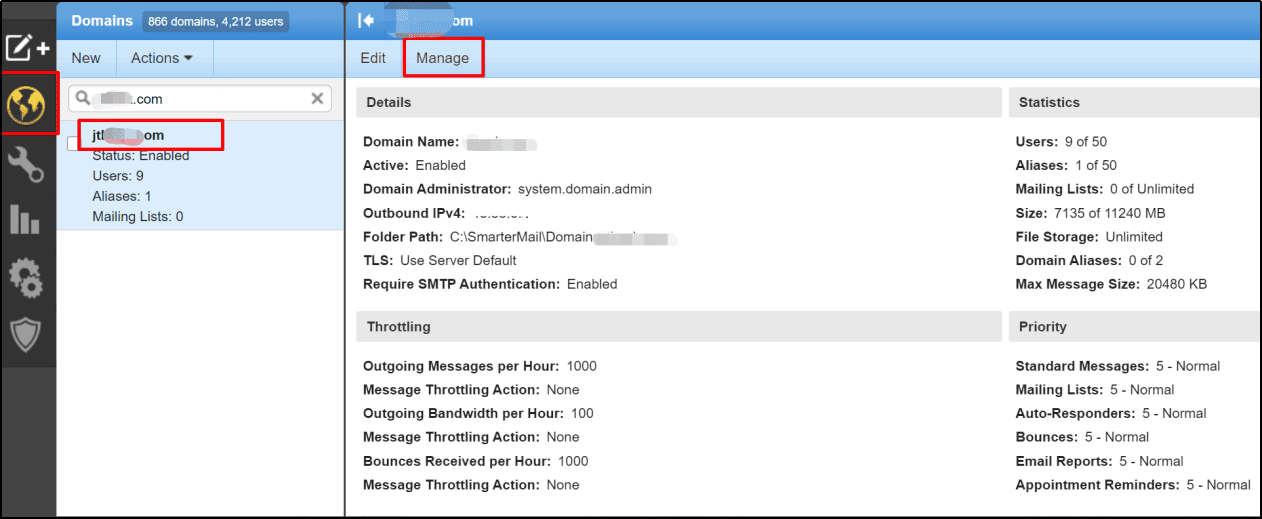
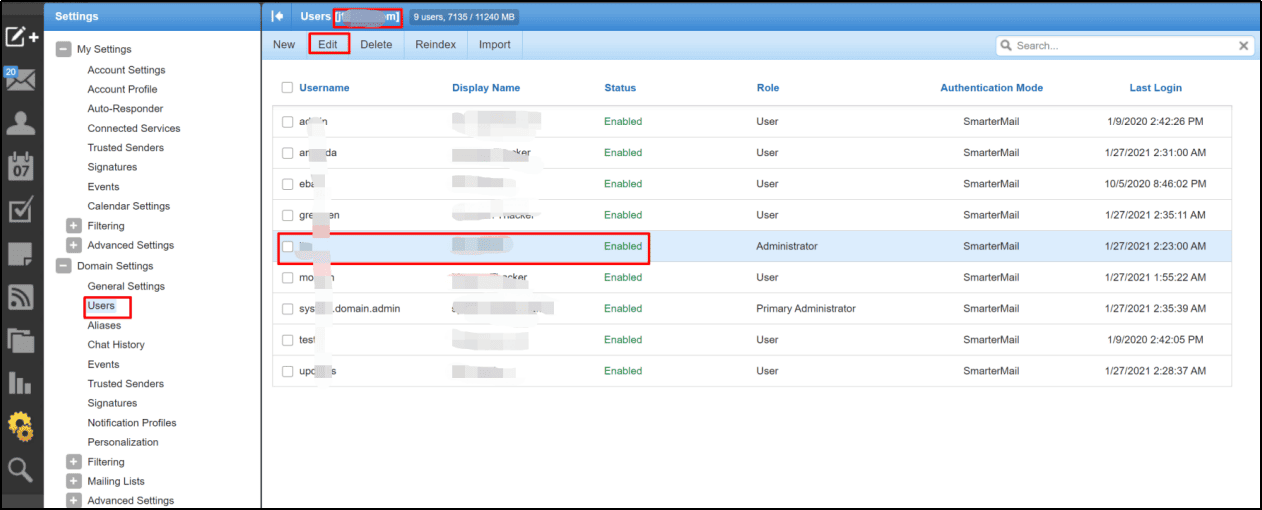
- Navigate to:
Domain Setting > Users. - Select the email account and click Edit.
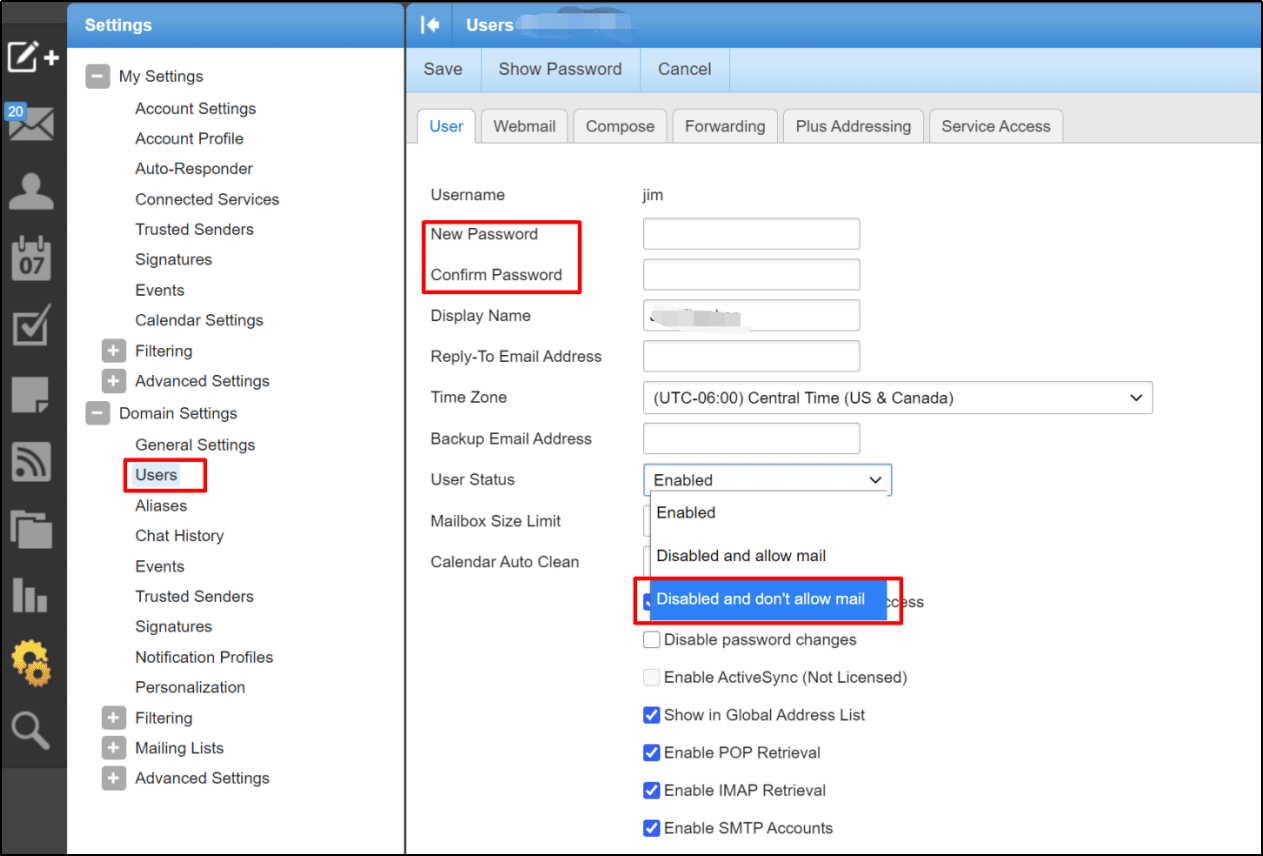
- Change User Status →
Disabled and don’t allow mail. - Change the password to prevent unauthorized access.
- Save changes.
- Go to:
- Postfix (Local/MySQL user via ISPConfig)
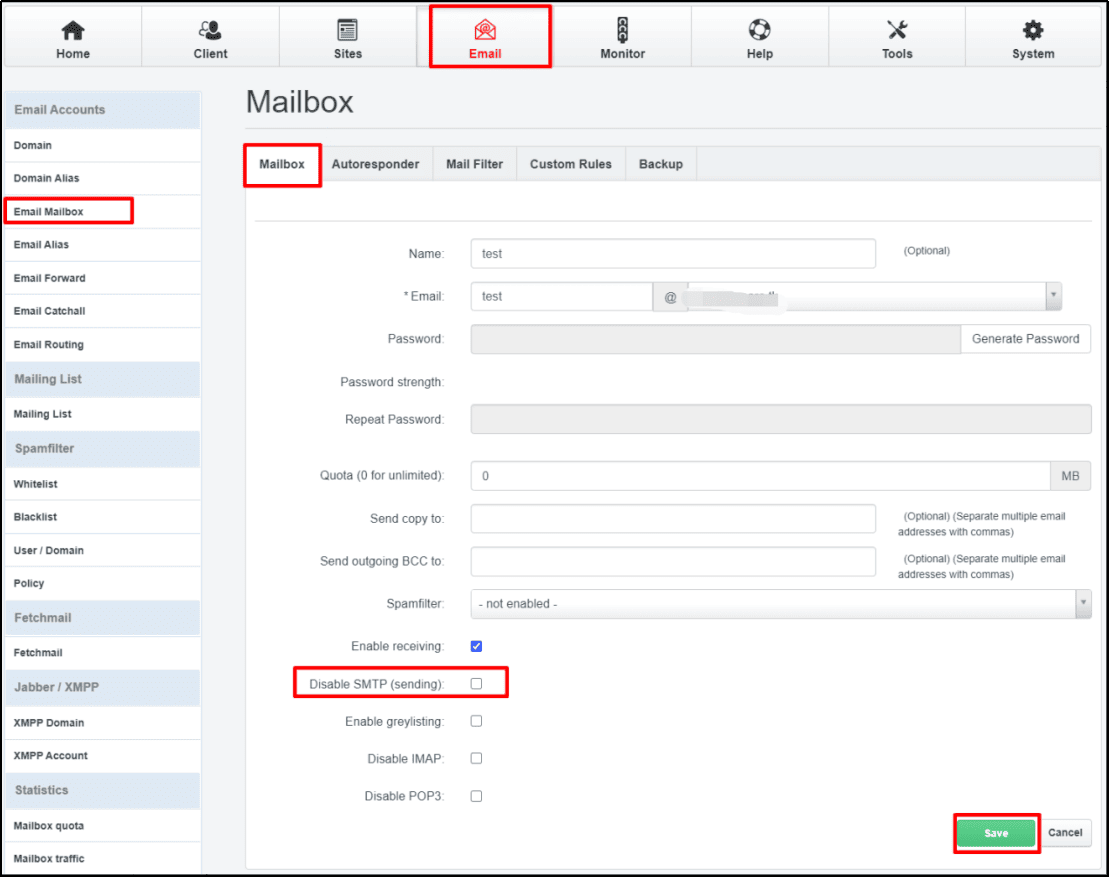
- Navigate to:
ISPConfig > Email > Mailbox > Disable SMTP (sending) - Disable the email user.
- Save changes.
- Navigate to:
2.2 Clear the Outgoing Mail Queue
- MailEnable
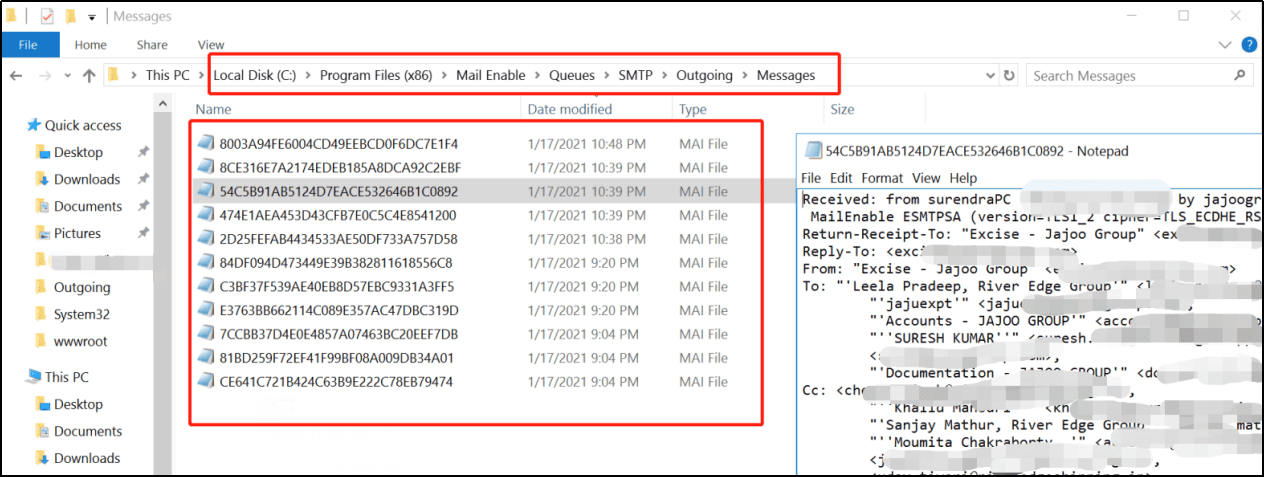
- Go to:
C:\Program Files (x86)\Mail Enable\Queues\SMTP\Outgoing\Messages - Delete all spam message files.
- SmarterMail
- Go to:
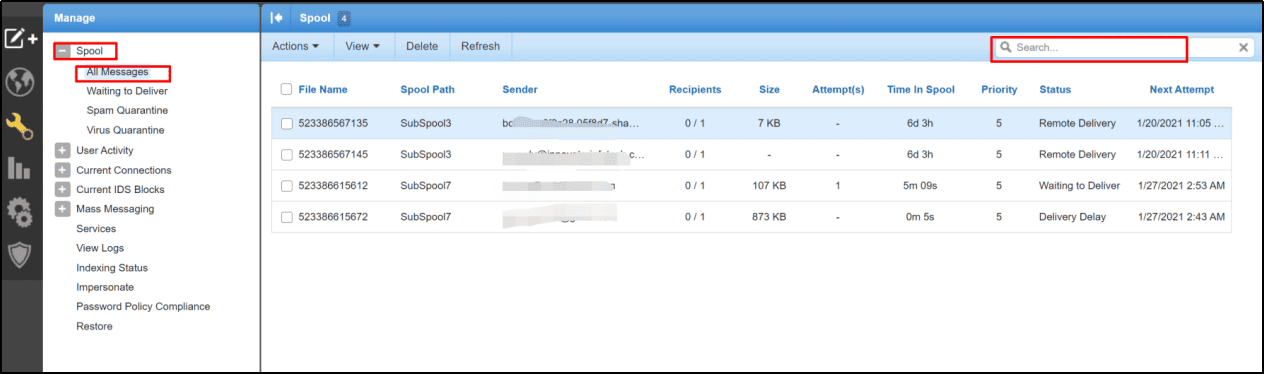
SmarterMail > Manage > Spool > All Message - Search and delete spam messages.
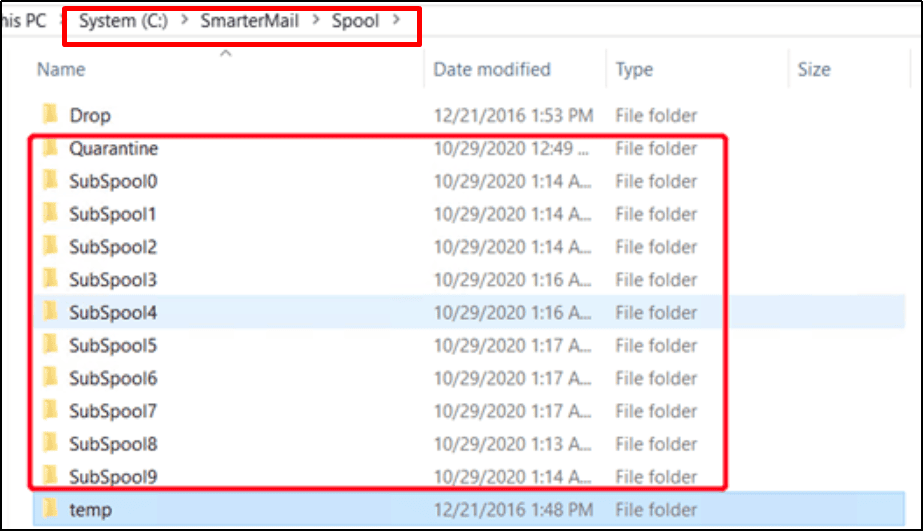
- Alternatively, log in to the mail server:
C:\SmarterMail\Spool. Delete or move suspicious folders to a temporary location.
- Go to:
- Postfix
View queue messages:
mailq
postqueue -p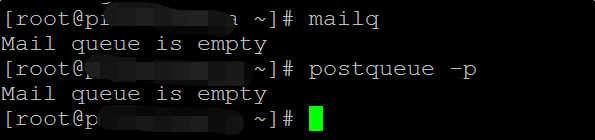
Stop Postfix service:
service postfix stop
systemctl stop postfix
Clear all outgoing spam messages:
postsuper -d ALLRestart Postfix:
service postfix start
systemctl restart postfix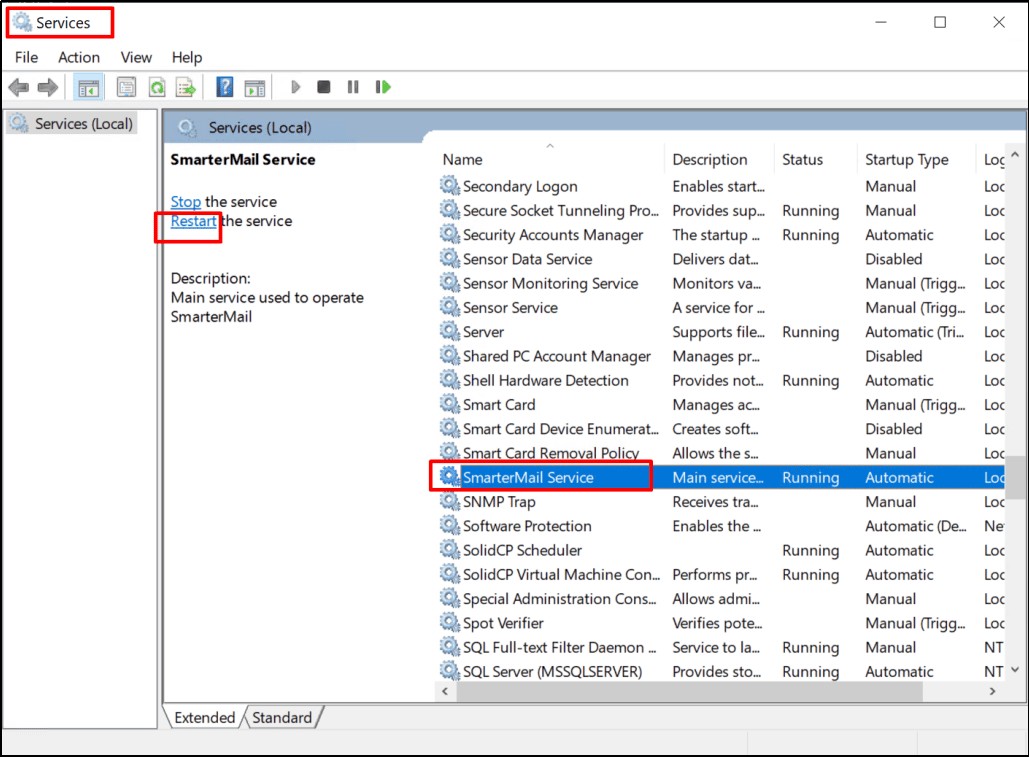
2.3 Restart Email Services
Restart your email service after cleaning the queues to ensure changes take effect.
Step 3: Secure Mail Server to Prevent IP Abuse
Once spam accounts are disabled and queues cleared, you must secure your mail server to stop repeat IP abuse check alerts.
MailEnable
Follow best practices: [Settings to Prevent Spam for MailEnable]SmarterMail
Follow security setup: [How to Install and Configure SmarterMail]Postfix
- Implement security rules:
- Enable SMTP authentication.
- Use rate limiting.
- Install fail2ban to block brute-force attacks.
- Use TLS for secure email transmission.
Conclusion
Handling abuse IP address issues caused by spam requires a careful process:
- Check the IP abuse report to find spam accounts.
- Disable compromised users/domains.
- Clear mail queues to stop outgoing spam.
- Secure your email server to prevent future abuse.
By following these steps, you’ll successfully resolve IP abuse lookup alerts and protect your server from blacklisting.
abuse ip address, ip abuse, abuse ip check, check ip abuse, ip abuse check, ip abuse lookup, check abuse ip