


How to Enable and Configure SMTP Service
How to Enable and Configure SMTP Service
1. RDP connect to the Server
Please refer to “How to RDP to the VPS or Dedicated Server”.
2. Open the Computer Management on the Server
Click “Server Manager”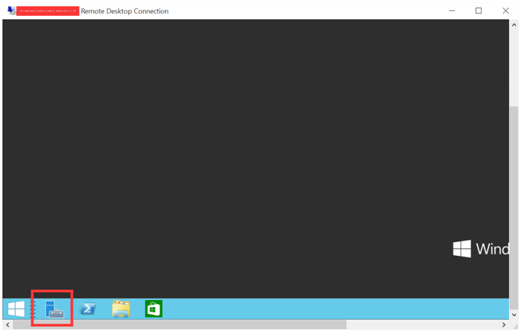
Click “Add roles and features”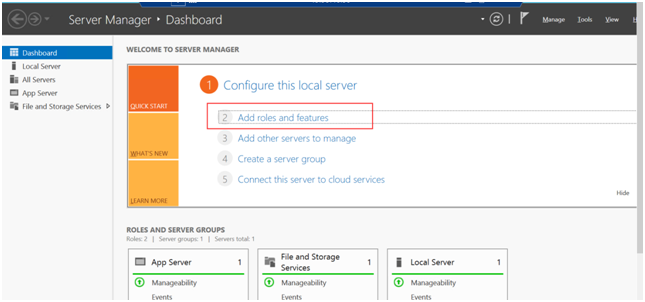
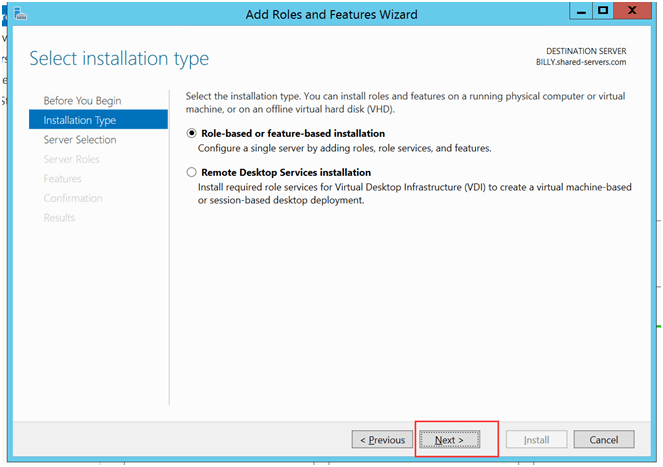
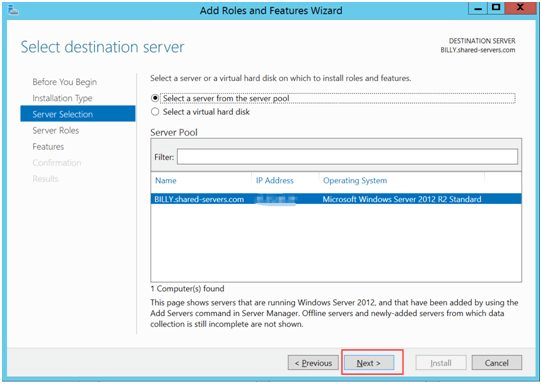
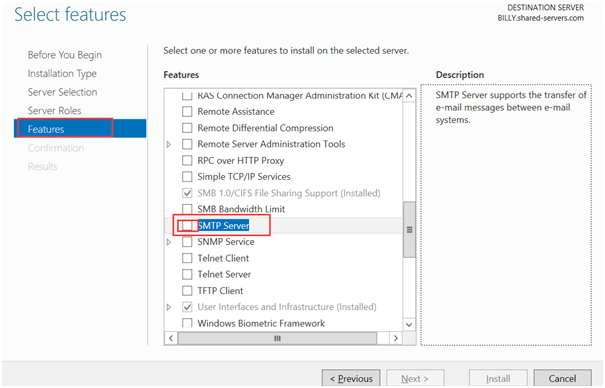
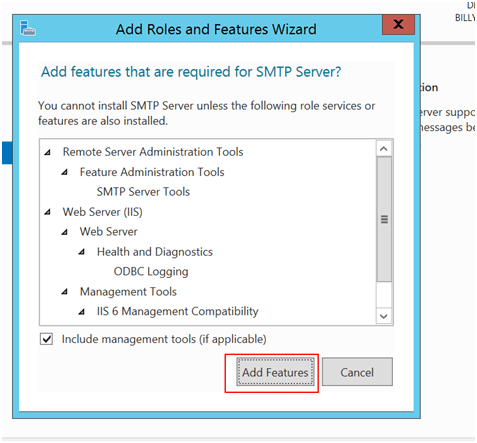
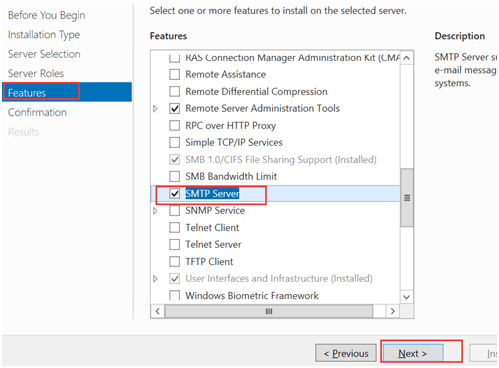
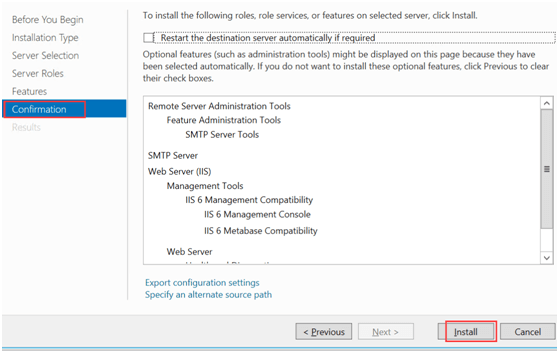
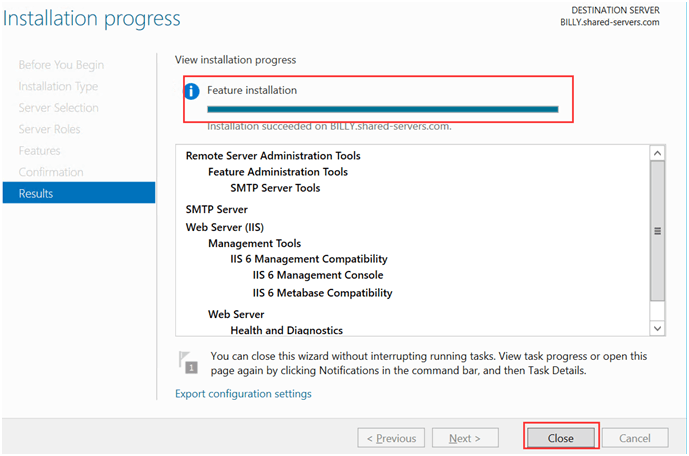
3. Manage SMTP service in IIS6
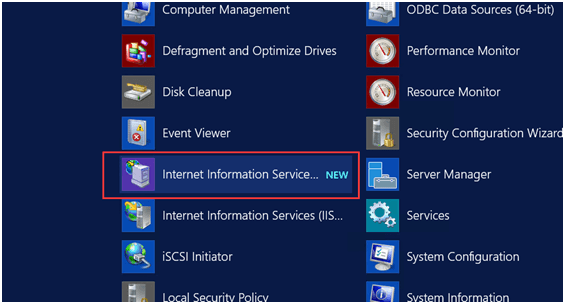
Change the SMTP Service to Automatically Start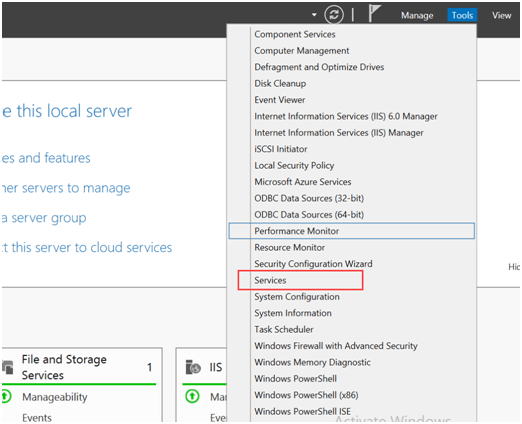
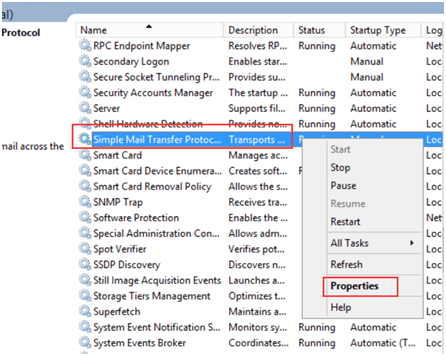
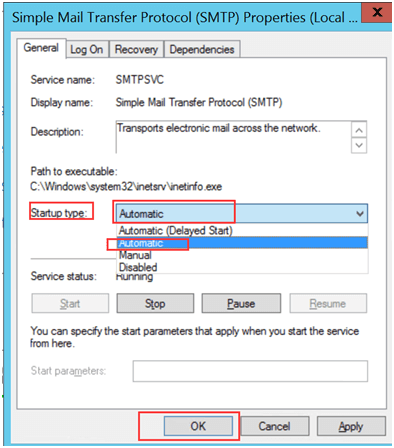
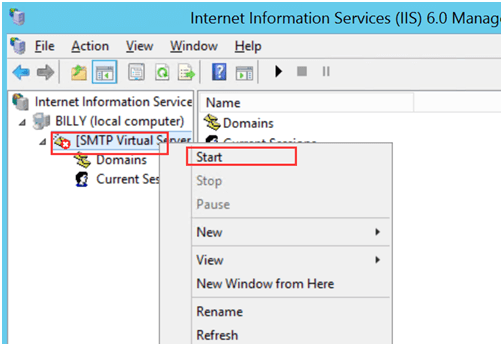
4. Configure the SMTP
4.1 Navigate to SMTP Properties
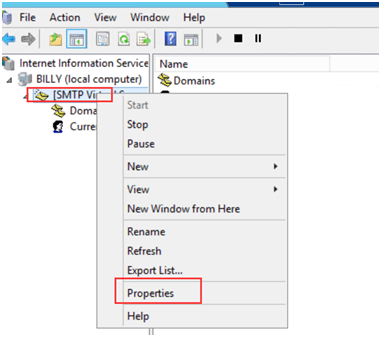
4.2 Enable SMTP log
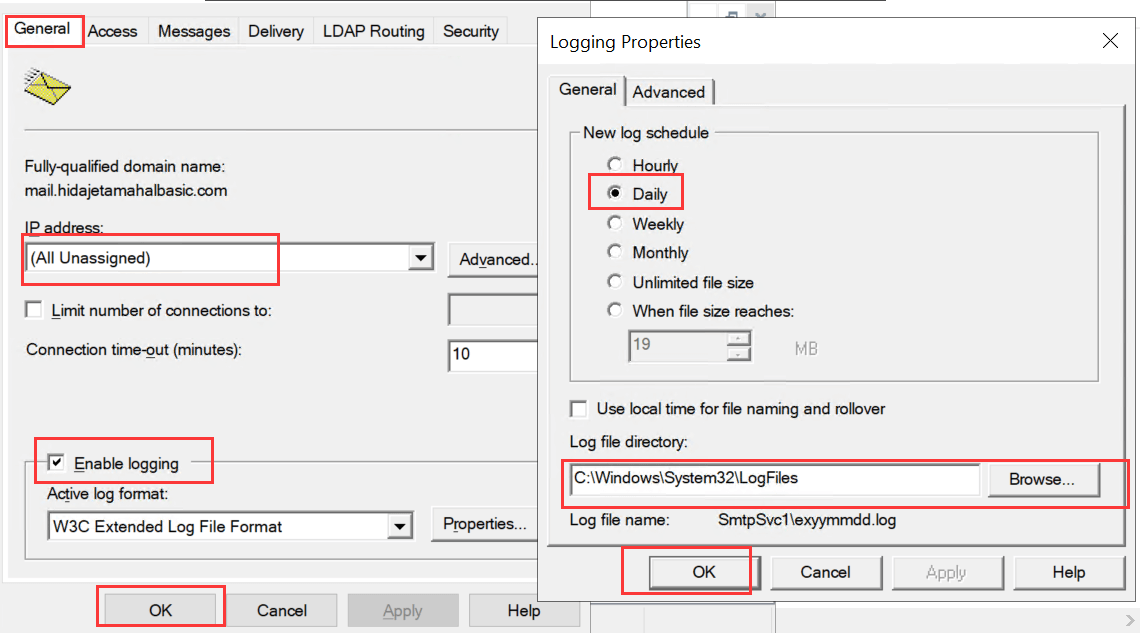
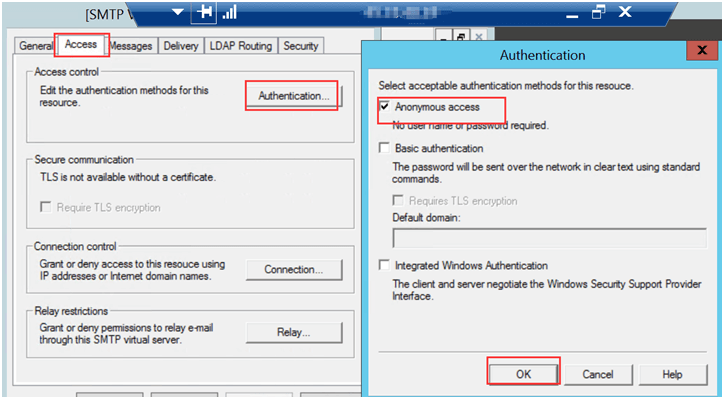
4.3 Enable Anonymous Access
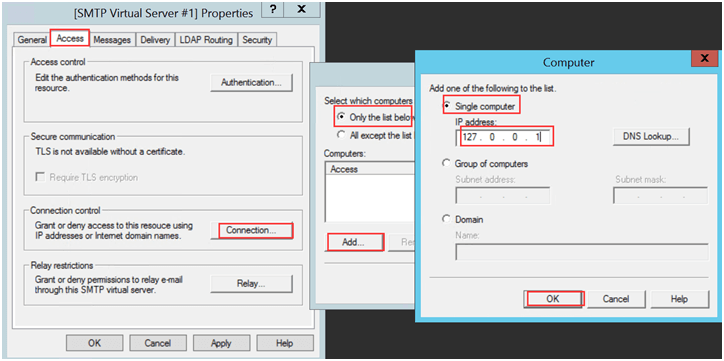
4.4 Add 127.0.0.1 for the IP Address
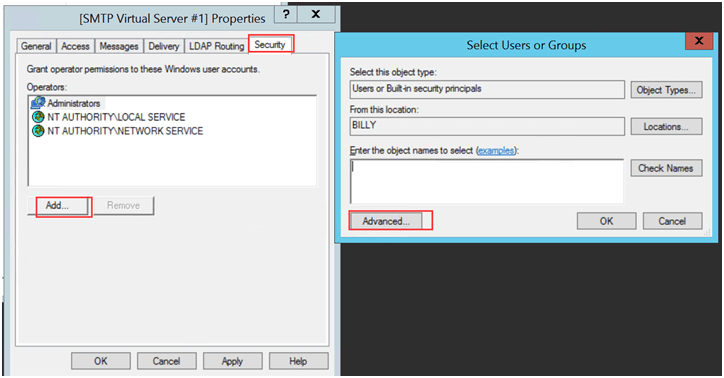
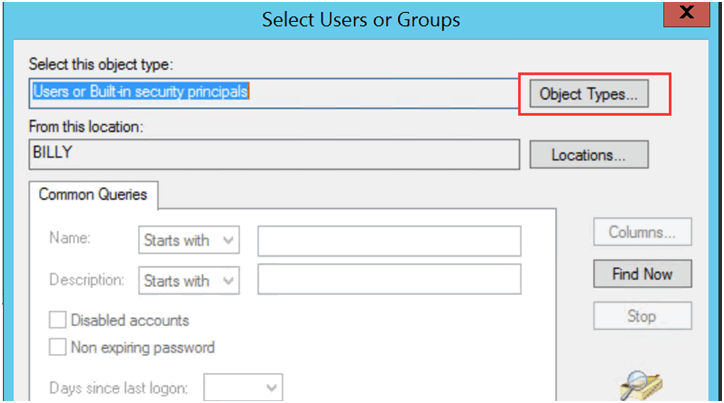
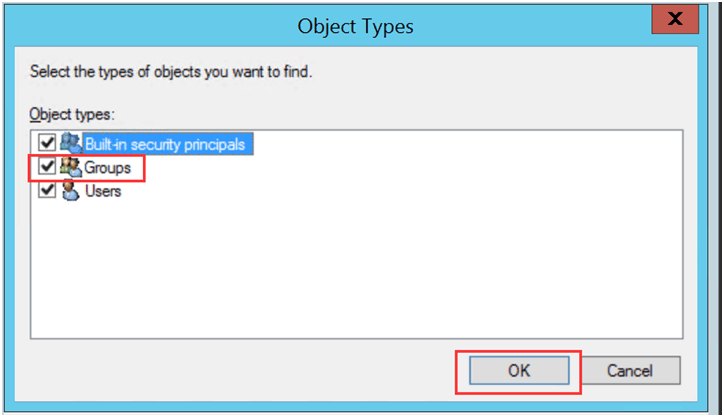
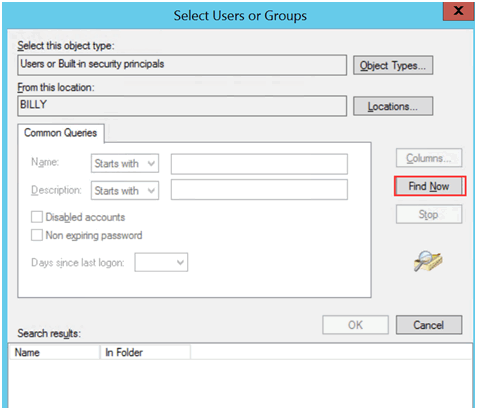
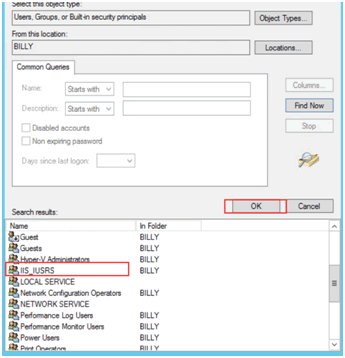
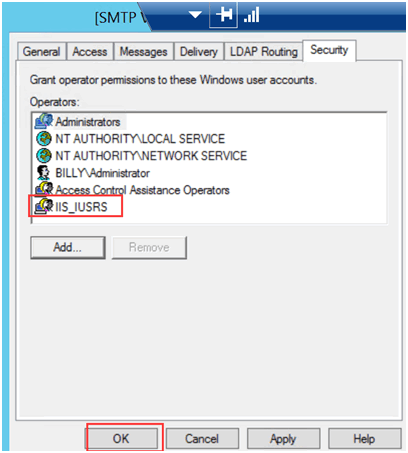
4.5 Add “IIS_Users “ as Permission to Access
5. Test the Codes
5.1 Copy the Following Codes and Save as xxx.vbs
---------- Begin of the script ---------
Dim sch, cdoConfig, cdoMessage
sch = "http://schemas.microsoft.com/cdo/configuration/"
Set cdoConfig = CreateObject("CDO.Configuration")
With cdoConfig.Fields
.Item(sch & "sendusing") = 2 ' cdoSendUsingPort
.Item(sch & "smtpserver") = "127.0.0.1"
.Item (schema & "smtpauthenticate") = true
.update
End With
Set cdoMessage = CreateObject("CDO.Message")
With cdoMessage
Set .Configuration = cdoConfig
.From = "Your email address"
.To = "Your email address"
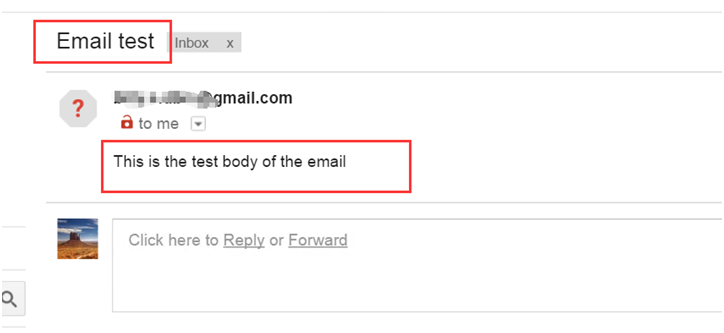
.Subject = "Email test"
.TextBody = "This is the test body of the email"
.Send
End With
Set cdoMessage = Nothing
Set cdoConfig = Nothing
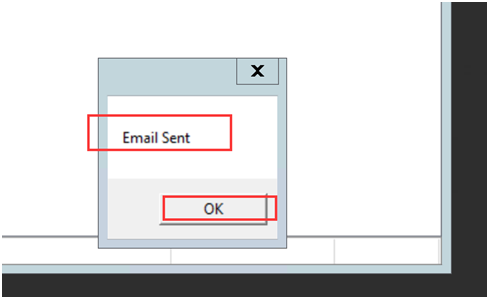
MsgBox "Email Sent"
---------- End of the script ---------
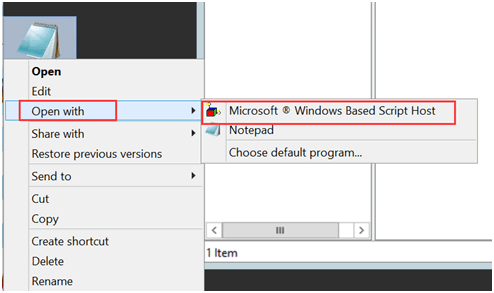
5.2 Test the SMTP
6. Done
You’ve now set up SMTP on your server! You can start sending emails from your applications or websites.
configure SMTP, test SMTP, Windows Server SMTP, setup SMTP Windows Server, SMTP configuration guide, SMTP testing tutorial, enable SMTP service, email server setup, VPS SMTP setup, dedicated server SMTP