


VPS Security: How to Secure a Windows Server
Introduction
Securing a Windows Server is one of the most important tasks for protecting your data, applications, and business operations. Whether you are managing a VPS security setup or running a dedicated server, following best practices for server protection is crucial to prevent attacks.
This guide explains step-by-step how to implement strong Windows Server security measures, apply updates, configure firewalls, enable cloud server security, and install the right Windows Server antivirus software. Even beginners can follow these steps to protect servers effectively.
Why Windows Server Security Matters
Unsecured servers are vulnerable to malware, brute-force attacks, ransomware, and data breaches. By improving server security, you ensure:
- Protection of sensitive business and customer data
- Stable server performance
- Reduced risk of downtime
- Compliance with security standards
Steps to Secure Windows Server
Step 1: Install Windows Updates and Patches
Keeping your operating system up to date is the foundation of server protection.
- On your Windows Server, click the Search bar.
- Type Windows Update and open the Windows Update settings.
- Click Check for updates.
- Install all available updates.
- Restart your server if prompted.
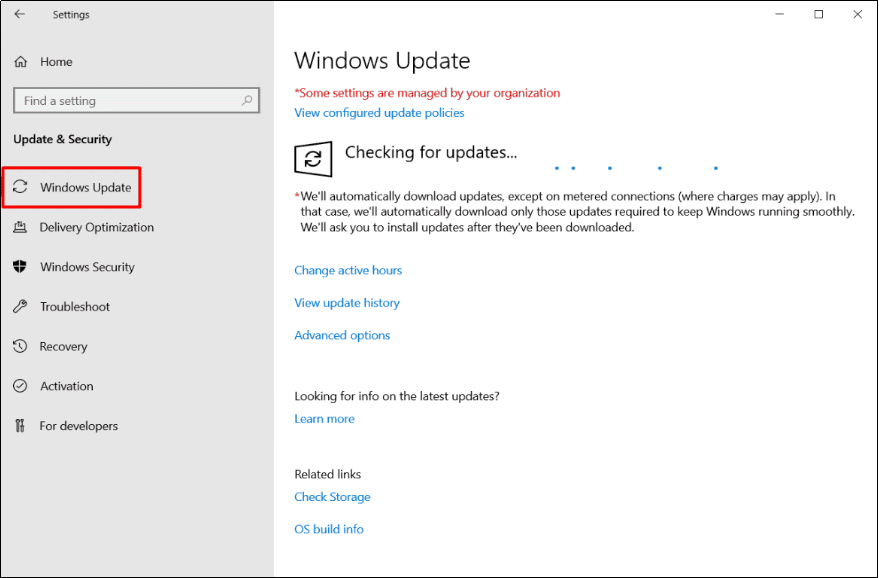
Regularly applying updates strengthens cloud server security by closing known vulnerabilities.
Step 2: Change RDP Port and Restrict Access
Remote Desktop Protocol (RDP) is often targeted by hackers. Changing the default port and restricting access improve VPS security.
2.1 Change Default RDP Port
- Refer to How to Change Windows RDP Port.
- Use a non-standard RDP port number.
2.2 Restrict RDP to Trusted IPs
- Open the Firewall and Locate the RDP Rule
- Press
Win + R, typewf.msc, and press Enter to open Windows Defender Firewall with Advanced Security. - In the left pane, click Inbound Rules, then scroll to find Remote Desktop (TCP-In).
- Right-click the rule and select Properties.
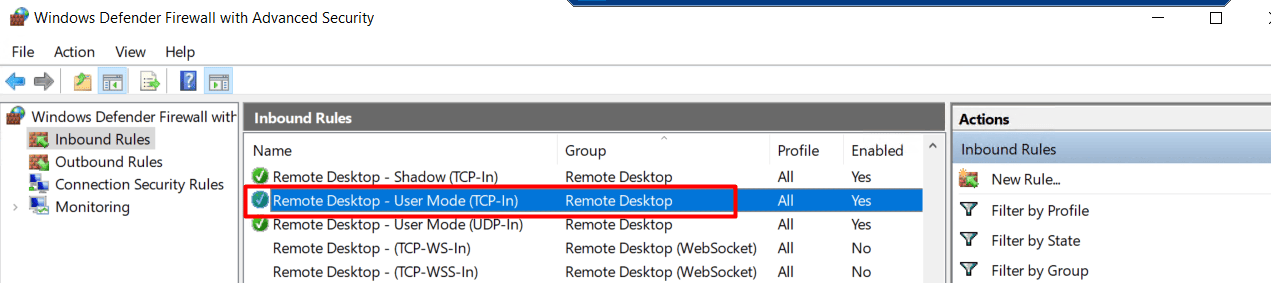
- Configure Allowed IP Addresses
- In the rule’s Properties window, switch to the Scope tab.
- Under Remote IP address, change the option from Any IP address to These IP addresses.
- Click Add and enter the IP addresses or IP ranges you want to allow RDP access from.
- You can add a single IP
(e.g., 203.0.113.10)or a range(e.g., 203.0.113.1 – 203.0.113.50).
- You can add a single IP
- Click OK to save each entry, then click OK again to apply the rule.
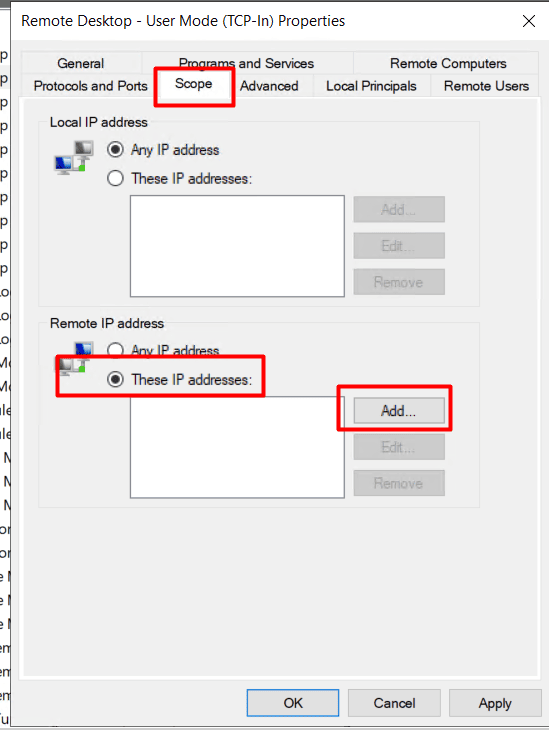
This prevents unauthorized access and boosts Windows Server security.
Step 3: Create Strong Passwords
Weak passwords are one of the biggest threats to server protection.
- Use a password with at least 12 characters, including uppercase, lowercase, numbers, and symbols.
- Avoid reusing passwords.
- Change the Administrator password every 60–90 days.
Step 4: Firewall and Port Control
Firewalls are a key part of Windows Server security.
- Open Windows Defender Firewall from the Control Panel.
- Allow only the ports you need (such as HTTP/HTTPS for web servers).
- Block unnecessary ports to reduce risks.
- To learn more:
A properly configured firewall ensures cloud server security.
Step 5: Install Windows Server Antivirus
Using Windows Server antivirus software is critical for server security. To learn more: [How to install Windows Defender Antivirus]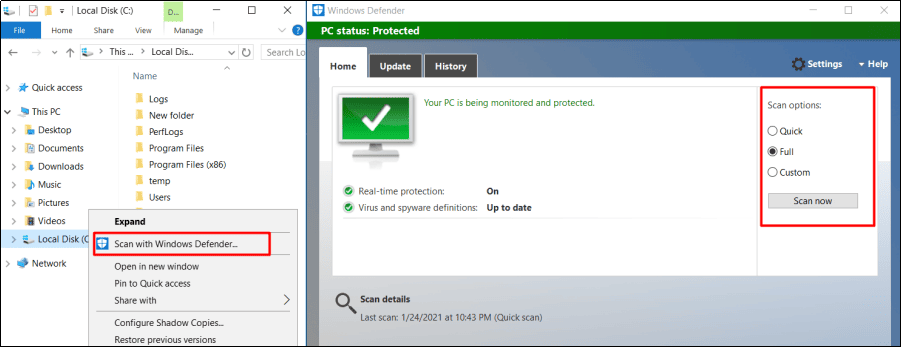
If suspicious files are detected, click Clean up to remove them immediately.
Step 6: Backup Data Periodically
Backups are an essential layer of server protection.
- Regularly back up your important files to your local PC or external storage.
- Consider remote backup services for cloud server security.
- Database Mart provides Remote Data Center Backup Service, which automatically stores selected files (such as C:\ drive data) in secure remote servers.
Contact Database Mart support if you want to enable this server protection service.
Conclusion
By above these six steps, you can significantly improve VPS security, strengthen Windows Server security, and ensure your server is fully protected from threats.
Taking these precautions ensures your cloud server security and keeps your system safe from attacks.
secure server, vps security, server security, cloud server security, windows server antivirus, windows server anti virus, server protection, protect server, windows server security