


GPU Server Hosting for Beginners: A Complete Step-by-Step Guide
Our GPU servers provide high-performance computing power and dedicated resources, ideal for tasks requiring massive parallel processing and graphics acceleration. These GPU servers are available as GPU Dedicated Servers and GPU VPS Servers.
In the following sections, we will walks you through everything you need to get started with DBM GPU Hosting — from completing your order, and deploying it smoothly, to connecting via remote desktop or SSH, managing it through the DBM Panel, and upgrading resources as your needs grow — everything a beginner needs to get started quickly and confidently.
Watch the Video: Beginner Guidance to GPU Servers: Ordering, Management & Connection
To help you get started quickly, we’ve prepared a short introduction video covering the essential steps and features of DBM GPU Hosting. In this video, you’ll learn:
- GPU Server Ordering Process – How to choose and order a GPU Server.
- GPU management Control Panel Features – How to use the DBM control panel for management.
- Windows & Linux Server connection methods (RDP & PuTTY) – How to connect to your GPU via Remote Desktop (Windows) or SSH (Linux).
- Check if the GPU Drivers are installed correctly
Watch the video below to get a clear, step-by-step overview and start using your GPU smoothly.
GPU Server Purchase
1. Select the Right GPU Hosting Plan:
You can buy a GPU VPS or GPU dedicated server by selecting a suitable plan based on required hardware resources from our GPU server offerings.
2. Confirm Your GPU Server Order:
After clicking Order Now, you will be directed to the Order Confirmation Page, where you can configure your server settings, such as server login password, Operating System, Add-ons ( including CPU/RAM/Disk, bandwidth, database, backup), and billing cycle. You can also add any additional requirements in the Note section. Finally, review and submit your order. All of these settings can be modified later through the DBM Panel.
3. Pay for Your GPU Server
After confirming your GPU hosting plan, simply place the order and complete the payment. Before making payments, your account information will be verified. If there are any security issues, the payment may not go through. In such cases, you can contact our Billing Team for assistance.
4. Wait for GPU Server Deployment
After payment, your GPU server will be deployed automatically. GPU VPS is ready in 5–10 minutes, Linux GPU servers take about 30 minutes, and Windows GPU servers need 40 minutes to 2 hours. If there’s a stock shortage or deployment issue, our Support Team will resolve it within 24 hours. For urgent access, please contact Support directly.
GPU Server Management Overview
Once your GPU Server has been successfully deployed, you can easily manage it via the DBM Panel for GPU Servers.
In the table below, we’ll guide you through the key features and functions of the GPU server management interface.
| Tab Name | Sections | Introduction | Functions |
|---|---|---|---|
| Overview | Server Connection Information | Available for GPU VPS and GPU Dedicated Server. This section provides the necessary details for accessing your server, including: IP, Port, Login Name, Login Password, and Operating System. It offers quick tools to reset passwords, add IPs, and access the connection KB. |
Primary IP - the unique network address of your server. Access Port – the network port used for remote access. Login Name/Login Password – the server login credentials for authentication. Operating System – the installed OS running on the server. Dedicated IP - contact us to request dedicated IPs here. Connections: - Windows GPU Server Connection: Use Primary IP:Port (e.g., 108.111.111.11:3389) to connect to GPU Server using RDP - Linux GPU Server Connection: (Ubuntu/Debian) use sudo -i to switch to the root user |
| Overview | Available for GPU VPS and GPU Dedicated Server. This section displays the essential information of your package, including product, GPU server name, billing cycle, configuration, payment method, price, created date, and due date. It also allows you to directly modify the VPS server name, billing cycle, and payment method. |
Product - Product Name Name - Server name, can be changed. Billing Cycle: Monthly, quarterly, annually, biennially billing cycle. The longer, the lower the price. Configuration - CPU/RAM/Disk/Bandwidth Payment Method: Support Credit Card and PayPal. It can be changed. Price – Recurring amount. Created – The date that the package is created Due Date – The date that the package expires |
|
| Real-Time Status | Available for GPU VPS. This section shows the current server status and resource usage in real time, helping you monitor performance and ensure smooth operation. If one or more resources consistently remain at 80% or higher, you can go to the Scaling section to upgrade to a higher plan or purchase add-ons for better performance. |
CPU/Memory/Disk - Displays the current usage of server resources as a percentage, allowing you to monitor performance and identify potential bottlenecks. Status - Running – The server is powered on and actively running, with all processes operational. - Shut Off – The server is completely powered down and not running any processes. - Paused – The server’s processes are temporarily frozen and its state is saved to disk; it can be resumed later without losing data. |
|
| Scaling/Addon-Option | Available for GPU VPS and GPU Dedicated Server. This section allows clients to purchase add-ons to get more resources. For GPU VPS, the system will automatically allocate resources after your payment, usually resulting in only 3–5 minutes of downtime. For a GPU dedicated server, some of the addon-requests will be submitted before payment, so the team can verify if the request can be met. |
Add-ons - Add additional CPU cores, memory, disk space, and bandwidth. For GPU dedicated servers, you can also request to add a hardware firewall, NVLink, an HDMI Dummy, and a private network. Note: If the host lacks sufficient resources, migration to a higher-capacity host is required, and the IP will change. The process may take longer, but it is normally completed within 24 hours. |
|
| Server Management) | Server Control | Available for GPU VPS and GPU Dedicated Server. The Server Control section displays the server status and uptime, and provides control options such as Reset, Turn Off, Shut Down, Power On, Pause, Resume, and Reboot. For GPU Dedicated Servers, only some of these control actions (Shut Down, Power On, and Reboot) are available. |
Status - Running/Shut Off/Paused/ Uptime - Indicates how long the server has been running since it was last started, helping you monitor stability and performance. Actions - Reset – Immediately turns off and restarts your GPU Server without saving data. - Turn Off – Stops your GPU server and terminates all processes without saving data. - Shut Down – Powers off your GPU Server after saving changes and closing processes. - Power On – Turns on the GPU Server; use this after it has been shut down or turned off. - Pause – Temporarily freezes all processes and saves the state to disk. - Resume – Continues running your GPU Server from the paused state without losing data. - Reboot – Gracefully shuts down and restarts your GPU Server, saving data and terminating processes properly. When the server experiences issues such as freezing or a black screen, you can try rebooting it to resolve the problem. |
| OS Reinstallation | Available for GPU VPS. This section allows clients to reinstall the server’s operating system (OS) to restore it to a clean state, update to a different version, or fix system issues. A reinstallation will erase all data from the server, so please make sure you back up your data to your local machine before taking this action. |
Reinstall - Choose an OS and confirm the reinstallation. We support up to 3 OS reinstallations within 7 days. If you require additional reinstalls, please contact our team for assistance. |
|
| Events | Events | Available for GPU VPS and GPU Dedicated Server. The Events section records the operation logs related to this package, capturing all activities performed through the control panel. |
Input a keyword and click the search icon to search for operations. It helps users track actions such as configuration changes, restarts, upgrades, or other management operations. |
GPU Server Connection Made Easy
Connect from Windows to Windows Server
The most convenient way to connect to a Windows GPU Server from a Windows computer is an RDP connection. If you prefer a video tutorial, watch the YouTube video How to Access Windows Server via RDP. We will guide you step by step to access a Windows Server via RDP.
1. Open RDP on the local computer
Enter Remote Desktop or RDP in the search box on the taskbar, and then click Remote Desktop Connection.

2. Input GPU Server IP & Port
Connect to your Windows Server using IP:Port format. For example, if your IP is 108.1.1.1 and the port is 8888, enter 108.1.1.1:8888.
You can get the login password, port on the Overview page.

3. Enter credentials to create a remote connection
Enter the Login Name and the Login Password to log in to the server. To make it easier to log in next time, you can check Remember me. Then click OK below to create the remote connection. A window that cannot verify the identity of the remote server may pop up. You can check the Don't ask me again for connection to this computer option and click Yes to connect to the remote server.


Connect from Windows to Linux Server
The mostly used method to connect to Linux from Windows is using SSH clients, such as PuTTy and Xshell. Here we take PuTTY as an example to introduce how to log in to a Linux server from a local Windows computer.
1. Save a server login profile in PuTTY
In PuTTY, you can create and save profiles for different remote server connection information. This is so that you don't have to manually configure the connection information each time you initiate a connection.
- Download PuTTy on your local computer.
- Double-click putty.exe to open the PuTTY client.
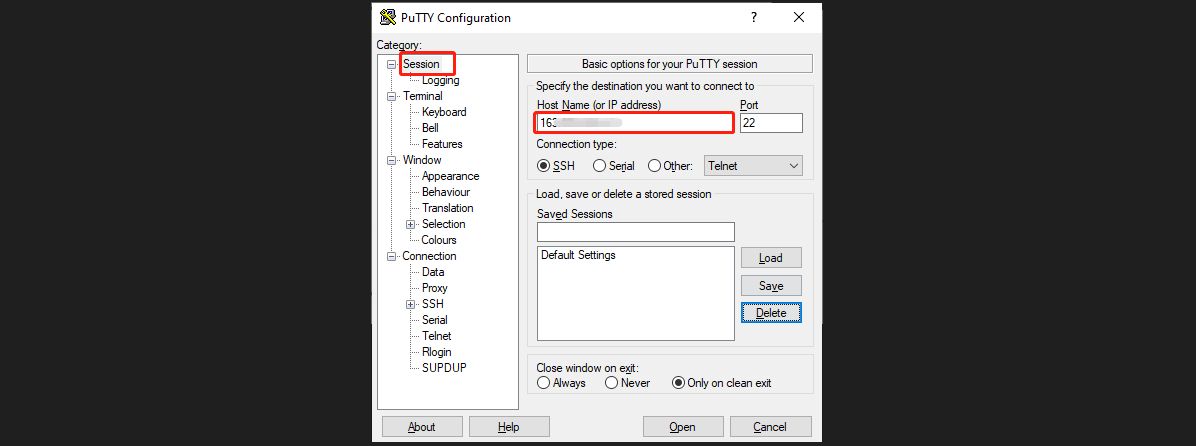
- In the PuTTY Configuration window, enter the following content as shown in the figure below.
Under Session Category- Host Name (or IP address):The public IP of the Linux server.
- Port: The default port is 22. If the port has been changed, please use the updated one.
- Connection Type: Select SSH.
Note: The connection information can be found on the overview page in the control panel. If you have difficulty in finding the right information, please refer to the guide on how to manage your server.
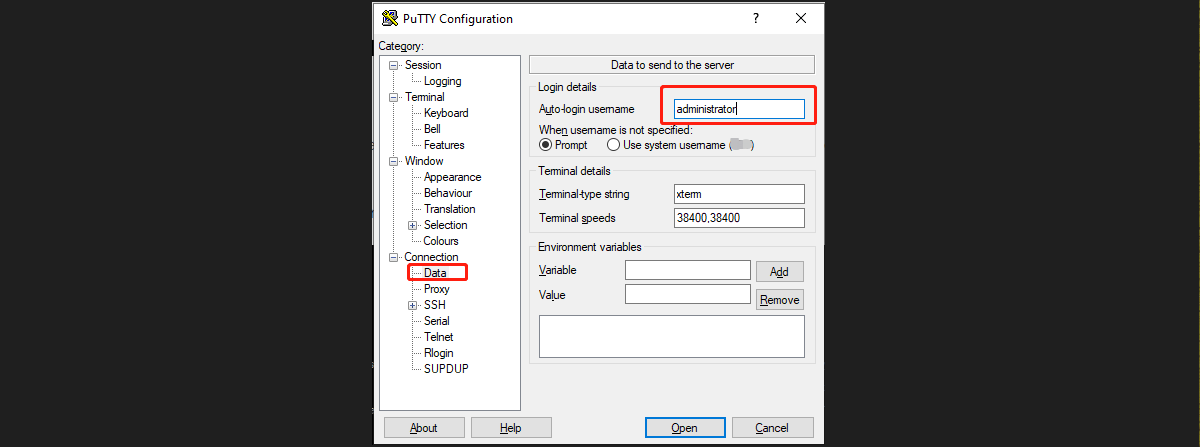
Under Connection Category - Data
- Auto-login username: Enter the username you are about to log in to. In this example, we use administrator.
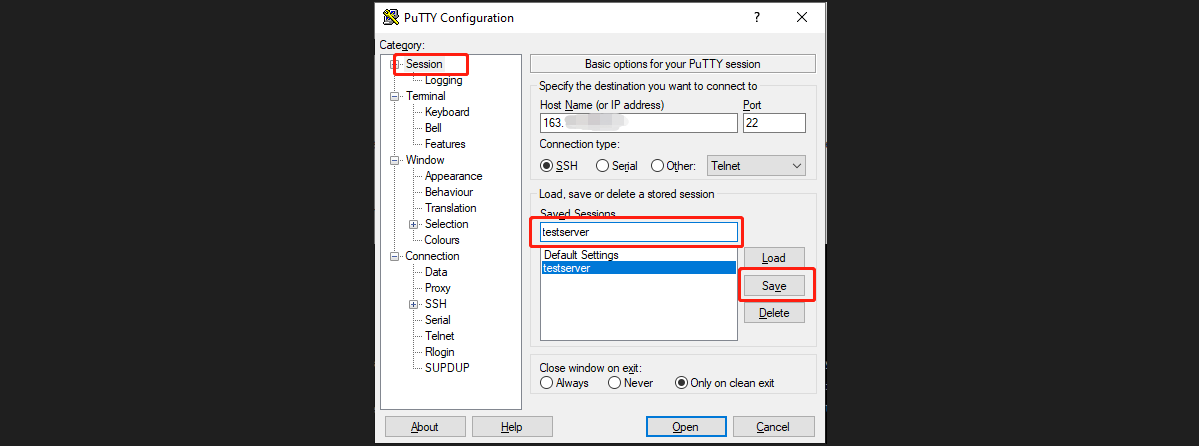
Return to Session Category
- Saved Sessions: Configure a name for this session and click Save. Each time, you can directly double-click Saved Sessions to log in to the server.
2. Log in to the Linux GPU server
- When you are taken to the PuTTY running interface, which prompts the following:
Using username "auto-login username"
auto-login name@IP's password:- Enter the password after "password" and press Enter. The entered password is not displayed by default, as shown in the figure below. In the SSH session, right-clicking the mouse will paste the content in the clipboard. If you have copied a password, simply right-click after the password line and press Enter. Then, you should be able to log in to the session.

Initial Checks After Login
After you have successfully connected to the GPU server, you can check:
- Whether the operating system version, CPU, RAM, disk, bandwidth, add-ons, and other resources match your purchase.
- Check if the GPU Driver is correctly installed.
- After you confirm everything is fine, you are free to install any software you need and start your project.
How to Check if GPU Driver is Installed (Command Line Guide)
Check NVIDIA GPU Driver
Open Command Prompt or PowerShell and run:
nvidia-smiIf the driver is installed → You will see GPU information, driver version, and CUDA details as below: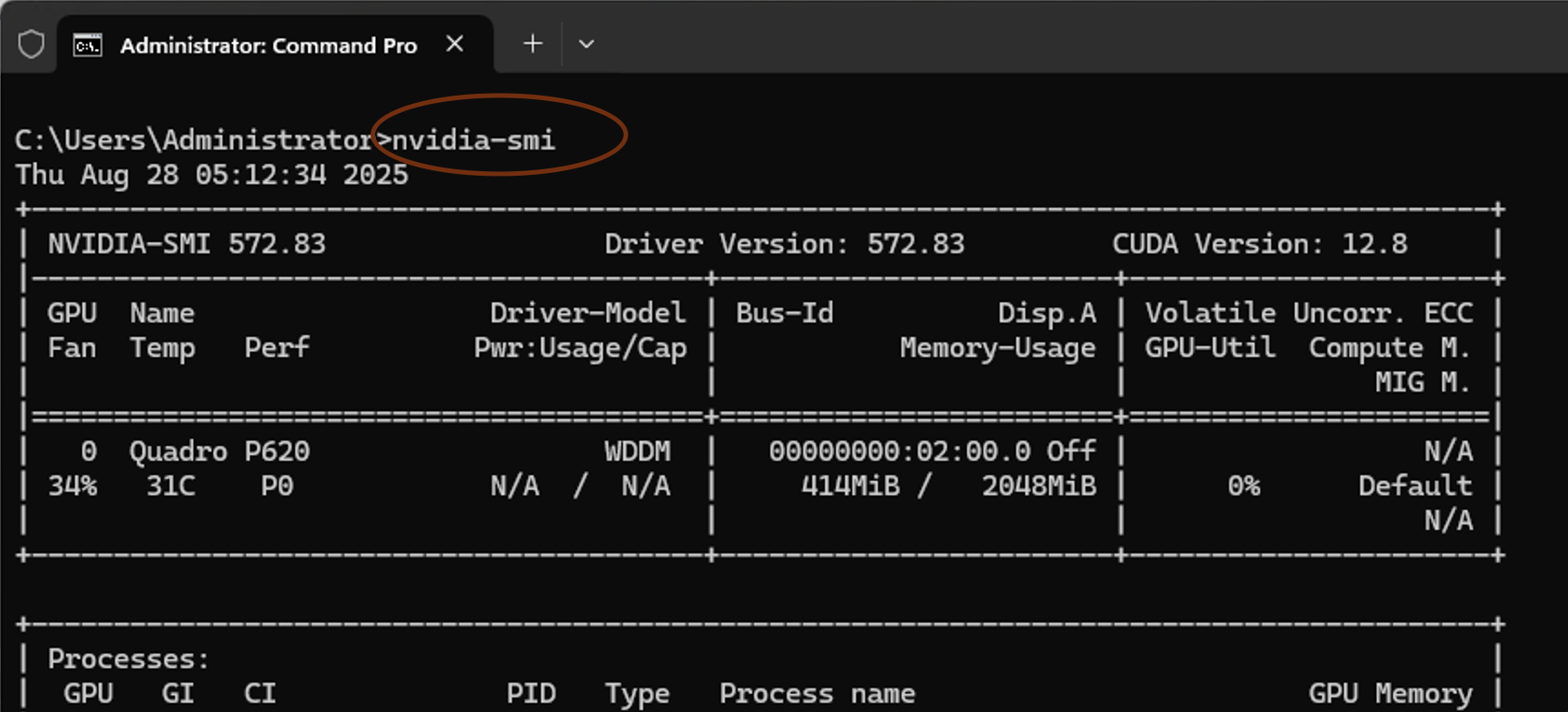
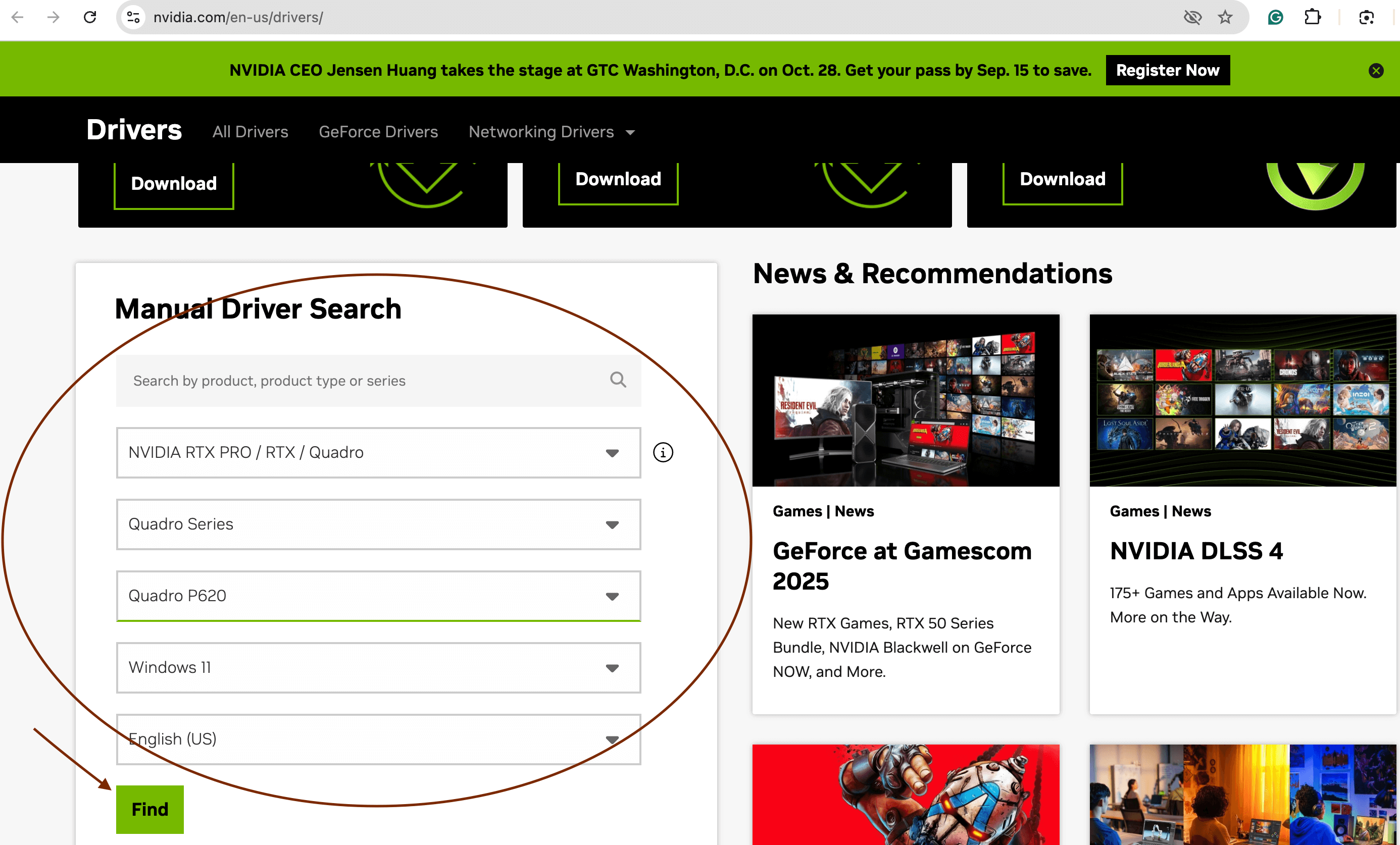
If the command is missing, it means the NVIDIA driver is not installed.
command not foundIn this case, please visit https://www.nvidia.com/en-us/drivers/, select the appropriate GPU model, and download and install the driver.
Other GPU Server Connection Methods
Here, we only show how to connect from Windows to Windows Server and from Windows to Linux server.
We also have many knowledge base (KB) articles covering connections from different devices and using various tools, such as macOS, mobile devices, or third-party software like AnyDesk.
For detailed instructions on these methods, please visit the GPU Server usage guide section.
GPU Server Usage Guide
Windows GPU Server Guidance
Linux GPU Server Guidance
GPU Server Upgrades
As your business grows or resource demands increase, you can upgrade your GPU VPS or GPU Dedicated server hosting package directly via Control Panel → Overview → Scaling/Addon-Options: Log in to the control panel and upgrade.
1. Upgrade GPU VPS to GPU Dedicated Server
A GPU VPS (Virtual Private Server) is a good starting point if you need GPU acceleration at a lower cost. You should consider upgrading from a GPU VPS to a GPU Dedicated Server when your workloads require higher and more consistent performance, larger datasets, multi-GPU capabilities, or a GPU model that is not available on VPS plans. While a GPU VPS shares resources and is suitable for development, small-scale training, and testing, a dedicated server provides exclusive access to the entire GPU, supports a wider range of GPU models, offers better storage and I/O performance, and allows full control over drivers and configurations, making it ideal for heavy AI/ML training, rendering, or other demanding applications. Explore GPU Dedicated Server Offerings.
To upgrade from a GPU VPS to a GPU Dedicated server, please contact sales for help.
2. Purchase Add-ons Individually
If you only need to increase a specific resource (such as CPU, RAM, storage, or bandwidth), you can purchase add-ons individually to meet your requirements.
Log in to the control panel and upgrade.
3. Horizontal Scaling
You can also expand your resources by adding one or more physical servers, thereby increasing overall computing power and system capacity. Horizontal scaling not only supports higher concurrent processing and large-scale data storage but also enables load balancing and redundant backups, improving the stability and reliability of your business operations.
GPU Hosting Usage Restrictions
To provide you with a more stable and secure experience, we have established certain usage restrictions for our GPU hosting services. These limitations are designed to prevent resource abuse and potential risks, ensuring that all customers can operate their businesses in a fair and reliable environment.
Below are some common usage restrictions:
| Category | Examples / Restrictions |
|---|---|
| Prohibited and Restricted Content | Pornographic content; Illegal or violent content; Hate speech; Illegal or defamatory content; Fraud and phishing |
| Network Security and Abuse | Network attacks; Vulnerability scanning; Bypassing security measures; Unauthorized access; System interference; Abuse of non-public APIs; Unauthorized promotion |
| Copyright and Intellectual Property Infringement | Copyright infringement; IRC services; BT/P2P programs |
| Resource Abuse and Service Violations | Resource abuse / high resource consumption; Unauthorized network services; Spam |
These actions will cause direct suspension/cancellation/termination of your service without the possibility of refund. You can refer to the Terms of Service for more details.